Best Free Cloud Backup for PC in 2024 (Top 2 Ways Included)
User case
What is the best free cloud storage backup?
You're looking for a cloud backup solution to back up your entire Windows image. Some popular and highly-recommended options include Backblaze, which offers unlimited storage for a flat fee, and Qiling Disk Master, which provides a user-friendly interface and robust features. Another option is Duplicati, an open-source software that's highly customizable and can be used with various cloud storage providers.
- Question from tom's HARDWARE
In today's tech-driven world, backing up important files and data is more crucial than ever. With the risk of hardware failures, malware attacks, and other security issues, it's essential for individuals and businesses to use reliable backup systems to safeguard their valuable information by following the 3-2-1 strategy .
✨ Here's what the 3-2-1 backup rule involves:
Create a primary backup of your data and make two copies of it, ensuring that your important information is safely stored in multiple locations.
2: Save your backups to two different types of media.
1: Keep at least one backup file offsite.
The recommended destination path for storing backups is typically a location that is not on the same drive as the original data, such as an external hard drive or a network drive. This is to ensure that the backups are safe and separate from the original data, in case of a system failure or other disaster. For example, you might store backups on a separate internal drive, a USB drive, or even a cloud storage service like Google Drive or Dropbox.
Should you backup to external hard drives or cloud storage services?
For a long time, people relied on external hard drives to back up their data, as it was a more cost-effective and time-efficient option. However, with the increasing security and practicality of cloud storage services, many are now also opting to back up their data to the cloud. The question remains, which method is better and more secure?
Backing up your data to external hard drives or cloud storage is a simple and effective way to protect your important files and information. By transferring your data to an external hard drive or cloud storage service, you can ensure that your files are safe in case of a computer crash, theft, or other disaster.
|
|
Pros |
Cons |
|
External hard drive |
▫ Internet access is not required ▫ Large storage capacity ▫ Fast transfer speeds ▫ No recurring fees ▫ Lump sum payment
|
▪ Susceptible to theft & hard drive failure ▪ Must be carried everywhere for access to files |
|
Cloud storage services |
▫ Safe from physical threats ▫ Access your data anywhere ▫ Price is more affordable ▫ Sync technology ▫ Advanced encryption |
▪ Cyberattacks and other digital threats ▪ Recurring fees ▪ Slower transfer speeds |
Each backup method has its pros and cons, and there isn't a clear winner. Ultimately, the best approach is to choose the one that suits your individual needs. Meanwhile, let's explore the top free cloud storage apps that allow you to back up your data to the cloud.
What is the best free cloud backup for PC?
There are numerous cloud backup software options available, each with varying features and reputations. This can make it difficult to choose the right one, but this article aims to help by summarizing the best free cloud backup solutions based on user feedback. Let's take a look at them together.
- Backup PC files to cloud for free with OneDrive (Dropbox, Google Drive)
- Backup entire PC with best free online backup software
Backup PC files to cloud for free with OneDrive (Dropbox, Google Drive)
To back up your PC files to cloud storage, download and install the OneDrive application to start syncing your files.
You can back up your important folders, such as your Desktop, Documents, and Pictures folders, on your Windows PC using OneDrive PC folder backup, ensuring they're protected and accessible on other devices. With OneDrive, you can sync files between your computer and the cloud, making them available from anywhere - your computer, mobile device, or the OneDrive website.
Here are the detailed steps to use cloud storage service to backup PC files.
1. If you're using Windows 10, your computer already has the OneDrive app installed. If it can't be used, install the Windows version of the new OneDrive sync app.
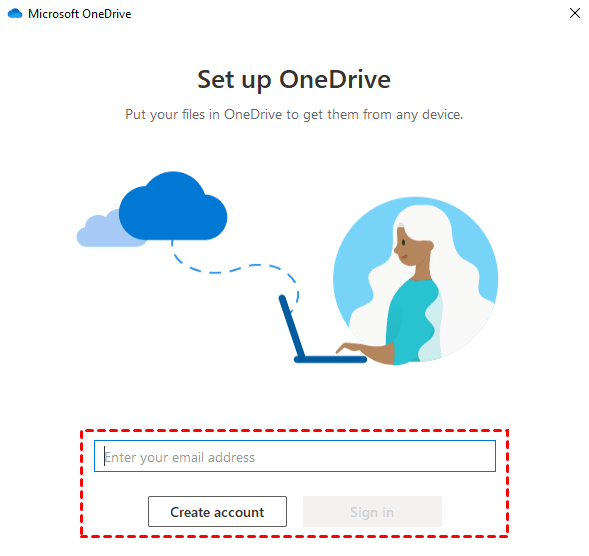
2. To access OneDrive, click the Start button, search for OneDrive, and open it to sign in with your Microsoft account. If you don't have one, you can click Create account.
3. On the Your OneDrive folder screen, select Next to accept the default folder location for your OneDrive files.
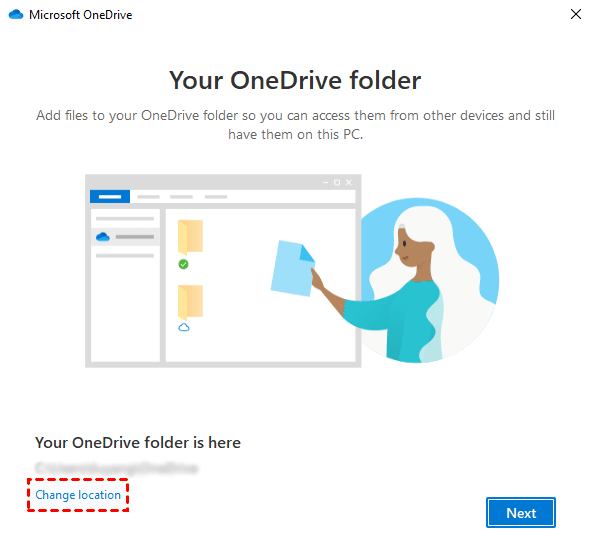
Tip: If you want to change the folder location, select “Change location” - this is the best time to make this change, for you haven’t synced any files yet.
4. Click Open my OneDrive folder in the Your OneDrive is ready for you page.
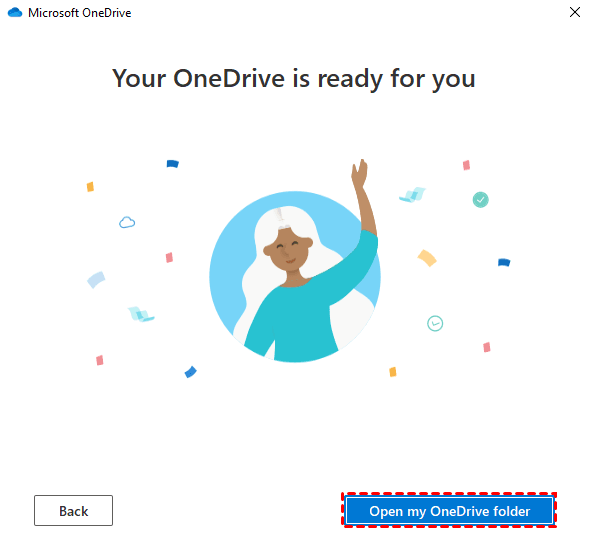
5. When you open this page, you can drag and drop or copy and paste the files/folders you want to sync into the OneDrive folder.
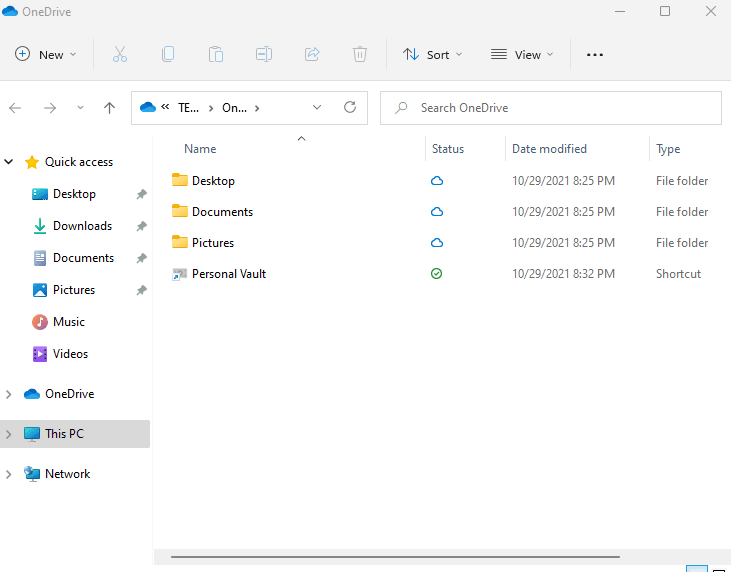
6. After that, your local folders on your PC will be automatically synced to OneDrive.
Note: You can also backup files to Dropbox, sync Google Drive with PC, or use their corresponding desktop apps.
Backup entire PC with best free online backup software
You can't use the built-in backup or sync apps from cloud services like Google Drive, OneDrive, or Dropbox to back up your entire computer, as they are designed for file backups only. To back up your entire computer to the cloud, you'll need to use a third-party backup software that supports cloud storage, such as Qiling Disk Master. These tools can create a full image of your computer's hard drive, including the operating system, applications, and data, and store it in the cloud for safekeeping. This way, you can ensure that your entire computer is backed up, not just your files.
Qiling Disk Master Standard is a professional backup service that allows you to backup files, disks, or your entire PC to the cloud for free, all with an easy-to-use interface.
✄ It supports various cloud clients including Google Drive, Dropbox, OneDrive, Box, SugarSync, hubiC, and Cloudme.
✄ This software supports backing up to various locations, including local disks, external hard drives, network shares, NAS devices, cloud drives, and USB drives, among others.
✄ This tool enables automatic backup of files to the cloud at predetermined frequencies, such as daily, weekly, or monthly, ensuring your data is safely stored and easily recoverable in case of loss or system failure.
✄ With incremental or differential backup, only changed data is backed up, reducing storage space and backup time.
✄ This software is compatible with all Windows PC operating systems, including Windows 11, 10, 8.1, 8, 7, Vista, and XP, in both 32-bit and 64-bit versions.
To backup your PC to the cloud for free, follow these graphical steps.
Step 1. To experience the capabilities of Qiling Disk Master, download it to your PC and give it a try.
Step 2. In the main interface, click Backup then choose System Backup.

Step 3. The program automatically selects the system-related partition(s) as the source data and you just need to choose a cloud drive to store your backup.

Step 4. Select the OneDrive folder as the destination to save the entire system image backup, which is likely located in C:\Users\UserName\OneDrive.
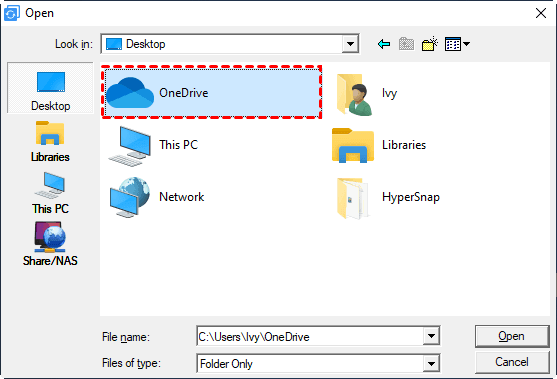
You can customize the settings you need:
Options: You can write any comments for your task to distinguish your backup from others, and set an email notification.
Schedule Backup: It allows you to automatically backup at a fixed frequency such as Daily, Weekly, Monthly.
Backup Scheme: It can help remove old backup images automatically to free up storage space. (available in the Professional edition)
Step 5. After managing your personalized settings, click Proceed to backup your whole PC to the cloud for free using the best free online backup tool.
To sum up
To get the best free cloud backup for your PC, choose a solution that meets your needs. If you only need to back up computer folders, public cloud storage like Dropbox, Google Drive, or OneDrive's computer application will suffice. However, for more comprehensive data protection, consider using a more functional and professional backup software like Qiling Disk Master.
It's not just a backup software, but also a powerful sync tool that allows you to easily sync folders on Windows 11. In addition to its syncing capabilities, it also offers many other useful features to protect your data. Try it out now!
Related Articles
- Best Free Way to Backup PC to Cloud in Windows 11, 10, 8, 7
Backing up PC Computer to cloud drives like Google Drive automatically with different free cloud drives. Try Qiling Disk Master, the best free way to backup a computer and data on it. Scroll for more details. - Best Free Backup and Sync Software for Windows 10, 8, 7
This guide explains Best Free Backup and Sync Software for Windows 10, 8, 7 with clear steps, key checks, and practical tips. - How to Backup Files to Different Clouds with Best Freeware
Learn how to Backup Files to Different Clouds with Best Freeware with clear steps, key checks, and practical tips. - 5 Best Disk Imaging Software for Windows 10/7 in 2022 | Paid & Free
This guide explains 5 Best Disk Imaging Software for Windows 10/7 in 2022 | Paid & Free with clear steps, key checks, and practical tips. - How to Copy Folders and Subfolders Using Xcopy Command?
Learn how to use XCopy command to copy folders and subfolders, not just files. Also, an easier way is presented. - Your PC Ran into a Problem Loop – Fixes for Windows 10/8.1/8
Owing to driver update, system file corruption or a memory issue, your computer may be stuck at a blue screen with error message: your PC ran into a problem loop.
Products
Articles & Tutorials
- Data Recovery
- Data Backup
- File Recovery
- File Backup
- File synchronize
- System Backup and Restore
- Disk and Partition Clone
- Technical articles
- Disk Master Help
- Windows Deleted File and Disk Recovery Tutorials
- Windows File and Data Recovery Tutorials
- More Windows Tutorials for Install, Security, Files, and PC Tips
- Windows Boot, Repair, and Recovery Environment Tutorials
- Windows Backup Tutorials
- Windows Restore Tutorials
- Windows Clone and Migration Tutorials
- Windows Server Backup, Recovery, and Management Tutorials
- Windows Disk, Partition, and Storage Management Tutorials