Best Free Backup and Sync Software for Windows 11, 10, 8, 7
The case: looking for Windows backup and sync software
Best backup software for Windows
You can use Qiling Disk Master for this. It's a popular backup software that supports Windows 10 and Windows 7, and can backup to an external HDD. It also has a scheduling feature to automatically backup on a set schedule, and can delete old backups when space runs out on the HDD. Additionally, it can also create bootable media in case your system fails. You can download a free trial version to test it.
File sync software suggestions?
Hello, I need a free program that checks folder A (and all subfolders) and copies changes across to folder B (and subfolders). It should be reliable (i.e not crash in the middle of a sync job), do the job accurately and have a relatively simple interface.
I have been using FreeFileSync for a while now which does this well but with the amount of adware being bundled of late. I am looking for an alternative. Any suggestions?
- Question from Tenforums.com
Many people now understand the significance of backing up their data and want a reliable backup solution to prevent data loss due to human error, hard drive crashes, virus attacks, and other issues.
There is a great demand for file sync software that can help copy files between two folders, two drives, or even two computers, making it possible to use one tool for both backup and sync purposes.
Best backup and sync software for Windows 11/10/8/7
Qiling Disk Master Standard is a free Windows backup and sync software that combines both functions.
Backup features
- This software allows you to backup the operating system, an entire HDD/SSD, a specific partition, or individual files and folders. Additionally, if you have a Qiling account, you can also backup files and folders to Qiling Cloud.
- The software has a built-in schedule feature that allows users to perform daily, weekly, or monthly backups.
- It offers various backup options, including email notification, image compression, and backup priority.
Sync features
- It allows syncing files between different locations, like syncing a laptop with a desktop, or two external hard drives.
- Syncing files between your PC and NAS devices or cloud services is possible with this tool. It supports various NAS devices (WD, Seagate, Synology, etc.) and cloud drives (Google Drive, Dropbox, OneDrive, Box, SugarSync, hubiC, and Cloudme).
- It can automatically sync changed files from the source directory to the destination directory if you enable a sync schedule.
You don't need to worry about your computer know-how, because Qiling Disk Master has a user-friendly interface. Download and install it on your PC right now!
How to backup or sync files in Windows 10 easily
To back up and sync files in Windows 10, follow these steps. First, back up your files by going to Settings > Update & Security > Backup > Add a drive, then select the drive you want to back up to.
Backup files to USB on Windows 10
1. Connect the target USB drive to your computer and run the backup software, then click on "Backup" and select "File Backup".

2. After choosing the folders or files you want to backup, click on the "Backup" button to initiate the backup process. This will start the backup job, and you will be able to see the progress in the interface. Once the backup is complete, you can verify the backup files by checking the backup folder or by using the software's built-in verification tool.

3. Select the USB drive as the destination path to store image files, or choose a local disk, external hard drive, or network location for backup.

4. Confirm your settings and click Proceed to proceed.

✎ Tips:
● You can schedule automatic backups using the "Schedule" feature, choosing from daily, weekly, or monthly intervals. The Backup Scheme feature allows you to select different backup methods, including full, incremental, and differential backups, and enable automatic cleanup to save disk space, with the advanced version required for differential backup and cleanup.
● To restore to a previous version or recover lost files, click Restore > Select Task/Select Image File and follow the wizard to complete the process.
Sync files to another folder on Windows 10
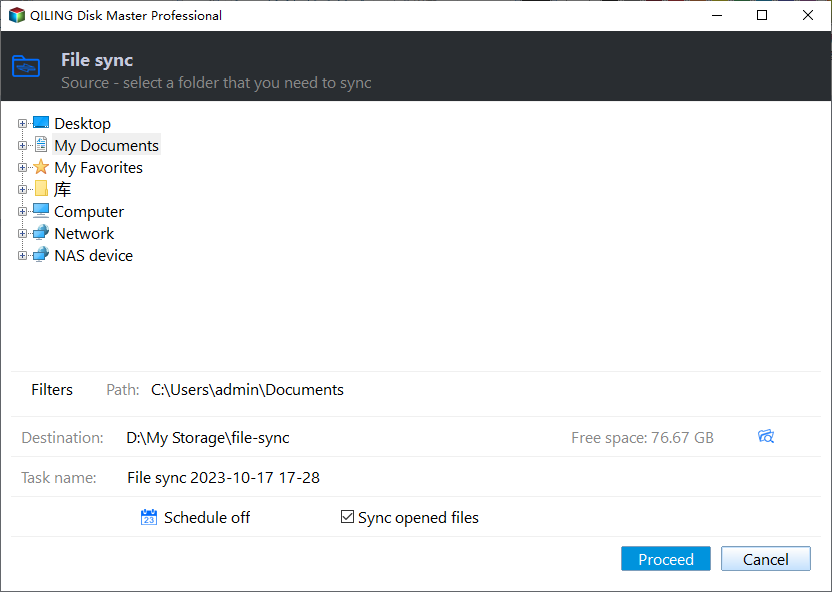
1. Launch the free sync software for Windows 10, click Backup and select File Sync.

✎ Tip: Basic Sync is actually a one-way sync, meaning it syncs changes from the source folder to the destination folder, but not the other way around. If you want changes to be synced in both directions, you'll need to use Two-Way Sync in a higher edition.
2. Name the sync task if needed. Then, click Folder to select the folder to be synchronized. You are able to select multiple folders as source folders in one sync task.

3. The synced files can be stored in a folder located on a local or external disk, an NAS device, or a cloud drive.

4. To run an automatic sync, click Schedule. Review your settings and then click Proceed.
Verdict
If you need free backup and sync software for Windows 11/10/8/7, Qiling Disk Master is a great option. It offers a range of features, including creating system images on USB and syncing local folders to OneDrive, making it a comprehensive solution for all your backup and sync needs.
Related Articles
- Best Free One-way File Sync Software for Windows 7/8/10
- Best Real-Time Backup Software to Keep Data Always Up to Date
- Step-by-Step Guide for Previous Versions in Server 2012
Previous Versions in Server 2012 is a practical feature that can be used to recover files/folders to an earlier version. For more information, please read this article. - Effective Way to Recreate User Profile on Server 2012(R2)
This guide explains Effective Way to Recreate User Profile on Server 2012(R2) with clear steps, key checks, and practical tips. - Prime USB Drive Sync Software for USB Auto Sync in Windows
This tutorial introduces the best USB drive sync software for Windows and shows detailed steps to auto sync a USB drive when plugged in. - WD My Cloud Dropbox Sync | Two Ways
Here are two ways to perform WD My Cloud Dropbox Sync, one is manually and the other is automatic. Check out the following and find out.
Products
Articles & Tutorials
- Data Recovery
- Data Backup
- File Recovery
- File Backup
- File synchronize
- System Backup and Restore
- Disk and Partition Clone
- Technical articles
- Disk Master Help
- Windows Deleted File and Disk Recovery Tutorials
- Windows File and Data Recovery Tutorials
- More Windows Tutorials for Install, Security, Files, and PC Tips
- Windows Boot, Repair, and Recovery Environment Tutorials
- Windows Backup Tutorials
- Windows Restore Tutorials
- Windows Clone and Migration Tutorials
- Windows Server Backup, Recovery, and Management Tutorials
- Windows Disk, Partition, and Storage Management Tutorials