Best Real-Time Backup Software for Windows 10/11 [2023]
What is a Real-Time Backup
Real-Time backup, also known as continuous backup or continuous data protection (CDP), is a method that automatically saves a copy of each change made to data, capturing multiple versions over time.
With real-time backup, your data is automatically saved to a secure location as soon as it's written to your disk, allowing for more frequent and accurate backups compared to traditional methods where backups are only done at specific intervals. This approach ensures that your data is always up-to-date and can be restored to the exact moment of a change, rather than just the last scheduled backup time.
👉If you need to auto-backup important data to another location and keep it in sync with the source, or edit the latest version from another device, then real-time backup could be a good choice.
Does Microsoft Windows have a real-time backup program
Unfortunately, Windows operating systems like Windows 10 and Windows 11 have not had a true real-time backup solution, despite having convenient backup utilities.
You can use Window Backup and Restore or File History to create a scheduled backup, which can achieve a near-real-time backup effect, but it's not a true CDP. This is a free option, but it's still not a true CDP.
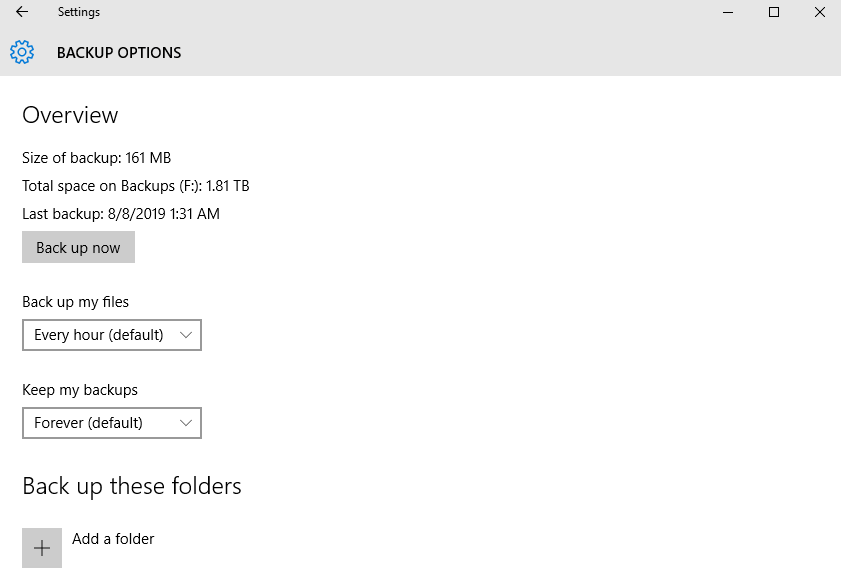
In certain situations, it's still more advisable to utilize professional real-time backup software, which can provide more comprehensive and reliable protection for important data. This is particularly true when dealing with sensitive information, large datasets, or high-traffic systems that require continuous monitoring and safeguarding.
- To ensure both parties have the latest version of specific files, you can use a file synchronization tool like Google Drive, Dropbox, or Microsoft OneDrive. These services allow you to share files and folders with others, and they will automatically sync the latest changes.
- Want to always keep an up-to-date copy of important data as a double insurance...
Best Real-Time Backup Software for Windows 10/11
You can find much real-Many real-time backup software for Windows claim to have this feature, but most have limitations, such as Cloud Backup's limited storage for basic users and a high annual premium plan cost.
It's highly recommended to use robust real-time backup or sync software with complete options, including real-time backup, at an affordable price. Qiling Disk Master Professional is an ideal choice for the best File Sync software.
It supports File Sync, as well as File Sync, File Sync, and Two-Way Sync.
Besides continuous protection, you can set the schedule as daily, weekly, monthly, event triggers or USB plug in. The most frequent option is hourly in a day.
You can copy data to a local disk, external drive, cloud drive, NAS, and so on.
It fully supports Windows 11, 10, 8/8.1, 7, XP, Vista, both 32-bit and 64-bit. For server users, try Qiling Disk Master Server!
To get started, download the real-time backup software free trial (30 days) to test its capabilities.
The File Sync feature can be used for 30 days, but for continuous protection, you should upgrade to the official version.
How to Create Real-Time Backup in Windows 10 Step by Step
After installing Qiling Disk Master Professional, you can easily create a continuous backup job that automatically captures changed data in real-time.
How to use the real-time backup software for auto sync:
1. Launch the real-time backup software and select File Sync under the Backup and recovery tab.
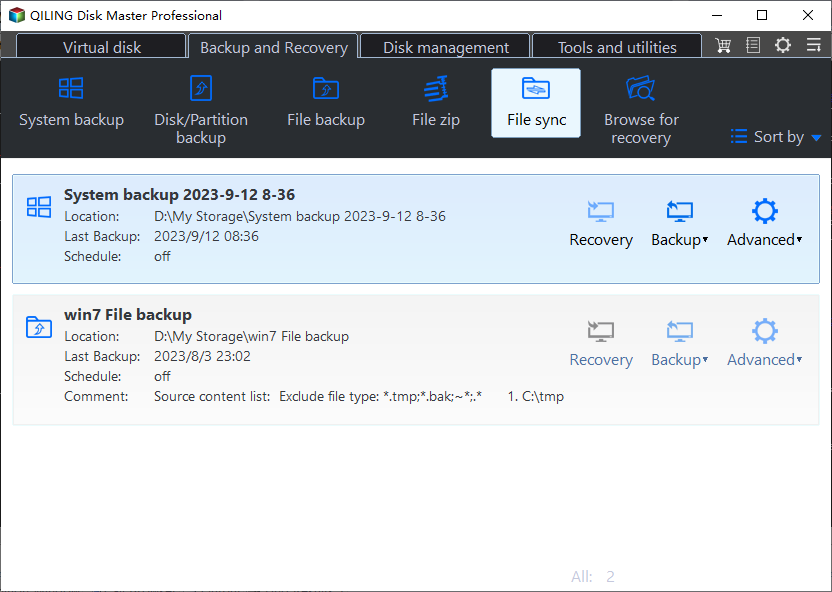
You can also sync files with a schedule when using different sync methods, such as daily, weekly, or monthly.
✔ File SyncThe tool is designed to synchronize files from a source to a destination, and it supports all possible schedule settings.
✔ File SyncSimilar to File Sync, this feature is focused on syncing files in the destination path, undoing any changes made directly in the destination, whether it's newly added, modified or deleted files.
✔ Two-Way SyncThe sync method will sync changes between the source and destination paths, ensuring any changes made on one side are reflected on the other.
2. Select one or multiple folders to sync by clicking on the "Folder" option, then choose a destination path for the sync. You can also customize the task name for easier identification.
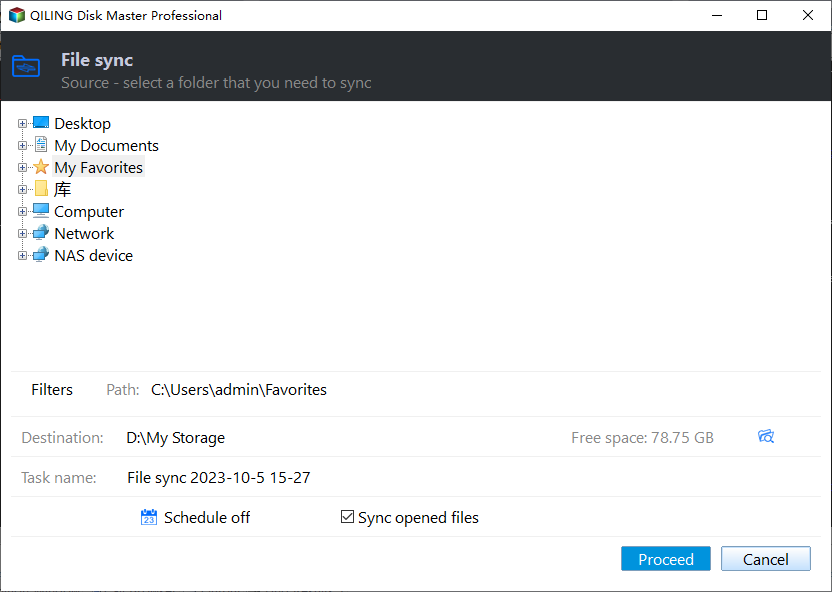
To filter file types during syncing, click the funnel icon, which is often labeled as "Filter settings". This allows you to exclude or include specific file extensions, thus saving time and space by only syncing the types you need.
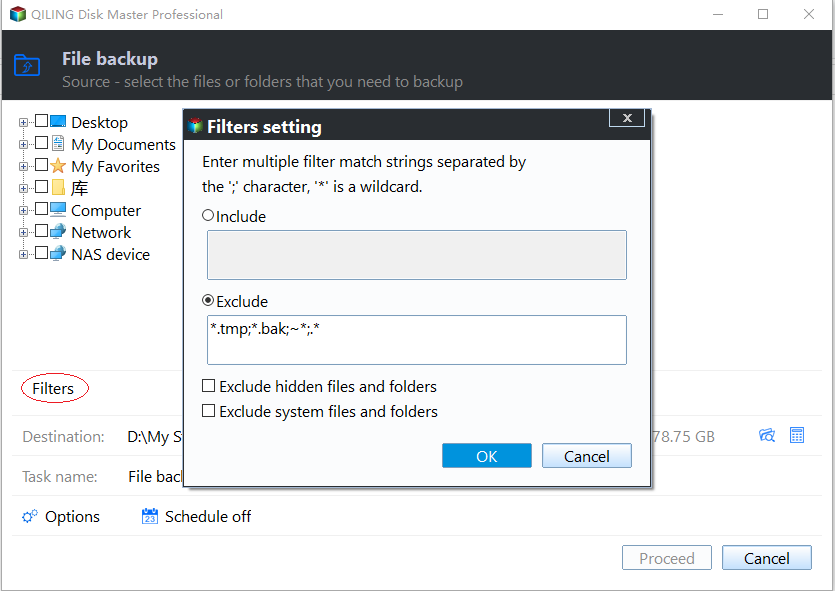
3. After clicking "Proceed", the real-time sync will be initiated to keep all data up to date. This process can also be accompanied by leaving a comment, verifying the integrity of files in the destination directory, or automatically creating a folder with the same name as the task in the target location.
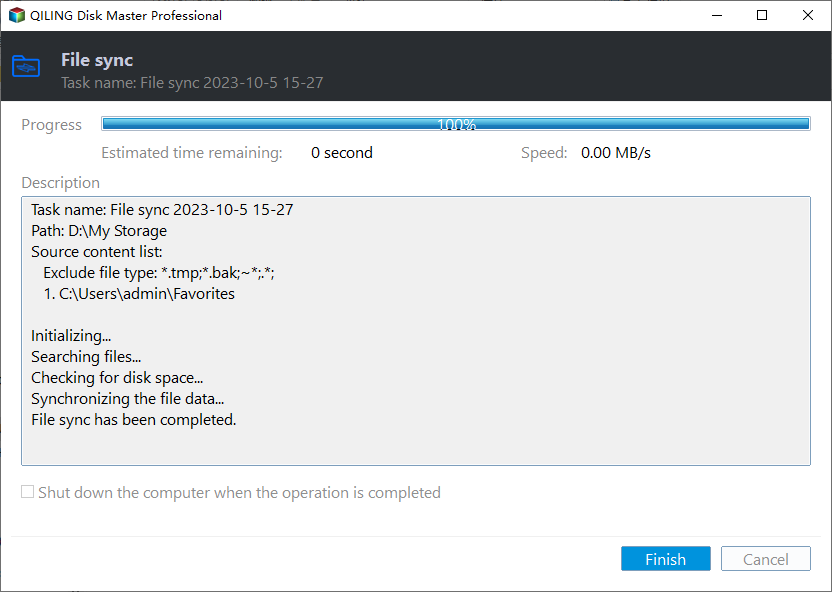
Conclusion
The best real-Qiling Disk Master Professional allows for real-time syncing of changed files from a source directory to a destination directory, as well as syncing with different frequencies such as daily, weekly, and monthly, with the option to sync hourly for the fastest frequency.
This software offers various backup options, including file backup, cloud Backup, system backup, scheduled backup, and incremental or differential backup, making it a comprehensive data backup and disaster recovery solution.
Related Articles
- Best Real-Time File Replication Software to Sync Changes
- How to Perform Real-Time Backup to External Hard Drive
- Easiest Real-time File/Folder Sync Software for Windows 10/8/7
- How to Run File Sync for Folders in Windows 10 Easily
- How to Recover Permanently Deleted Files in Windows 7 Easily?
Learn the key steps, checks, and practical tips for this related guide. - How to Reinstall Windows 7 without CD or USB with Ease?
Learn how to Reinstall Windows 7 without CD or USB with Ease with clear steps, key checks, and practical tips.
Products
Articles & Tutorials
- Data Recovery
- Data Backup
- File Recovery
- File Backup
- File synchronize
- System Backup and Restore
- Disk and Partition Clone
- Technical articles
- Disk Master Help
- Windows Deleted File and Disk Recovery Tutorials
- Windows File and Data Recovery Tutorials
- More Windows Tutorials for Install, Security, Files, and PC Tips
- Windows Boot, Repair, and Recovery Environment Tutorials
- Windows Backup Tutorials
- Windows Restore Tutorials
- Windows Clone and Migration Tutorials
- Windows Server Backup, Recovery, and Management Tutorials
- Windows Disk, Partition, and Storage Management Tutorials