How to Recover Permanently Deleted Files in Windows 7, 10, 11
- Situations when files are permanently deleted
- Top 3 ways to recover permanently deleted files in Windows 7/10/11
- Method 1: restore files with Windows Backup
- Method 2: recover files from previous version
- Method 3: recover files via professional data recovery software
- Protect your files in a safer way: backup files to external hard drive
- Wrapping things up
Situations when files are permanently deleted
We often create and download files on our computers daily, which can lead to a buildup of unnecessary files taking up valuable disk space. In such cases, deleting extra files is necessary. Files can be permanently deleted when they are no longer needed or are duplicates, freeing up space on our devices.
- Delete files with Shift + Delete.
- To delete separate files from the Recycle Bin, or empty the Recycle Bin entirely, follow these steps: First, right-click on the Recycle Bin icon on your desktop or in the taskbar, then select Empty Recycle Bin from the context menu. Alternatively, you can also open the Recycle Bin, select the files you want to delete, right-click on them, and choose Delete to permanently remove them.
- Remove files from external hard drives like USB flash drives or SD cards.
- When a file is placed in a folder that already contains a file with the same name, the original file is replaced or "overwritten" by the new file, effectively losing its original contents.
- Files are deleted due to virus attack.
If files are deleted and no longer needed, there's nothing to worry about. However, if the deleted files turn out to be useful later, you may want to recover them. Fortunately, it is possible to recover permanently deleted files in Windows 7/10.
Top 3 ways to recover permanently deleted files in Windows 7/10/11
Here are three effective methods of recovering deleted files in Windows 7 or 10/11:
Method 1: restore files with Windows Backup
If you've backed up files and folders with Windows Backup, you can restore permanently deleted files/folders by going to Control Panel > System and Security > Backup and Restore, clicking on "Restore my files" and following the prompts to select the backed up files you want to restore.
1. Navigate to the Backup and Restore utility.
In Windows 10To access Backup and Restore in Windows 7, go to Start, then Settings, followed by Update & Security, then Backup, and finally click on Backup and Restore.
In Windows 11: Start > Settings -To access the Backup and Restore (Windows 7) feature, go to System > Storage > Advanced Storage options > Backup options, then scroll down to Looking for an older backup and select Go to Backup and Restore (Windows 7).
2. Click on Restore my files in the Restore part.
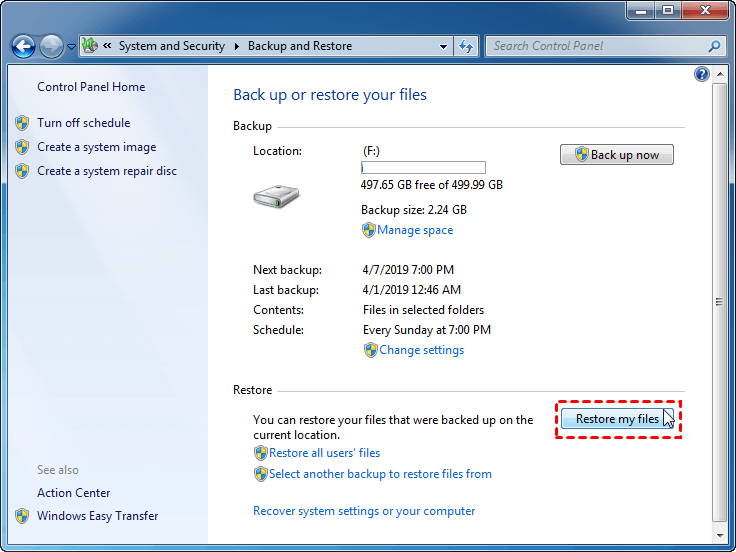
3. In the pop-up window, click Browse for files to find the files you want to recover. You can also click Search and type the filenames to find them.
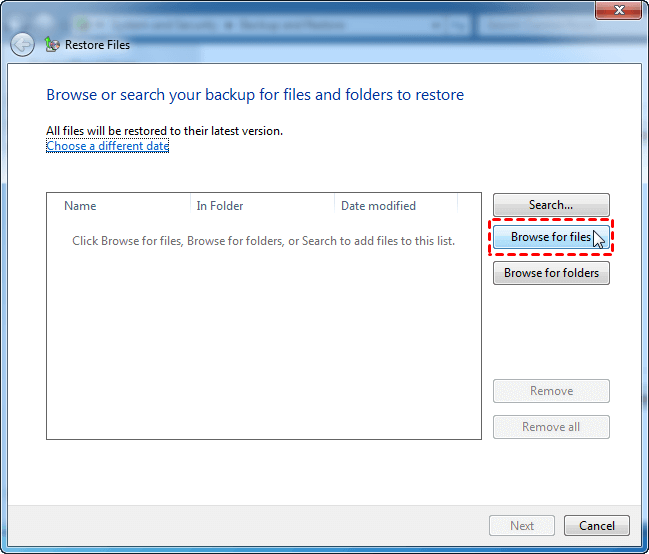
Tip: You can click "Browse for folders" to select specific folders to recover.
4. In the next window, select the location where you want to save the recovered files and click Restore to initiate the recovery process.
Method 2: recover files from previous version
If you have turned on system protection on the drive that used to contain deleted files and created restore point for it, you can recover files from previous versions in following steps:
1. To restore deleted files or folders, double-click the "Computer/This PC" icon on your desktop, navigate to the folder that used to contain the deleted items, right-click on it, and select "Restore previous versions".
Tip: If the folder is at the top level of a drive, such as C:\, right-click the drive and select "Restore previous versions".
2. Select a previous version of the folder that contains deleted files according to the date, then click Open to view it to confirm.
3. Click Restore to restore the folder to the original location.
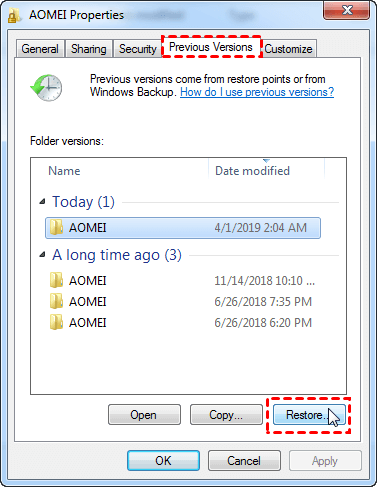
Note: The folder will replace the current version on your computer using the Restore feature. You can also copy the previous version to another location using the Copy feature, allowing you to keep both versions.
Method 3: recover files via professional data recovery software
If there are no Windows backups or previous versions available, a professional data recovery tool like Deep Data Recovery can help recover lost data.
The device is equipped with advanced scanning technologies that can be applied to various situations, including deletion, disk formatting, emptying the recycle bin, and recovering from system crashes.
To recover permanently deleted files or folders in Windows 7 or 10, follow these detailed steps. First, stop using the affected device and external drives to prevent overwriting the deleted data.
Step 1. Download and run the program, choose a location to start file recovery, and click "Start Scan" to initiate the file recovery process.

Step 2. Filters like Size, Type, Date modified, etc., are used to quickly narrow down files based on specific criteria, making it easier to find what you're looking for.

Step 3. Go to the "Deleted files" section, locate the deleted files in their original location, select the files you want to recover, and click "Recover" to restore them.

Protect your files in a safer way: backup files to external hard drive
Recovery methods for permanently deleted files in Windows 7/10/11 typically involve using the built-in System Restore feature, which is safer since it contains all files saved on the system partition, or recovering from system restore points. Data recovery software, on the other hand, is riskier as it targets the specific location where the files were deleted, and may not always recover the files or recover them fully.
To ensure flexibility and safety, it's recommended to create a system restore point and a file backup, allowing you to restore specific files without restoring the entire system to a previous date.
I recommend Qiling Disk Master Standard, the best free backup software, which allows you to backup files to external hard drives or other recognized storage devices, offering more advanced features than Windows' built-in backup tools.
✦ It allows you to backup files using Full Backup or Incremental Backup. The latter option enables you to backup only changed files since the last backup, providing a more efficient and targeted backup process.
✦ The Schedule Backup feature allows you to set your backup tasks to run at intervals such as daily, weekly, or monthly.
✦ You can compress backup images with Normal or High compression level, enable Intelligent Sector Backup, and utilize the VSS backup service, among other features.
✦ You can also perform full system backups, as well as backing up disks and partitions, in addition to file backup.
✦ It's free of charge!
Just download this freeware to have a try.
Note: To backup files in Windows Server, you can use Qiling Disk Master Server to backup files in Windows Server 2019, 2016, 2012, etc.
After clicking the "Backup" tab page, you'll see all the backup types available, and you should select "File Backup" on the right-hand panel.

To select the data that means a lot to you, click on either the "Files" or "Folders" option. This will allow you to choose all the files or folders by clicking on them repeatedly.

Select the files you want to back up, then choose a destination path to store the backup images, such as an external hard drive that you have connected.

Now, almost everything is done. Check the following options and select the one you need. Then, click Proceed to backup files.
Tips on how to restore files from backup:
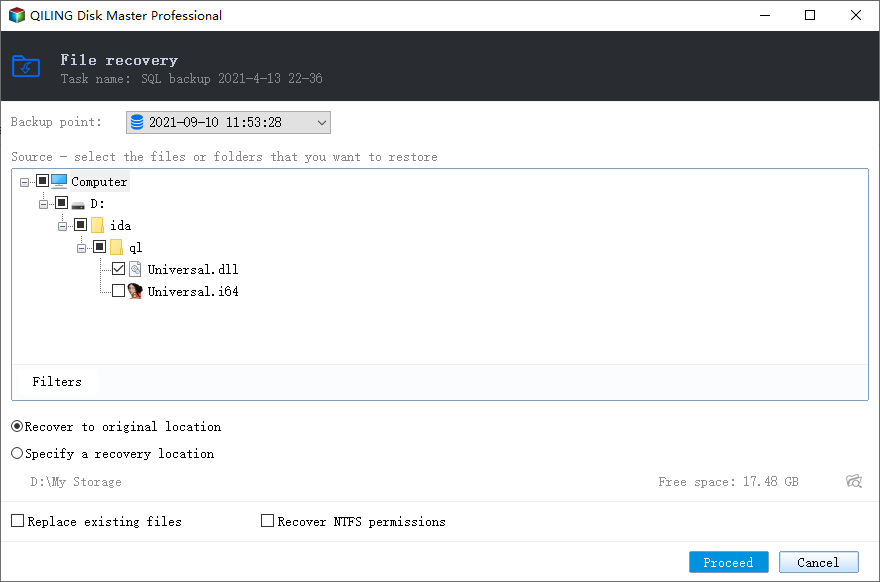
You can switch to the Restore tab and follow the instructions to recover your account.directly restore files from file backupHowever, if you create other backup solutions, such as system backup, you'll need to ensure they are properly configured and functioning correctly.use the Explore Image feature.
The software allows you to assign drive letters to all partitions on the disk, making it possible to mount them in the Windows Explorer, where you can then copy files you want to restore.
Wrapping things up
You can now easily recover permanently deleted files and folders in Windows 7/10/11 using the methods mentioned. Additionally, creating a file backup can safeguard your precious data. Qiling Disk Master is a helpful tool that not only allows for file backup but also supports backing up the system, disk, and partitions, and offers advanced features like scheduled backup, incremental backup, and intelligent sector backup.
Besides the backup and restore features, it is also capable of cloning disk, for example, clone Dell laptop hard drive, and syncing files, even between different locations (see: sync two external hard drives), and more. Any interest? Just go for it!
Related Articles
- How to Recover Deleted Files in Windows 7 without Backups
Learn how to Recover Deleted Files in Windows 7 without Backups with clear steps, key checks, and practical tips. - Restore Deleted Files in Windows 10/8/7 for Free
If you find your important files deleted accidentally, don't stress out until you try these 4 methods to restore deleted files in Windows 11/10/8/7. - How to Recover Deleted Files from Recycle Bin after Empty
This guide will tell you how to recover deleted files from recycle bin after empty in Windows 7/8/10. Four solutions are provided with detailed steps. - Automatically Backup and Recover Word Documents in Windows 10
This article illustrates how to save, backup and recover (unsaved or deleted) word documents in Windows 10 automatically. Thus, you don't need to worry about data loss. - How to Backup Files If Windows Doesn't Boot
If Windows doesn't boot successfully, you cannot access files on the PC. Fortunately, you can learn how to backup files if Windows doesn't boot in this article. - How to Backup Files on USB Flash Drive Windows 11/10/8/7
It is necessary to backup files on USB flash drive. Here you can learn how to backup files on USB flash drive, SD card, pen drive, etc with Qiling Disk Master easily.
Products
Articles & Tutorials
- Data Recovery
- Data Backup
- File Recovery
- File Backup
- File synchronize
- System Backup and Restore
- Disk and Partition Clone
- Technical articles
- Disk Master Help
- Windows Deleted File and Disk Recovery Tutorials
- Windows File and Data Recovery Tutorials
- More Windows Tutorials for Install, Security, Files, and PC Tips
- Windows Boot, Repair, and Recovery Environment Tutorials
- Windows Backup Tutorials
- Windows Restore Tutorials
- Windows Clone and Migration Tutorials
- Windows Server Backup, Recovery, and Management Tutorials
- Windows Disk, Partition, and Storage Management Tutorials