How to Recover Deleted Files from Recycle Bin after Empty
- The need to recover files from recycle bin after empty
- Stop writing anything on your hard drive
- How to recover deleted files from recycle bin after empty in Windows 10/8/7
- Way 1. Recover files from recycle bin after empty via the previous version
- Way 2. Recover files from recycle bin after empty via Windows backup utility
- Way 3. Recover files from recycle bin after empty with a Command Line
- Way 4. Recover files from Recycle Bin after empty via data recovery software
- Learn a lesson: a file backup make you never worry permanently deleted files
- Conclusion
The need to recover files from recycle bin after empty
Many people have experienced the frustration of deleting files and documents, only to find out later that they need some of them back. Whether it was a mistaken deletion or a deliberate one, the problem arises when the recycle bin has been emptied, leaving no obvious way to recover the lost files.
Don't worry if you've deleted files and want to recover them from the recycle bin after emptying it in Windows 10, 8, or 7. You can follow the steps in this article to restore the deleted files.
Stop writing anything on your hard drive
When you realize you've emptied the recycle bin and need to recover an important file, stop using your computer immediately. The deleted files are not permanently gone and are still stored on the hard drive as raw data, waiting to be recovered.
When you delete files, they don't disappear immediately. They first go to the recycle bin, and if you empty it, they're gone forever. If you realize you made a mistake, you can undo emptying the recycle bin, giving you a chance to recover the deleted files. It's a good idea to do this as soon as possible to avoid losing the files.
How to recover deleted files from recycle bin after empty in Windows 10/8/7
Here in this part, you will learn 4 methods that can help you recover files from recycle bin after empty. First, you can try the Windows built-in tool to find the deleted files. If not, try the recovery software then.
Way 1. Recover files from recycle bin after empty via the previous version
In Windows 7/8, system protection is enabled by default, which automatically creates restore points. This allows you to restore permanently deleted files to previous versions, including those in the Recycle Bin, by reverting to an earlier restore point.
1. To recover a deleted file or folder, create a new file or folder on the desktop with the same name as the deleted one. If the folder was at the top level of a drive, you can right-click the drive and select "Restore previous versions" to recover it.
2. Right-click the file and choose "Restore previous versions". Windows will search for and list the previous versions of the permanently deleted files or folder with different times and dates.
3. To recover permanently deleted files or folders, choose the latest one and click "Restore" to recover them with ease.

If you turn off system protection, there will be no previous versions of files available, and you can try to recover data using the Command Prompt.
Way 2. Recover files from recycle bin after empty via Windows backup utility
If you've set up your backup using the Backup and Restore utility, you can try restoring files from the Recycle Bin after emptying it.
1. Go to "Control Panel" and choose "System and Security".
2. Select "Backup and Restore (Windows 7)" and click the "Restore my files" button.
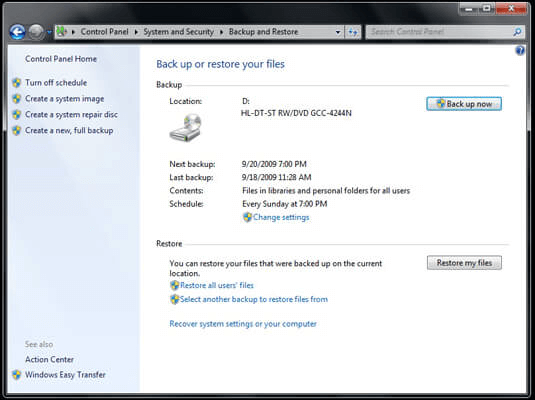
3. To recover deleted files, follow the steps in the wizard, which will guide you through the process of finding and restoring the deleted files.
Way 3. Recover files from recycle bin after empty with a Command Line
The Command Prompt can be used to recover files that were mistakenly deleted, even if the Recycle Bin is empty.
1. To boot your PC in Safe Mode with Command Prompt, press the F8 key when your computer is starting up. This will open a menu where you can select Safe Mode with Command Prompt.
2. To navigate to the recycle bin folder, type "cd../.." and press Enter. If your PC is running Windows 7 or later, type "cd $Recycle.Bin" and press Enter.
3. To navigate to a specific directory, type `cd` and press the tab key. This will auto-complete the directory name. Then, press Enter to access the directory. (see image below)
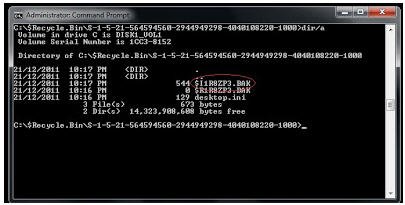
5. To show all files, type "dir" followed by a forward slash and "a" (dir/a). Then, copy the desired file by typing "copy [file name] [file location]". Next, navigate to the parent directory using "cd".
Using the Command Prompt to undo all deletions from the recycle bin can reveal all files that have been deleted, but it may not restore them to their original state. This method carries some risks and is not recommended for non-experts.
Way 4. Recover files from Recycle Bin after empty via data recovery software
If the above methods fail, you can try using professional data recovery software to recover files from the Recycle Bin.
Deep Data Recovery stands out as a leading data recovery software due to its advanced features and user-friendly design. Even non-tech users can easily recover deleted or lost files from various storage devices, such as internal and external hard drives, memory cards, and USB drives, thanks to its guided and easy-to-follow operating steps.
Don't hesitate to download this utility on your Windows 11, 10, 8, 7, or Windows Server computers now, and in just three steps, you can recover deleted files from the Recycle Bin even after emptying.
Step 1. Run Deep Data Recovery on your PC, and select the C drive. Then click Start Scan.

Step 2. To see all the deleted and raw files on your local disk C drive, you can search for them. Alternatively, you can wait and see if they appear in the Recycle Bin or other recovery locations.

Step 3. To recover selected files, go to the Recycle Bin folder, click on the files you want to recover, and then click to restore them. Save the recovered files in a new path.

Learn a lesson: a file backup make you never worry permanently deleted files
After experiencing trouble recovering deleted files from the recycle bin after emptying it, it's time to learn a valuable lesson: protecting files from loss requires regular backups.
A regular backup protects your files from accidental deletion, virus, system failure, hard drive failure, and other potential threats by creating a duplicate copy of your data, ensuring its safety and recoverability in case of any unexpected events.
You can use free backup and restore software like Qiling Disk Master to backup your important files and folders on a schedule, creating incremental backups to avoid disk space issues, and easily handle with its user-friendly interface.
Step 1. Download Qiling Disk Master, run this tool, and at the main interface, click "backup" and choose "File Backup" to protect your data, or click "disk backup" to safeguard your entire disk.

Step 2. To select a folder or file, click on "Files" or "Folders" at the next Windows, then select your desired folder or file. Next, click on the second box to choose the destination path.

Step 3. To set up automatic backups, click the "Schedule Backup" button. This allows you to choose from five options: Daily, Weekly, Monthly, Event trigger, or USB Plug in. The last two options, Event trigger and USB Plug in, are premium features available on the professional version.

Step 4. Then you can click Proceed.

If you deleted the recycle bin by accident, you can restore the deleted files using a backup created by Qiling Disk Master, saving you time and effort to recover deleted files from the recycle bin after emptying.
All in all, you have two ways for file restore. And I'll introduce you to the overall steps:
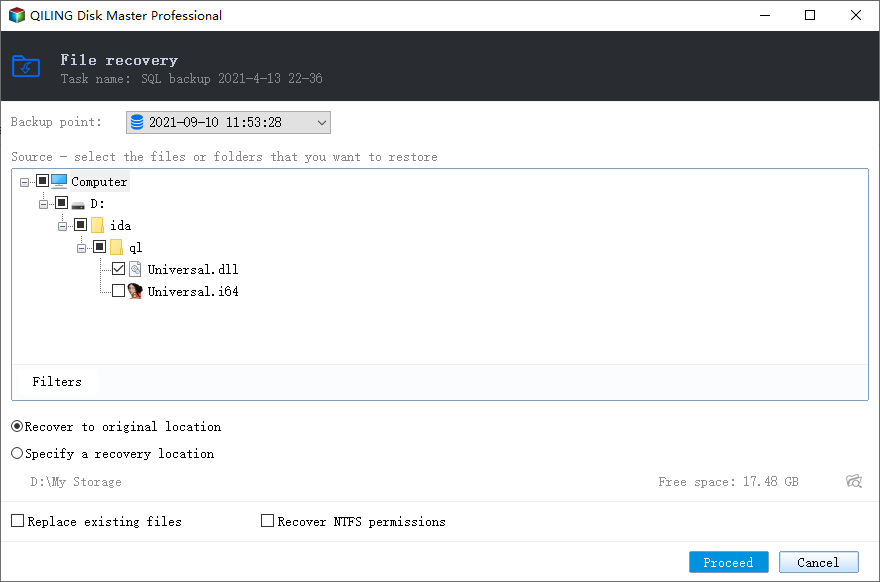
#1: Restore files from file backup. You need to create a file backup in advance and can choose to restore files to their original location or a new one.
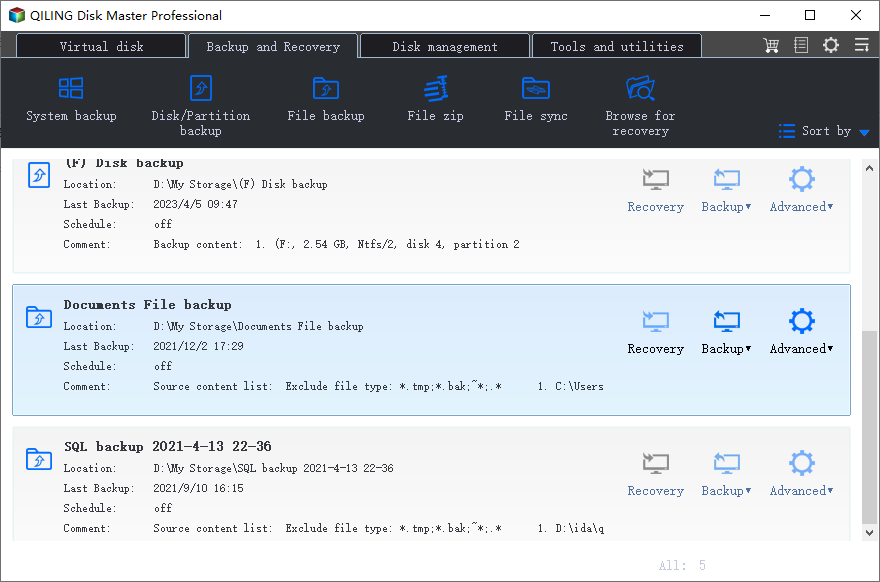
#2: Restore files using Explore Image. This method applies to all backup solutions, including file backup, which saves all files to their original location by default, maintaining their original structure.
Conclusion
If you've accidentally emptied the recycle bin and need to recover deleted files in Windows 10/8/7, don't worry - there are methods to help you retrieve them. You can try using the built-in File History feature, check the recycle bin's shadow copies, or use a third-party data recovery tool like Qiling Disk Master. Hopefully, one of these methods will help you recover your deleted files. To avoid this problem in the future, remember to make a scheduled backup of your files using Qiling Disk Master.
Related Articles
- How to Recover Lost Files in Windows 10 Efficiently?
Learn how to Recover Lost Files in Windows 10 Efficiently with clear steps, key checks, and practical tips. - How to Schedule Automatic Backup in Windows 10 Easily?
You can easily create schedule automatic backup in Windows 10 with the help of Backup and Restore (Windows 7), File History and Qiling Disk Master Standard. - How to Backup Files in Safe Mode Windows 7/8/10
You will learn how to backup files in Windows 7, 8, 10, 11 when safe mode is accessible or not. - Backup Data before Replacing Hard Drive in Windows 10 (2 Ways)
This article tells you how to backup data before replacing hard drive to ensure data security. - How to Create Scheduled Task to Copy Files to Another Folder?
With robocopy and Task Scheduler, you can create a scheduled task to copy files to another folder on regular basis. Here are the steps and also an easier alternative. - Best Free Second Copy Alternative - Qiling Disk Master
In this article, you will learn more about Second Copy and the best free Second Copy alternative, which helps you copy files automatically even when it can't copy files.
Products
Articles & Tutorials
- Data Recovery
- Data Backup
- File Recovery
- File Backup
- File synchronize
- System Backup and Restore
- Disk and Partition Clone
- Technical articles
- Disk Master Help
- Windows Deleted File and Disk Recovery Tutorials
- Windows File and Data Recovery Tutorials
- More Windows Tutorials for Install, Security, Files, and PC Tips
- Windows Boot, Repair, and Recovery Environment Tutorials
- Windows Backup Tutorials
- Windows Restore Tutorials
- Windows Clone and Migration Tutorials
- Windows Server Backup, Recovery, and Management Tutorials
- Windows Disk, Partition, and Storage Management Tutorials