Effective Way to Recreate User Profile on Server 2012 (R2)
Case: User profile on Windows Server 2012 corrupted
Sometimes, you may find a corrupted user profile on Windows Server 2012 or other operating systems. Such as the following situation.
Unfortunately, it seems that the user files were deleted permanently, and the folder is no longer accessible. System restore didn't work, which suggests that the issue is more severe. In this case, a full system reinstall might be the most reliable solution to restore the original state of the system and its users. However, if you're not ready to reinstall, you can try using a data recovery software to attempt to recover the deleted files, but this is not guaranteed to work. If you're not comfortable with reinstalling, you may want to consider seeking professional help from a PC technician.
How to recreate user profile on Windows Server 2012
To delete the damaged user profile and recreate the default user profile on Server 2012 R2, follow these steps: You can delete the damaged user profile and then recreate the default user profile by navigating to the "C:\Users" folder, finding the damaged profile, and deleting it. Then, go to the "C:\Users" folder again, right-click on the "Default" folder, and select "Properties." In the properties window, click on the "Security" tab, then click on the "Edit" button, and add the "System" account with "Read & Execute" permissions.
1. To resolve the issue, log in to the computer with an administrator account where the corrupted user file is located. This will allow you to access and modify the file without any restrictions, enabling you to troubleshoot and resolve the problem effectively.
2. Open the Control Panel to select System.
3. To access the User Profiles settings, click the Advanced tab and then the Settings button in the User Profiles area.
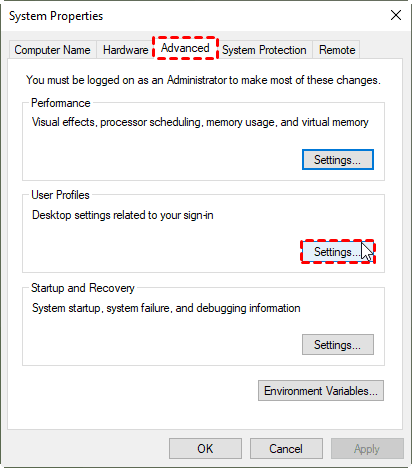
4. Select the appropriate user profile in the Profiles list and click delete.
5. Click Yes if there is a prompt.
6. Log off the administrator account.
7. If a user's profile is damaged, restarting the computer will automatically create a new user profile for that user account.
Effective way to prevent damage or loss of important data
In situations where user profiles are deleted or damaged, such as by mistake or unknown reasons, it can be frustrating and time-consuming to resolve the issue, and sometimes it may not be possible to successfully fix it.
To protect your important data, including files, photos, videos, and even your operating system, it's a good idea to adopt a regular automatic backup strategy, such as backing up your user profile or OS at a certain frequency. This way, if something bad happens to your system, you can easily restore your critical data.
Here, I recommend Qiling Disk Master Server, which works well with various Windows versions, including Windows Server 2022, 2019, 2016, 2012(R2), 2008(R2), 2003, and Windows 11, 10, 8.1, 8, 7, Vista, XP. It offers excellent backup features that can greatly benefit users.
◑ Backup Options: backup files/disks/partitions/OS in full, incremental or differential manner.
◑ Automatic Backup: It allows you to set a backup schedule based on frequency or specific events.
◑ Retention Policy: enable automatic backup cleanup to auto delete obsolete backups and free up disk space.
◑ Other Useful Features: To customize your backup settings, you can enable email notifications, encrypt, or compress backup images, among other options.
To protect your computer files, follow these steps. You can also use the File Restore function if something goes wrong with the original file.
You can download the free trial of Qiling Disk Master Server to test its functionality and features before deciding whether to purchase a license.
How to backup important files on Windows Server:
Step 1. Install and launch the tool. Then, click File Backup under the Backup tab, or choose System Backup, Partition Backup or Disk Backup according to your needs.

Step 2. Click on "Files" or "Folder" according to your needs, then select the files or folders you want to backup.
You can group multiple backup sources into one folder to simplify the backup process.

Step 3. To backup your files or folders, click on the "backup destination" option and choose a location such as a NAS network location, external hard drive, or other available spots.

Step 4. Click Proceed to execute the task.

Useful Options:
- The Backup Schedule feature allows you to set up automatic backup tasks to run at specified intervals, such as daily, weekly, or monthly, or even trigger backups based on specific events.
- To implement a backup scheme, you can choose from full, incremental, or differential backup methods. Additionally, establish a retention policy to automatically delete obsolete backup images and free up disk space.
- You can enable email notification, encrypt or compress backup images, and more, to customize your backup options.
Summary
To avoid potential data loss, you can easily back up important files on Windows Server 2012 (R2) using Qiling Disk Master Server. This can be done in a few steps, and it's recommended to set up a schedule backup or manually backup those files at any time to double insure your important data. This will allow you to recreate a user profile if needed, while also having a backup of your files in case of any issues.
Qiling Disk Master has clone and sync features, allowing you to clone a physical server to VMware and perform real-time file sync, among other tasks.
Related Articles
- Top 3 Ways to Fix a Corrupted User Profile (Windows 7)
Knowing the causes of a corrupt user profile can help you easily and quickly fix a corrupted user profile in Windows 7/8/10. Thus, please find your cause first and then try 4 FREE ways in this article. - Quick Fixed: User Profile Service Failed the Logon Windows 10
You will learn 2 helpful ways to fix the User Profile Service failed the logon in Windows 10. Also, you need to pay attention to system and data security. - How to Fix My Documents Folder Missing in Windows 7?
If you don't know how to fix the My Documents folder missing problem in Windows 7/8/10/11, please continue to read this article and learn the reasons and different solutions to it. - Quick Fix for Work Folders Not Syncing
If you're experiencing issues with “Work Folders not syncing”, click on this article to find a quick fix for the problem. - Best User Profile Migration Tool for Windows 7/8/10
This guide explains Best User Profile Migration Tool for Windows 7/8/10 with clear steps, key checks, and practical tips. - Download the Best USMT Alternative to Migrate User Profiles and Settings
If you are looking for an easy User State Migration Tool (USMT) alternative to migrate user profile, keep reading this article and I'll introduce you to such software.
Products
Articles & Tutorials
- Data Recovery
- Data Backup
- File Recovery
- File Backup
- File synchronize
- System Backup and Restore
- Disk and Partition Clone
- Technical articles
- Disk Master Help
- Windows Deleted File and Disk Recovery Tutorials
- Windows File and Data Recovery Tutorials
- More Windows Tutorials for Install, Security, Files, and PC Tips
- Windows Boot, Repair, and Recovery Environment Tutorials
- Windows Backup Tutorials
- Windows Restore Tutorials
- Windows Clone and Migration Tutorials
- Windows Server Backup, Recovery, and Management Tutorials
- Windows Disk, Partition, and Storage Management Tutorials