(Fixed) My Documents Folder Missing in Windows 7, 8, 10, 11
- My Documents Folder is Missing Windows 7
- Why did My Documents disappear?
- How to Fix My Document is Gone in Windows 7, 8, 10, 11
- How to Fix Files Missing from My Documents Folder
- Way 1: Restore Missing Files from Recycle Bin
- Way 4: Restore Missing Files to a Previous Version with File History
- How to Put My Documents Folder on Desktop
- Way 1: Get My Documents Folder Back via Windows Explorer
- Way 2: Create a Missing My Document icon on Desktop
- Cannot Open my Documents folder in Windows PCs
- Backup My Documents Folder to Avoid Any Data Loss
- Summary
My Documents Folder is Missing Windows 7
"Please help, I just found My Documents folder is missing in my username folder, and I haven't deleted anything, I don't know why it disappeared. Now, I have to restore the folder to its default location and tell me how, please, thanks a lot."
Many users experience the issue of the My Documents folder missing, with files still present but the folder itself invisible, or the icon missing from the desktop. This article provides a solution to restore the My Documents folder to its normal state, addressing various situations where files disappear or the icon vanishes.
Why did My Documents disappear?
The "My Documents folder missing" issue in Windows 7, 8, 10, and 11 is a common problem with various reasons, making it a controversial issue.
- For entire Document folders, it's frustrating when they get lost or misplaced seemingly out of nowhere.
- Files in the Documents folder disappeared due to accidental deletion, factory reset, or reinstalling Windows 10, among other possible reasons.
- For the Document icon, it's likely to be a mistaken deletion.
This article provides guidance on recovering or fixing a missing "My Documents" folder, making it easily accessible again.
How to Fix My Document is Gone in Windows 7, 8, 10, 11
To find your My Documents folder, locate it in the C:\Users\USERNAME\Documents directory, replacing USERNAME with your actual Windows username. If you can't find it, you can create a new folder by following one of the two methods provided.
Way 1: Create My Document folder via Registry
1. To start and use the Registry Editor utility, go to the Start menu and input "regedt32" in the search box. This will run the Registry Editor. Locate the path "HKEY_LOCAL_MACHINE\SOFTWARE\Microsoft\Windows\CurrentVersion\Explorer\Shell Folders" in the left-hand side of the Registry Editor window.
HKEY_CURRENT_USER\Software\Microsoft\Windows\CurrentVersion\Explorer\User Shell Folders
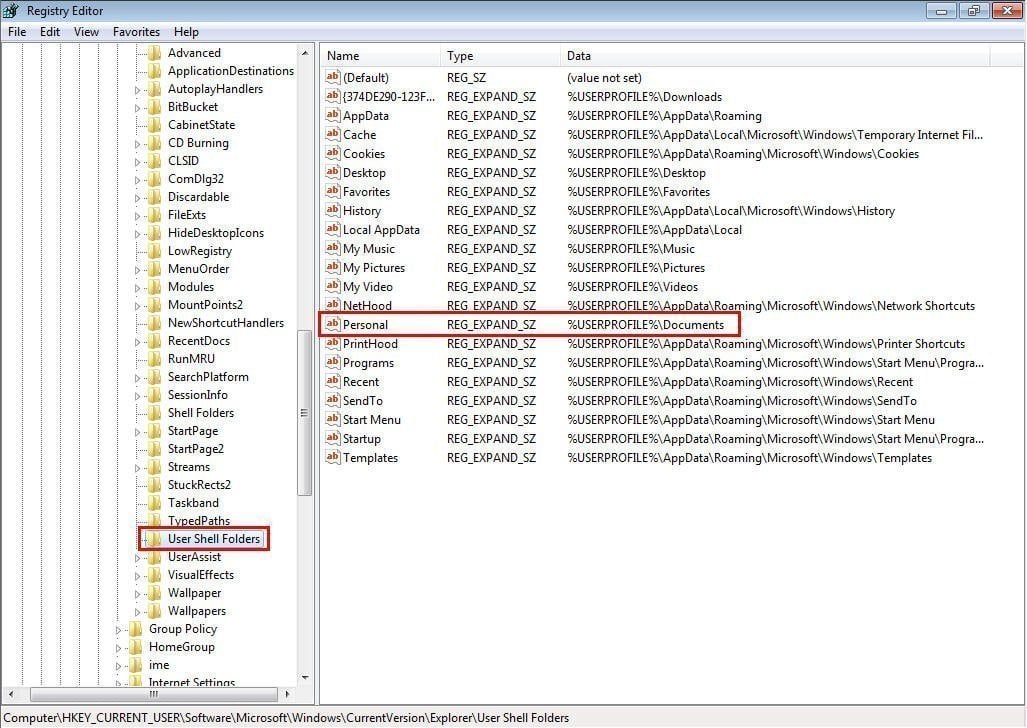
2. Verify the name and value of the Documents folder in the registry, ensuring it is set to "Personal" and its value is set to "%USERPROFILE%\Documents". If not, update the registry accordingly.
Note: You can apply the same check to other user folders if they are also missing in Windows.
Way 2: Create My Document folder via CMD
1. To access the Command Prompt as an administrator, click on the Start button, type "cmd" in the search bar, select the Command Prompt result, and then click on "Run as administrator".
2. Input the following command and click Enter to excute it.
attrib +r -s -h %USERPROFILE%\Documents /S /D
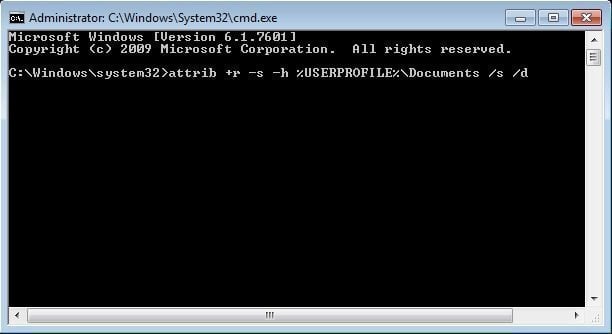
To resolve the issue, simply recreate a new Document folder, reboot your computer, and it should return to the desktop immediately.
How to Fix Files Missing from My Documents Folder
If you accidentally delete files in My Documents or Documents folder, check the Recycle Bin first. Deleted files are usually sent there before being permanently deleted, unless they're too large. You can also restore previous versions of files if you have a backup with File History.
Way 1: Restore Missing Files from Recycle Bin
1. Open the Recycle Bin on your Desktop.
2. To restore selected files, right-click on the selected files, then click on the "Restore" option to send them back to the original location, in this case, the Documents folder.
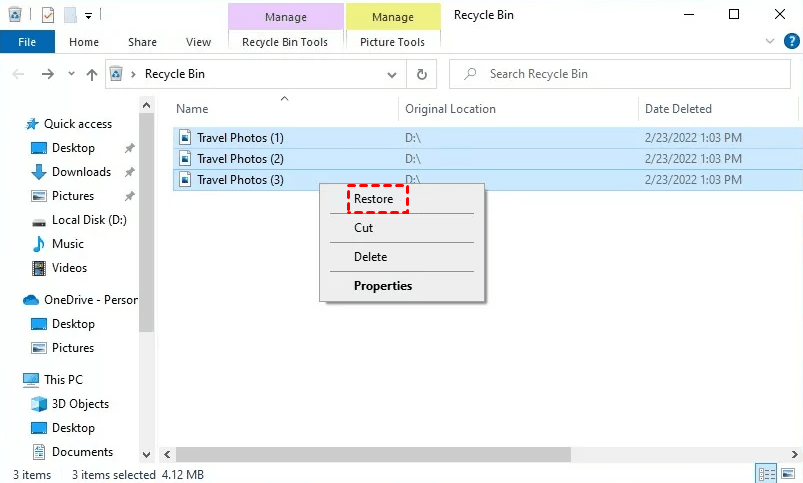
Note: This method is used for recovering the My Documents folder instead of individual files within it.
Way 4: Restore Missing Files to a Previous Version with File History
File History is a built-File backup software helps you backup all user folders, including specified folders in Windows 10, and allows you to restore files to a previous point in case of any issues.
1. Open the Documents folder. Click Home, then History.
2. Select the data you want to restore, then click the green restore button.
How to Put My Documents Folder on Desktop
If you can't see your My Documents folder on your desktop, it may be because you deleted the shortcut, but the folder itself is still in Windows Explorer. In this case, you can easily create a new shortcut to access your My Documents folder using a few simple methods.
Way 1: Get My Documents Folder Back via Windows Explorer
Open Windows Explorer, right-click add a shortcut to your desktop for "My Documents", click on "My Documents", then go to "Send To" and select "Desktop (create shortcut)" or "Create shortcut". This will add a shortcut to your desktop, and the same applies to Windows 10 and 11.
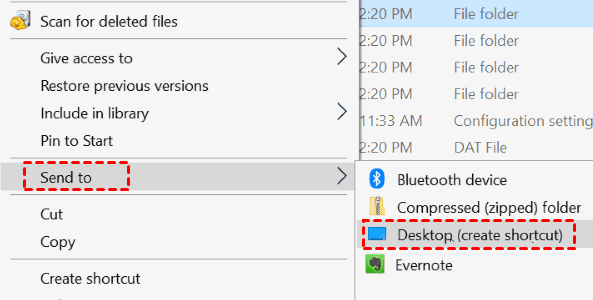
Way 2: Create a Missing My Document icon on Desktop
Open Windows Explorer, right-Click the My Documents folder, then click "Copy". Go to the desktop, click "Paste", and select "Yes" when asked to create a Desktop item.
Cannot Open my Documents folder in Windows PCs
The Documents folder cannot be opened. You do not have permission to access this folder. Make sure the disk is not full or almost full, and then try again.
- Windows is unable to access the specified device, path, or file due to insufficient permissions.
- The share name was not found. Be sure you typed it correctly.
- The location you requested is not allowed as a target. Please choose a new location.
The issue occurs when the My Documents folder has been redirected to a network share that is no longer accessible. To resolve this, you can try the following:
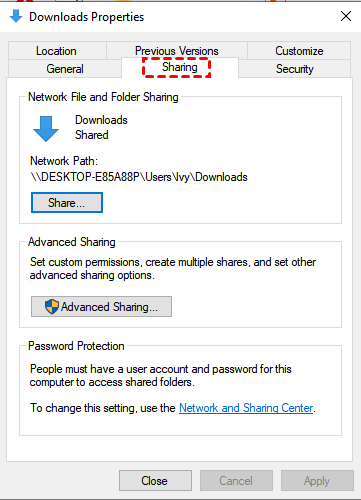
1. Right-click the Documents icon and choose Properties.
2. To change the location of the Documents folder, go to the Sharing section and select it, then change the Documents folder location from the network share to a local folder, and click OK.
Backup My Documents Folder to Avoid Any Data Loss
If the My Documents folder is missing in Windows 7, 8, 10, or 11, it's essential to act quickly to prevent data loss. To avoid losing any files or folders, it's recommended to backup the My Documents folder and schedule regular backups to keep a copy of your documents and any changes made to them. This way, you can easily restore the My Documents folder to its original location on your desktop if it's missing in the future.
Qiling Disk Master Standard is a free backup software for Windows that offers a range of benefits, including the ability to backup files, folders, partitions, system, and disk, as well as creating cloud backups, making it a reliable option for safeguarding data.
- The software allows users to schedule backups to run daily, weekly, or monthly, and can be set to run at a specific day, time, and interval, making it a convenient and automated process.
- The system will automatically backup only the files that have been modified since the last backup, using incremental backup in a scheduled task, resulting in multiple backup versions while minimizing backup time and disk space usage.
- Besides, it will automatically compress or split the backup image to a smaller one.
- You can backup your My Documents folder to various locations, including external drives, USB drives, network locations, or NAS devices.
To get started, please download free backup software - Qiling Disk Master Standard to have a try, which supports Windows XP, Vista, 7, 8, 8.1, 10, and 11, and also offers a server version for server users.
1. To use the freeware, first install it, then open it, select "Backup" and "File Backup" in sequence.

2. Type a new task name to distinguish it from other backups. Select My Documents folder. And then, select a path below to store the backup image. You can backup to external hard drive, USB, network drive, NAS, etc.

3. To schedule automatic backups, click "Schedule Backup", then "Enable Schedule Backup". Select the desired frequency, such as daily, weekly, or monthly, and choose the files to be backed up, including the My Documents folder and changed files. Click "Proceed" to confirm. Note: The "Event trigger" and "USB plug in" options are only available on the professional version.

To avoid running out of space on your backup disk, you can delete backup files using a method such as By quantity, By time, or By daily/weekly/monthly cleanup. This feature may require an upgrade to a professional or advanced edition.

Summary
Regardless of the situation, you can restore your missing My Documents folder in Windows 7, 8, 10, 11 by following the above methods. To avoid data loss, it's recommended to create a backup of your files using free backup software like Qiling Disk Master Standard.
Qiling Disk Master Technician allows you to create a duplicate copy and keep changes on a regular basis, protecting unlimited computers within your company. It also enables professional management of backup disk space, ensuring that data won't get lost. This feature-rich tool provides peace of mind, allowing you to focus on your work without worrying about data loss.
Related Articles
- How to Backup User Profiles in Windows 7 and Restore it
If you want to protect your user files, settings, or customize your fresh install or new Windows-based computer, keep reading to learn how to backup user profiles in Windows 7, 8, 10. - Top 2 Ways to Fix a Corrupted User Profile (Windows 7)
Knowing the causes of a corrupt user profile can help you easily and quickly fix a corrupted user profile in Windows 7/8/10. Thus, please find your cause first and then try 4 FREE ways in this article. - Restore Files and Programs from Windows.old Folder
You will learn to restore files or Windows from Windows.old in Windows 10 as well as delete this folder for more space. Learn more below. - Best Free Backup Software for Windows 7 (32/64 Bit)
The best free backup software for Windows 7 - Qiling Disk Master can help you protect system and data with no effort. Supports both 32 and 64-bit system. - How to Backup Computer Before Factory Reset?
Factory reset will overwrite data on the hard drive, so it is recommended to backup computer before factory reset in Windows 10/8/7. - Backup Hard Drive before Formatting in Windows 10/8/7
You may want to format your hard drive and reinstall Windows when it is running slow. Be sure to backup hard drive before formatting.
Products
Articles & Tutorials
- Data Recovery
- Data Backup
- File Recovery
- File Backup
- File synchronize
- System Backup and Restore
- Disk and Partition Clone
- Technical articles
- Disk Master Help
- Windows Deleted File and Disk Recovery Tutorials
- Windows File and Data Recovery Tutorials
- More Windows Tutorials for Install, Security, Files, and PC Tips
- Windows Boot, Repair, and Recovery Environment Tutorials
- Windows Backup Tutorials
- Windows Restore Tutorials
- Windows Clone and Migration Tutorials
- Windows Server Backup, Recovery, and Management Tutorials
- Windows Disk, Partition, and Storage Management Tutorials