Quick Fix for Work Folders Not Syncing
What are Work Folders
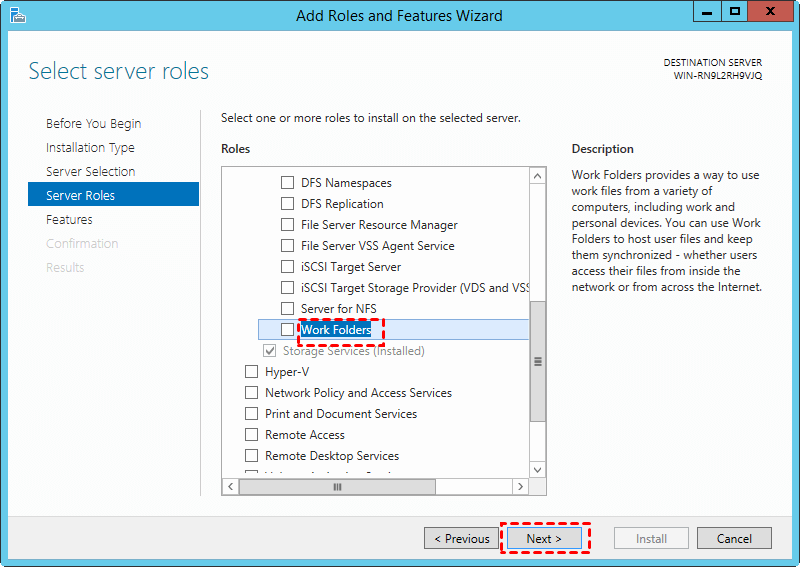
Work Folders is a sync feature between server and clients, where server-side devices must be Server systems, while clients can be Windows 7, 8, 10, and other devices.
When you install this feature, a "Sync Share" folder will be created on your desktop, allowing you to store and access work files on both personal and corporate PCs from anywhere.
Fixes to Work Folders not syncing
The Work Folders service may not work properly due to an issue. There is an instance where it may not function as expected.
Our client uses Work Folders, which has been functioning relatively well since we took over. However, it's now experiencing issues with syncing, specifically getting stuck at 83.3KB. Despite the users being notified that their folders have been synced successfully, upon inspection, there are still folders waiting to be synced, indicating a discrepancy between the reported and actual sync status.
There are some fixes for Work Folders not syncing:
Fix 1: Work Folders sync stopped password needed
Password policy The configuration is an admin setting on the server that's enforced on the client. It ensures that user PCs and devices meet specific requirements, which can be checked to verify compliance with the policy.
- Minimum password length of 6
- Autolock screen set to be 15 minutes or less
- Maximum password retry of 10 or less
Fix 2: Work Folders sync stopped can't encrypt files
If the admin requires the files to be encrypted on the client, Work Folders will attempt to create an encrypted folder. If the encryption fails, the user will see the failure and be prompted to use a different path. Sync may fail due to various reasons that can be checked and corrected if found.
- Since the folder is on a USB drive that doesn't support encryption, it's not possible to use encryption to protect the folder's contents. This means that anyone with access to the USB drive can view and potentially modify the contents of the folder.
- The existing Work Folders folder is already encrypted with keys other than the ones we're trying to use, which may cause issues with accessing or syncing the folder using the new keys.
- If the device is connected to a domain, you may need to search and fix expired or revoked certificates in the Default Domain Policy, which can prevent encryption on the client.
Fix 3: Work Folders sync stopped conflict files
When the same file is modified on different devices, conflicting files are generated. This can occur due to various reasons, including different users making changes simultaneously, users working on outdated versions, or users modifying the file without syncing with the cloud or other devices.
- If a user edits a file on one device without closing it, the changes won't be synced to the server.
- If the server loses its sync metadata database, the client and server must compare their file sets to determine what to sync. This comparison can lead to conflicts if they find any differences between their file sets.
An easier way to sync files
Work Folders may not always sync files between the network server and your computer, so it's recommended to use a free and professional file sync software like Qiling Disk Master Server instead.
Qiling Disk Master Server allows you to synchronize files and folders to other locations, such as external hard drives, NAS, and removable USB flash drives, among others. It also supports scheduled syncing, enabling you to sync files on a daily, weekly, or monthly basis.
The app has a feature called File Sync, which automatically syncs changed files and folders to the target device without delay.
To sync files with this software, follow these steps: first, download and install the software on your computer, then create an account or sign in if you already have one; next, select the files you want to sync by dragging and dropping them into the software's interface or by using the "add files" button; after that, choose the destination where you want the files to be synced, such as a cloud storage service or an external hard drive; finally, click the "sync" button to start the syncing process, and the software will take care of the rest.
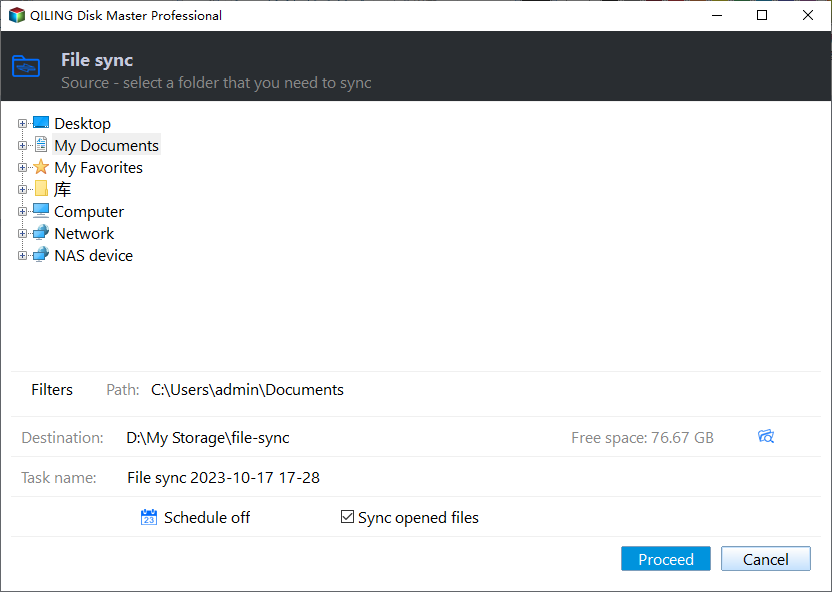
Step 1. Download Qiling Disk Master, install and launch it.
Step 2. Click Backup and recovery and File Sync subsequently.

Step 3. To sync a file or folder, click on "Folder" in the top navigation bar, then select "Share/NAS" from the dropdown menu. From the subsequent menu, choose "Add Network Share or NAS Devices" to select the file or folder you want to sync.

Step 4. Click the browse icon next to add the destination location.

Note: To set up automatic schedule syncing, click the "Schedule Sync" button located in the bottom left corner of the screen. This allows you to choose from various syncing options, including daily, weekly, monthly, event triggers, or even syncing via a USB plug-in.

Step 5. Click Proceed to sync files right now or the next scheduled time.
Conclusion
Syncing files with Work Folders can be complicated and may not always work, as evidenced by issues like "Work Folders is not syncing". While attempting to fix these problems is an option, it's not always successful. A better choice for syncing files is actually using a Qiling Disk Master Server.
This software supports both sync and backup features, allowing users to back up files using File Backup or Cloud Backup, which also comes with a cloud drive, Qiling Cloud, and 1TB of free storage for 15 days after registering a Qiling account.
Related Articles
- Fixed: Windows 10 Sync Center not Working
You will learn to fix "Windows 10 Sync Center not working" in 7 different solutions, or use one more flexible software to sync network files to a local drive. - Top Two Ways to Synchronize Files between Windows Servers
You can synchronize files or folders between Windows Servers with DFS replication if you want a free solution. Instead, Qiling Disk Master Server for advanced features and ease of operation. - How to do QNAP NAS to NAS Incremental Backup? - Qiling Disk Master
There are several ways to do QNAP NAS to NAS incremental backup, most of which are complicated in operation. So I'd like to introduce you a free and easy solution. - How to Transfer/Move Files from SSD to HDD in Windows 10/8/7?
This tutorial will introduce you how to transfer files from SSD to HDD in Windows 10/8/7/Vista/XP with all-around freeware, Qiling Disk Master Standard. It is easy and fast. - Fixed: Synology Cloud Sync Not Working Even Up to Date
This article provides you with 5 practical ways and 2 workarouds for Synology Cloud Sync not working. Learn more about it now! - Complete Guide: Synology Drive Sync Multiple Folders
Follow this guide to Complete Guide: Synology Drive Sync Multiple Folders, with backup options, storage tips, and recovery precautions.
Products
Articles & Tutorials
- Data Recovery
- Data Backup
- File Recovery
- File Backup
- File synchronize
- System Backup and Restore
- Disk and Partition Clone
- Technical articles
- Disk Master Help
- Windows Deleted File and Disk Recovery Tutorials
- Windows File and Data Recovery Tutorials
- More Windows Tutorials for Install, Security, Files, and PC Tips
- Windows Boot, Repair, and Recovery Environment Tutorials
- Windows Backup Tutorials
- Windows Restore Tutorials
- Windows Clone and Migration Tutorials
- Windows Server Backup, Recovery, and Management Tutorials
- Windows Disk, Partition, and Storage Management Tutorials