How to Backup SD Card Data Before Formatting-4 Ways Included
- What Does Formatting SD Card Mean?
- Why Is It Important to Backup an SD Card?
- How to Backup Data on SD Card Before Formatting
- Method 1. Copy-and-Paste to Backup SD Card Data
- Method 2. Backup SD Card to Cloud
- Method 3. Create a Backup Image of SD Card
- Method 4. Clone SD Card Data for Data Protection/Migration
- Conclusion
What Does Formatting SD Card Mean?
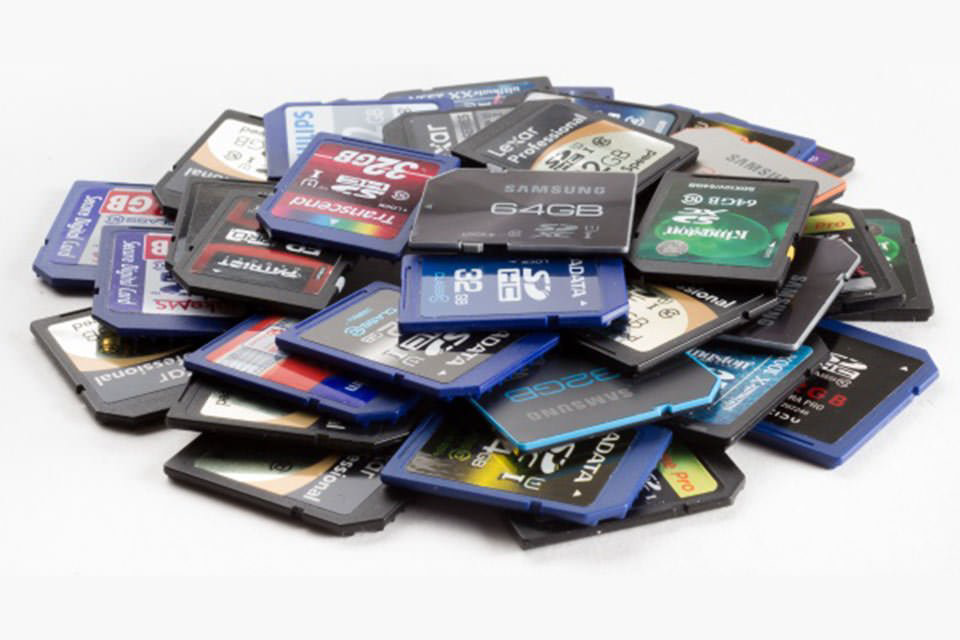
An SD card is a removable memory card used to store data from devices like digital cameras and game consoles. Formatting the SD card will erase all files, including hidden internal ones, resulting in the loss of pictures, videos, and documents stored on the device.
Formatting an SD card is more than just deleting files, it's a way to make storage devices reusable, fix file system errors, and reset or erase the card, making it compatible with your device.
Why Is It Important to Backup an SD Card?
The SD card has become the standard memory card for most electronic devices, but with its growing usage, users often need to format it under different circumstances, such as for reuse or to fix errors. Before formatting, it's crucial to back up the SD card data to prevent any loss of important information.
✪ Encrypting your SD card will protect the security of the data on it, which may include important files, precious photos, and videos. This is especially useful because SD cards are often portable and used across multiple devices. Encrypting the card ensures that even if it falls into the wrong hands, the data will remain secure. This is a good practice to follow, especially if you store sensitive information on your SD card.
✪ If your SD card is running out of space, you can back up the original data, migrate it to a new SD card or other storage, and then format the original SD card for reuse.
How to Backup Data on SD Card Before Formatting
To avoid losing important data, you can backup your SD card data before formatting it using four effective methods. You can transfer the data to your computer, store it in a Cloud drive, or save it to an external storage device such as an external disk or USB drive. This way, you can ensure that your files are safely backed up and won't be lost during the formatting process.
Note✍: Many desktop computers and laptops have built-in SD card readers. If not, a cheap USB hub and media card reader can be used to access SD cards via a USB port.
Method 1. Copy-and-Paste to Backup SD Card Data
For SD cards with a capacity between 2-8GB, the first method is suitable. However, for larger SD cards, especially those above 32GB, it's recommended to use method 2.3.4 instead of trying to copy and paste at the beginning.
- To back up your phone, insert your SD card into your computer and ensure it's detected. If you're backing up to an external storage device, also connect it to the computer.
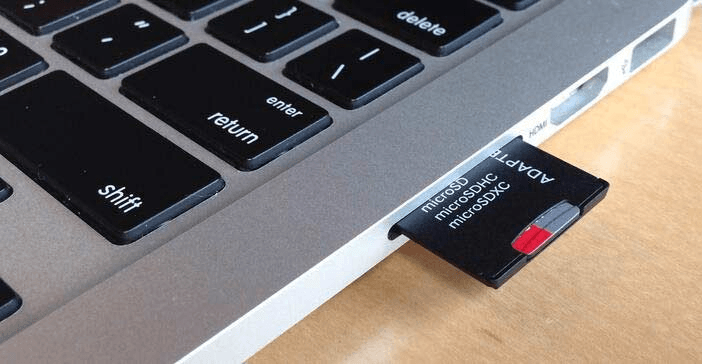
- To open Windows Explorer and access your SD card, press the keys "Win + E" simultaneously. This will open the File Explorer, allowing you to navigate to and access your SD card.
- To copy data from your SD card, press Ctrl + C on your keyboard, which will copy the contents of the SD card. Then, navigate to the destination location, such as a folder on your PC or an external device, and press Ctrl + V to paste the copied data.
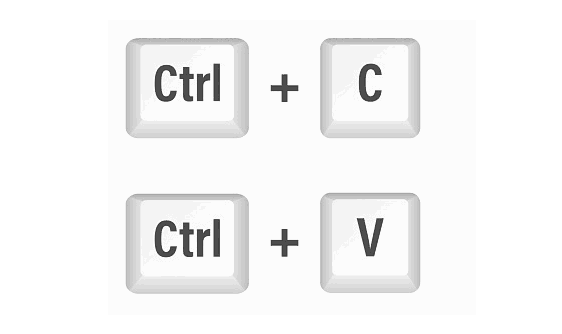
To create a copy of the SD card data, first, insert the SD card into your computer using an SD card reader. Next, open the File Explorer or Finder on your computer and navigate to the SD card. Select all the files and folders on the SD card by pressing Ctrl+A (Windows) or Command+A (Mac).
Method 2. Backup SD Card to Cloud
With the rise of cloud drives, people can now easily back up files and data. If you have a cloud drive, you can also back up your SD card data to it before formatting the card. Popular cloud services include Google Drive, OneDrive, and Dropbox. To back up your SD card data to Google Drive on PC, you have multiple options available.
#1. Backup SD Card with Google Drive Folder
- Download Drive for desktop, install and set up Google Backup and Sync on PC.
- Connect your SD card to your computer and it will be recognized as a removable disk with a drive letter.
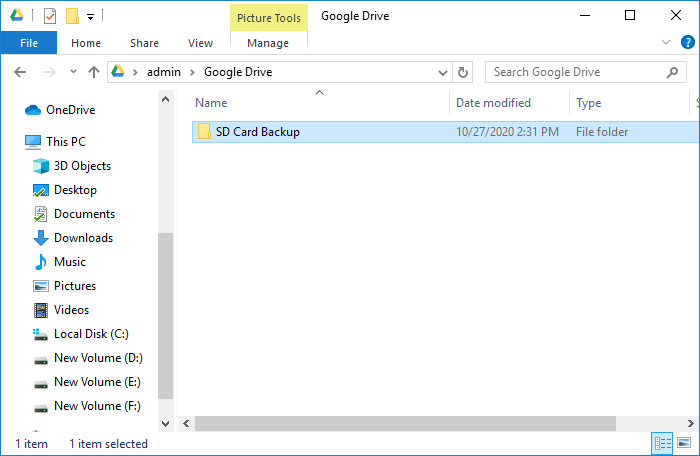
- Create a new folder in Google Drive to store backup data, then copy and paste the desired data from your SD card into this folder.
#2. Backup SD card to Google Drive with Google Backup and Sync Settings
You can also change the settings in "Backup and Sync" to instruct it to back up your SD card. The following are the detailed steps.
- To access the settings of Google Backup and Sync, click on the icon in the taskbar, select the "Settings" option, and then choose "Preferences".
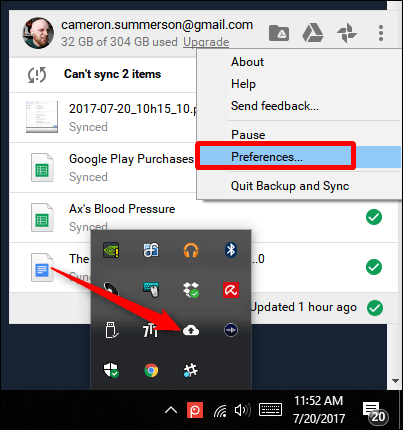
- Click on the "My Computer" tab and select "USB Devices & SD Cards" at the bottom of the window. Click "OK" and wait for the final result.
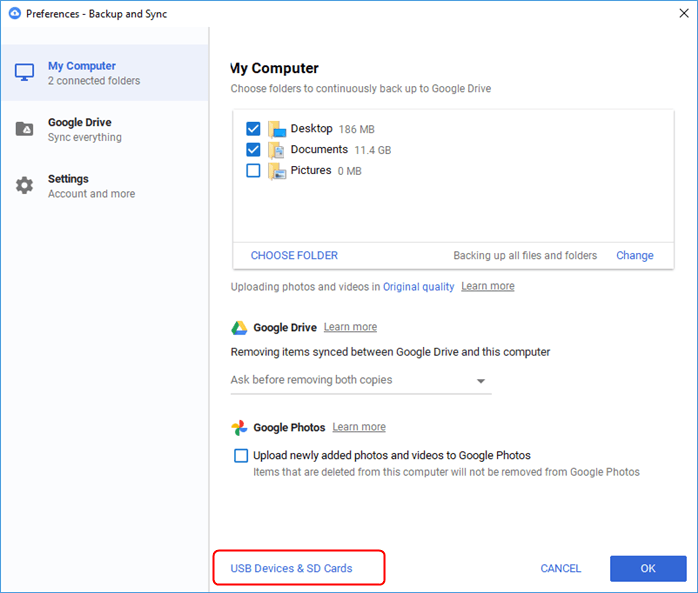
Tip✍: To back up a specific folder on the SD card or Android phone, click the "Choose Folder" option under the "My Computer" tab.
Method 3. Create a Backup Image of SD Card
If your SD card has a large capacity, such as 32GB or more, backing up data using method 1 can be time-consuming. Additionally, you may encounter issues with cloud backup services, such as Google Drive or OneDrive, which can be stuck in a pending state.
Fortunately, there is another method that can help you back up SD card data in a safer, faster, and easier way using Qiling Disk Master Standard, a reliable free backup software for all Windows users that allows you to backup hard drive, SD card, USB flash drives, selected files/folders or Windows system to different locations, including NAS, external/internal hard drive, Cloud drives, etc. It also provides more useful functions, including Synchronization, Restore, Clone, and other utilities.
In this part, I will show you how to backup data before formatting SD card using Qiling Disk Master Backup function.
Step 1. When you connect your SD card to your computer, it will be recognized as a removable disk with a drive letter, allowing you to access its contents.
Step 2. Download and install Qiling Disk Master on your computer.
Step 3. To back up all data on your SD card, go to the main page of Qiling Disk Master, select Backup from the left menu, and click Disk Backup. This will create a complete backup of your SD card's data.

✩ Tip: If you only want to back up specific files or folders on the SD card, you can choose File Backup or Cloud Backup. The latter option allows you to back up files directly to Qiling Cloud without needing an additional storage device, offering 1TB of free cloud storage for 15 days.
Step 4. To find the removable disk, plug it in and select it as the source disk. Next, choose the destination path and click Proceed to initiate the transfer.

Note: ✩ Options: To save storage space, you can compress images by choosing a suitable compression level. Additionally, you can encrypt images to protect your data from unauthorized access. If encryption is necessary, consider upgrading to the Professional version.
Method 4. Clone SD Card Data for Data Protection/Migration
If you want to replace an old SD card with a new or larger one, or clone one SD card to another SD card or hard drive as a backup, Qiling Disk Master's Clone function can quickly and safely migrate all data from the original SD card.
Before formatting the original SD card, it's essential to backup your data to a new or larger SD card using the Qiling Disk Master Clone function. To do this, you'll need to have 2 SD card readers (or 1 if your PC has an SD card slot) ready in advance. This will ensure that your important data is safely transferred to the new card, allowing you to then format the original SD card.
Step 1. Connect your 2 SD cards to your computer and they will be recognized as removable disks.
Step 2. Open Qiling Disk Master Standard, click on Tools and utilities, then select Disk Clone.

Step 3. Select the source SD card.

Step 4. Select the target SD card and click Next. Ensure you choose the correct SD card, as the target SD card will be overwritten after cloning. If the target SD card contains important files, back them up to the computer first using method 3.

Step 5. To confirm the operation and proceed, click the Proceed button. Wait for the process to finish.

Tips:
✭ SSD Alignment: Cloning your operating system and data to a solid-state drive (SSD) can improve its performance and prolong its lifespan. This is because SSDs are designed to read and write data quickly and efficiently, and by cloning to an SSD, you can take advantage of its speed and reliability.
✭ Sector by Sector Clone: This software offers two clone methods: Intelligent Clone and Sector by Sector Clone. By default, it clones only the used sectors on the disk. However, if you select the Sector by sector clone option, it will clone every sector from the source to the destination, making the Edit Partition feature unavailable.
✭ Edit Partition: To manage your SD card partition, click on "Edition Partitions" and then select more advanced options.
Conclusion
To backup SD card data before formatting, you can either copy and paste the data directly to your local computer, but this method can be time-consuming for large-capacity SD cards. Alternatively, you can back up the SD card to a Cloud drive, although 100% success is not guaranteed.
By comparison, using the third-Qiling Backpper is the easiest and safest way to back up your SD card. Its Backup function allows you to do this with just a few clicks, and it can also help you migrate data from one SD card to another. Additionally, you can use it to format a hard drive for reuse, making it a powerful and versatile tool. Try it now!
Related Articles
- How to Backup Data on SD Card to Google Drive (5 Ways)
This article is written for users who want to backup SD card to Google Drive for security or multiple access. Here are 5 ways to help you. - How to Backup Files before Reformatting in Windows 7/8/10/11
An important means of data protection is to back up files before formatting or other major operations. This post will show you 2 effective ways to do it in Windows 7/8/10/11, either by built-in tool or a free file backup software. - Easily Recover Files from Formatted SD Card for Free
You can easily recover files from a formatted SD card after formatting with reliable data recovery software. To prevent this error from happening again, please backup files immediately after recovery. - Wipe Hard Drive in Windows 10 to Protect Privacy
What's the best way to wipe a hard drive and clear all the data away and make sure they are unrecoverable by no means. please read this article. - How to Do Onekey Recovery Initial Backup
Follow this guide to Do Onekey Recovery Initial Backup, with backup options, storage tips, and recovery precautions. - How to Restore an EEE PC Notebook to Factory Settings (2 Ways)
Restoring ASUS EEE pc to factory settings is a good choice when you have trouble with your computers. Try Asus System Recovery or Qiling Disk Master.
Products
Articles & Tutorials
- Data Recovery
- Data Backup
- File Recovery
- File Backup
- File synchronize
- System Backup and Restore
- Disk and Partition Clone
- Technical articles
- Disk Master Help
- Windows Deleted File and Disk Recovery Tutorials
- Windows File and Data Recovery Tutorials
- More Windows Tutorials for Install, Security, Files, and PC Tips
- Windows Boot, Repair, and Recovery Environment Tutorials
- Windows Backup Tutorials
- Windows Restore Tutorials
- Windows Clone and Migration Tutorials
- Windows Server Backup, Recovery, and Management Tutorials
- Windows Disk, Partition, and Storage Management Tutorials