Top 2 Ways to Create Onekey Recovery Initial Backup
About Initial Backup
The term "initial backup" has a dual meaning. Firstly, it refers to the first backup created on a new machine after it's received, which is often the first step in ensuring data safety.
The initial backup of a computer system typically includes a fresh version of the operating system, necessary drivers, boot partition, and preinstalled software. However, if you back up the system after installing programs or storing personal data, the backup will also include these data, which can help minimize data loss during system recovery.
You can use it to reset a machine back to its factory settings by restoring from an initial backup image.
Create Initial Backup with Lenovo OneKey Recovery
Step 1. To access Lenovo OneKey Recovery, double-click its icon. If you installed the operating system yourself, you should first install Lenovo OKR.
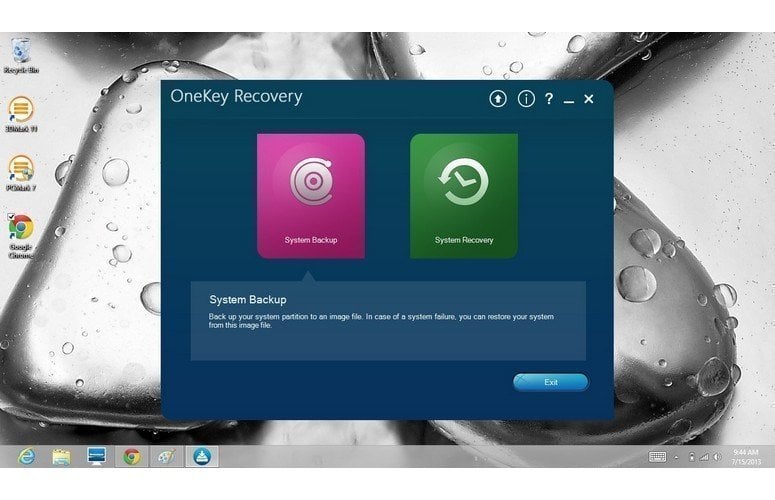
Step 2. Select "System Backup" and go on.
Step 3. Select a destination to save the system image file.
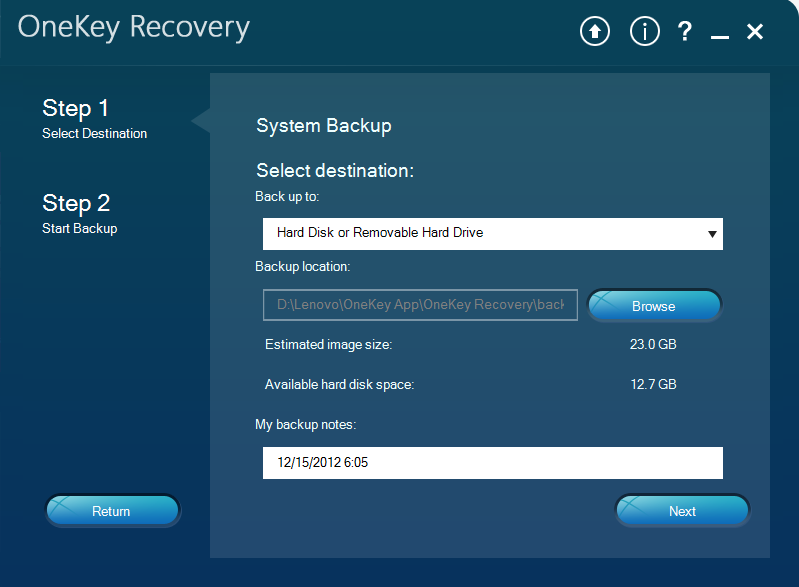
Step 4. Check the settings and click "Start" to initiate the OneKey Recovery initial backup.
After creating an initial backup with Lenovo's OneKey Recovery, you can use it to factory reset a Lenovo desktop or laptop, such as a Lenovo G50-80. However, you may encounter an error saying "The program cannot find the initial backup image" when trying to restore from the initial backup, which can be caused by a damaged or deleted recovery partition.
To create a safe initial backup image for your Lenovo, you can use Lenovo OneKey Recovery to backup your system to a new hard drive or external device. Simply replace the destination disk with a new hard drive or external device, and backup any important data in advance to avoid loss. This method provides a safer alternative to creating an initial backup image.
You can also use a reliable third-party one key recovery software, which has more advanced features such as encryption, compression, and daily scheduling, besides the built-in recovery tool.
Safer Way to Create Lenovo OneKey Recovery Initial Backup
The recovery partition may be corrupted due to various reasons, so it's recommended to create Lenovo OneKey Recovery to a new hard drive for protection. A great tool for this task is Qiling Disk Master, which offers several advantages, including the ability to create Lenovo OneKey Recovery to a new hard drive.
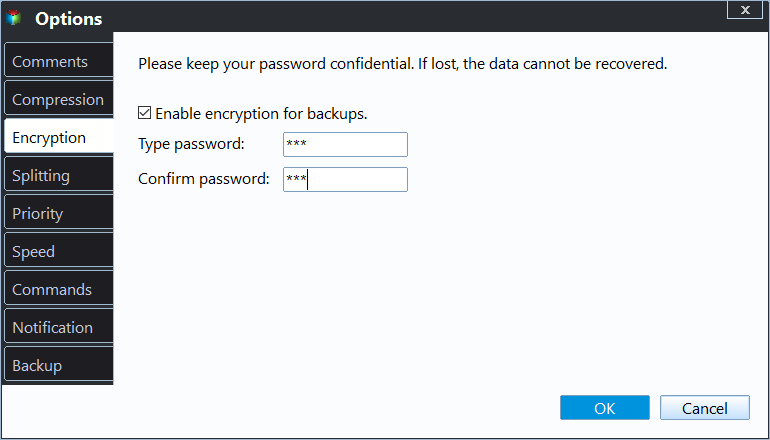
- Backup Options: You can password protect your backup image with a string of numbers and also compress it to a smaller size using Normal or High compression levels.
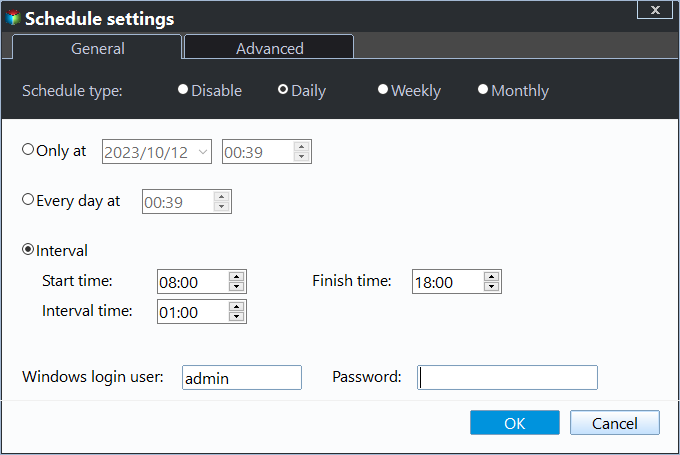
- Scheduler: This system supports automatic backups of the system at different intervals, such as daily, weekly, and monthly.
- Fast Key: The software allows you to set F11 or A key to access it at system startup.
- The software supports all brand computers, including popular brands like Asus, Acer, HP, and Samsung, among others.
- Applies to Windows 11/10/8/7/XP/Vista and server 2022/2019/2016/2012, etc.
Step 1. Download Qiling Disk Master and open it, then choose "System Backup" from its main window.

Step 2. Choose "Backup system to other location" and click Next.

Tips:
- To avoid mistaken deletion, it's recommended to use the first option, which creates a hidden recovery partition to store the backup image. This way, the backup will remain intact even if the disk is wiped or the system is reinstalled, as long as the partition remains intact.
- You can compress or encrypt your initial backup Lenovo by using the Backup Options at the bottom.
- To automate the backup process, you can schedule it to run at specific intervals using the Scheduler feature. This ensures that backups are performed regularly, such as daily, weekly, or monthly, without requiring manual intervention.
Step 3. To create an initial backup for your Lenovo device, connect a new hard drive to your computer and click "Browse" to select it as the destination path. Then, click "Proceed" to start the backup process.
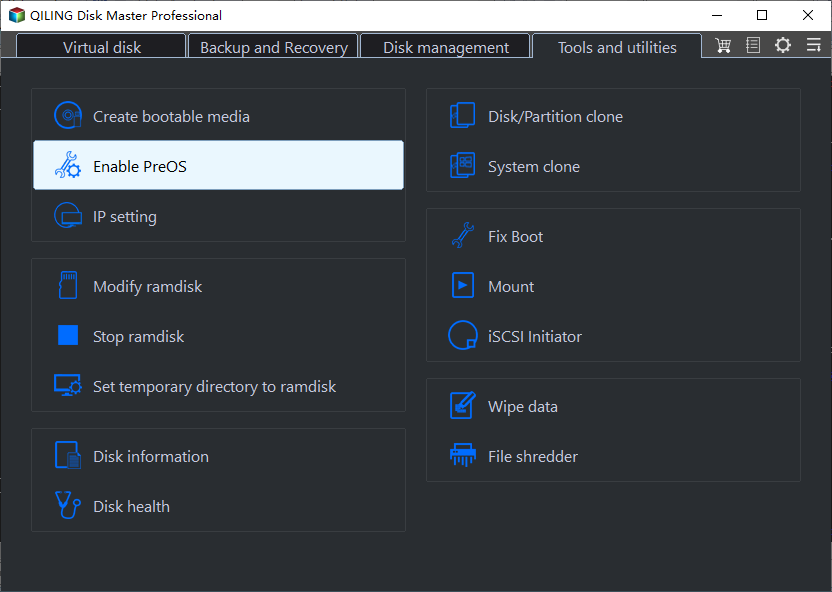
Tip: After a successful backup process, you can configure the Qiling disk master boot menu through the Settings icon.
To Sum up
You can easily create an initial backup for Lenovo OneKey Recovery, but if you back it up to a hidden recovery partition, it may be damaged or deleted by mistake. In such cases, it's recommended to create Lenovo OneKey Recovery to a new hard drive or other external devices instead.
Lenovo OneKey Recovery is a good option, but if you want more advanced features like encryption and scheduling, Qiling Disk Master is a better choice. The Technician or Customization edition of Qiling Disk Master can also protect unlimited PCs and customize the UI.
Related Articles
- How to Use Lenovo One Key Recovery in Windows 7, 8, 10, 11
You will learn how to use Lenovo one key recovery to protect system and data on it and recreate partition or image when Lenovo OneKey Recovery not working. - Beginner Guide to Lenovo OneKey Recovery in Windows 10
Lenovo OneKey Recovery is a backup and restore tool preloaded on Lenovo computers. Learn how to use Lenovo OneKey Recovery in Windows 10 and get the best alternative from this page. - Restore from Initial Backup with Lenovo OneKey Recovery (2 Steps)
You can learn how to restore from initial backup using Lenovo OneKey Recovery easily. Also, you can use another powerful software. - Best Way to Backup PC to Cloud in Windows 10 or 11 (FREE)
This guide explains Best Way to Backup PC to Cloud in Windows 10 or 11 (FREE) with clear steps, key checks, and practical tips. - Create Windows 7 Recovery Disk from Another Computer In-Depth Guide 2022
You can create or download a Windows 7 recovery disk from another computer if your PC fails to start up. This article will guide you through the process, allowing you to create or obtain a Windows 7 repair disk. - How to Create Windows To Go with Non-certified USB Flash Drive
To create Windows To Go on a non-certified USB flash drive, you need a third-party Windows To Go creator that supports creating portable Windows 10, 8, or 7 on any USB drive, even if it's not Microsoft-certified.
Products
Articles & Tutorials
- Data Recovery
- Data Backup
- File Recovery
- File Backup
- File synchronize
- System Backup and Restore
- Disk and Partition Clone
- Technical articles
- Disk Master Help
- Windows Deleted File and Disk Recovery Tutorials
- Windows File and Data Recovery Tutorials
- More Windows Tutorials for Install, Security, Files, and PC Tips
- Windows Boot, Repair, and Recovery Environment Tutorials
- Windows Backup Tutorials
- Windows Restore Tutorials
- Windows Clone and Migration Tutorials
- Windows Server Backup, Recovery, and Management Tutorials
- Windows Disk, Partition, and Storage Management Tutorials