Restore from Initial Backup with Lenovo OneKey Recovery (2 Steps)
About Lenovo OneKey Recovery
Lenovo's desktops, notebooks, and tablets (including IdeaCenter, IdeaPad, and ThinkPad) often come with a built-in system backup and restore tool called Lenovo OneKey Recovery.
When a Lenovo computer is published by the manufacturer, a hidden system recovery partition is created, which contains an initial backup created by Lenovo OneKey Recovery.
When Lenovo users experience an unpleasant and unexpected issue, such as a system crash caused by a virus, hijack attack, software error, or incorrect operation, they can resolve the problem by resetting their system from an initial backup using Lenovo OneKey Recovery.
How to Restore from Initial Backup with Lenovo OneKey Recovery
When accidents happen, you can use Lenovo OneKey Recovery to restore Lenovo to factory defaults by using the factory default recovery partition and default recovery method, which restores from the initial backup.
Here, take the latest Lenovo OneKey Recovery 8.0 for example.
Step 1. Open Lenovo OneKey Recovery To access Lenovo OneKey Recovery, double-click its icon or go to "Start"->"All apps" -> "Lenovo" -> "Lenovo OneKey Recovery".
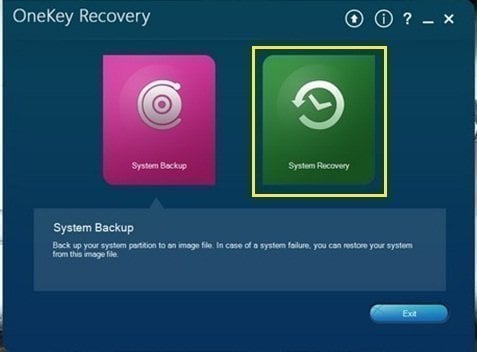
In the main page, choose "System Recovery" and then reboot into system recovery environment by clicking "Yes" when prompted.

If the machine is off, you can press the Novo Button, usually located on the upper left near the power button, to enter the Novo Button Menu. From there, select "System Recovery" to access the recovery environment. If the machine is already on, you can access the recovery environment by shutting down the machine and then pressing the Novo Button.
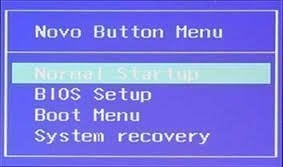
Step 2. In the restoration environment, keep the default choice "Restore from initial backup" checked and proceed.

Tips:
- The "Restore from user's backup" option allows you to recover your system to a previous state from a backup image you created, which is different from the factory image in the default recovery partition. This backup image is a snapshot of your system from a point in time after you started using the device.
- After restoration, all data on the current C Partition will be erased, so please transfer or make a copy of important files to avoid data loss.
Step 3. To confirm the recovery, click Start and then select the initial backup to restore from using Lenovo OneKey Recovery.
Another Powerful Way to Restore from Initial Backup
Lenovo OneKey Recovery, which comes with factory images, allows users to restore their computer from an initial backup in case of system failure or issues. However, this software may not be available to users who have built their own computers, in which case a more powerful backup solution may be needed.
Qiling Disk Master is a great alternative to Lenovo OneKey Recovery. It doesn't come with an initial backup, but you can create one after configuring your computer. It also supports automatic system backups, keeping track of changes between backups.
You can choose to restore from either the initial backup or the latest backup that contains everything on the system partition, which minimizes data loss after system recovery. If you don't have a backup, you should create one now.
Then, let's start factory restore with Qiling Disk Master.
Step 1. Open Qiling Disk Master. Double-click its icon or go to "Start"->"All apps"->"Qiling Disk Master" to launch it.
Step 2. In its main interface, click "Recovery".

Step 3. To restore the system using the image file in Qiling Disk Master Partition, keep the default option "Restore system by using the image file in Qiling Disk Master Partition" checked. Then, click the "Next" button.

Tip: The other option "Restore system by selecting a system image file" allows you to rebuild your OS using system images stored elsewhere.
Step 4. The current OS location will be used as the recovery destination if you don't change it. Just click "Proceed" to restore from the initial backup.

Tips:
- The destination drive will be overwritten, so it's essential to back up any important data on it to prevent loss.
- You can also reset factory settings to other locations by checking the box in the lower left corner.
If your machine is not working, you can restart it and press F11 or A (depending on your system image settings) to enter the Qiling recovery environment, then follow the same steps as before to complete the task.
Note: You can't use Qiling Disk Master to format the system using a recovery partition created by Lenovo OneKey Recovery, as it's designed for a different purpose. Different recovery partitions are typically used with specific recovery tools.
To Sum up
If Lenovo OneKey Recovery stops working or doesn't respond, you can still restore from an initial backup. However, some Lenovo computers may not have this tool preinstalled, in which case you can use a powerful backup software like Qiling Disk Master to perform system recovery.
This software allows you to customize and schedule backups for all data, eliminating the need to worry about data loss. It supports all computer brands and Windows systems, and can be used to protect unlimited PCs and servers. The Technician or Customization edition is recommended for this purpose.
Related Articles
- How to Use Lenovo One Key Recovery in Windows 7, 8, 10, 11
In this article not only will you learn how to download Lenovo recovery, but also the best way on how to use Lenovo Onekey Recovery to protect system and data on it and recreate partition or image when Lenovo OneKey Recovery not working. - How to Perform Lenovo System Recovery Easily
If you don't know how or have a problem factory resetting Lenovo, continue to read below and learn how to use Lenovo system recovery. You can also use the Reset this PC feature. - Create Lenovo Onekey Recovery on New Hard Drive Easily (2 Ways)
You can easily recover your system as long as you create Lenovo onekey recovery on new hard drive, even when the original is damaged. - 3 Ways to Transfer Files from Windows 7 to Windows 11
This guide explains 3 Ways to Transfer Files from Windows 7 to Windows 11 with clear steps, key checks, and practical tips. - Can I Insert My Old Hard Drive Into My New Computer and Have It Working Without Reinstalling Windows?
This guide explains Can I Insert My Old Hard Drive Into My New Computer and Have It Working Without Reinstalling Windows with clear steps, key checks, and practical tips. - Can I Reset Windows Without Losing APPs?
This guide explains Can I Reset Windows Without Losing APPs with clear steps, key checks, and practical tips.
Products
Articles & Tutorials
- Data Recovery
- Data Backup
- File Recovery
- File Backup
- File synchronize
- System Backup and Restore
- Disk and Partition Clone
- Technical articles
- Disk Master Help
- Windows Deleted File and Disk Recovery Tutorials
- Windows File and Data Recovery Tutorials
- More Windows Tutorials for Install, Security, Files, and PC Tips
- Windows Boot, Repair, and Recovery Environment Tutorials
- Windows Backup Tutorials
- Windows Restore Tutorials
- Windows Clone and Migration Tutorials
- Windows Server Backup, Recovery, and Management Tutorials
- Windows Disk, Partition, and Storage Management Tutorials