Create Lenovo Onekey Recovery on New Hard Drive Easily (2 Ways)
Need to create Lenovo OneKey Recovery on New Hard Drive
The recovery partition on Lenovo computers is a useful feature that allows users to factory reset their devices. However, this partition is only present on the factory-installed hard drive and will not work on a new hard drive, even if no changes are made. This means that users who want to transfer the recovery partition to a new hard drive, in case they need it in the future, will not be able to do so.
The system will lose its original functionality if the default recovery partition has been damaged or deleted accidentally, or the C: drive has been changed, or the system has been reinstalled.
To create Lenovo OneKey recovery on a new hard drive, it's recommended to make an exact copy of the entire system, rather than just the recovery partition. This allows for a complete recovery of the system. Alternatively, you can create a custom recovery partition after upgrading.
Way 1: Create OneKey Recovery on New HDD with Lenovo OneKey Recovery
Creating a Lenovo Onekey recovery on a new hard drive is essential for system recovery in case of OS crashes due to virus/hacker attacks, software errors, or human mistakes. To do this, you can follow these steps.
To recover your Lenovo laptop, type "onekey recovery" in the search box and select and launch "Lenovo Onekey Recovery".
Step 2. Choose "System Backup" in the main page.

Step 3. To create a Lenovo OneKey recovery on a new hard drive, please select the new hard drive you want to save the system image to and connect it in advance.
Step 4. Review the operation and click Proceed to do Lenovo OneKey recovery boot disk.
Now, you just need to wait until the creation process is complete. If you want to create a Lenovo OneKey recovery boot CD, replace the new hard drive with a CD/DVD device.
Users report issues with Lenovo OneKey Recovery, including error messages like "current system cannot support backup" and "program cannot find the service partition". The recovery partition itself is also prone to damage, making the software unstable. To resolve these issues, consider using third-party one-key recovery software.
Way 2: Make One Key Recovery on New Hard Drive with Qiling Disk Master
Qiling Disk Master is a one-key recovery software that allows you to create a one-key recovery on a new hard drive, similar to Qiling Disk Master. However, it is more stable and feature-rich, offering several advantages over its counterpart.
- The software allows you to schedule automatic backups of your computer's system on a daily, weekly, or monthly basis, ensuring your data is safely stored and easily recoverable in case of any issues.
- Suitable for all branded computers. Unlike Lenovo's One Key Recovery, Dell's OneKey Recovery, and other branded recovery tools, this program can be used on all computer brands.
- 7-Zip is a widely used file archiver for Windows operating systems, supporting versions from Windows 7 to the latest Windows 11, as well as older versions like XP and Server 2003.
- The recovery partition is more stable and safe as it stores the system image and boot partition separately, unaffected by factors like Lenovo OKR and system partition size. Additionally, it has no drive letter assigned, making it unknown to others where the backup is stored.
- Support quick system recovery. The software has a special keyboard key, F11 or A, that serves as a boot key to recover the system in case of any issues.
To make Lenovo OneKey recovery on a new hard drive, follow these steps: First, ensure the new hard drive is set as the first boot device in the BIOS settings. Next, restart the computer and enter the Lenovo OneKey Recovery environment by pressing the corresponding key (usually F11 or F12).
Step 1. Download, install and open Qiling Disk Master. In its main interface, select "OneKey System Backup".

Step 2. Select "Backup system to other location" and click "Next" to continue.
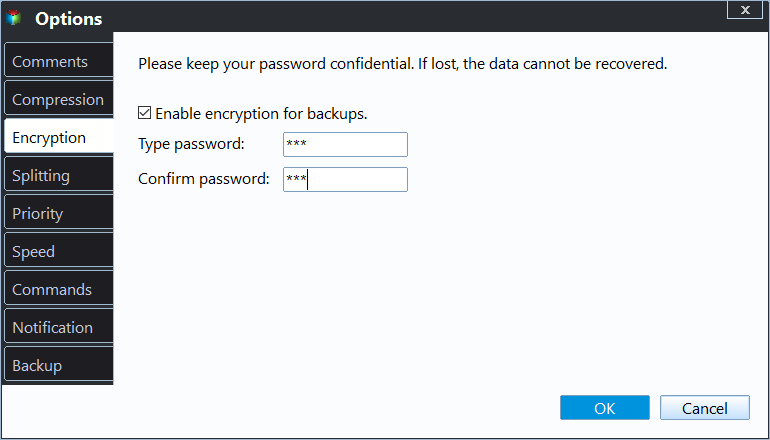
If your system is very large or contains sensitive data, you can compress or encrypt the system image by selecting the "Backup Options" in the next window.
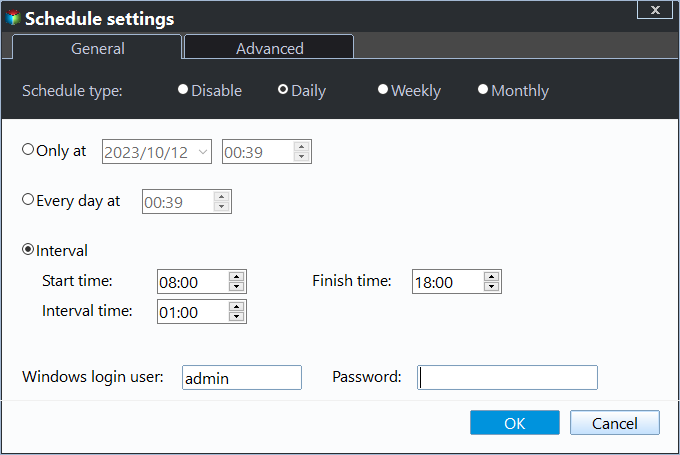
Besides, you can set a schedule for automatic backups by clicking Scheduler, ensuring your computer includes all new data since the last backup.
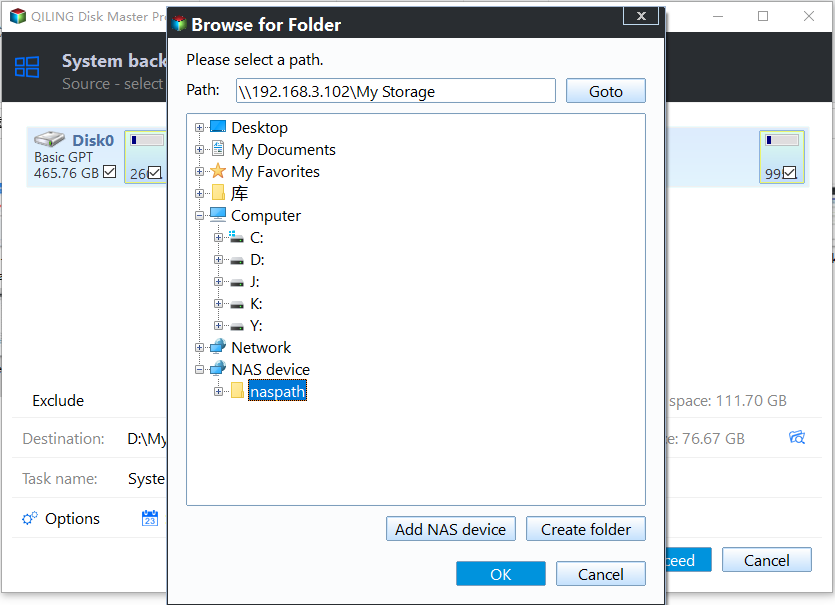
Step 3. The process involves selecting a new hard drive to store the image, which will automatically add the boot partition to BCD files, and then proceeding with the operation to create a one-key recovery on the new drive.

Written in the end
Although the Lenovo OneKey recovery on new hard drive is not working after upgrading Lenovo hard drive, you can create a system backup including the recovery partition and save it to the new disk with Lenovo OneKey Recovery or Qiling Disk Master.
The second option is recommended due to its stability, safety, compatibility, and feature-richness. Advanced users can utilize Qiling Disk Master Technician or Customization to offer technical services to clients or personalize the user interface according to their needs.
Related Articles
- How to Transfer Recovery Partition to New Hard Drive Easily
Learn how to Transfer Recovery Partition to New Hard Drive Easily with clear steps, key checks, and practical tips. - How to Choose One Key Recovery Software
Learn how to Choose One Key Recovery Software with clear steps, key checks, and practical tips. - One-Key Recovery Software Lenovo OneKey Recovery in Windows 10
Lenovo OneKey Recovery is a backup and restore tool preloaded on Lenovo computers. Learn how to use Lenovo OneKey Recovery in Windows 10 and get the best alternative from this page. - Create Lenovo G50 Recovery Disk by Qiling Disk Master
You will learn how to perform Lenovo g50 recovery disk creation with built-in Recovery Drive or third-party recovery media creator. - How to Do Onekey Recovery Initial Backup
Follow this guide to Do Onekey Recovery Initial Backup, with backup options, storage tips, and recovery precautions. - For Business of All Sizes: A Solid Way for Business Data Backup
Protect your business against all potential threats and safeguard your data with our innovative business data backup tool. Click now to learn more.
Products
Articles & Tutorials
- Data Recovery
- Data Backup
- File Recovery
- File Backup
- File synchronize
- System Backup and Restore
- Disk and Partition Clone
- Technical articles
- Disk Master Help
- Windows Deleted File and Disk Recovery Tutorials
- Windows File and Data Recovery Tutorials
- More Windows Tutorials for Install, Security, Files, and PC Tips
- Windows Boot, Repair, and Recovery Environment Tutorials
- Windows Backup Tutorials
- Windows Restore Tutorials
- Windows Clone and Migration Tutorials
- Windows Server Backup, Recovery, and Management Tutorials
- Windows Disk, Partition, and Storage Management Tutorials