Factory Reset Lenovo with System Recovery
What Is Lenovo OneKey Recovery
Lenovo OneKey Recovery is a one-key backup and recovery application built into Lenovo computers, which creates a factory image by default, and can also be used to back up the system to a new hard drive or the current disk, including newly installed programs, drivers, and data.
Lenovo OneKey Recovery creates two types of backup images: one that restores the system to its factory settings and another that restores it to a previously saved status. In case of a system crash or slowdown, it's recommended to restore from the user backup to avoid data loss.
How to Factory Reset Lenovo with System Recovery
To use Lenovo System Recovery, you need to get access to it, either from Windows or by booting your computer.
✍ In Lenovo computer: Double-click the Lenovo OneKey Recovery icon to open it and select System Recovery.
✍ To recover your Lenovo computer using the Novo button system, turn off the computer, press the Novo button (usually located next to the power port), and select System Recovery from the Novo Button Menu that appears.
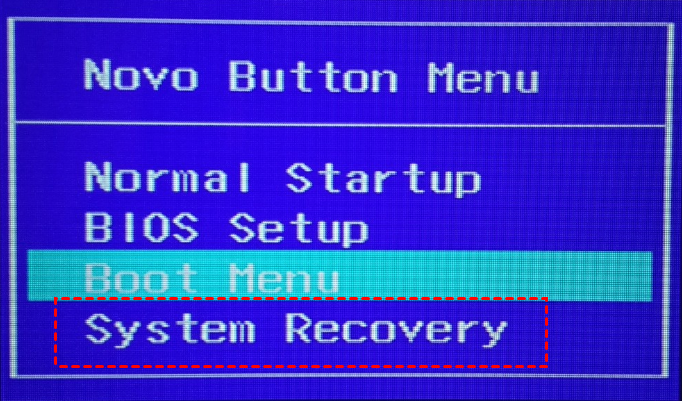
After completing the previous steps, you will enter the OneKey Recovery window, where you will start Lenovo System Recovery by following the on-screen instructions.
Step 1. In the Step 1 section, select Restore from initial backup if you want to do a Lenovo factory reset.
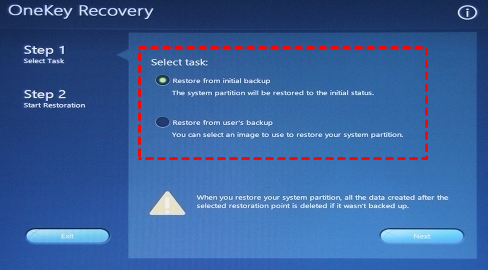
Notes:
- To use Lenovo OneKey recovery without losing data, select the option to restore from a user's backup that includes all items on the system partition when you backed it up.
- If you don't have a user backup, please backup important files in the system drive beforehand, to avoid losing all your data.
Step 2. After backing up your files and data, and verifying that you have the correct Lenovo product, you can confirm the operation and click the "Start" button to initiate the factory reset process on your Lenovo desktop or laptop.
About Lenovo System Recovery Not Working
Lenovo OneKey Recovery is a useful tool for restoring the system, but you may encounter issues with it not working properly, particularly if one of the following events occurs:
- To resize the system partition or utilize all the unallocated space on it, you can follow these steps:
- Recovery Partition is damaged or deleted.
- Windows operating system has been upgraded or reinstalled.
If Lenovo System Recovery is not working in Windows 10 or other systems, there are several solutions to try. To fix the issue, you can attempt the following steps.
✍ For the first event, you need to recreate the partition with Diskpart.
Type cmd in the search box and hit Enter to open it. Then, type the following commands one by one, clicking Enter after each command: dir, cd Windows, cd System32, dir, and type notepad.exe.
- list disk
- sel disk N The partition with Lenovo OneKey Recovery installed is located on drive letter N. (Please let me know if you'd like me to add or change anything!
- list part
- sel part M The recovery partition is typically located on the last drive letter, which is usually represented by the letter "M".
- set id = 12 (This command is to hide the recovery partition.)
- exit
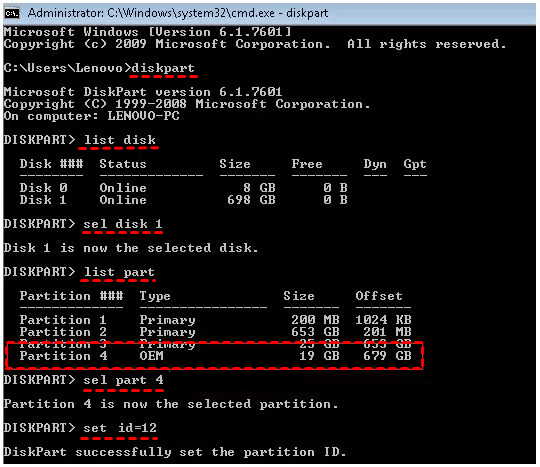
For detailed steps and screenshot, please refers to "The program cannot restore the system partition".
✍ For the last two events, you can use "Recovery drive" to recover from a drive or directly use "Reset this PC" in the installation disc.
Here take the second one as an example and reset this PC:
- To reset your PC, go to Start, then Settings, followed by Update & Security, then Recovery, and click Get started under the Reset this PC section.
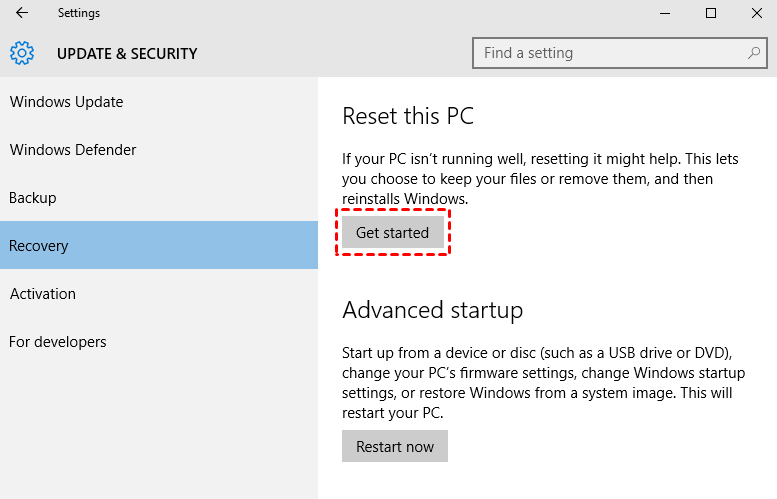
- After starting Reset this PC, you choose the way to reset a PC, either keeping your files or removing everything, and confirm what will be removed, then click "Reset" to start the process.
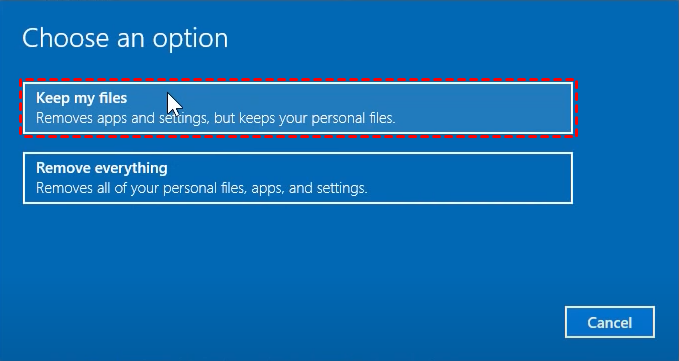
For step by step guide, you can refer to "reset Windows 10 and keep my files".
More Powerful OneKey Recovery Software to Keep Everything
In addition to the built-in recovery tool, you can use a more powerful one-key recovery software like Qiling Disk Master to backup and restore your system in Windows 11, 10, 8, 7, XP, or Vista. It creates a recovery partition and stores the backup image there.
The backup will always be available for Lenovo system recovery, including factory reset or laptop/desktop without recovery partition, system reinstallation or upgrade, and includes everything currently on the computer. It also allows scheduling backups daily, weekly, or monthly to keep track of changes.
Download the software on your computer beforehand to ensure system protection, and it supports all Windows PCs and servers. For broader protection, refer to the edition comparison page.
Step 1. In the main console, choose OneKey System Backup.

Step 2. Two options are offered: backing up the system to the Qiling Disk Master Partition, which is recommended for data security, or backing up the system to another location.
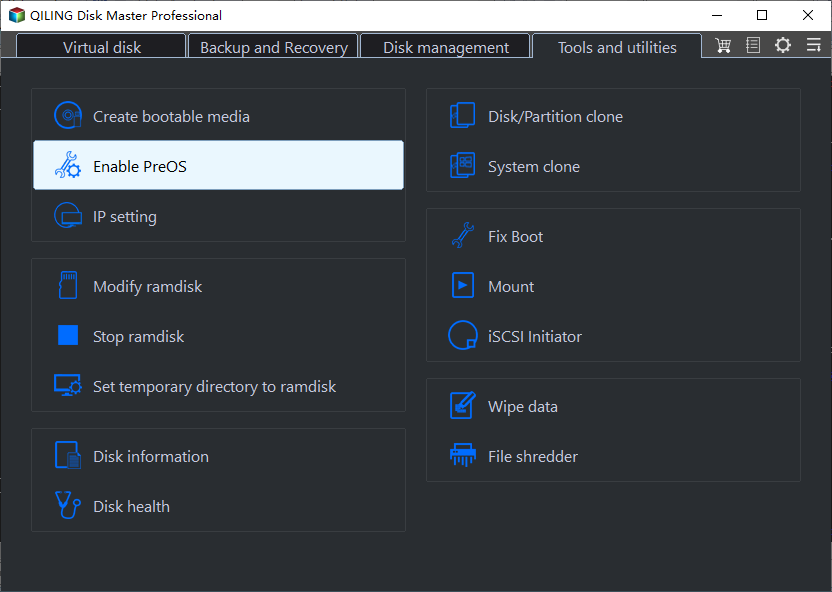
Besides, there are two options at the lower location.
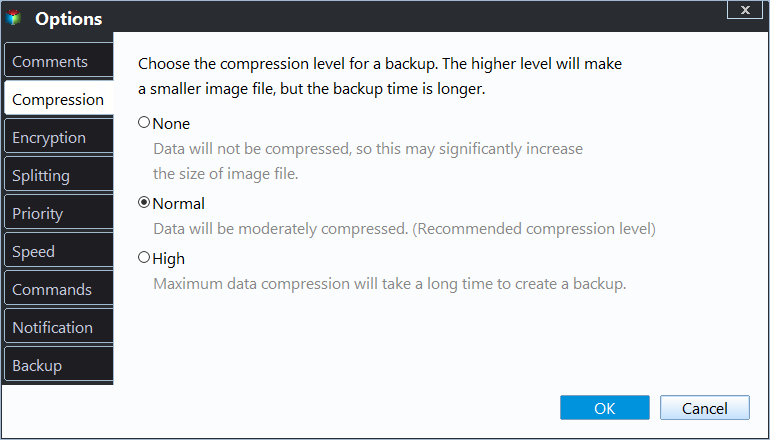
- Backup Options: Image Compression allows you to compress images with normal or high compression levels. You can also set a password to encrypt the backup image, ensuring that only authorized individuals have access to it.
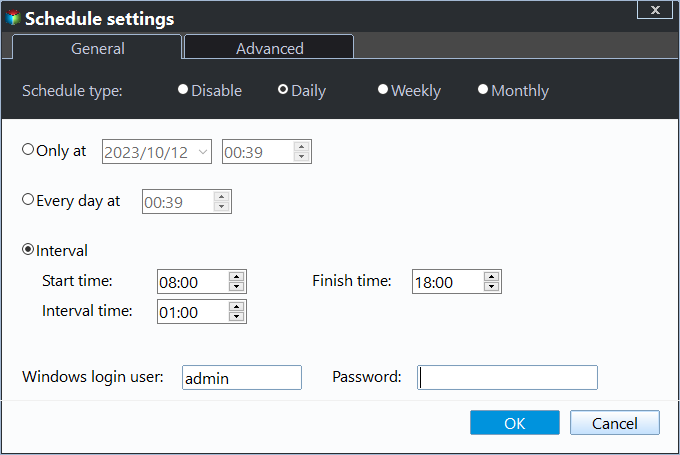
- Scheduler: It offers customizable backup settings for daily, weekly, and monthly intervals, ensuring that system changes and backups are consistently updated, minimizing the risk of data loss.
Note: If you want to back up your system to an external device, such as a new hard drive or USB flash drive, you can choose this option. This is a good idea if you're concerned that your backup image might be damaged or lost during a reinstall or upgrade.
Step 3. Select a partition for the recovery partition and click Proceed to create a system image for your Lenovo computer.

Note: To ensure a successful backup, the free space of the partition used to create the Qiling Recovery Partition must be larger than the used space of partition C. If this condition is not met, the backup process may be compromised.
Step 4. When the whole process is complete, you can set up the shortcut (F11 or A key) to enter Qiling recovery environment by clicking the Setting icon at the upper right corner.
This software is applicable to all Lenovo computers, allowing users to perform system recovery on various Lenovo models, such as Lenovo Yoga or Ideapad, including the Ideapad 320 and Ideapad 3.
Summary
You can easily factory reset Lenovo with System Recovery if your recovery partition is still in good status. If not, you can either create the recovery partition first or use Recovery Drive or Reset this PC as alternatives.
If you cannot avoid corrupting the recovery partition, such as during system resize, reinstall, or upgrade, it's recommended to back up your system using a more powerful software like Qiling Disk Master. For added protection and customization options, consider using Qiling Disk Master Technician or Customization edition to safeguard unlimited PCs and tailor the user interface.
Related Articles
- Two Simple Ways to Backup Lenovo Laptop in Windows 10
Backing up Lenovo laptop in Windows 10 is necessary to prevent data loss and system crash. Get 4 methods below and backup your computer with one of them. - Why and How to Restore Windows Server 2008 R2 to Previous Date
This guide explains Why and How to Restore Windows Server 2008 R2 to Previous Date with clear steps, key checks, and practical tips. - Restore System Image from USB with the Best Freeware
This article will show you how to restore system image from USB. Qiling Disk Master is the most suitable software to solve this problem. - All the Acer eRecovery Management Problems: How to Fix It Easily
You will learn the potential causes of Acer eRecovery Management problems and 5 solutions to fix them easily. And you can learn an overall solution to fix them once and for all. - How to clone dual boot drive to SSD
Qiling cloning software makes it easy to clone a dual-boot hard drive to an SSD, seamlessly transferring both operating systems. - Clone Hard Drive VS Clean Install SSD - Which One Is Better
When you get a new SSD, you may be wondering whether to clone your old hard drive or do a fresh install. This article provides a guide to help you decide, weighing the pros and cons of each option so you can make an informed decision about which is better for you.
Products
Articles & Tutorials
- Data Recovery
- Data Backup
- File Recovery
- File Backup
- File synchronize
- System Backup and Restore
- Disk and Partition Clone
- Technical articles
- Disk Master Help
- Windows Deleted File and Disk Recovery Tutorials
- Windows File and Data Recovery Tutorials
- More Windows Tutorials for Install, Security, Files, and PC Tips
- Windows Boot, Repair, and Recovery Environment Tutorials
- Windows Backup Tutorials
- Windows Restore Tutorials
- Windows Clone and Migration Tutorials
- Windows Server Backup, Recovery, and Management Tutorials
- Windows Disk, Partition, and Storage Management Tutorials