5 Ways to Easily Fix All the Acer eRecovery Management Problems
- Overview of Acer eRecovery Management
- How to Fix Acer eRecovery Management Problems
- Fix Acer eRecovery Management Cannot Install Bootable File
- Fix Acer eRecovery Management Not Working
- Fix Acer eRecovery Management Cannot Select Restore Type
- Fix Acer eRecovery Hard Drive Configuration Is Not Set
- Fix Acer eRecovery Management Gets Stuck
- Almighty Solution to Fix Acer eRecovery Management Problems (Alternative)
- Summary
Overview of Acer eRecovery Management
Acer eRecovery Management is a built-in tool on Acer brand computers for Windows that allows for backup and restoration. By default, a hidden recovery partition is created on the system hard disk for future use in case the current OS fails. This means that if an accident occurs, you can quickly recover your system using Acer eRecovery Manager.
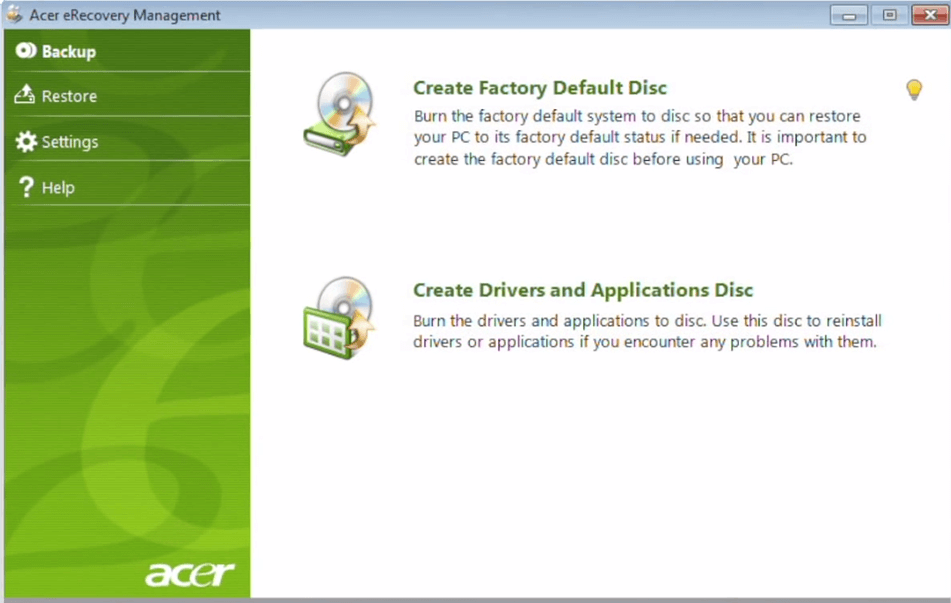
If you encounter issues with Acer eRecovery Management, such as problems creating recovery media or resetting factory settings, there are ways to troubleshoot and resolve them. First, ensure that the eRecovery Management software is up-to-date, and try running it in compatibility mode if you're using Windows 10. If the issue persists, try creating a new recovery media using a different USB drive or CD/DVD. If you're still unable to create recovery media, you may need to reinstall the eRecovery Management software.
How to Fix Acer eRecovery Management Problems
Here you will learn the potential causes for Acer eRecovery Management Problems as well as corresponding solutions. In addition, you can learn an overall solution to fix them once and for all.
Fix Acer eRecovery Management Cannot Install Bootable File
Users who don't have Acer eRecovery on their computers may need to install it before backing up or restoring data. However, when trying to install it, they may encounter the error "eRecovery Can Not Be Installed 1. Bootable Files".
To solve this problem, follow the graphic tutorial below to get the solution.
When Acer Recovery Manager can't install a bootable file, you can create a system recovery image using Windows System Recovery under the Control Panel instead.
Step 1. Enter "recovery drive" in the search box, and then choose "Create a recovery drive".
Step 2. In the next screen, ensure that the "Copy the recovery partition from the PC to the recovery drive" box is checked.
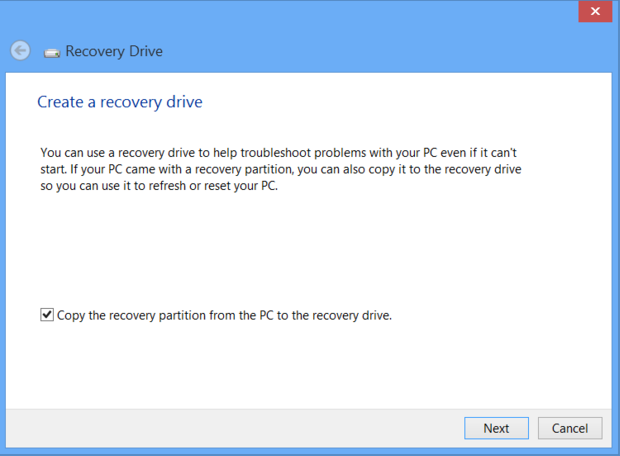
Step 3. Insert a large enough USB flash drive and select it as the recovery drive, then click Next to proceed.
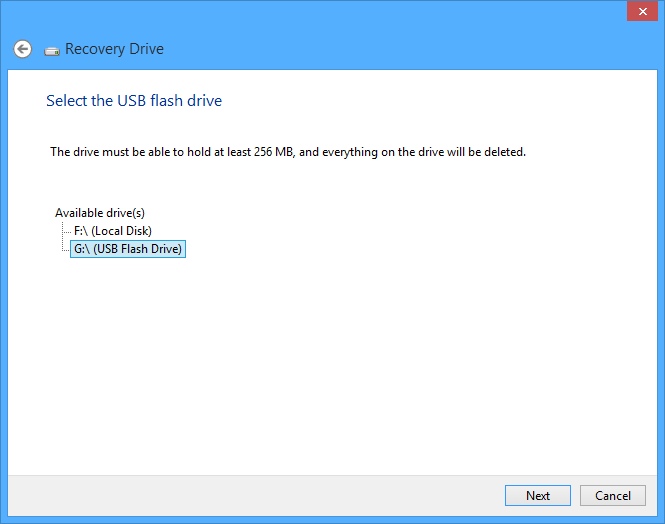
Step 4. To create a recovery drive, click "Create" on the Windows Recovery Environment window. The recovery image and necessary tools will then be copied to your USB flash drive, which may take a while depending on your PC and the size of the recovery image.
Step 5. When it finishes, remove the USB flash drive. Keep it in a safe place and don't use it to store other files or data.
Fix Acer eRecovery Management Not Working
Sometimes, Acer's eRecovery Management may fail to work when you need it most, such as during a factory recovery. This can be frustrating, as you may not be able to access it, and even shortcuts like "Alt + F10" may not work, leaving you unable to open the program.
When such thing happens, you can check if the "D2D Recovery" option is enabled or not in BIOS. If not, enable it and try again. You can follow the steps below.
Step 1. Boot your Acer computer and press F2 while it is booting to get into BIOS.
Step 2. Navigate to the Main tab by using the arrow keys "→" or "←".
Step 3. Find the D2D Recovery (Disc-to-Disc Recovery), press Enter and then select "Enabled".
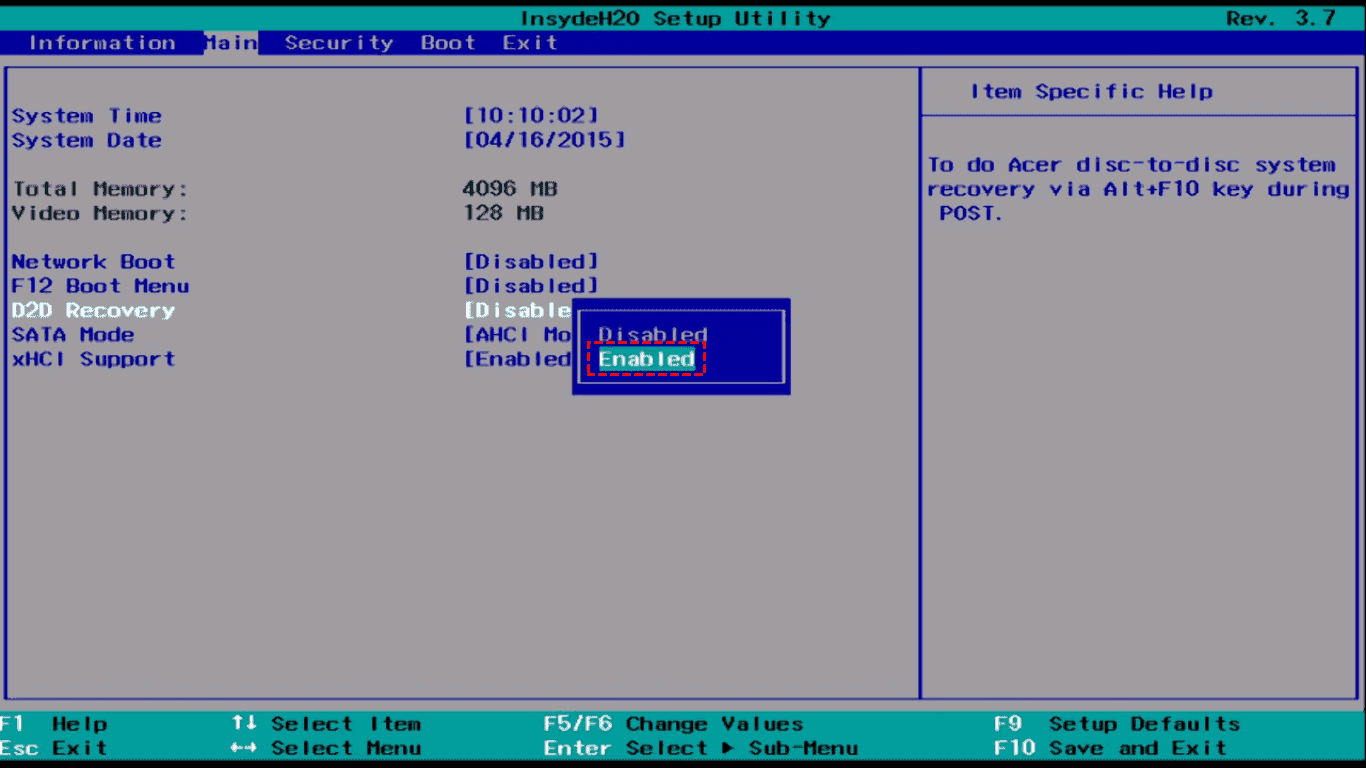
Step 4. To resolve the issue with Acer eRecovery Management not working, press F10 to save and exit, and when you see the Acer logo, hold Alt and tap F10. This should resolve the problem.
Fix Acer eRecovery Management Cannot Select Restore Type
If you're experiencing issues with Acer eRecovery software, such as getting stuck on a message saying "acer erecovery management cannot select restore type" during the restoring steps, you can try restarting the software, checking for any corrupted files, or running a System Restore to a previous point when the software was working properly. If the issue persists, you may need to reinstall the software or seek further assistance from Acer's support team.
There have several possibilities:
- The recovery discs may be damaged;
- The original drive needs to be formatted or have a free partition.
- AHCI in BIOS should be disabled;
- RAM problem.
To resolve the issue, identify the root cause(s) of the problem and take corrective action to eliminate them. This will help prevent the issue from recurring.
Fix Acer eRecovery Hard Drive Configuration Is Not Set
In some cases, the Acer eRecovery hard drive configuration may not be set, leading to aborted restore operations. This issue can be caused by various reasons, including incorrect settings, corrupted software, or hardware problems.
- There is no recovery discs or recovery partition;
- The mode of SATA controller setting to AHCI is not correct;
- Jumper numbers is not correct;
- System disk partitions layout has been changed.
Get a recovery disk from Acer directly
If there is no recovery disc or partition, you can purchase a set of recovery discs directly from Acer. Check their website or accessories for more information.
If you're experiencing issues with your Acer eRecovery hard drive configuration not being set, you can try solving the situation one by one and then retrying your attention. For more information on how to resolve this issue, you can refer to the article about Acer eRecovery hard drive configuration.
Fix Acer eRecovery Management Gets Stuck
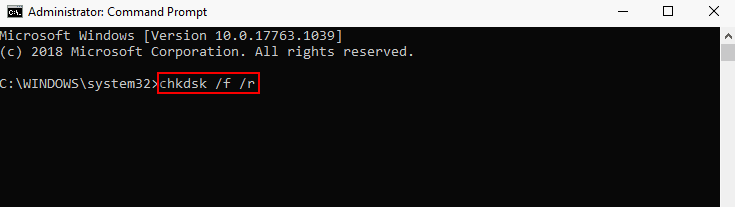
Acer eRecovery Management often gets stuck while creating Acer recovery disk and restoring computer settings, with many users reporting it gets stuck at 0% or 99% while loading files. This issue may be caused by a corrupted drive or file, and running the CHKDSK command can help fix the problem.
Step 1. Run Command Prompt as administrator on your computer.
Step 2. To run the chkdsk command, type "chkdsk /f /r" (or "chkdsk x /f /r" where "x" is the drive letter you want to scan) and press Enter. This will initiate the disk checking process, which may take some time to complete.
Step 3. Restart your computer and try using Acer eRecovery Management again. Check if the problem has been solved.
Almighty Solution to Fix Acer eRecovery Management Problems (Alternative)
In addition to the methods mentioned, you can also choose an all-in-one solution, Qiling Disk Master, which is the best Acer eRecovery Management alternative. It allows you to create a system backup to a recovery partition, providing a safeguard against data loss in case something goes wrong with your Acer computer. With Qiling Disk Master, you can restore the system from the recovery partition in time, making it a reliable and efficient solution. It also has additional advantages, making it a great choice for those looking for a robust backup and recovery solution.
- Multiple computer brands: This software is designed to work with all brands of computers, not just one specific brand, making it a versatile tool. As a result, it can be used to run recovery processes not only on Acer computers, but also on other brands, such as Samsung laptops, if needed.
- Many paths: The software allows you to backup your system to the recovery partition and other external devices, such as external hard drives, USB flash drives, CDs, and DVDs.
- Protect the backup: It is able to compress or encrypt the backup image.
- Schedule backup: Regular system backups can be scheduled at fixed intervals, such as daily, weekly, or monthly, to ensure that important data is safely stored and can be recovered in case of a system failure or other issue.
- Emergency key: This software allows you to back up your system, generating an emergency key for system restoration and supports both F11 and A as recovery key and boot menu at system startup.
You can create a system backup for your Acer computer by following the graphic tutorial, which will allow you to perform a one key recovery if your computer experiences any problems.
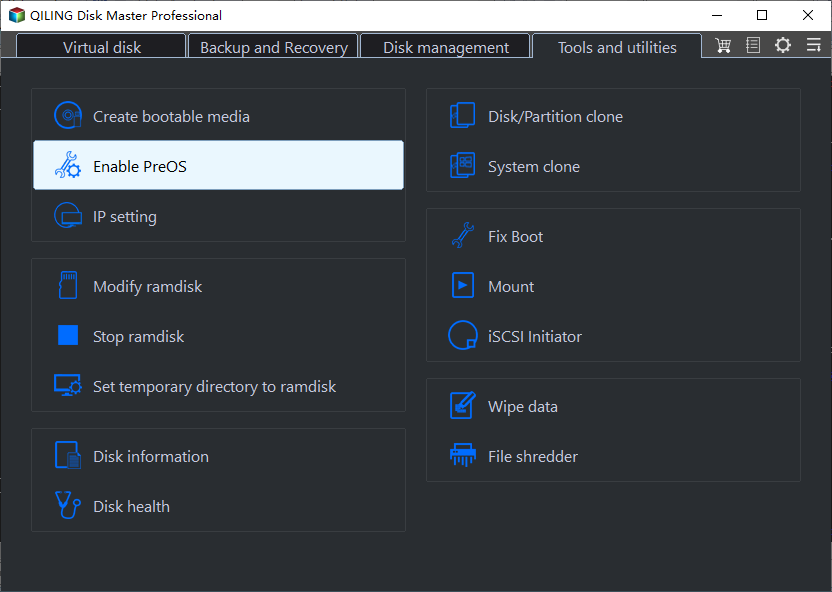
Step 1. Download this software install and launch it, click OneKey System Backup.

Step 2. To select a backup system for the Qiling Disk Master Partition, choose "Backup system to Qiling Disk Master Partition" and click Next. Alternatively, if disk space is a concern, a second method can be used.
Step 3. Select a partition on the hard drive to create a recovery partition and store the backup image. Then, click Proceed.

Summary
If you're experiencing problems with Acer eRecovery Management, don't worry - there are 5 ways to solve them. Depending on the specific issue, you can choose the corresponding solution, or take a one-and-done approach by using Qiling Disk Master to create a system backup. This backup can be used to restore your system, even if your computer can't boot up, and will protect your data to the maximum extent. The emergency key feature of Qiling Disk Master allows you to restore your system, even if it's not booting up, making it a reliable solution for Acer eRecovery Management problems.
Related Articles
- Acer Erecovery Management Stuck Solutions
You will learn how to fix Acer eRecovery Management stuck problem in common situations and easily factory reset Acer without losing data. - Acer eRecovery Management Windows 7 Introduction
Acer eRecovery Management in Windows 7 is to help to backup operating system in case of accidents and restore system back after accident happens. - Backup and Restore with Acer Recovery Management in Windows 10
This article will show you how to backup and restore with Acer Recovery Management in Windows 10. With a backup in hand, you can restore Acer to a good state. - Best Synology File Recovery Tools to Recover Files on/from NAS
Synology file recovery tools help you recover deleted files on Synology NAS and lost data on a PC from Synology NAS. Learn how to do it from this article. - How to Back Up Computer Windows 7 Before Upgrading to Windows 10 (2 Ways)
Learn how to back up Back Up Computer Windows 7 Before Upgrading to Windows 10 (2 Ways) with practical steps, storage tips, and safer recovery planning. - How to Backup and Restore Information in Firefox Profile (Manual & Automatic Ways)
Firefox profiles store these important data, and you may back up and restore firefox profiles to transfer or keep them safe. This passage mainly tells how to back up and restore information in Firefox profiles manually or automatically.
Products
Articles & Tutorials
- Data Recovery
- Data Backup
- File Recovery
- File Backup
- File synchronize
- System Backup and Restore
- Disk and Partition Clone
- Technical articles
- Disk Master Help
- Windows Deleted File and Disk Recovery Tutorials
- Windows File and Data Recovery Tutorials
- More Windows Tutorials for Install, Security, Files, and PC Tips
- Windows Boot, Repair, and Recovery Environment Tutorials
- Windows Backup Tutorials
- Windows Restore Tutorials
- Windows Clone and Migration Tutorials
- Windows Server Backup, Recovery, and Management Tutorials
- Windows Disk, Partition, and Storage Management Tutorials