Restore System Image from USB with the Best Freeware
System image recovery
A system image is a complete backup of a system, which can be used to restore the system to its previous state in case of a failure or when you want to revert to a previous backup. The system image recovery program can overwrite the entire contents of a hard drive with the contents of a previously created system image. This means that any changes made to the system since the backup was created will be lost.
What is a USB?
USB (Universal Serial Bus) is a standardized connection technology that allows peripherals like keyboards, mice, and cameras to communicate with and be powered by personal computers. It has become widely used on other devices like smartphones, PDAs, and video game consoles, effectively replacing earlier interfaces like parallel ports and separate power chargers for portable devices.
How to restore system image from USB
To restore a system image from a USB drive, first choose a suitable tool based on reliability, ease of use, and recovery speed. The right tool can help you complete system image recovery smoothly and avoid unnecessary downtime.
Qiling Disk Master is a practical tool for restoring system images from USB drives. It offers a powerful restore function and an intuitive interface, making it suitable for users who need a reliable system image recovery tool.
To restore your system image from a USB drive, you'll need to have already created a system image to USB and a system repair disc. With these tools, you can restore your system image from the USB drive, which will effectively reinstall your operating system and all its associated programs and settings. This process can be a lifesaver if your computer is experiencing serious issues or has been compromised by malware.
- Download Qiling Disk Master, install it on your computer. For Windows Server users, please turn to Qiling Disk Master Server.
- Plug the USB device containing the system image into the computer, and insert the system repair disc into the CD/DVD ROM to boot into Windows.
- Launch Qiling Disk Master, click Restore on the left side of the main interface, and then select the image file on the right.
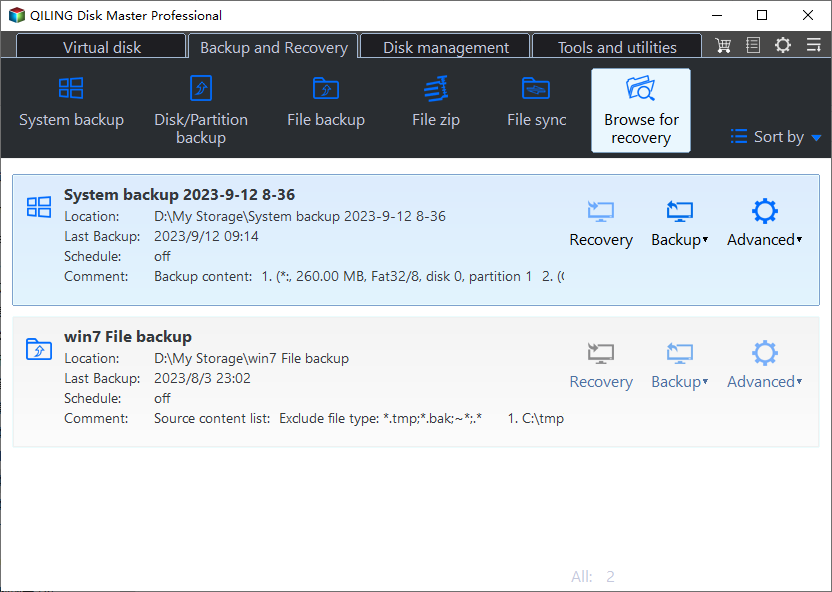
- Tick "Restore this system backup" and click Next.
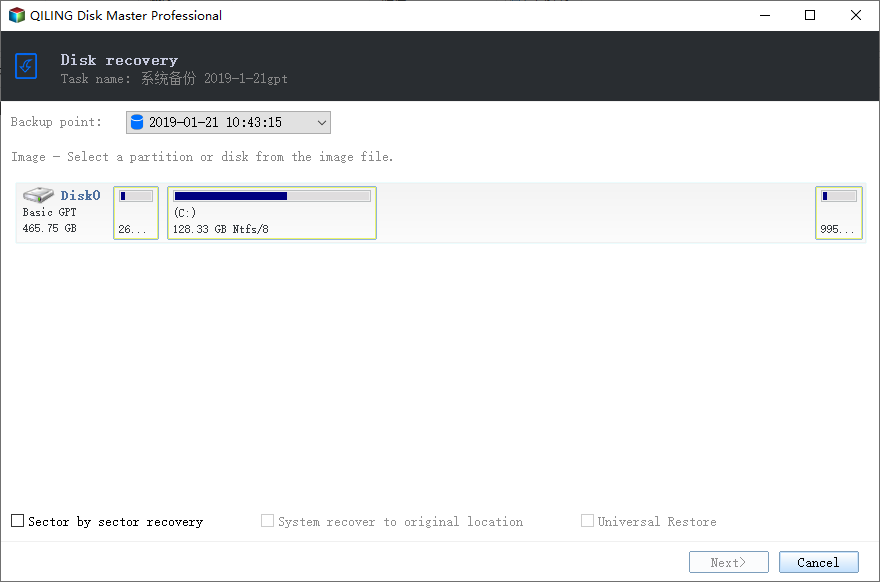
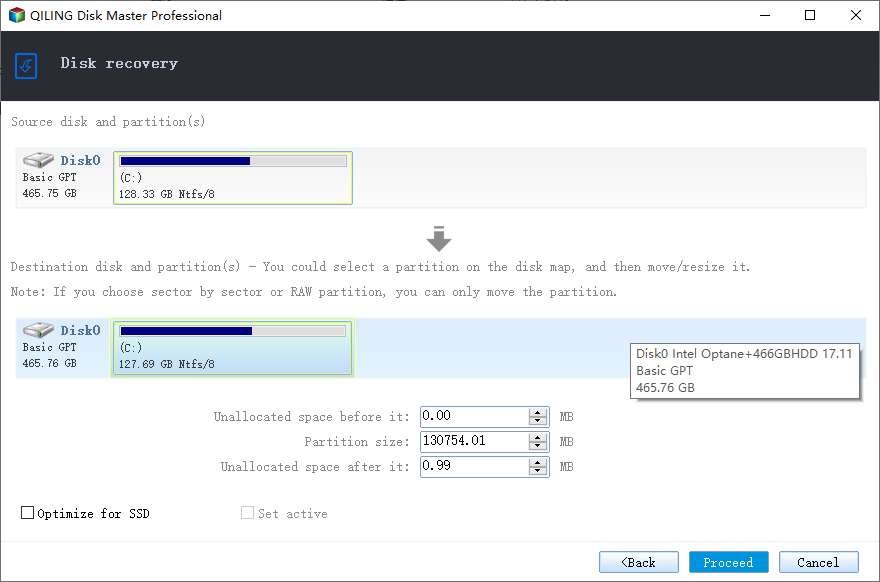
- Review the operation summary, click Start Restore to begin the process, and then click Finish once the restore is complete.
Conclusion
This article explains how to restore a system image from a USB drive with free software that has no bundled software or ads. Qiling Disk Master also provides backup, clone, and sync features, so you can set up automatic backups to a USB drive with just a few clicks.
Related Articles
- How to Move Files from OneDrive to Teams
Learn how to Move Files from OneDrive to Teams with clear steps, key checks, and practical tips. - How Do I Switch/Move Internet Explorer to Firefox - Qiling
As the Internet Explorer comes to its end of life, many users are looking for solutions to move data from Internet Explorer to other browsers. Switching IE favorites, passwords, etc., to Firefox on your current PC or between two computers is easy to accomplish. - How to Move Microsoft SQL Server Compact Another Computer? [2022 Ultimate Guide]
Learn how to Move Microsoft SQL Server Compact Another Computer with clear steps, key checks, and practical tips. - How to Move Netflix to Another Computer? [Step-by-Step Guide]
Learn how to Move Netflix to Another Computer with clear steps, key checks, and practical tips. - How to Burn ISO File to Disc?
This article will show you how to burn ISO files to USB flash drive and CD/DVD with various burning software.
Products
Articles & Tutorials
- Data Recovery
- Data Backup
- File Recovery
- File Backup
- File synchronize
- System Backup and Restore
- Disk and Partition Clone
- Technical articles
- Disk Master Help
- Windows Deleted File and Disk Recovery Tutorials
- Windows File and Data Recovery Tutorials
- More Windows Tutorials for Install, Security, Files, and PC Tips
- Windows Boot, Repair, and Recovery Environment Tutorials
- Windows Backup Tutorials
- Windows Restore Tutorials
- Windows Clone and Migration Tutorials
- Windows Server Backup, Recovery, and Management Tutorials
- Windows Disk, Partition, and Storage Management Tutorials