How to Increase System Reserved Partition Windows 7, 8, 10, 11?
Not enough space for System Reserved partition
Unfortunately, the System Reserved partition is a hidden partition that cannot be resized using standard disk management tools. However, you can increase the size of the System Reserved partition by moving the page file to a different drive. To do this, follow these steps: 1. Go to Control Panel > System and Security > System, and click on the "Advanced system settings" link on the left side. 2. Click on the "Settings" button under the "Performance" section. 3.
Why increase System Reserved partition in Windows 7/8/10?
When you try to upgrade to Windows 10 from Windows 8.1 or Windows 7, but the System Reserved partition is too full, you may get an error message saying "We couldn't update the System Reserved partition". This can also cause other errors.
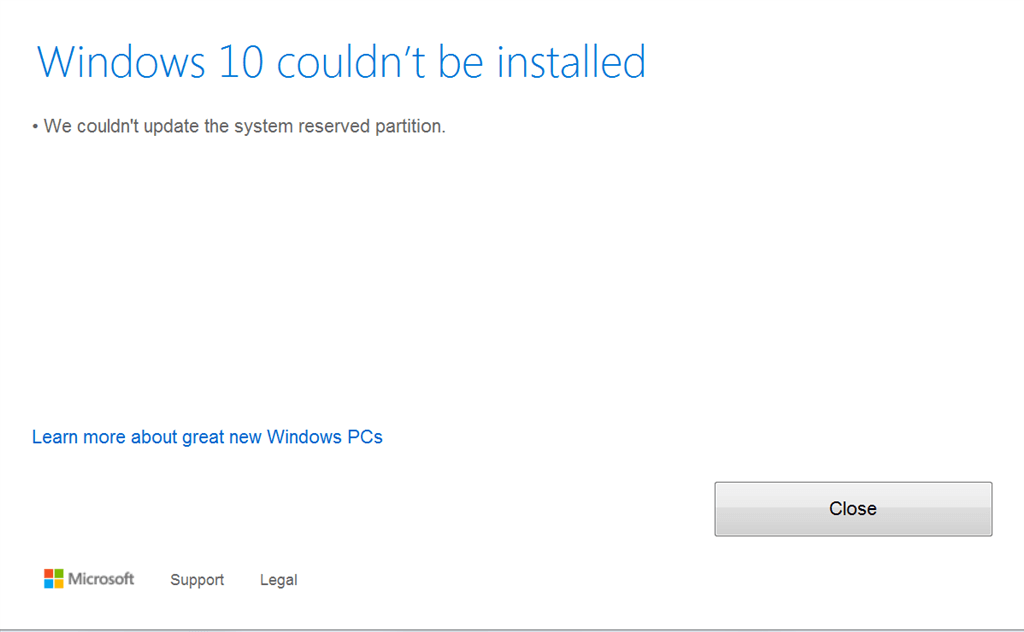
Windows 10 requires a minimum of 500 MB space on the System Reserved partition to upgrade from earlier Windows versions. If this space is not available, the upgrade will not proceed.
How to increase System Reserved partition in Windows 7/8/10/11?
The System Reserved partition cannot be easily extended using Disk Management due to the "Extend Volume..." option being grayed out. To extend this partition, a professional third-party tool such as Qiling Disk Master Standard is recommended.
Qiling Disk Master Standard is a free disk manager that supports all editions of Windows 7/8/10/11/Visa/XP. It allows users to easily and securely increase the System Reserved partition, and also enables resizing of BitLocker partitions. The software provides a straightforward solution for managing disk partitions, making it a useful tool for users looking to optimize their system's disk space.
Step 1. Free download this freeware, install and open it.
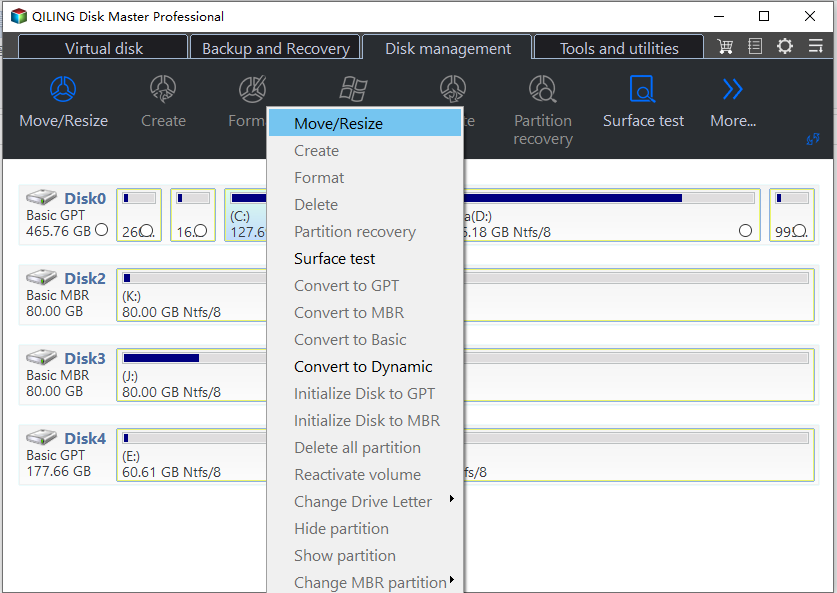
Step 2. Right-click on a redundant partition and select "Resize/Move Partition" to generate unallocated space, which can then be used to resize the System Reserved partition. This can be done by selecting the C: drive or the drive after C, as it only needs 400 MB at most.
Here, we're taking the C: partition as an example and our goal is to allocate some space from the C: partition to the System Reserved partition.
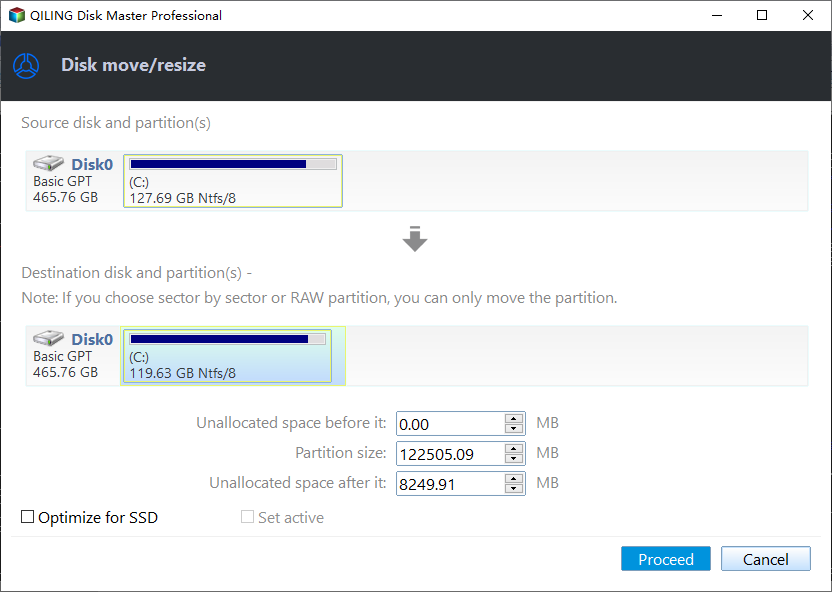
Step 3. In the next window, drag the slider bar to the right to increase the space, or enter a specific amount of space you want to shrink.
Step 4. The program will restart your computer to complete these operations under PreOS Mode, but you can also use the "Merge Partitions" feature to unallocated space into your system reserved partition or other partitions that need to be enlarged.
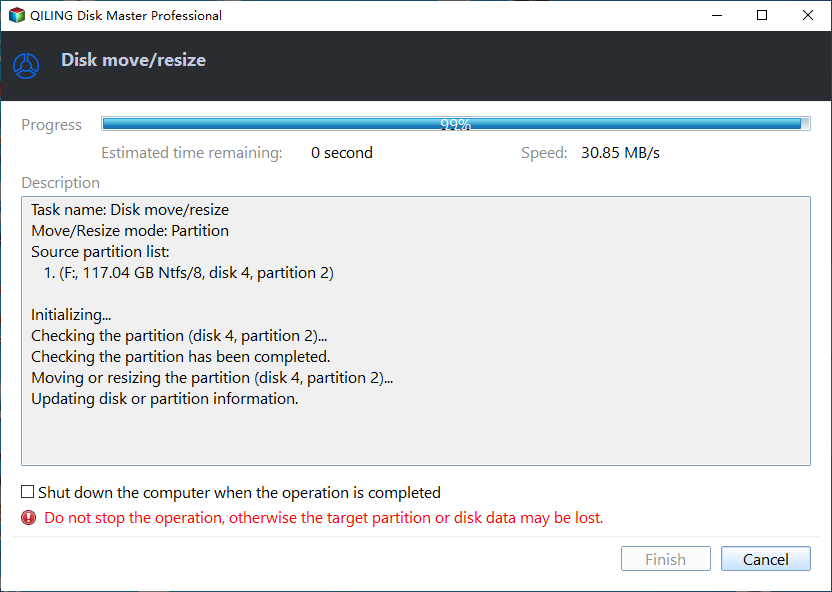
You can use Qiling Disk Master Professional to allocate free space from any other partition to the System Reserved partition.
Conclusion
After increasing the System Reserved partition, you can upgrade to Windows 10 or 11 without errors, and then delete nonfunctional recovery partitions to free up space. Additionally, you can use Qiling Disk Master to migrate OS, clone disk, and convert disk between MBR and GPT without losing data.
Related Articles
- How to Move the System Reserved Partition Safely to Another Drive
Learn how to Move the System Reserved Partition Safely to Another Drive with clear steps, key checks, and practical tips. - How to Hide System Reserved Partition with 3 Simple Ways?
System reserved partition contains boot configuration data and other essential data. It is a good idea to hide them to protect information. Refer to this post, it will demonstrate 3 methods helping you perform this operation. - Samsung Data Migration On Windows 11: Guide & Alternative
This tutorial shows you how to transfer HDD to SSD via Samsung Data Migration in Windows 11. Another Samsung SSD clone software is offered in case Samsung Data Migration fails. - Fixed: Windows 11 Go Back to Windows 10 Not Working
This guide explains Fixed: Windows 11 Go Back to Windows 10 Not Working with clear steps, key checks, and practical tips. - 4K Alignment: Align SSD after Clone in Windows 11, 10, 8, 7
You'll learn to align SSD after clone in this post with a secure and powerful tool. - Unspecified Error During System Restore 0x80070002 - Fixed!
This tutorial shows how to fix an unspecified error occurred during System Restore 0x80070002 and provides an easier way to perform system backup and restore in Windows.
Products
Articles & Tutorials
- Data Recovery
- Data Backup
- File Recovery
- File Backup
- File synchronize
- System Backup and Restore
- Disk and Partition Clone
- Technical articles
- Disk Master Help
- Windows Deleted File and Disk Recovery Tutorials
- Windows File and Data Recovery Tutorials
- More Windows Tutorials for Install, Security, Files, and PC Tips
- Windows Boot, Repair, and Recovery Environment Tutorials
- Windows Backup Tutorials
- Windows Restore Tutorials
- Windows Clone and Migration Tutorials
- Windows Server Backup, Recovery, and Management Tutorials
- Windows Disk, Partition, and Storage Management Tutorials