How to Sync Desktop to OneDrive Automatically (2 Ways)
Quick Navigation:
- You need to sync Desktop to OneDrive
- Sync Desktop in Windows 10 with OneDrive folder
- Automatically sync all folders to OneDrive with Qiling Disk Master
- Summary
You need to sync Desktop to OneDrive
Many computer users put frequently used folders on their desktop, but this also makes them more vulnerable to losing files. To keep desktop data safe and easily accessible, some people prefer to sync their desktop with cloud storage services like OneDrive, Google Drive, or Amazon Drive.
You can easily access your Desktop data from other devices if you sync it to OneDrive, allowing you to continue work started at the office from home without needing to save files to a USB drive.
Syncing Desktop with OneDrive can be used as a way of backup, providing easy access to data and serving as a data recovery plan in case of accidental deletion.
Sync Desktop in Windows 10 with OneDrive folder
OneDrive, a cloud storage service, is a built-in feature on Windows PCs that allows users to sync local folders, edit, or share them. It can be accessed by searching for it and signing in with a Microsoft account on Windows 11, 10, or 8, or downloaded and installed on Windows 7. Users can sync their Desktop with OneDrive using the service.
- To sync your Desktop folder with OneDrive, you can simply drag and drop the Desktop folder to the OneDrive folder, which is typically located at C drive > User > your username > Desktop. However, this method can be inconvenient as you'll need to manually drag and drop new files every time they're added.
- To sync your Desktop to OneDrive automatically, you can set your Desktop folder location to OneDrive, so everything saved in this folder will be synchronized with the cloud.
Here's how to do it automatically.
Step 1. Go to the OneDrive folder and create a new folder named "Desktop".
Step 2. Then, find the Desktop folder in the C drive and right-click it, select Properties.
Step 3. In the "Desktop Properties" windows, select the Location tab and click Move.
Step 4. In the box that appears, double-click OneDrive, select the Desktop folder inside and then click Select Folder when it's highlighted.

Step 5. Click Apply in the Move folder window, then select Yes to confirm moving the Desktop folder to OneDrive.
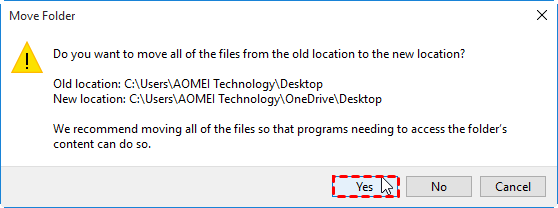
Syncing files and folders in Windows 11/10/8/7 with OneDrive can be simple, but note that the free account only has 5GB of space, which can quickly fill up as OneDrive automatically syncs files when you make any changes to them.
To address the issue, consider synchronizing files on a regular schedule, like daily, weekly, or monthly, and utilize a specialized OneDrive sync tool for a seamless experience.
Automatically sync all folders to OneDrive with Qiling Disk Master
OneDrive sync tool for Desktop
Qiling Disk Master Standard is a free data transfer software that comes with a Basic Sync feature.
- This software enables file and folder syncing to various destinations, including cloud drives like OneDrive, as well as other locations like USB drives, NAS devices, external hard drives, and networks.
- The "Schedule Sync" feature allows you to automatically sync all files and folders to OneDrive, saving you time and effort spent on manually syncing your Desktop with OneDrive.
- This software can be applied to a wide range of Windows versions, including Windows 10, 11, 8.1, 8, 7, Vista, and XP, and also offers a server version called Qiling Disk Master Server for server users.
Qiling Disk Master Standard automatically runs a missed sync at the next system startup, ensuring newly added files or folders are synced without additional setup.
How to sync Desktop to OneDrive automatically in Windows 10
► Preparation: Sign in to your OneDrive account and download Qiling Disk Master. Once downloaded, install it.
Step 1. Open Qiling Disk Master, and choose File Sync under the Backup tab.

More ways to sync files automatically (available on the professional version or higher):
- Real-Time Sync: The desktop sync feature ensures that files on the desktop are up-to-date and synchronized with the cloud, allowing for real-time changes and minimizing data loss in the event of a disaster.
- Mirror Sync: This feature allows you to avoid making any unwanted changes to a scheduled sync task, enabling you to mirror folders to OneDrive without any issues.
- Two-Way Sync: The tool is designed to synchronize files and changes between two directories, one being the source and the other the destination.
Step 2. Click Folder to select the Desktop folder you want to sync.

Tip on syncing files with certain file extensions:
- To sync only certain files, click the funnel button on the selected folder, go to filter settings, and type the desired file extensions to include or exclude.
- The Filter Settings feature is a premium feature that is available on advanced versions.
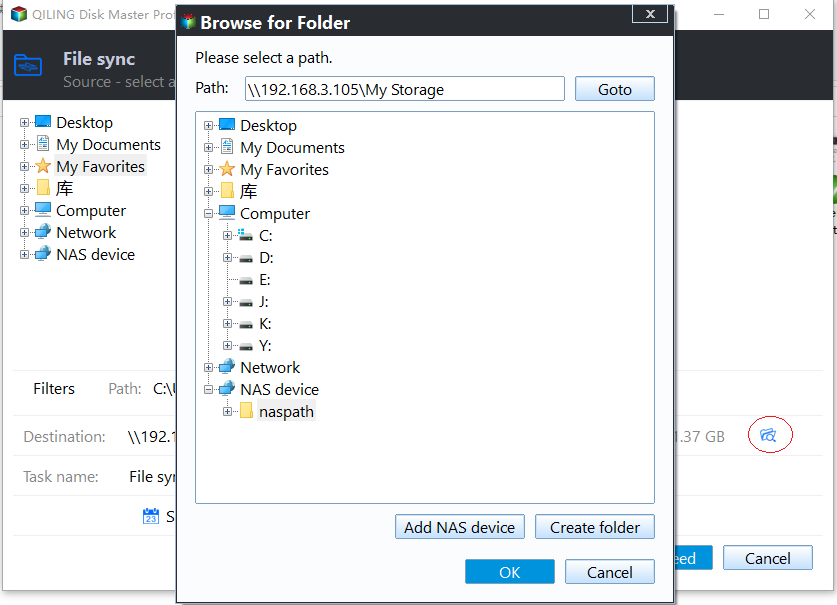
Step 3. Then click the drop-down menu and choose Select a cloud drive.
 =
=
Step 4. Then, in the Select Cloud window, choose OneDrive as the destination path.
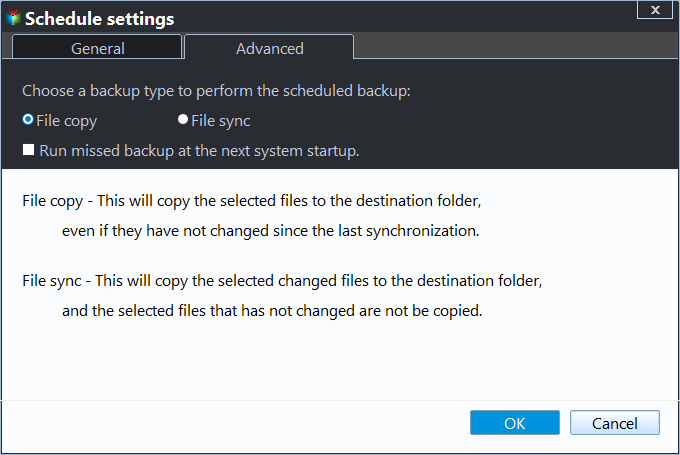
Step 5. Click Schedule Sync and enable it, you can select Daily (default), Weekly, or Monthly. Then click OK.

Click Options to add a unique comment to the sync task, allowing you to distinguish it from others. Additionally, enable email notification to receive a notification after the operation is completed.
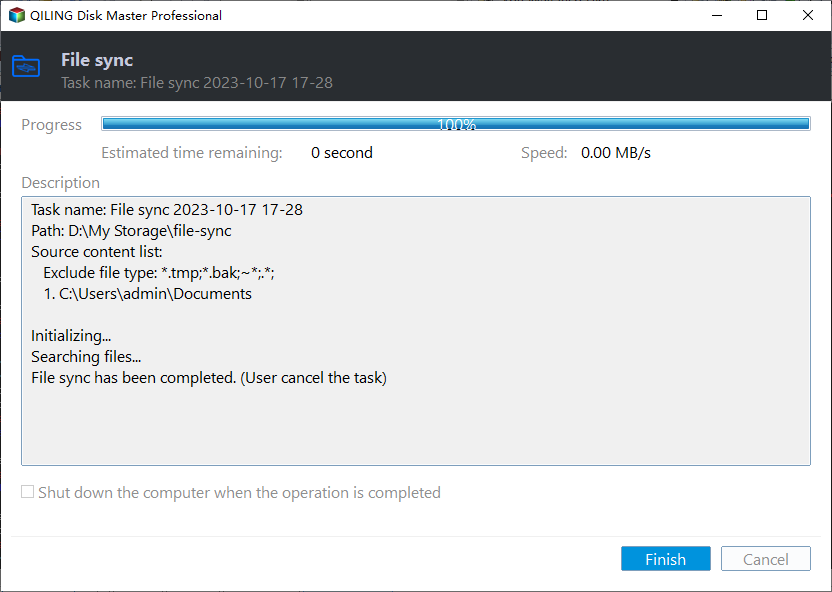
Step 6. After completing all the previous steps, click "Proceed" followed by "Add the schedule and Proceed now" to initiate the Desktop sync with OneDrive for the first time.
Tips:
- Don't modify the source folder name, as this will prevent the software from syncing files.
- For users with a few GB of cloud storage on OneDrive, backing up files to Qiling Cloud, a cloud drive developed by Qiling Tech, could be a viable option. It offers a free 1TB storage 15 days after signing up for a Qiling account.
Summary
Syncing your desktop to OneDrive is a great way to keep your data safe. With the help of Qiling Disk Master, you can simplify this process and make it more efficient.
Qiling Disk Master is a great backup and restore tool that allows you to create a system image and store it on OneDrive, serving as a disaster recovery plan. Its professional edition even enables you to restore your system to different hardware, a feature not available in Windows' built-in tool. Give it a try!
Related Articles
- How to Sync Any Local Folder to OneDrive in Windows 10/8/7
- How to Automatically Sync Windows Server with OneDrive
- How to Sync OneDrive Windows 10 Automatically
- Fixed: Synology Cloud Sync Not Working Even Up to Date
This article provides you with 5 practical ways and 2 workarouds for Synology Cloud Sync not working. Learn more about it now! - Best Free Task Scheduler Alternative - Qiling Disk Master
If you are looking for a better Task Scheduler alternative, Qiling Disk Master Standard is worth trying. Read this article carefully and learn the operating steps below. - How to Transfer/Move Files from SSD to HDD in Windows 10/8/7?
This tutorial will introduce you how to transfer files from SSD to HDD in Windows 10/8/7/Vista/XP with all-around freeware, Qiling Disk Master Standard. It is easy and fast.
Products
Articles & Tutorials
- Data Recovery
- Data Backup
- File Recovery
- File Backup
- File synchronize
- System Backup and Restore
- Disk and Partition Clone
- Technical articles
- Disk Master Help
- Windows Deleted File and Disk Recovery Tutorials
- Windows File and Data Recovery Tutorials
- More Windows Tutorials for Install, Security, Files, and PC Tips
- Windows Boot, Repair, and Recovery Environment Tutorials
- Windows Backup Tutorials
- Windows Restore Tutorials
- Windows Clone and Migration Tutorials
- Windows Server Backup, Recovery, and Management Tutorials
- Windows Disk, Partition, and Storage Management Tutorials