Backup Windows 10 to USB Drive with 2 Free Ways
Why backup Windows 10 to USB flash drive?
System backup is crucial to prevent data loss and system crashes caused by various factors such as virus attacks, hardware failure, human error, or Windows updates. Restoring the system to its previous state using a system backup image can be a lifesaver. However, it's equally important to choose a reliable location to save the image files, ensuring they are safe and easily accessible when needed.
The hard disk failure is a common reason for lost backups, especially if saved on internal disks. However, saving backups to NAS (network-attached storage) also has its own risks, as it can be easily infected by viruses or malware if it's always connected and accessible to many users. Therefore, it's essential to choose a safe storage option for image files.
You can back up Windows 10 to an external hard drive, which is a safe and easy way to store your system image. This allows you to easily restore it to a new hard drive if needed, and the external drive can withstand normal use without being damaged.
Common ways to backup Windows 10 to USB drive
Microsoft provides a system image backup tool in Windows 10, but it doesn't work well with USB drives, instead, you can share a USB drive as a network drive and then use the tool to backup to it.
Many users have successfully used it, but for those seeking a simpler option, trying this may not be the best choice. A more straightforward alternative is to use compatible backup software like Qiling Disk Master Standard, which allows for backing up Windows 10 to a USB drive, as well as other options such as network drives, NAS, or cloud drives.

How to Backup Windows 10 to USB Successfully
To backup Windows 10 to a USB drive, you can follow the easy way, which not only helps you complete the task successfully but also makes it automatic and flexible. This method involves detailed steps that ensure a smooth backup process. Alternatively, you can also explore other ways to achieve this, which will be introduced in the next part. However, the easy way is a good starting point for those who want to backup their Windows 10 to a USB drive with ease and convenience.
Create system image windows 10 on USB with Qiling Disk Master
Qiling Disk Master Standard is a reliable and all-around backup and recovery software designed for Windows 11/10/8.1/8/7/Vista/XP, offering easy and free use. Its main features include reliable backup functionality.
● Complete backup solutions: It provides system backup, disk backup, partition backup, and file backup options.
● More compatible: The software successfully backs up Windows 10 to various storage devices, including local disks, external hard drives, USB flash drives, NAS devices, and network shares.
● This feature-rich tool allows for daily/weekly/monthly scheduled backups, incremental backups of only changed data, and compressing image files with normal or high compression levels.
● Easy recovery: The tool allows you to restore a Windows 10 system image to a new hard drive and install it on the same computer, or a computer with dissimilar hardware, supported by the professional version, and also enables disk restore.
To backup Windows 10 to a USB flash drive using Qiling Disk Master, follow these steps: First, download and install Qiling Disk Master on your Windows 10 computer. Next, insert the USB flash drive into your computer and launch Qiling Disk Master. In the program, select the USB drive as the destination for the backup.
1. Connect the USB flash drive to your computer, ensure it's detected, download, install, and launch Qiling Disk Master, and follow the software's instructions to create a bootable USB drive.
2. In the main page of Qiling Disk Master, select Backup and click System Backup in order.
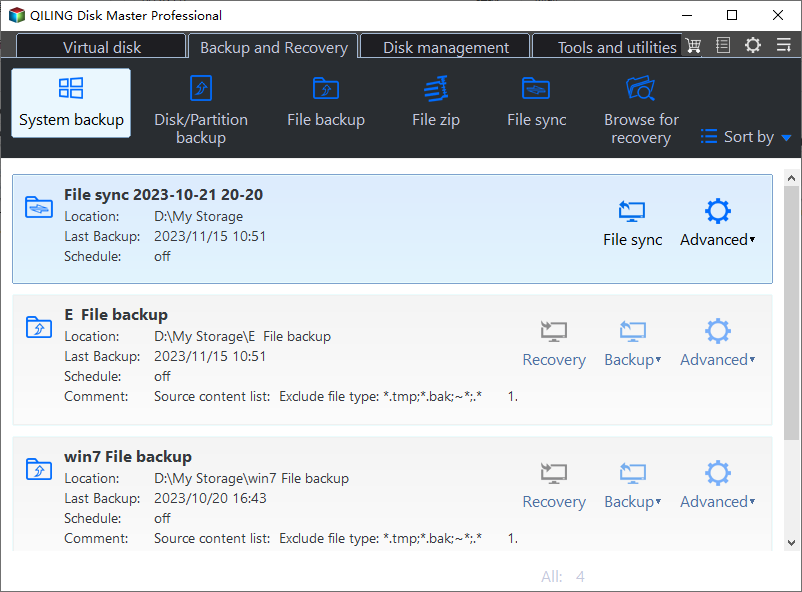
3. Select the USB drive as the backup destination. The system-related drives have been selected as source partitions automatically by Qiling Disk Master.

4. Confirm the operation and click Proceed. Some backup settings include backing up your files, creating a system image, and backing up your system files.
- Options: You can customize the backup task by adding a comment to distinguish it from other backups, and also compress the backup image to save storage space on your USB drive.
- Schedule Backup: You can set the backup task to run daily, weekly, or monthly, or even trigger it on specific events. Additionally, you can also set it to run when a USB device is plugged in, if you have upgraded to the premium features.
- Backup Scheme: You can choose from full, incremental, and differential backups, and enable automatic cleanup of old backup images, allowing for efficient backup management. To access these advanced features, you need to upgrade now, with a 5% discount available for one computer.

✎ Tip: If your computer is unable to boot, Qiling Disk Master allows you to create a Windows USB recovery drive, preparing you for such situations. Alternatively, if you don't have a storage device, creating a recovery environment in Windows 10 can be a useful feature.
To restore system image from USB, you can follow the steps below:
1. Connect your USB drive with the system image to your computer, then open Qiling Disk Master. To restore the system image, use one of the following methods.
Go to Home, find the system backup task and click Restore. Then, see the step 2.
To restore a previous version of a file, click on the left pane and select the file you want to restore. Then, click on the "Restore" button. Next, click on "Select Image File" and choose the version of the file you want to restore from the list of available versions. Finally, click on "Restore" again to complete the process.

2. If you select the system image in the home tab, it will go to the select items window, where you can click "Recovery" and then click Next.

3. To restore a backup, first find the backup image file and select it, then choose the items you want to restore, such as the entire system or a specific partition.
4. You will enter the operation summary window, click "Proceed" and wait patiently.

★ Advanced way to backup Windows 10 to USB
To avoid computer malfunctions, creating a system backup is recommended, but you can also create a bootable USB or CD/DVD to boot your computer. However, instead of creating them separately, you can now use a simpler method to create both simultaneously. This convenient approach allows you to have both a bootable USB and a bootable CD/DVD ready to go, providing an extra layer of protection and convenience for your computer.one key recovery software Qiling Disk Master allows you to access its software via fast key F11 or A, for example, when your computer fails to boot.

Backup Windows 10 to USB using built-in tool
A USB flash drive is a convenient tool for transferring files and storing backup images, making it a great option for backing up Windows 10. However, many users prefer to use the Backup and Restore feature, which was introduced in Windows 7.
When choosing a USB flash drive as the backup destination, a warning message appears stating that the drive is not a valid backup location, a problem also occurring when using Backup and Restore in Windows 7/8.
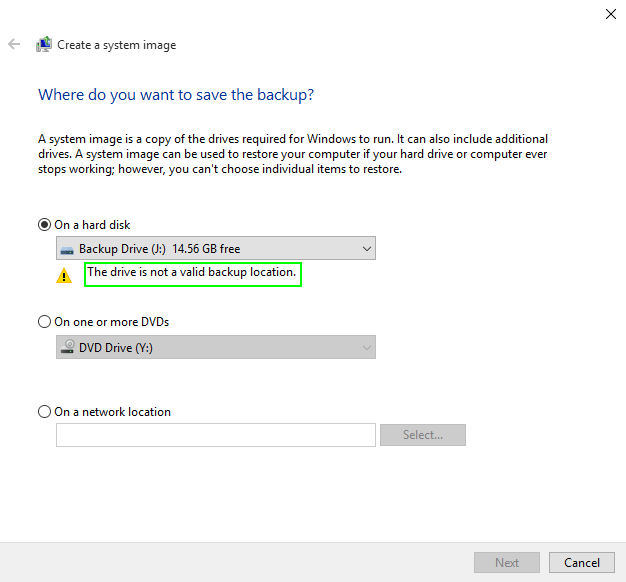
In Windows, users are limited from saving a system drive image to a USB flash drive due to its small size, making it impractical and insecure to store a large system backup image, especially when set to automatic backups.
Now you can get a USB drive with a large capacity, such as 128GB, which is recommended to save a system image, as it provides enough storage space, at least 64GB, to avoid the warning.
To create a system image in Windows 10, follow these steps: 1. Open the Control Panel.
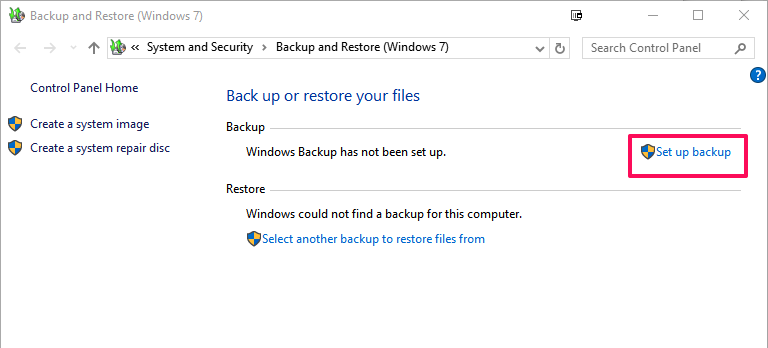
1. To access the Backup and Restore (Windows 7) control panel, search for "control panel" and select it. Then, choose the "View by" option and select either "Small icons" or "Large icons." From there, find and open the "Backup and Restore (Windows 7)" option.
2. To start the backup task, click on the "Set up backup" option in the main page of the software.
2. Select the USB drive as the backup destination, and if it's not visible, click "Refresh" to reload it.
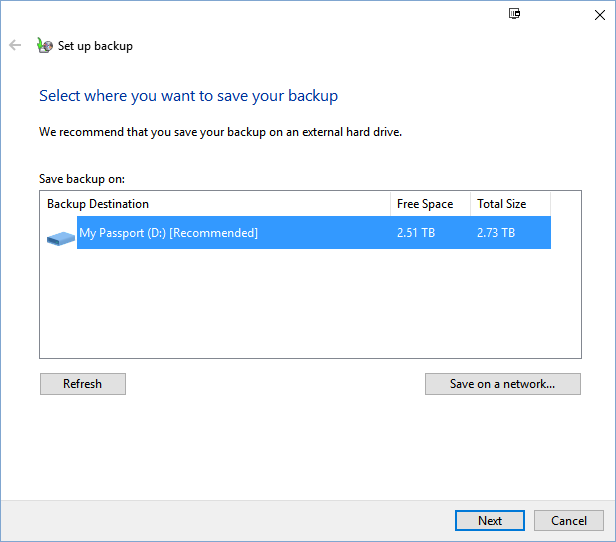
In Windows 10, the "Save on a network" option is only available on Windows 10 Pro or higher versions. However, to backup Windows 10 to a network drive, it's recommended to use a third-party backup software, which doesn't have the same limitation.
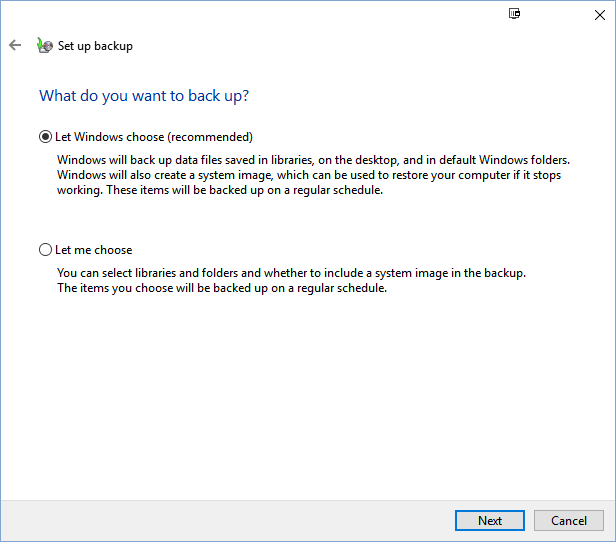
3. When prompted, select either "Let Windows choose" or "Let me choose" and click "Next". This decision depends on what you want to back up, as the recommended option will create a system image backup that includes files on your desktop, user folder, and libraries.
4. This software automatically backs up the system every Sunday at 7:00 PM by default. You can change the schedule by clicking "Change schedule", confirm the settings, and then click "Save settings and run backup" to proceed.
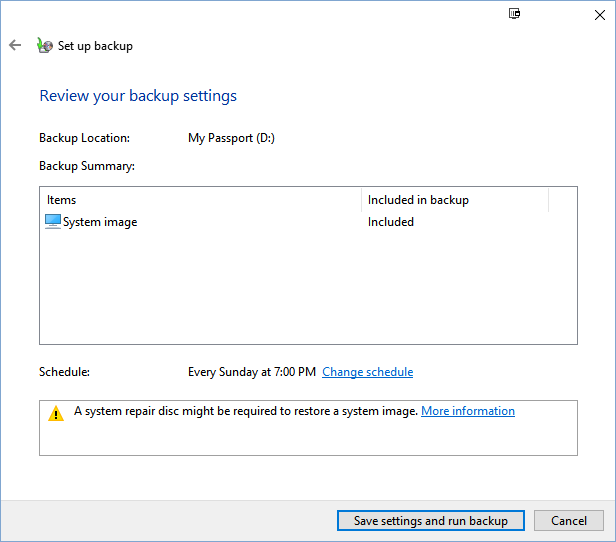
5. Wait patiently untill the task completes. It all depends on the data your have and the speed of both hard drive.
After the backup task is complete, you will be prompted to create a system repair disc, which allows you to easily restore your computer even if it's unbootable. This requires a CD/DVD drive, but you can also create a Windows 10 recovery disk using a USB drive if you don't have a CD/DVD drive.
To restore system image from USB, you can follow the steps below:
Step 1. To replace the hard drive, completely shut down the computer. Then, open the back panel or host, remove the original disk and install the new one.
Step 2. To restore Windows 10, you'll need to connect an external hard drive containing a Windows 10 backup image to your computer. Additionally, you'll require a system repair disc or recovery drive.
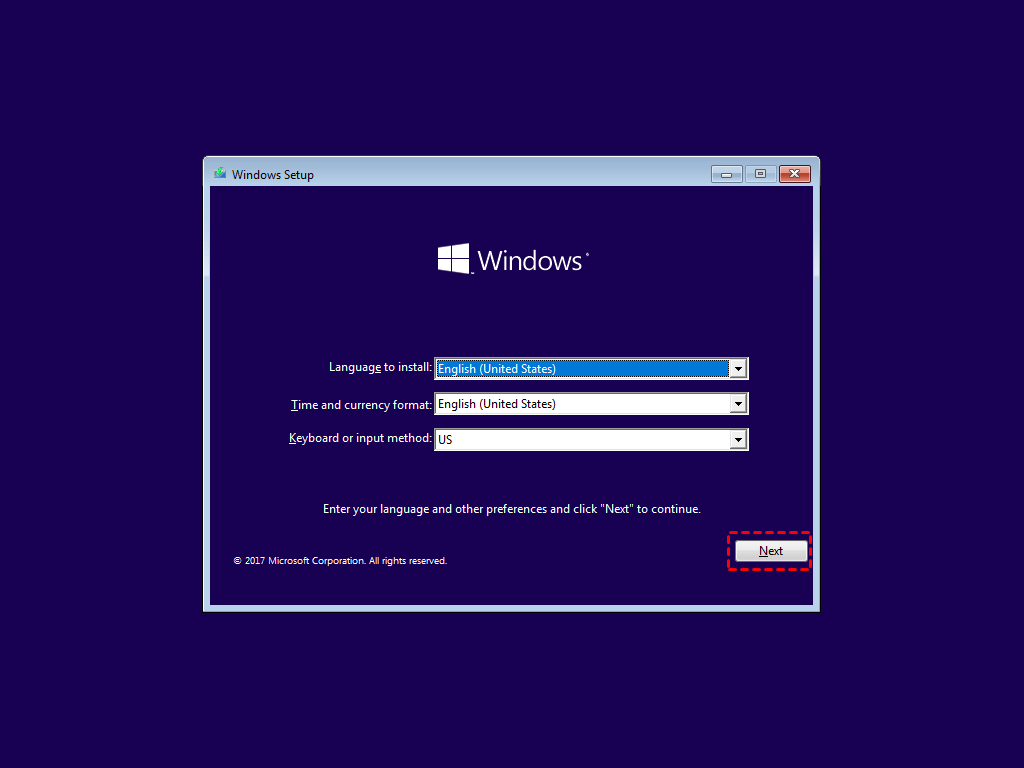
Step 3. Boot computer from CD/DVD or USB.
Step 4. Select your preferred settings and click Next. Then, choose Repair your computer > Troubleshoot > System Image Recovery > Windows 10.
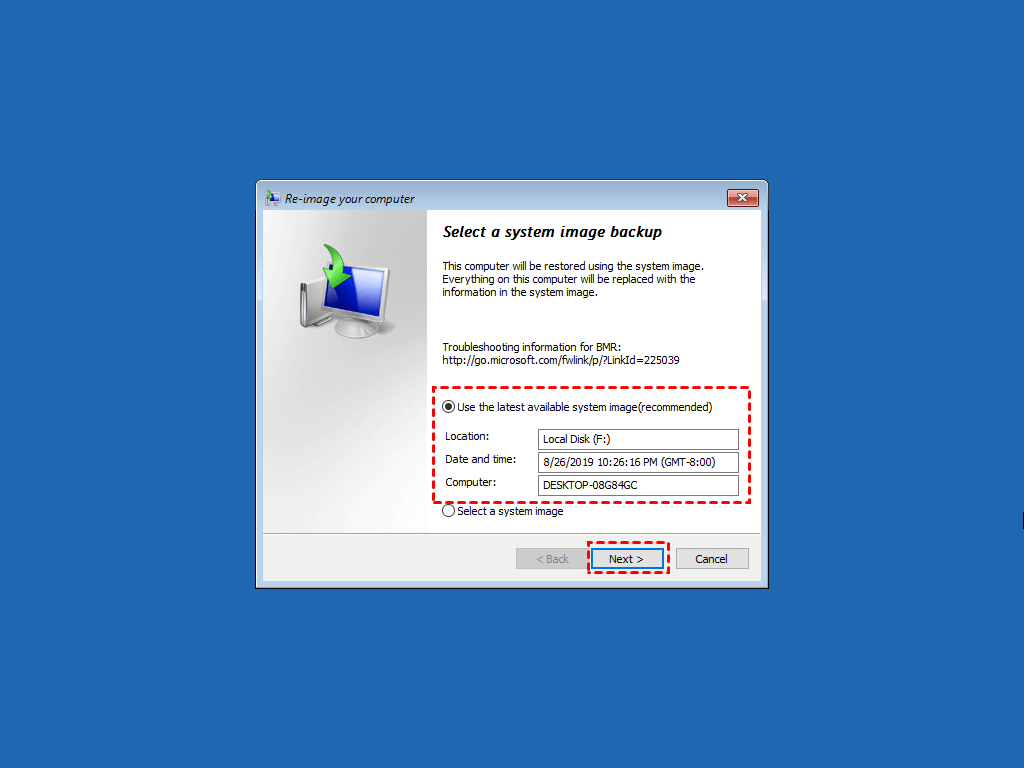
Step 5. Tick Use the latest available system image when you asked to select a system image backup, and then click Next.
Step 6. Choose Format and repartition disks option, then click Next > Finish > Yes to start the restoration.
Conclusion
Backing up Windows 10 to a USB drive is crucial, as it allows you to restore your system image and get your computer back to its original state, even if you need to replace it entirely.
You need to create a system image for your computer using either third-party software or the built-in tool, but be aware that the built-in tool requires a USB drive with at least 64GB capacity to avoid the error "The drive is not a valid backup location".
If you're on a tight budget or want a more flexible software with advanced features like scheduling backups, incremental/differential backups, and universal restore, Qiling Disk Master might be the better choice. Although it's primarily a disk clone software, it can still clone a hard drive to an SSD and boot your computer without the need for restoration.
Related Articles
- Create Windows Server 2012 (R2) Backup to USB Drive with an Easier Way
- Best Free and Fast USB Drive Duplication Software
- Free Clone Hard Drive in Windows 10 to New HDD or SSD (Secure Boot)
- Quick Guide to Create System Image on USB in Windows 7/8/10
- How to Fix MBR2GPT Error in MBR to GPT Conversion in Windows 10?
If you faced "MBR2GPT error" when convert MBR to GPT, try alternative Qiling Disk Master, which can make disk conversion between MBR and GPT easily and safely. - How Do I Merge Extended Partition to Primary Partition Simply and Quickly?
If you want to merge extended partition to primary partition and find no way, you can get an easy way to merge two or more partitions without data loss in this article.
Products
Articles & Tutorials
- Data Recovery
- Data Backup
- File Recovery
- File Backup
- File synchronize
- System Backup and Restore
- Disk and Partition Clone
- Technical articles
- Disk Master Help
- Windows Deleted File and Disk Recovery Tutorials
- Windows File and Data Recovery Tutorials
- More Windows Tutorials for Install, Security, Files, and PC Tips
- Windows Boot, Repair, and Recovery Environment Tutorials
- Windows Backup Tutorials
- Windows Restore Tutorials
- Windows Clone and Migration Tutorials
- Windows Server Backup, Recovery, and Management Tutorials
- Windows Disk, Partition, and Storage Management Tutorials