Easily Clone Hard Drive to SSD on Windows 10/11 (Free)
User Case: Need to Clone HDD to SSD in Windows 10/11
"Recently, I bought a notebook where genuine Windows 10 is already installed but the hard drive is just 500GB HDD and Windows 10 runs really slowly. Now I want to install some large programs.
You can clone your hard drive to a larger SSD in Windows 10 without the installation disk. You'll need a cloning software like Qiling Disk Master. These tools will help you create an exact copy of your hard drive to the new SSD. Make sure to select the correct options to clone the entire drive, including the operating system, programs, and files."
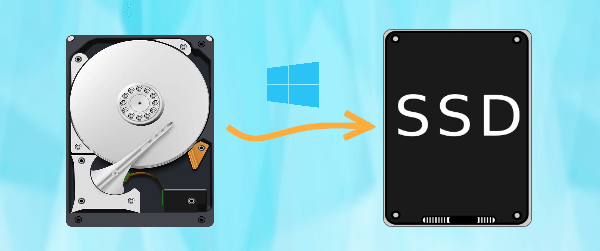
There are two common methods to clone Windows 10/11 to a new hard drive: the first method involves using a cloning software like Qiling Disk Master to create an exact replica of the operating system and all data on the old hard drive, and then transferring it to the new one. The second method involves using a tool like Disk Management or the built-in Windows tool, DiskPart, to create a new partition on the new hard drive, and then transferring the operating system and data from the old hard drive to the new one.
1. If your PC has a hidden recovery partition, you can copy the boot-related files from it and burn them to a CD/DVD. Then, boot from the CD/DVD and restore your system to a new hard drive.
2. If there isn't a recovery partition, you can create a recovery drive in Windows 10/11. This will allow you to boot from the recovery drive and reinstall Windows on the new hard drive.
Both of the above methods are time-consuming and error-prone. Fortunately, you don't need a bootable disk to clone a Windows 10 hard drive. Instead, you can use a reliable disk cloning software to simplify the process.
Why Clone a Hard Drive in Windows 10/11?
Here are some common reasons users want to clone disks in Windows 10/11 laptop or desktop: Users want to clone their disks to upgrade to a new, larger storage drive, to replace a failing or dead drive, to move their operating system and programs to a faster drive, to create a backup of their system, to transfer their operating system and programs to a new computer, or to clone a disk for data recovery purposes.
- Upgrading to a larger capacity drive in Windows 10/11.
Some manufacturers may ship PCs/laptops with small 500GB hard drives, which quickly run out of space, prompting users to consider either buying a new PC or upgrading to a larger SSD using reliable disk cloning software.
- Cloning Windows 10/11 laptop or desktop hard drive for better performance.
When you receive a low disk space warning, your PC or laptop will likely become slower and eventually unusable. If you're a gamer, you may experience lag after playing online FPS games. Upgrading to an SSD can resolve these issues, as it can significantly improve your computer's performance, accelerate data transfer speeds, and enhance overall user satisfaction.
Best Free Disk Cloning Software for Windows 10/11
The best free disk cloning program is Qiling Disk Master Standard edition, which is a straightforward and easy-to-use piece of specialist disk cloning software trusted by millions of users worldwide.
✦ Disk Clone: This tool allows for easy cloning of a hard drive to an SSD or another HDD, supporting a wide range of disk types including all-branded HDDs, SATA/M.2 SSDs, PCIe NVMe SSDs, USB drives, and SD cards.
✦ Partition Clone: You can use the `dd` command to clone a specific partition instead of a whole disk. The syntax for this is `dd if=/dev/sdx of=/dev/sdy bs=4M iflag=fullblock` where `sdx` is the source partition and `sdy` is the target partition.
✦ Intelligent Clone: By default, this software only copies used sectors, which enables the cloning of larger drives to smaller drives.
✦ SSD Alignment: It supports 4K partition alignment for SSD, which enhances the reading and writing speed of SSD.
✦ Supported OS: It is designed for Windows 11, 10, 8.1/8, 7, Vista, and XP, 32 bit and 64 bit.
How to Clone HDD to SSD in Windows 10/11 Step by Step
The disk cloning process involves three phases. First, the source disk is prepared by making a copy of its contents. Next, the clone is created by duplicating the source disk's data onto the target disk.
Before Cloning Hard Drive on Windows 10/11
Before performing a disk clone in Windows 10/11 using Qiling Disk Master, there are some things you should pay attention to.
- Before cloning a hard drive or SSD, backup all important data on the destination disk to an external hard drive to avoid losing any files. The cloning process will overwrite all data on the target disk.
- To clone a Windows 10/11 hard drive to a smaller SSD, ensure the used space on the original hard drive is less than or equal to the target SSD's capacity, to avoid cloning failure due to insufficient space.
- To convert a dynamic disk to a basic disk, you'll first need to open Disk Management. You can do this by pressing the Windows key + R, typing "diskmgmt.msc," and pressing Enter.
- To open the back cover of your laptop or desktop, prepare the necessary screwdrivers, which typically include a Phillips head screwdriver and a flathead screwdriver. The Phillips head screwdriver is used to remove the screws that hold the back cover in place, while the flathead screwdriver may be used to pry the cover loose if it becomes stuck.
- To connect an SSD to a Windows 10/11 laptop with only one hard drive slot, you can use a 2.5'' SSD enclosure or a SATA-to-USB cable. This allows you to add an extra SSD storage to your laptop, expanding its storage capacity and potentially improving performance. The SSD enclosure or SATA-to-USB cable provides a convenient and easy way to add an extra SSD storage to your laptop, without the need for any additional hardware installations, and is a cost-effective solution compared to purchasing a new laptop with multiple hard drive slots.
Perform Windows 10/11 Hard Drive Clone
To clone a Windows 10/11 hard drive to a larger SSD, follow these steps: download and install Qiling Disk Master Standard, then use the software to create a bootable USB drive, insert the USB drive and boot from it, select the source and target drives, and finally, start the cloning process.
1. Click on Clone -> Disk Clone on the main interface.

Note: The Standard edition has limitations when it comes to cloning system disks, only allowing the cloning of non-system disks. To clone a system disk, an upgrade to Qiling Disk Master Professional or other advanced editions is required.
2. Select the Windows 10/11 hard drive and click the Next button to proceed.

3. Select the larger SSD as the destination and click the "Next >" button to proceed.

4. To clone a larger HDD to a smaller SSD, enable SSD Alignment to improve reading and writing speed, then click Proceed to initiate the cloning process in Windows 10/11.

5. To complete the cloning process, click on the "Finish" button in the window once it reaches 100%.

★ Helpful Tips:
- When using Qiling Disk Master to clone a disk, if you're cloning from a MBR (Master Boot Record) disk to a GPT (GUID Partition Table) disk, or vice versa, you'll need to switch the boot mode from Legacy to UEFI or vice versa after the cloning process is complete.
- Sector by sector clone: Cloning the original hard disk to a new SSD using Qiling Disk Master will clone all space on the original hard disk, regardless of used or not, resulting in a significantly longer cloning time. Additionally, the "Edit partitions" option will be unavailable during this process. To show the full capacity of a larger SSD, it is recommended to resize the partition using a free partition manager.
- When cloning a larger hard drive (HDD) to a smaller solid-state drive (SSD), do not select the "Sector by sector clone" option. This is because it will copy all sectors, including empty ones, which can result in a larger cloned drive than the original.
- Edit Partitions: This feature allows resizing partitions on a target hard drive to utilize increased capacity when cloning a smaller Windows 10/11 disk to a larger one, resulting in unallocated space on the larger SSD drive if the option "Add unused space to all partitions" is unchecked.
★ Useful features in advanced editions:
- System Clone is a feature that clones your Windows 10/11 operating system, installed programs, and drivers to an SSD or HDD, saving time and effort when migrating your system to a new drive. It's available in premium versions like Professional or Server.
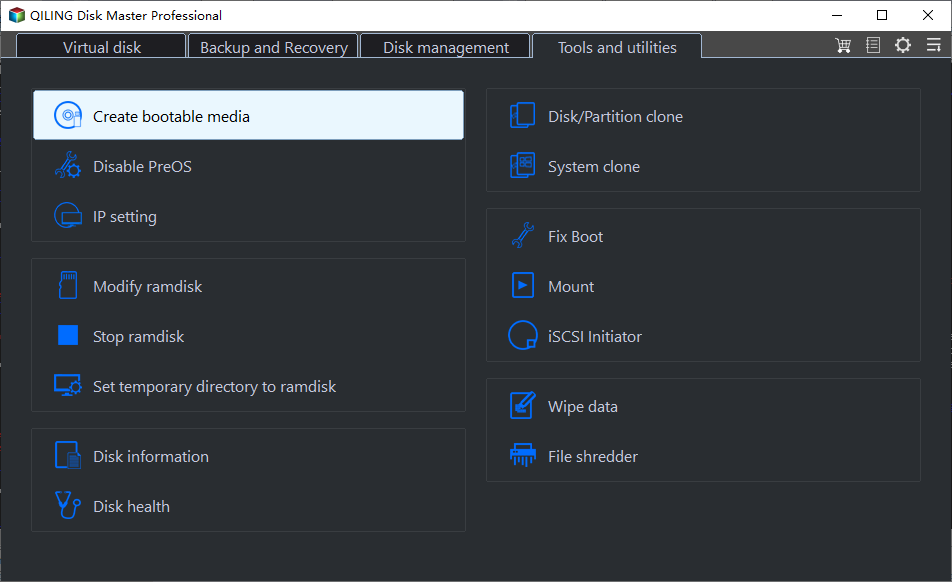
- To create bootable media, you can create a portable Qiling Disk Master that allows you to clone a hard drive to an SSD on a different computer without having to install the software again. This feature is available in the Technician or Technician Plus edition of Qiling Disk Master.
Boot from the cloned SSD
After the cloning process is finished, you can try booting from the cloned SSD using one of the following methods:
>> Method 1: To replace the original hard drive with the cloned SSD, you would simply swap the two drives in the computer, and then boot it up. The computer should automatically recognize the new SSD as the boot drive and start up normally.
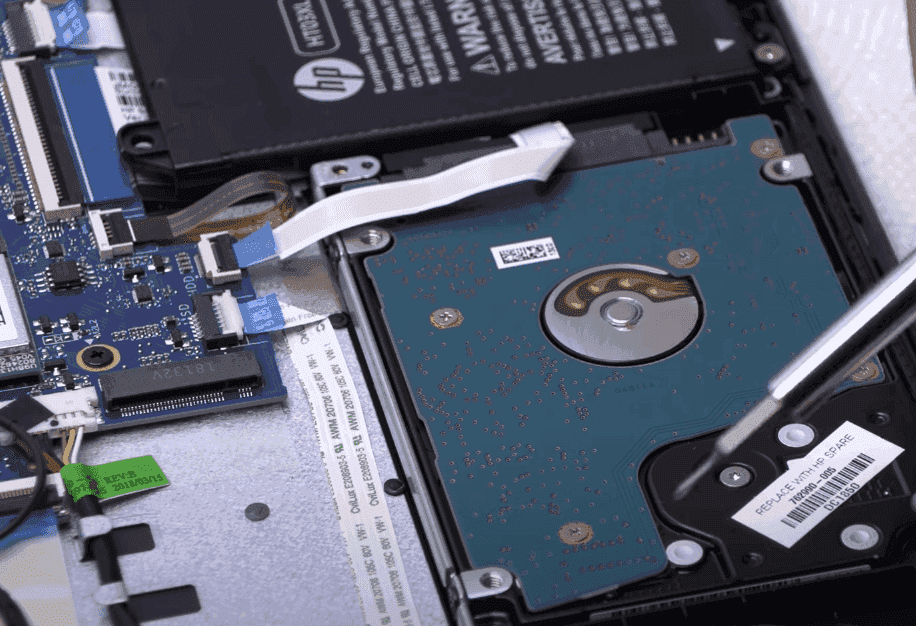
>> Method 2: To ensure a smooth transition to your new SSD, keep both the old and new disks installed. Then, set the new SSD as the first boot option in your computer's BIOS settings.

FAQs about Hard Drive Cloning
1. Does cloning a hard drive copy the OS?
Transferring everything from the source disk to the destination disk, including the OS, programs, and files, is a straightforward process. However, if the source disk is the system disk, you may need to upgrade the disk clone tool to a higher edition to unlock the cloning capability.
2. What is the fastest way to clone a hard drive?
To clone your hard drive quickly, use reliable disk clone software like Qiling Disk Master, which ensures a secure boot after cloning, saving you time troubleshooting issues with the cloned drive.
3. Does Windows 10 have a cloning tool?
Windows 10's lack of a built-in cloning tool makes it difficult to transfer the operating system to another drive. However, you can create a system image and restore it to a new hard drive, although this process can be time-consuming and error-prone. Alternatively, you can use a specialized third-party cloning tool to make the process easier.
Conclusion
With its user-Cloning a hard drive in Windows 10/11 with Qiling Disk Master Standard Edition is a straightforward process that requires minimal effort. With just a few clicks, you can create an exact copy of your Windows hard drive. This software is versatile and allows you to clone a large HDD to a smaller SSD, clone a disk to a larger one, clone a SATA SSD, or even clone Windows to an NVMe SSD, making it a convenient solution for various disk cloning needs.
You can create various types of backups, including file backups, partition backups, disk backups, and system image backups, which can be used to restore Windows to a new hard drive. This feature is also available for server users, who can try Qiling Disk Master Server.
Related Articles
- Top 2 Easy Ways to Install Windows 10 on SSD
- A Simple Way to Move your Windows 10 Hard Drive to New Computer
- Clone Hard Drive with Different Size | Easy & Free
- How to Clone Hard Drive via Command Prompt | 2 Methods
- Best Alternative to Norton GoBack in Windows
Learn the key steps, checks, and practical tips for this related guide. - Solved: Not Possible to Format Hard Drive to exFAT
Learn how to Solved: Not Possible to Format Hard Drive to exFAT. This guide explains the causes, steps, and practical tips for not possible to format hard drive to exfat, format is not available for exfat drives, how to format.
Products
Articles & Tutorials
- Data Recovery
- Data Backup
- File Recovery
- File Backup
- File synchronize
- System Backup and Restore
- Disk and Partition Clone
- Technical articles
- Disk Master Help
- Windows Deleted File and Disk Recovery Tutorials
- Windows File and Data Recovery Tutorials
- More Windows Tutorials for Install, Security, Files, and PC Tips
- Windows Boot, Repair, and Recovery Environment Tutorials
- Windows Backup Tutorials
- Windows Restore Tutorials
- Windows Clone and Migration Tutorials
- Windows Server Backup, Recovery, and Management Tutorials
- Windows Disk, Partition, and Storage Management Tutorials