Steps to Increase C Drive Space in Server 2003 (R2) without Formatting
Can I extend C drive in Windows Server 2003?
To extend the C drive in Windows Server 2003, you cannot rely on the built-in Disk Management tool alone, as it lacks the Extend Volume feature for the system partition. You will need to use the Diskpart command-line utility or a third-party partition manager to increase the C drive space safely.
How to: increase C drive space in Windows Server 2003
In Windows Server 2003, it's not possible to extend the C drive in Disk Management as there is no Extend Volume feature. However, you can use the built-in Diskpart utility or third-party software to increase the C drive space.
Windows Server 2003 (R2) Diskpart: Extend C drive
Diskpart, a command-line utility, comes with many features. In Windows Server 2003 (R2), you can use it to manage partition and disk. Now, see how it increases Server 2003 C drive.
To access the Diskpart utility, press Windows + R, input "diskpart" and hit Enter. This will take you to the Diskpart utility interface.
Then, follow proper guides according to the specific situation.
▶ When there is adjacent unallocated space behind partition C, run the following commands in order:
● list disks
● select disk x
● list partition
● select partition m
● extend
● exit
▶ When there is no contiguous unallocated space behind C drive, run commands given below:
● list disks
● select disk x
● list partition
● select partition n
● delete
● select partition m
● extend
● exit
Tips: x is the disk number that contains the C drive, m is the number of partitions on the C drive itself, and n is the number of the partition located immediately behind the C drive.
A concise GUI tool: Increase C drive space in Server 2003 (R2)
To increase the C drive space in Windows Server 2003 (R2), you can use Diskpart. However, you may have noticed that deleting the volume behind the C drive to free up unallocated space can result in data loss.
To avoid data loss, you can use a professional partition manager, Qiling Disk Master Server, to allocate free space from one partition with redundant space to extend the Server 2003 C drive. This process can be done easily and effectively.
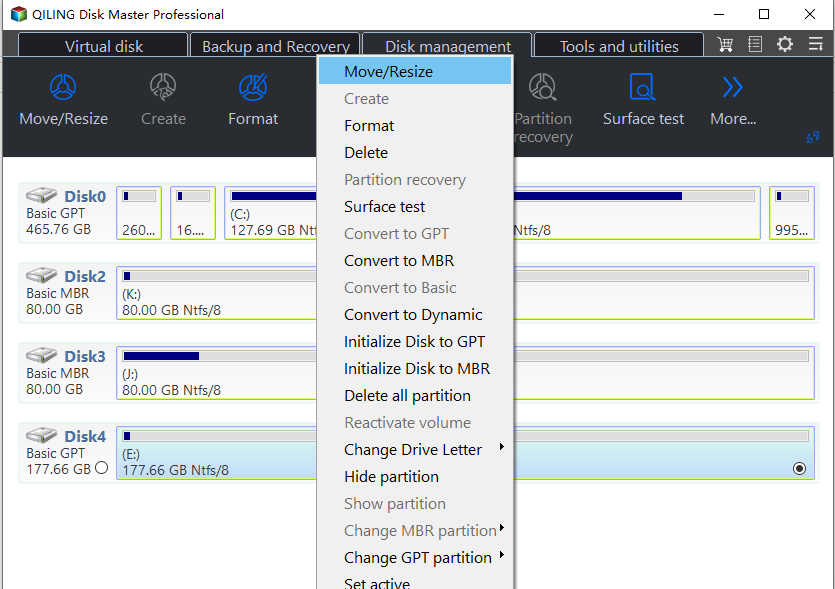
Step 1. Run the software, right-click the partition with enough space and choose "Move/resize".
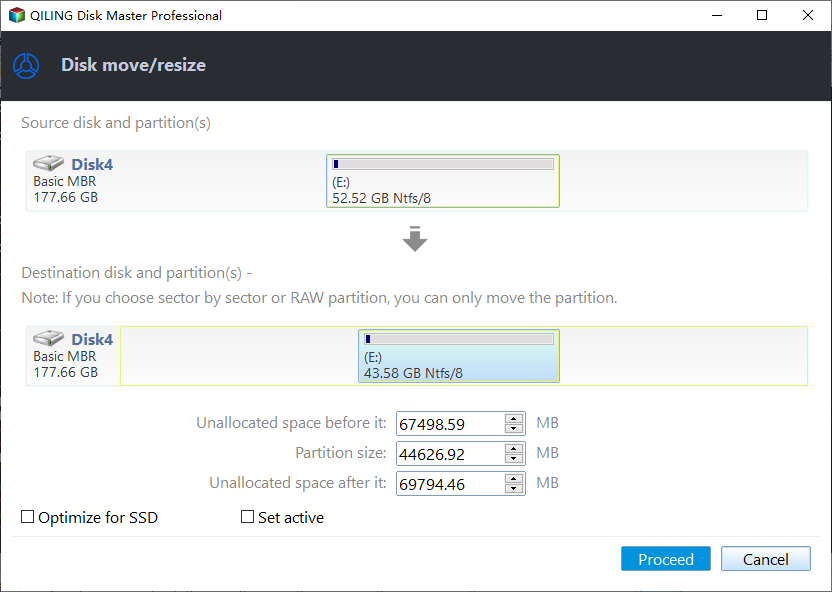
Step 2. To allocate space from D drive to C drive, open the small pop-up window, select the desired space from D drive, and choose C drive as the destination drive.
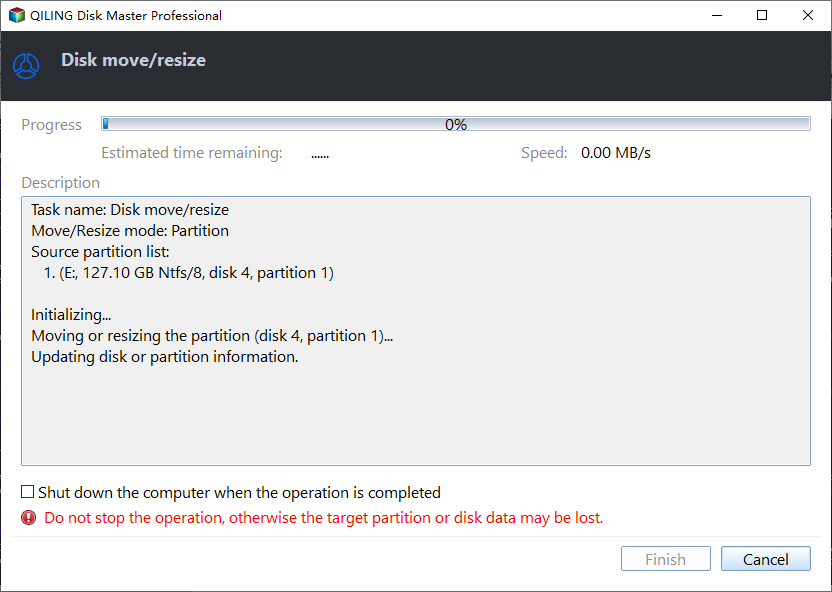
Step 3. You can preview the result of the operation. If you are satisfied, click Proceed. This will confirm the changes you've made and apply them to your disk.
✍Notes:
● After executing this operation, some free space will be allocated from the source partition to partition C, shrinking the source partition and expanding the C drive.
● If there is unallocated space on the same disk, you can use Qiling Disk Master Server's Merge Partitions function to merge the unallocated space into the C drive.
● When C drive is almost full, you can free up space by moving applications from C drive to another drive, apart from increasing its space.
● If you have a BitLocker partition with enough free space, you can resize it to free up space, which can then be used to extend the C drive.
Conclusion
Increasing C drive space in Windows Server 2003 is possible even when there's no unallocated space on the same disk. If the whole disk is too small, consider replacing it with a larger one. To transfer all data, including the Windows Server operating system, clone the current disk to a new, larger hard drive in Windows Server.
Related Articles
- Shrink a partition in Server 2003
Review legacy tool limits and backup requirements before changing adjacent space. - Why and How to Convert to Dynamic Disk in Windows 10 or 11?
Converting a basic disk to a dynamic disk in Windows 10 and 11 can be done using Disk Management or a third-party tool, allowing for conversion without data loss and enabling more flexible disk configuration. - 3 Methods to Create Bootable USB Windows 10 [Full Guide]
Here, we collect three different methods to help you create bootable USB in Windows 10 easily and effectively. - How to Create Disk Image in Windows 10 - Qiling Disk Master
Learn how to Create Disk Image in Windows 10 - Qiling Disk Master with clear steps, key checks, and practical tips. - Is There Any Way to Create Windows 10 Bootable USB from the Current System?
This guide explains Is There Any Way to Create Windows 10 Bootable USB from the Current System with clear steps, key checks, and practical tips. - Easily Schedule Automatic Backup Windows Server 2022 (3 Ways)
You can learn how to easily schedule automatic backup Windows Server 2022 in 3 ways, both built-in tool and the third-party backup software can help you. Please read on. - Free Backup Software for Windows Server 2008(R2)
You can use the best 3 backup software for Windows Server 2008 to protect your server! Choose the built-in tool or third-party tools based on your need.
Products
Articles & Tutorials
- Data Recovery
- Data Backup
- File Recovery
- File Backup
- File synchronize
- System Backup and Restore
- Disk and Partition Clone
- Technical articles
- Disk Master Help
- Windows Deleted File and Disk Recovery Tutorials
- Windows File and Data Recovery Tutorials
- More Windows Tutorials for Install, Security, Files, and PC Tips
- Windows Boot, Repair, and Recovery Environment Tutorials
- Windows Backup Tutorials
- Windows Restore Tutorials
- Windows Clone and Migration Tutorials
- Windows Server Backup, Recovery, and Management Tutorials
- Windows Disk, Partition, and Storage Management Tutorials