Can DiskPart Shrink a Partition in Windows Server 2003?
The DiskPart version included with Windows Server 2003 does not provide the shrink operation familiar from newer Windows versions. Repeating a modern shrink desired=... command on that server will not add the missing capability.
For a legacy production system, the main task is preserving applications and recoverability while changing storage. Check the exact server architecture, controller, file system, and backup method before choosing a resizing utility.
Confirm the limitation and map the volume
- Record the Windows edition, service pack, and whether the system is 32-bit or 64-bit.
- Open Disk Management through Computer Management. Photograph disk numbers, volume letters, capacities, and logical-drive boundaries.
- Open DiskPart and use its help output to confirm the commands available on that installation.
- Identify whether the volume contains the operating system, page file, application binaries, database files, or shared data.
- Check whether storage is a basic disk, dynamic volume, or hardware RAID virtual disk. Do not manipulate individual RAID members.
Moving a modern DiskPart executable onto Server 2003 is not a supported upgrade to its storage-management capabilities.
Prepare an application-consistent recovery plan
Arrange downtime with the application owner. A generic image may not be sufficient for an active database or domain controller. Use the relevant application's supported backup and recovery procedure, and preserve server-role configuration, permissions, and licensing information.
- Verify that the backup predates the planned change and can be read from independent storage.
- Prepare bootable recovery media that actually supports the server architecture and storage controller.
- Test that the recovery environment detects the virtual or physical target disk. Do not begin a restore during this test.
- Define the rollback procedure and the maximum downtime before starting any resize.
If the vendor cannot confirm support for the exact legacy configuration, choose migration to supported storage or a supported system instead of experimenting on the only working server.
Resize with a verified compatible Qiling configuration
The following describes the Qiling Resize/Move workflow. Use it only after confirming that the chosen edition and environment support this specific server and volume type; the existence of a current Server download is not proof of Server 2003 compatibility.
Step 1. After backups and service shutdowns are complete, open the compatible environment and identify the intended volume by disk number, letter, and capacity.
Step 2. Select that partition and click Resize/Move.
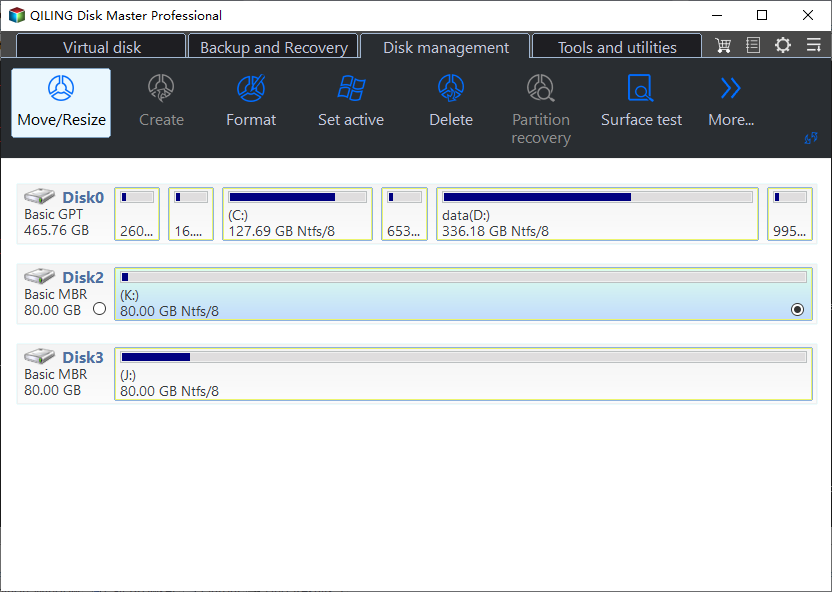
Step 3. Drag its right boundary left to the planned size, leaving enough room for current data and expected growth. Do not drag the whole partition if the goal is only to shrink it.
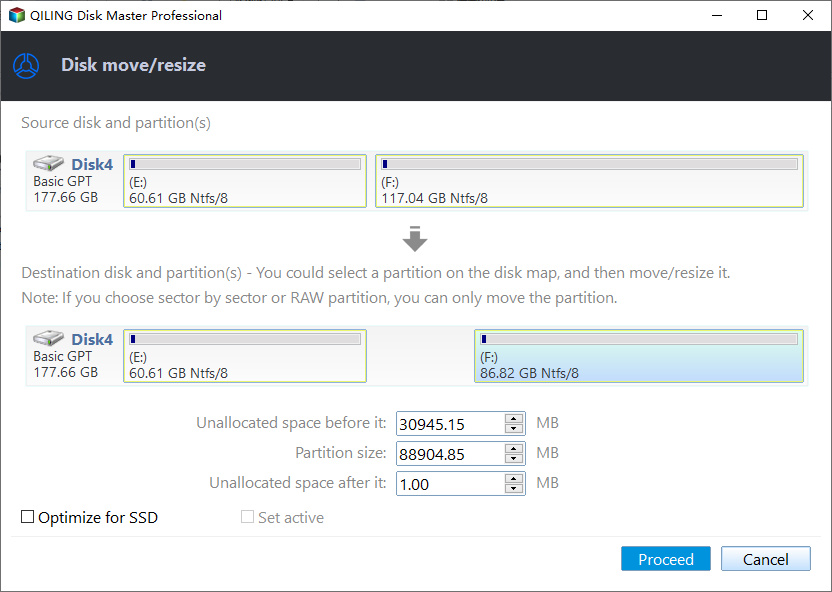
Step 4. Review the target and resulting free space, then click Proceed. Follow any documented offline or restart requirement. Maintain reliable power until completion.
Use backup and recreation when resizing is unsuitable
For an ordinary data volume, an alternative is to copy or back up data to another disk, verify it, recreate the original volume at the planned size, and restore the files. This deliberately deletes the old volume, so permissions, shares, and application paths must be included in the migration plan.
Do not treat that data-volume method as a procedure for deleting the running system partition. A system-disk change needs a bootable migration or full restore plan.
Afterward, verify the new capacity, application startup, file permissions, shares, and scheduled backups. Watch free-space growth and retain the old recovery copy until the next verified backup. Reducing volume size does not reduce a RAID virtual disk automatically.
Related Articles
- Shrink an Extended Server Partition
Distinguish logical volumes from the extended partition containing them. - Windows Server Backup Planning
Review backup and restore preparation before server storage changes.
Products
Articles & Tutorials
- Data Recovery
- Data Backup
- File Recovery
- File Backup
- File synchronize
- System Backup and Restore
- Disk and Partition Clone
- Technical articles
- Disk Master Help
- Windows Deleted File and Disk Recovery Tutorials
- Windows File and Data Recovery Tutorials
- More Windows Tutorials for Install, Security, Files, and PC Tips
- Windows Boot, Repair, and Recovery Environment Tutorials
- Windows Backup Tutorials
- Windows Restore Tutorials
- Windows Clone and Migration Tutorials
- Windows Server Backup, Recovery, and Management Tutorials
- Windows Disk, Partition, and Storage Management Tutorials