Easily Schedule Automatic Backup Windows Server 2022 (3 Ways)
- Something New in Windows Server 2022
- Why Schedule Automatic Backup Windows Server 2022?
- How to Schedule Automatic Backup Windows Server 2022
- Way 1. Schedule Automatic Backup Windows Server 2022 via Task Scheduler
- Way 2. Schedule Automatic Backup Windows Server 2022 via PowerShell
- Way 3. Schedule Automatic Backup Windows Server 2022 via Professional Backup Software
- Summary
Something New in Windows Server 2022
Windows Server 2022 builds on the foundation of Windows Server 2019, introducing innovations in security, Azure hybrid integration and management, and application platforms. Additionally, the Datacenter edition of Windows Server 2022 offers an Azure Edition that enables seamless cloud integration, keeping virtual machines up to date while minimizing downtime.
Windows Server 2022 offers advanced multi-layer security features that provide comprehensive protection against advanced threats, combining with other security features in multiple areas of Windows Server to offer defense-in-depth protection for servers.
Why Schedule Automatic Backup Windows Server 2022?
While Windows Server 2022 offers improved security features, businesses using it in an enterprise environment still need to be vigilant about data protection, particularly when handling large volumes of sensitive information.
To ensure data safety, it's crucial to know how to install Windows Server backup and schedule automatic backups for Windows Server 2022. This allows for tracking of added or removed data and provides a backup to restore in case of computer issues, preventing data loss.
How to Schedule Automatic Backup Windows Server 2022
This article will guide you through scheduling automatic backups for Windows Server 2022 using either built-in tools or third-party professional backup software. You can choose the method that best suits your needs, and the article will provide more details on how to perform a Windows Server 2022 backup.
Way 1. Schedule Automatic Backup Windows Server 2022 via Task Scheduler
To schedule automatic backups on Windows Server 2022, you can use the built-in tool Task Scheduler. Follow the graphic tutorial below to set it up.
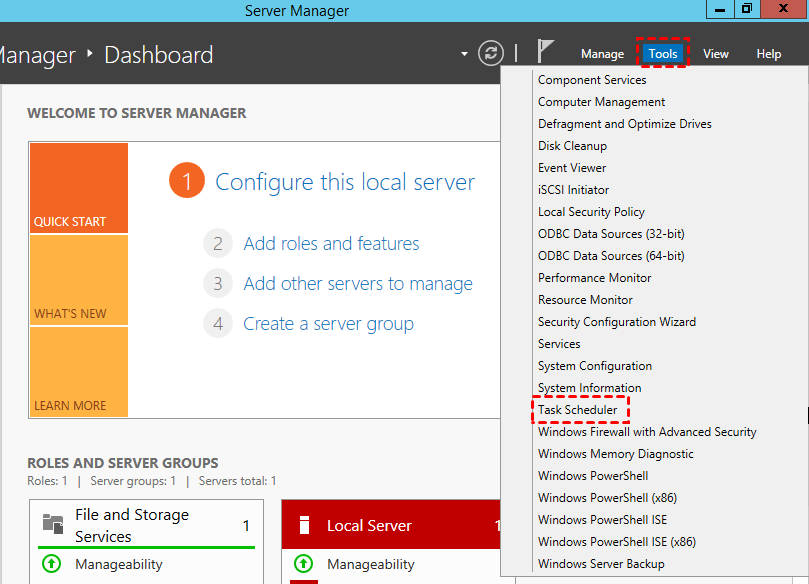
Step 1. Navigate to Server Manager > Dashboard > Tools > Task Scheduler.
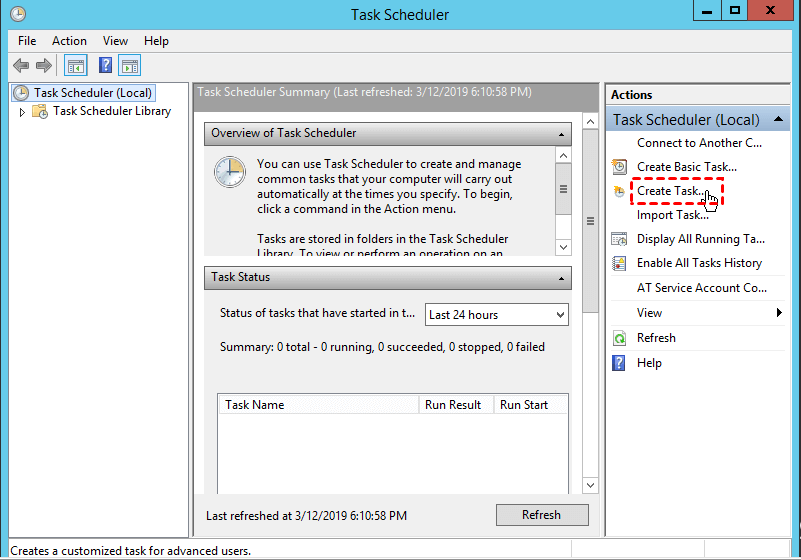
Step 2. On the Task Scheduler page, click Create Task under the Actions tab.
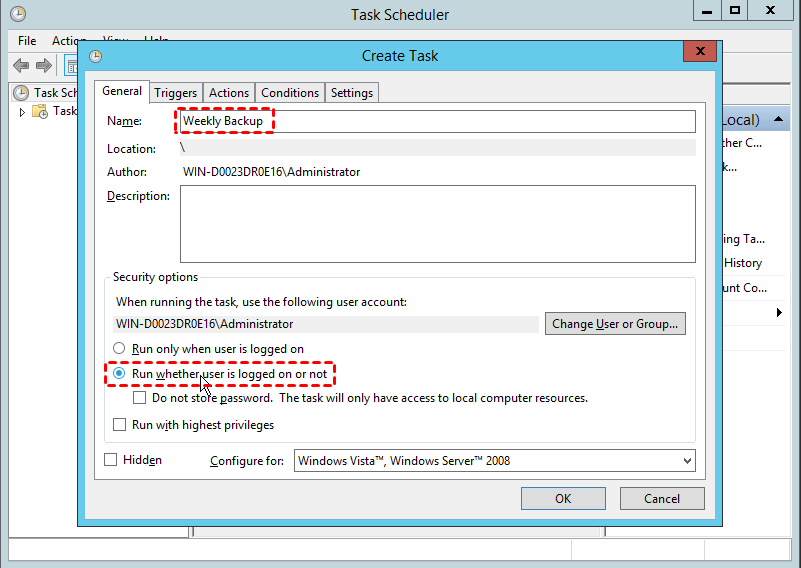
Step 3. To name the task in the General tab and allow it to run whether the user is logged on or not, click on the option "Run whether user is logged on or not" under the Security options.
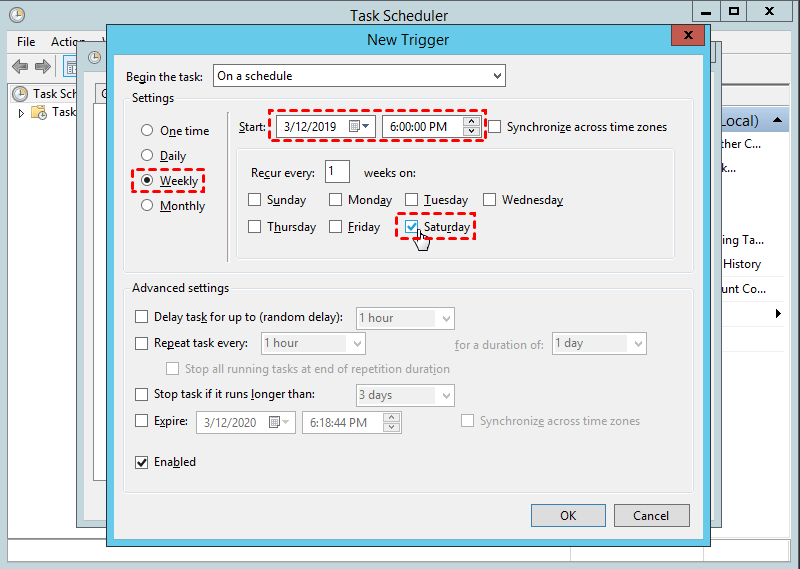
Step 4. In the Triggers tab, click the New button, then specify the day of the week (or month) when you want the backup to run.
Step 5. To backup the entire C: drive, including all critical volumes, to the H: drive, type the following command in the "Add arguments (optional)" pane: `wbadmin start backup -backupTarget:H: -includeC -allCritical -systemState -vssFull`. This command will initiate a full backup of the C: drive, including system state, to the H: drive.
wbadmin start backup -backupTarget:H: -include:C: -allCritical -quiet
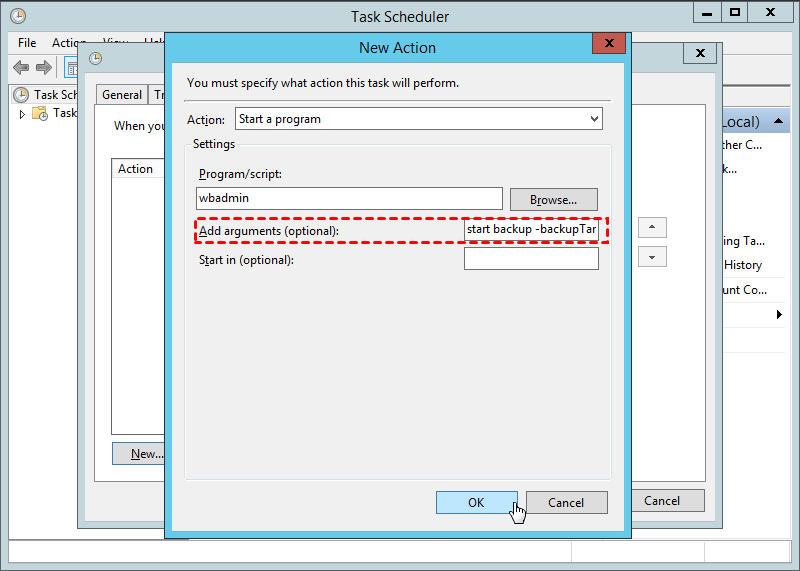
Notes: The specific meaning of each part of the command is as follows.
- wbadmin start backup: start the wbadmin backup process
- backupTarget: the target volume to store the backups.
- include: You can specify the volume(s) to backup by typing the drive letter(s) or mount point(s) of the volume(s). For example, if you want to backup the C: drive, you would type "C:" If you want to backup multiple volumes, you can separate the drive letters or mount points with a comma. For example, "C:, D:, E:" or "/, /home, /var".
- allCritical: The backup program also includes any other data that are required for a full server recovery, such as configuration files, user settings, and other relevant data.
- quiet: to perform unattended backup tasks.
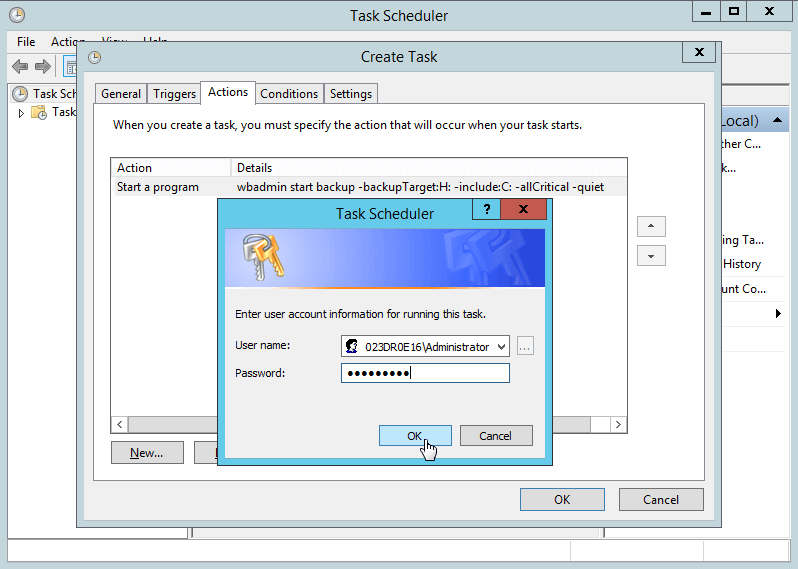
Step 6. You can configure other settings in the left Conditions and Settings tabs, then click OK, and later you'll be prompted to enter a user password.
Way 2. Schedule Automatic Backup Windows Server 2022 via PowerShell
To automate Windows backup using Task Scheduler, you can create a script using Command Prompt (Windows PowerShell) and have Windows execute it. For example, to backup your system state drive every Saturday at 6 pm, you can type a command in the Command Prompt, which can be executed by Task Scheduler. This method allows you to automate the backup process without having to manually run the script every week.
SCHTASKS /CREATE /SC WEEKLY /D SAT /TN WeeklySystemStateBackup /RL HIGHEST /ST 18:00 /TR "Wbadmin start systemstatebackup –backupTarget:H: -include:C: -allCritial -quiet"
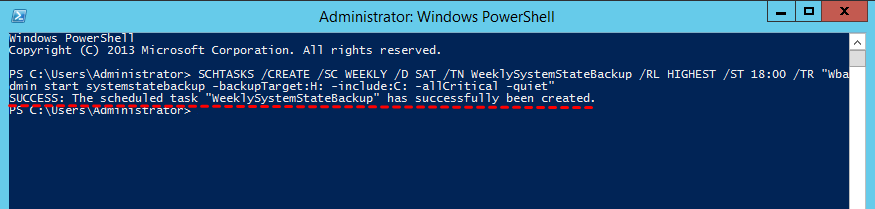
Notes: The SCHTASKS command is a built-in Windows tool for scheduling tasks from the command line. The following parameters are used in the command above:
- SCHTASKS: scheduler tasks.
- Create: create a task.
- SC: schedule.
- D: the day in a week to run.
- TN: task name.
- RL: run level.
- ST: start time.
- TR: trigger.
Methods 1 and 2 can help schedule automatic backups on Windows Server 2022, but for new users, the built-in tool's backup process can be too complex, leading to potential mistakes due to the numerous steps involved.
To select a simple and easy method, you can try using professional backup software to schedule automatic backups on Windows Server 2022.
Way 3. Schedule Automatic Backup Windows Server 2022 via Professional Backup Software
To simplify the backup process, consider using a professional server backup software like Qiling Disk Master Server. This tool has a user-friendly interface and easy-to-use operation, making it accessible even to those new to server management. With its help, you can easily backup your Windows Server 2022, taking advantage of its benefits.
- 4 backup solutions: It supports System backup, Disk backup, Partition backup, and File backup, allowing you to backup a wide range of data.
- Schedule automatic backup: You can easily create scheduled backups on Windows Server with fixed intervals, allowing you to set up backups to run weekly, daily, monthly, or even trigger on specific events, such as when a USB drive is plugged in.
- Incremental and Differential backup: Compared to full backups, incremental backups only save the changed parts, which helps save space.
- Different backup schemes: Backup schemes can help increase available disk space by deleting old backups.
- Multiple backup target locations: This software enables Windows Server 2022 backups to be saved on various devices, including local disk, external hard disk, USB drive, and network share.
- Various operating systems: The tool supports all Windows Server versions as well as all Windows PC systems.
To schedule automatic backups on Windows Server 2022, follow the graphic tutorial below, which will guide you through the process in just a few simple steps.
Step 1. Download Qiling Disk Master Server, install and open it. Then click Backup > System Backup.

Step 2. Select the target location for your system backup. The related system partitions will be selected by default.

Step 3. To set up a schedule for automatic backups on Windows Server 2022, click on "Schedule Backup" in the lower left corner and select the "Enable Schedule Backup" option. This will allow you to choose the frequency of backups, such as daily, weekly, or monthly, as well as triggers based on specific events or the insertion of a USB drive.
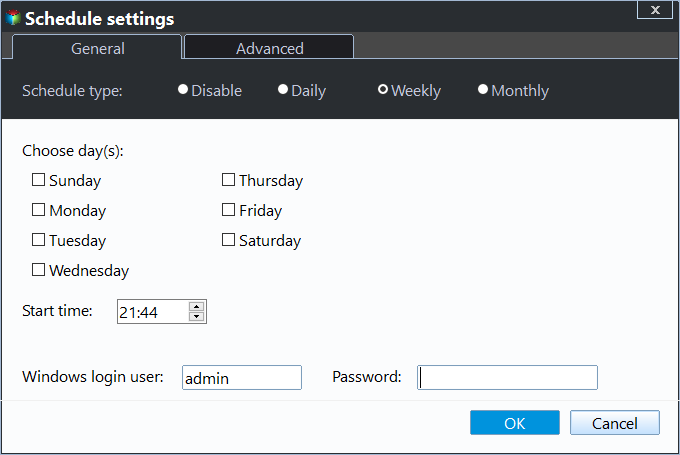
Notes:
- To use incremental or differential backup, go to the left page, click on "Backup Scheme", and select the desired backup method.
- You can enable automatic backup cleanup to delete older backups and save disk space.
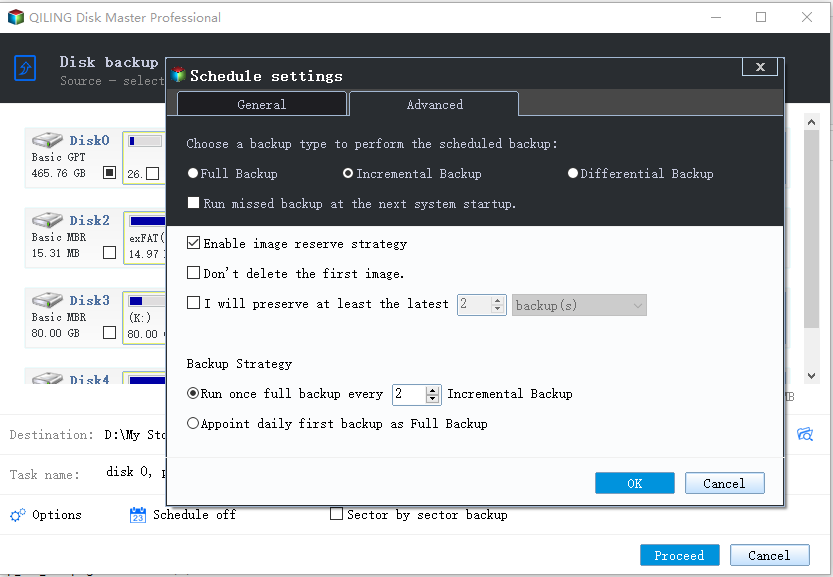
Step 4. Confirm your operations and click Proceed to schedule automatic backup Windows Server 2022.
Tip: The Options feature in the Schedule and Scheme provides additional backup features, including the ability to add comments, encrypt, split, and compress the Windows Server 2022 backup file, and set up email notifications.
Summary
Protecting your data is crucial, and one way to do this is by scheduling automatic backups on your Windows Server 2022. You can use either the built-in tool or professional backup software to achieve this, with three options available to choose from.
I prefer using Qiling Disk Master Server for backups because it's easy to use and offers various backup methods and schedules, allowing me to choose the frequency that suits my needs, such as daily, weekly, monthly, event-triggered, or USB-plug-in backups. This is especially useful for users with large data sets, as differential and incremental backups can conserve disk space while ensuring data safety.
If you want to protect unlimited PCs and servers within your company, Qiling Disk Master Technician Plus can help. It offers unlimited billable technical services to clients and allows you to copy the installation directory for portable version creation, making it a useful tool for exploration.
Related Articles
- 2 Ways to Create System Image Backup in Windows Server 2012
You can choose to create a system image in Windows Server 2012 step by step with Windows Server Backup, Qiling Disk Master Server or Qiling Backup. It depends on the level of disaster recovery you need. - Easily Create Windows Server Incremental Backup in Hyper-V VMs
You will learn how to create Windows Server incremental backup for Hyper -V virtual machines with WSB or third-party tools, and then there will be no more data loss. - How to Extend Volume in Windows 10 (2 Methods)?
Learn how to extend volume in Windows 10 with this article, which will demonstrate two methods to help you achieve this. - 2 Methods to Fix Master Boot Record (MBR) in Windows 10
This guide explains 2 Methods to Fix Master Boot Record (MBR) in Windows 10 with clear steps, key checks, and practical tips. - Fix The Request Failed Due to a Fatal Device Hardware Error
Learn how to Fix The Request Failed Due to a Fatal Device Hardware Error with clear steps, key checks, and practical tips. - How to Easily Format/Unlock Encrypted Hard Drive without Password?
Qiling Disk Master Standard will do you a big favor to format/unlock the encrypted drive, if you have a BitLocker encrypted hard drive and forget the password.
Products
Articles & Tutorials
- Data Recovery
- Data Backup
- File Recovery
- File Backup
- File synchronize
- System Backup and Restore
- Disk and Partition Clone
- Technical articles
- Disk Master Help
- Windows Deleted File and Disk Recovery Tutorials
- Windows File and Data Recovery Tutorials
- More Windows Tutorials for Install, Security, Files, and PC Tips
- Windows Boot, Repair, and Recovery Environment Tutorials
- Windows Backup Tutorials
- Windows Restore Tutorials
- Windows Clone and Migration Tutorials
- Windows Server Backup, Recovery, and Management Tutorials
- Windows Disk, Partition, and Storage Management Tutorials