How to Safely Delete Windows 11 Windows.old Folder | 3 Ways
- About Windows.old folder in Windows 11
- What is the Windows.old folder?
- Contents and functions of the Windows.old folder
- Is it safe to delete Windows 11 Windows.old folder?
- How to delete Windows.old folder in Windows 11
- #1. Manually delete Windows.old folder
- #2. Use Disk Cleanup to delete Windows.old folder
- #3. Use Storage Sense to delete Windows.old folder
- Backup Windows 11 in advance to avoid data loss
- To sum up
Windows.old created after Windows 11 upgrade
The "Windows.Old" folder in the C drive is a temporary folder created by Windows 11 during the upgrade process. It contains a snapshot of the previous Windows installation, including system files, registry entries, and other data. This folder is not essential and can be safely deleted. Microsoft suggests deleting it after you've confirmed that the upgrade was successful and your system is functioning properly. However, before deleting, make sure you have enough space on your drive and that the folder is not being used by any running processes.
- Question from Microsoft Community
About Windows.old folder in Windows 11
The Windows.old folder is a temporary folder that stores the previous version of Windows, including all files and settings, after a clean installation of Windows 11. It's created to allow users to easily revert back to the previous version of Windows if needed. However, if you're happy with your current Windows 11 installation, you can safely delete the Windows.old folder to free up space on your computer. To delete it, simply go to File Explorer, navigate to the root directory, and look for the Windows.old folder. Right-click on it and select "Delete" to remove it.
What is the Windows.old folder?
The Windows.old folder is a backup created by Windows itself, usually on the C: drive, to allow users to revert to a previous version of Windows, but it's automatically deleted after a certain number of days.
Contents and functions of the Windows.old folder
The Windows 11 Windows.old folder (also found on Windows 10 and other systems) stores a record of your previous Windows version, retaining all files and data from the previous installation. This folder essentially preserves a snapshot of your previous Windows setup.
- All the files and data from your previous Windows installation
- Installed programs and apps
- All user accounts' settings, User Profile and User Folder files, etc.
The Windows.old folder is a backup of your previous Windows installation, created to protect your computer from failed system updates and allow users to roll back to the previous system.
Is it safe to delete Windows 11 Windows.old folder?
Yes, it's safe to delete the Windows.old folder in Windows 11 if you're happy with the updated system and don't plan to revert to a previous version of Windows. The Windows.old folder is a temporary folder created during the Windows 11 installation process, and it's not necessary to keep it once the update is complete.
The Windows.old folder takes up a significant amount of space on your C drive, often filling up quickly after a Windows update. Fortunately, you can delete this folder to free up storage space, and there are three ways to do so. This article will guide you through the process in detail. The good news is that deleting the Windows.old folder is a viable option.
How to delete Windows.old folder in Windows 11
So how to delete Windows.old folder in Windows 11? Before you make any changes, please ensure backup your system or files to prevent irreversible data loss:
👉Backup Windows 11 in advance to avoid data loss
#1. Manually delete Windows.old folder
To delete the Windows 11 Windows.old folder, follow these simple steps: first, open the File Explorer and navigate to the This PC section, then find the drive where Windows 11 is installed and click on it; next, click on the System (C:) drive and look for the Windows.old folder; finally, right-click on the folder and select the "Delete" option to remove it.
- To open File Explorer on a Windows computer, press the Windows key and the E key at the same time, which will open File Explorer. From there, navigate to the drive where the operating system is installed, typically the C drive.
- Scroll down a bit until you find the Windows.old folder.
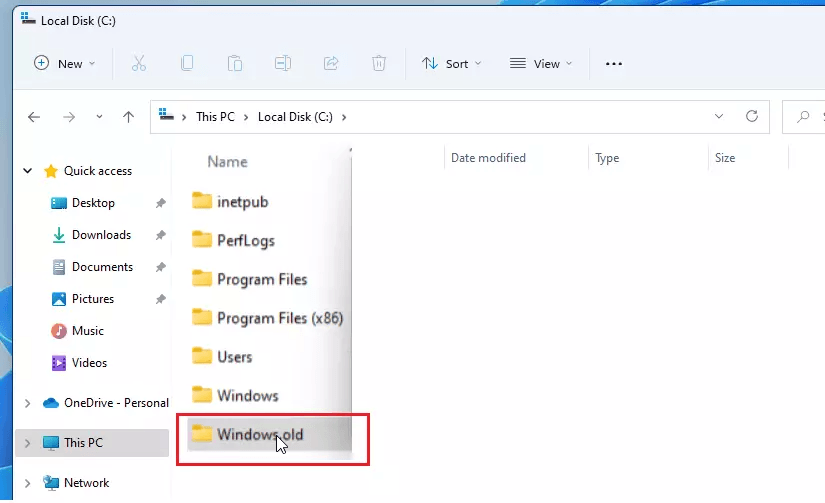
- To delete the folder in Windows, select it in File Explorer, press the Delete button, and click Continue if administrator permission is required.
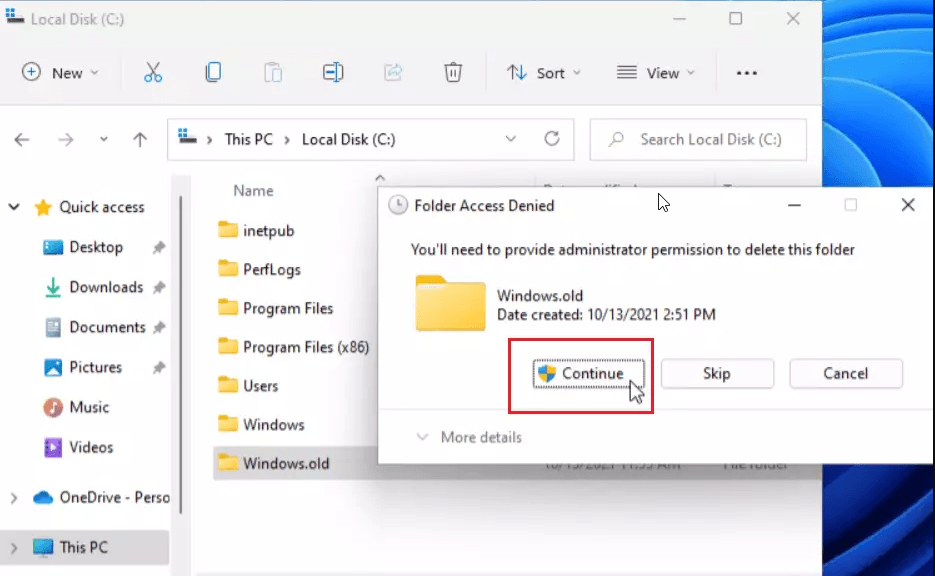
- Since it is a big file it will be deleted permanently from your computer.
If the Windows.old folder is not deleting manually, try running the Disk Cleanup tool or using the Command Prompt to delete it. You can also try disabling the System Protection feature and then deleting the folder. If none of these methods work, you can try running a System Restore point to a previous date when the Windows.old folder was not present. If you're still unable to delete the folder, you may want to consider seeking further assistance from a Microsoft support representative.
#2. Use Disk Cleanup to delete Windows.old folder
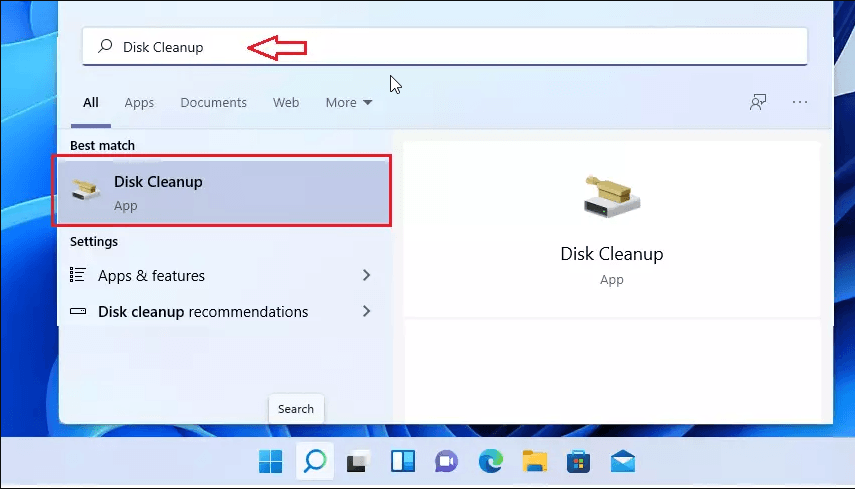
- To run Disk Cleanup, first click the Start menu and search for Disk Cleanup, select the Disk Cleanup app, then select the drive where the operating system is installed.
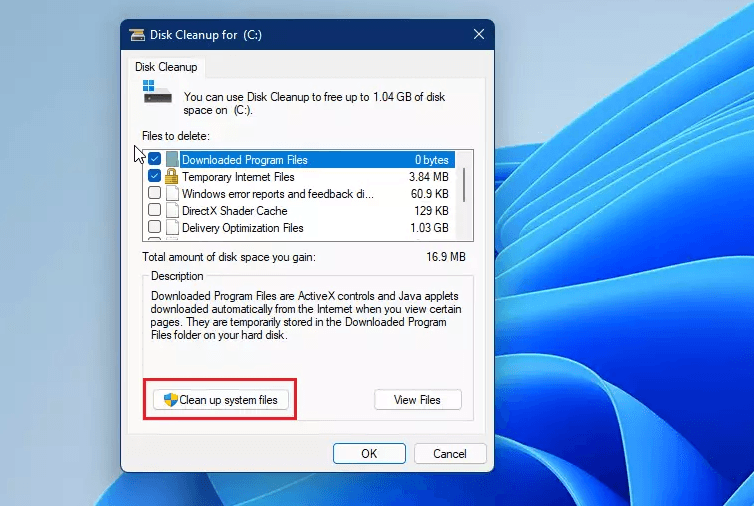
- When the Disk Cleanup window opens, press the Clean up system files button at the bottom.
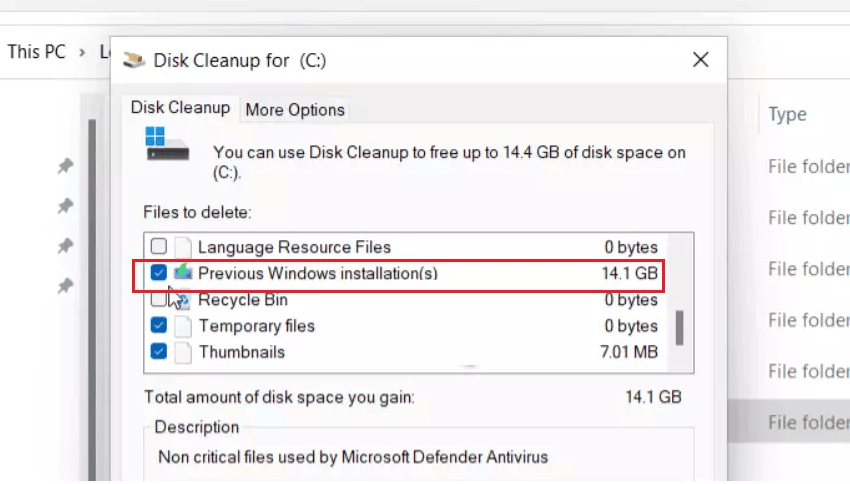
- Scroll through the list of folders and select the "Previous Windows installation(s)" folder, which contains the Windows.old content.
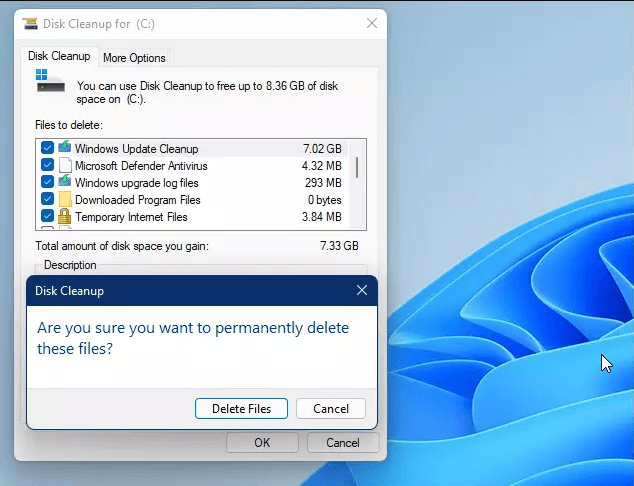
- You can check all the items you want to delete, and you'll be prompted to confirm the deletion of the file.
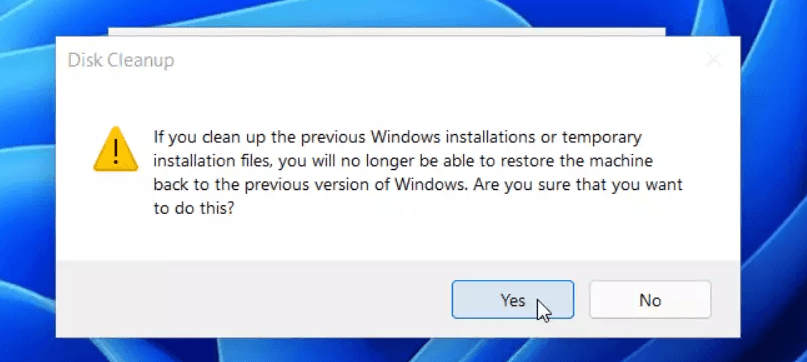
- After clicking "Yes" in the Disk Cleanup program, the Windows.old folder will be deleted, removing previous Windows installations or temporary installation files. This confirms the deletion of the Windows.old folder.
#3. Use Storage Sense to delete Windows.old folder
Windows 11 includes Storage Sense, a built-in tool that can automatically free up space, delete temporary files, empty the Recycle Bin, and help remove the Windows.old folder.
- To open Storage Sense, simply open the Start menu, type in "Storage Sense" and click on Enter.
- Under Storage management, turn on the Storage Sense option.
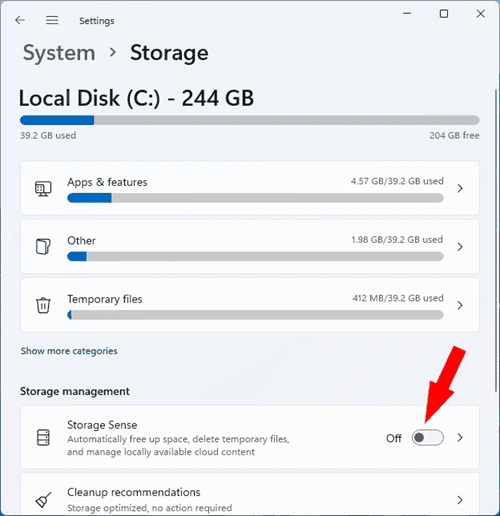
- Click on Storage sense and then click on the "Run Storage Sense now" button.
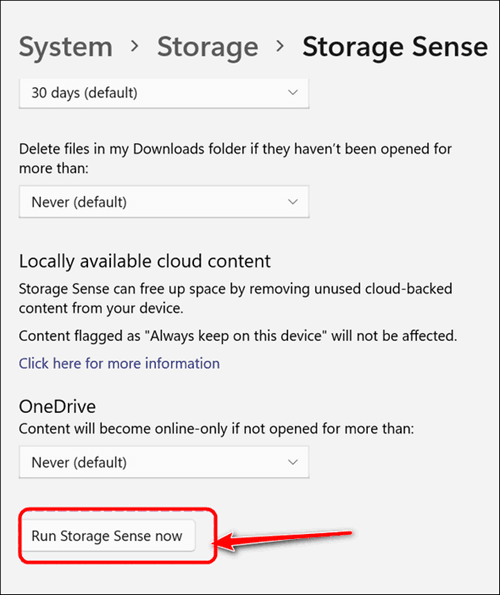
- Storage Sense now starts automatically cleaning up unwanted files like thumbnails, error reports, cache files, and previous installation files, and also empties the recycle bin.
Backup Windows 11 in advance to avoid data loss
I recommend making a backup of your current Windows 11 system to ensure your important files and settings are safe in case of any unexpected issues with your computer. This can be done using Windows built-in backup tools or third-party software. By doing so, you can rest assured that your data is secure and easily recoverable if needed.
Qiling Disk Master is a reliable Windows 11 backup software that makes creating a backup easy and safe. It allows you to backup your entire system, disk, partition, files, and folders on Windows 11/10/8/7/XP/Vista. With its system backup feature, you can quickly and easily restore your computer to a working state, preserving your personal data and installed apps, in case your system stops working normally.
The software allows you to set up automatic backups to prevent missing any changes to your files, offering three backup methods: Full Backup, Incremental, and Differential Backup, with the latter two methods helping to save disk space at the backup destination.
Then, let's get the detailed steps.
- To use this software, download and install the freeware on your computer. If you're a Windows Server user, you'll need to use the Qiling Disk Master Server instead.
- Launch this freeware, click the Backup tab on the main page, and then choose System Backup.
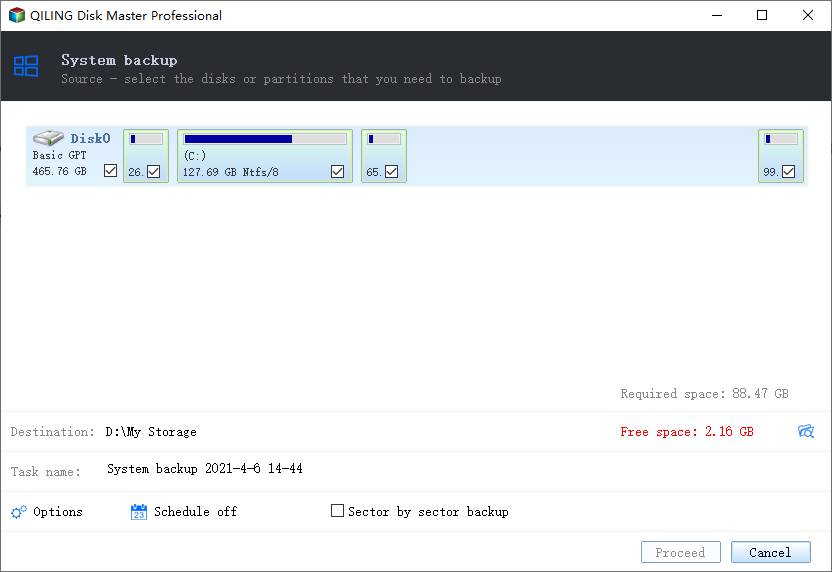
✎ Note: If you want to backup the entire disk, you can choose "Disk Backup" instead.
- Qiling Disk Master automatically detects the system partition, system reserved partition, and system recovery partition, and allows users to select a destination path for backup, ideally to an external disk.
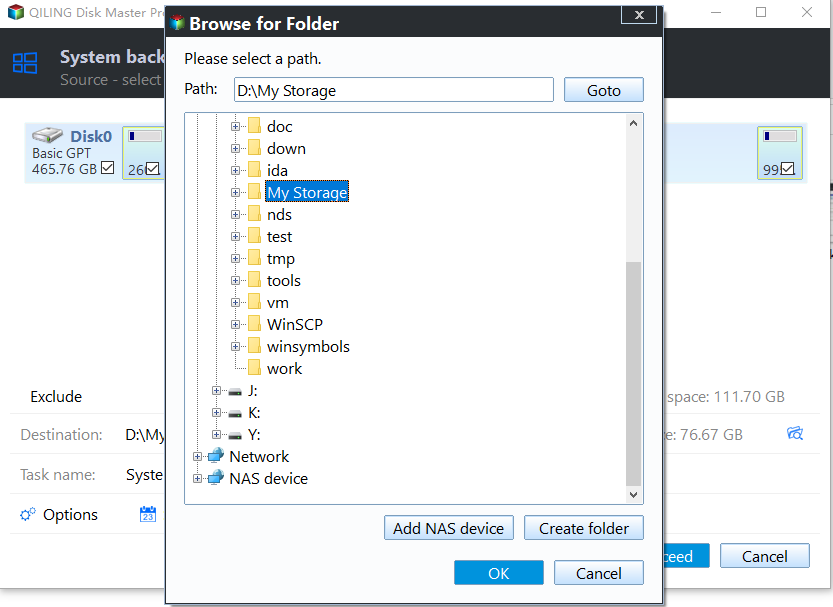
✍ Tip: You can backup to any location that Windows detects, including external hard drives, NAS network locations, local storage, and cloud storage services.
- Then click "Proceed" to run the process.
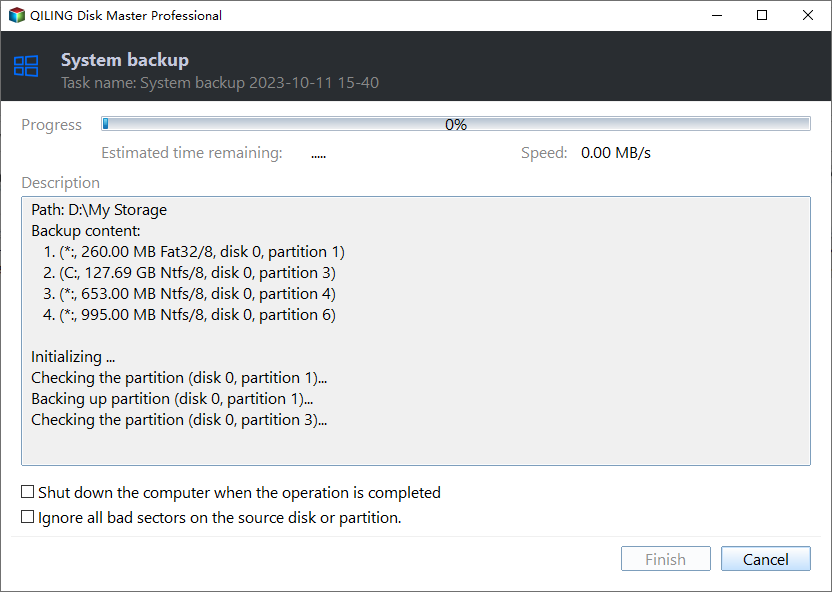
✍ Tips:
◆ Options: You can customize backup images by adjusting compression level, split images, notification settings, and other features, and also enable encryption for secure backups.advanced editionsThis is a useful feature for users who store sensitive data or business data on their computer to prevent unauthorized access.
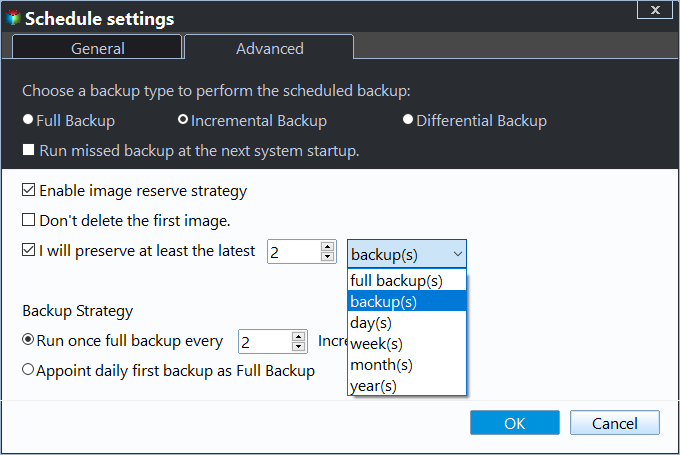
◆ Schedule: To ensure that all important data is backed up, it's recommended to create an automatic backup in Windows 11, which can be set to run daily, weekly, or monthly, or even triggered by specific events, such as USB plug-in, to avoid losing any important information.
◆ Scheme: This feature allows users to automatically delete old backups when a specified number of versions is reached, ensuring they don't run out of disk space while still keeping track of recent changes.
Bonus: recover from boot
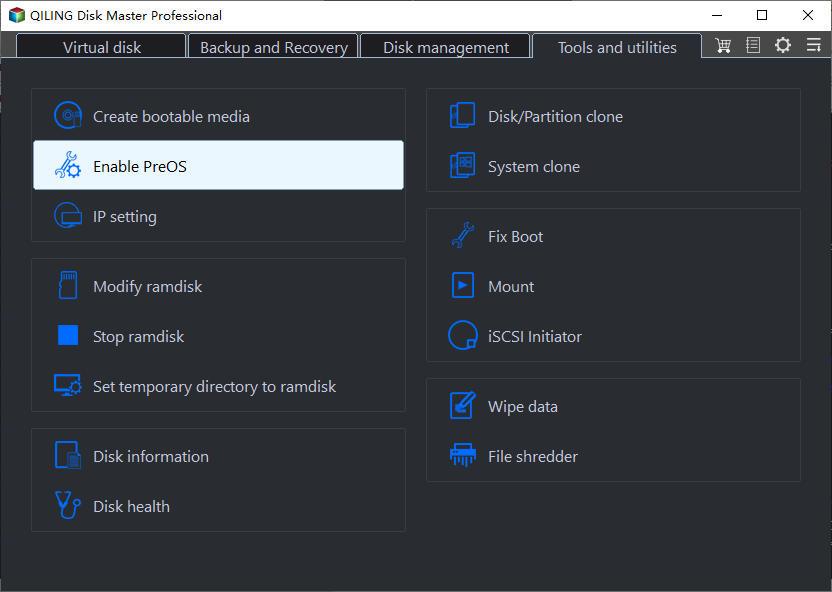
This software will create a backup of your system in a short time, allowing you to easily restore from it in case something goes wrong. You can even recover from a bootable CD or other media if your PC won't boot. Upgrading to the Professional version enables you to create a recovery environment for system backup recovery or other backup recovery without booting Windows.
To sum up
After reading this article, you may already know some basic information about the Windows 11 Windows.old folder. You can also find 3 effective ways to help you delete this folder to free up space. However, before deleting it, it's recommended to use a powerful backup software like Qiling Disk Master Standard to create a backup of your current system to ensure the security of your computer.
This software offers backup and restore functionality, as well as disk cloning capabilities. It can assist with upgrading hard drives by migrating the operating system and data, ensuring a smooth startup process.
If you want to deploy a system image to multiple computers simultaneously, rather than restoring the image to a single computer one by one, you can utilize Qiling Image Deployment.
Related Articles
- Restore Files or Windows from Windows.old Folder in Windows 10
You will learn to restore files or Windows from Windows.old in Windows 10 as well as delete this folder for more space. Learn more below. - How to Reinstall Windows 10/11 Without Losing Data (3 Ways)
Sometimes, you may need to reinstall Windows 10/11 to solve system issues. This guide will show you how to reinstall Windows 10/11 without losing data step by step. - Delete the Windows.old Folder in Windows 10 [4 Ways]
- How to Recover Deleted Windows.old Folder in Windows 10/8/7?
Learn how to Delete the Windows.old Folder in Windows 10 How to Recover Deleted Windows.old Folder in Windows 10/8/7 with clear steps, key checks, and practical tips. - How to Backup Windows Server 2019/2016/2012 in the Best Way?
You will learn the best way and how to backup a server to prevent data from losing. Get details below right now! - How to Image Windows Server 2012 (R2) to New Hard Drive
Learn how to Image Windows Server 2012 (R2) to New Hard Drive with clear steps, key checks, and practical tips. -
Disk Cleanup Not Working in Windows 11
Fix Windows 11 cleanup problems before deleting update cache or Windows.old.
Products
Articles & Tutorials
- Data Recovery
- Data Backup
- File Recovery
- File Backup
- File synchronize
- System Backup and Restore
- Disk and Partition Clone
- Technical articles
- Disk Master Help
- Windows Deleted File and Disk Recovery Tutorials
- Windows File and Data Recovery Tutorials
- More Windows Tutorials for Install, Security, Files, and PC Tips
- Windows Boot, Repair, and Recovery Environment Tutorials
- Windows Backup Tutorials
- Windows Restore Tutorials
- Windows Clone and Migration Tutorials
- Windows Server Backup, Recovery, and Management Tutorials
- Windows Disk, Partition, and Storage Management Tutorials