Delete the Windows.old Folder in Windows 10 [4 Ways]
Quick Navigation:
- What's the Windows.old Folder?
- Can I delete my Windows.old folder in Windows 10?
- Backup Windows 10 before deleting Windows.old folder
- Delete Windows.old folder in Windows 10 using Disk Cleanup
- Delete Windows.old folder in Windows 10 without Disk Cleanup
- Delete Windows.old folder in Windows 10 via Temporary files settings
- Delete Windows.old folder in Windows 10 using CMD
- In the end
What's the Windows.old Folder?
The Windows.old folder is a system partition folder that saves the previous Windows version when upgrading to a new one without formatting the hard drive, containing previous Windows, program files, and user data, first introduced by Windows Vista and applicable to Windows 7, 8, 8.1, and 10.
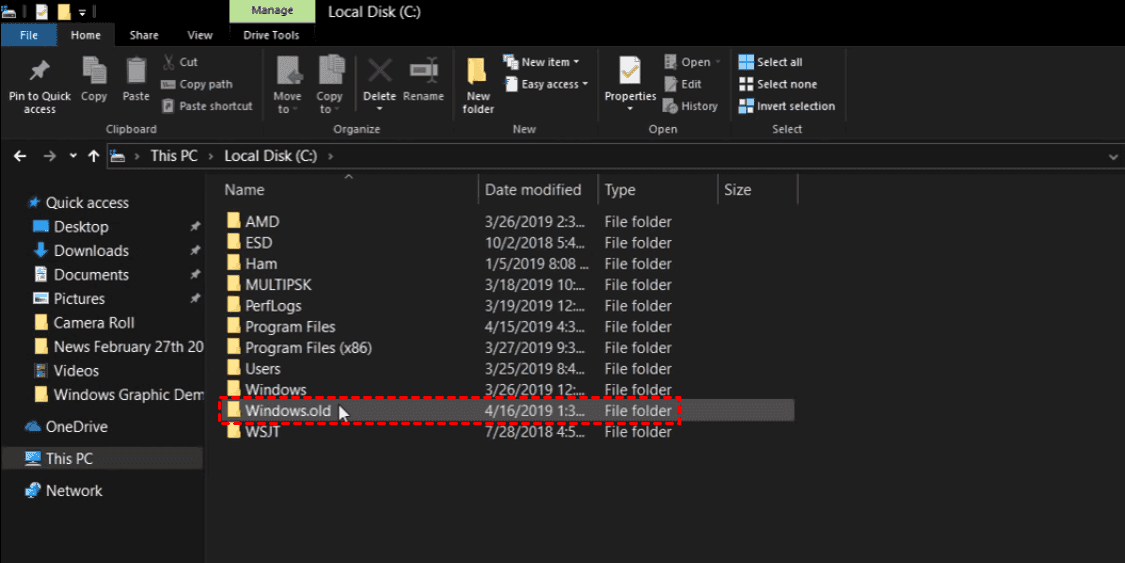
The Windows.old folder allows you to roll back to a previous Windows version, such as reverting from Windows 10 to Windows 7, and also restore individual files and programs from the previous version.
After upgrading to a new version of Windows, the Windows.old folder will be automatically deleted after a month if there is enough disk space. However, if disk space is low, you can manually delete the Windows.old folder in Windows 10/8/7.
Can I delete my Windows.old folder in Windows 10?
Yes, you can safely delete the Windows.old folder to free up space on your system partition. However, be aware that deleting this folder will remove your previous Windows installation and any installed programs from that version. If you're sure you don't need to revert to the previous Windows version, deleting Windows.
You can delete the Windows.old folder to free up space, but be aware that you won't be able to downgrade to a previous Windows version. It's recommended to back up your system first to ensure data and OS safety.
Backup Windows 10 before deleting Windows.old folder
To ensure your data and OS are valid and available, I recommend backing up Windows 10 to an external storage device. You can use the Windows 10 backup software Qiling Disk Master Standard, which provides a safe and easy way to do this.
To backup your Windows 10 PC, download Qiling Disk Master Standard, launch the program, click Backup, select System Backup, choose a backup location, and click Proceed.
You can choose other backup solutions depending on your needs, such as Disk Backup, File Backup, or Partition Backup, in addition to cloud backup.

★Tips:
✍Qiling Disk Master automatically detects the system partition, system reserved partition, and system recovery partition, eliminating the need for manual selection.
✍The image can be customized with options and scheduled if needed.
✍For the destination path, you can choose a device such as an external hard drive, USB flash drive, NAS device, or network share.
✍Qiling Disk Master provides a System Restore feature, allowing you to restore an image from an external hard drive or the storage where the system was backed up.
✍If your computer won't turn on, you can create a bootable media on a working computer, use it to start your computer, and then restore an image to get it working again.
Delete Windows.old folder in Windows 10 using Disk Cleanup
After upgrading Windows from a previous version, the Windows.old folder won't be automatically deleted for 10 days. This system folder can't be easily removed, but you can free up space on your C drive by deleting it using the Disk Cleanup utility, making it a relatively easy solution.
In Disk Cleanup, you can't see Windows.old because it's called Previous Windows installation(s) instead. If it's still not visible, click on "Clean up system files" first.
Tip: If you need the Windows.old folder later, you can back it up to an external storage device before deleting it.
To delete Windows old folder in Windows 10 without data loss, follow these steps. First, go to the Windows Update settings and click on the "Update history" link.
Step 1. To access the File Explorer, press the Windows key + E on your keyboard. Then, click on "This PC" at the left-hand panel.
Step 2. Right-click the C drive under the "Devices and drives" section, then select "Properties".
Step 3. In the next window, click "Disk cleanup"
Step 4. Click "Clean up system files".
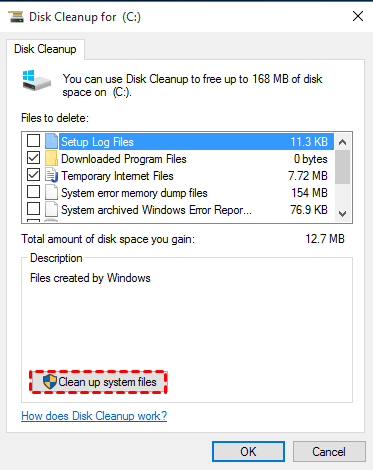
Step 5. Select "Previous Windows Installation(s)" only, then press "OK" to start cleanup. You can delete other related files by your own needs.
You can enter "cleanup" in the Windows 10 search box and follow the on-screen instructions to complete the process.
This method is suitable for Windows 10 as well as Windows 8/7, allowing you to use Disk Cleanup to delete Windows old files in Windows 10/8/7.
Delete Windows.old folder in Windows 10 without Disk Cleanup
If you don't want to use Disk Cleanup, you can use the Storage sense feature to remove the Windows.old folder.
Step 1. Go to Start > Settings > System > Storage.
Step 2. To change how Storage sense frees up space automatically, go to Settings, then Storage sense, and select the "Change how we free up space automatically" option.
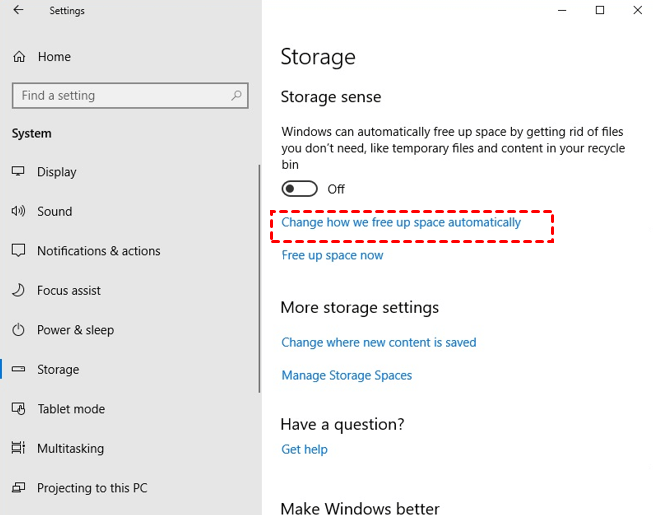
Step 3. To free up space on your computer, go to the "Storage" section, click on "Free up space now", select "Delete previous versions of Windows", and then click "Clean now".
Delete Windows.old folder in Windows 10 via Temporary files settings
Step 1. Go to Storage and click Free up space now under the Storage sense tab.
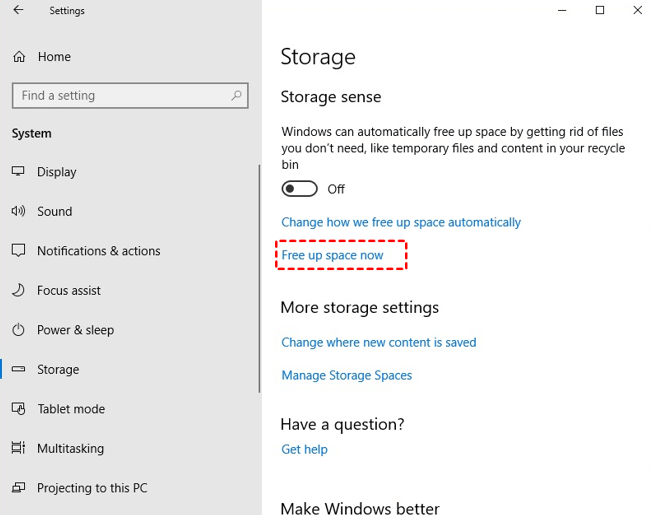
Step 2. To configure the Temporary files settings, select the "Previous Windows installations" option and uncheck the other options.
Step 3. Click the Remove files button.
Delete Windows.old folder in Windows 10 using CMD
If you're familiar with the command prompt, you can try removing Windows.old in Windows 10 using CMD.
Detailed steps are below.
Step 1. To open Command Prompt as an administrator, type cmd in the search box, select it, and then click Run as administrator. This will open a new Command Prompt window with administrator privileges.
Step 2. Type the following commands and hit Enter after each one.
- takeown /F c:\Windows.old\* /R /A /D Y
- cacls c:\Windows.old\*.* /T /grant administrators:F
- rmdir /S /Q c:\Windows.old
★Note:
The three commands used are takeown, icacls, and rmdir. The takeown command gives ownership to the administrator group, the icacls command is used to display or modify DACL (discretionary access control list) files, and the rmdir command is used to remove a specific directory.
Step 3. Type exit to leave this window.
In the end
You should delete the Windows.old folder in Windows 10/8/7 to free up disk space after a system crash, but be cautious not to lose important data. A clean install can be time-consuming and may require reinstalling programs, and if your computer is not working properly, you risk losing your data forever.
To safely delete Windows old, first backup your system, disk, partition, or files, and then proceed with the deletion.
Related Articles
- Clean up after a Windows 10 update
Review rollback files and temporary data before reclaiming disk space. - How to Recover Deleted Windows.old Folder in Windows 10/8/7?
Learn how to Recover Deleted Windows.old Folder in Windows 10/8/7 with clear steps, key checks, and practical tips. - (Solved) Windows Folder Size Too Large
Here are 4 methods to fix Windows folder size too large, pick one or more of them and delete files you don't want. Hurry up and learn more below. - How to Reinstall Windows 10 without Losing Data (3 Ways)?
Sometimes, you may need to reinstall Windows 10/11 to solve system issues. This guide will show you how to reinstall Windows 10/11 without losing data step by step. - Create Windows 10/11 Image Backup with Best Free Software
In this article you will get the best free Windows image backup software and learn how to create Windows 10 system image backup step by step. - How to Choose the Right SSD for Your Needs
Use this guide for How to Choose the Right SSD for Your Needs, with cloning or migration steps, boot checks, and tips to keep data safe during the move. - How to Clone a Partition to Another Drive on Windows 10?
Learn how to Clone a Partition to Another Drive on Windows 10 with clear steps, key checks, and practical tips.
Products
Articles & Tutorials
- Data Recovery
- Data Backup
- File Recovery
- File Backup
- File synchronize
- System Backup and Restore
- Disk and Partition Clone
- Technical articles
- Disk Master Help
- Windows Deleted File and Disk Recovery Tutorials
- Windows File and Data Recovery Tutorials
- More Windows Tutorials for Install, Security, Files, and PC Tips
- Windows Boot, Repair, and Recovery Environment Tutorials
- Windows Backup Tutorials
- Windows Restore Tutorials
- Windows Clone and Migration Tutorials
- Windows Server Backup, Recovery, and Management Tutorials
- Windows Disk, Partition, and Storage Management Tutorials