Create Windows 10/11 Image Backup with Best Free Software
What is Windows image backup, is it necessary?
Backing up regularly is crucial for every computer user, as system crashes can occur unpredictably, causing inconvenience and data loss. There are two types of backups to consider:
File Backup - Backing up valuable files and folders allows you to recover them even if your system crashes or you lose data, and you can do this within a running operating system.
Windows Image Backup - A full system image backup, also known as a system image backup, is a backup of all partitions required by Windows to run, including additional partitions for a complete PC backup, allowing for bare metal recovery.
Windows image backup is the safest option to guard against system crashes, data loss, and provide recovery in any situation, even when the computer can't boot. It can be combined with file backup to create a flexible backup strategy.
You can use Windows built-in tools, such as Backup and Restore, to create a Windows image backup. However, third-party Windows image backup software like Qiling Disk Master often provides more flexible options, including scheduled backup, compression, and backup to external hard drives, USB drives, or network locations.

What Windows image backup software should you use
In our daily lives, unexpected events like hard drive failure or system crashes can happen frequently. Choosing a reliable Windows backup software is crucial to prevent data loss and ensure business continuity.
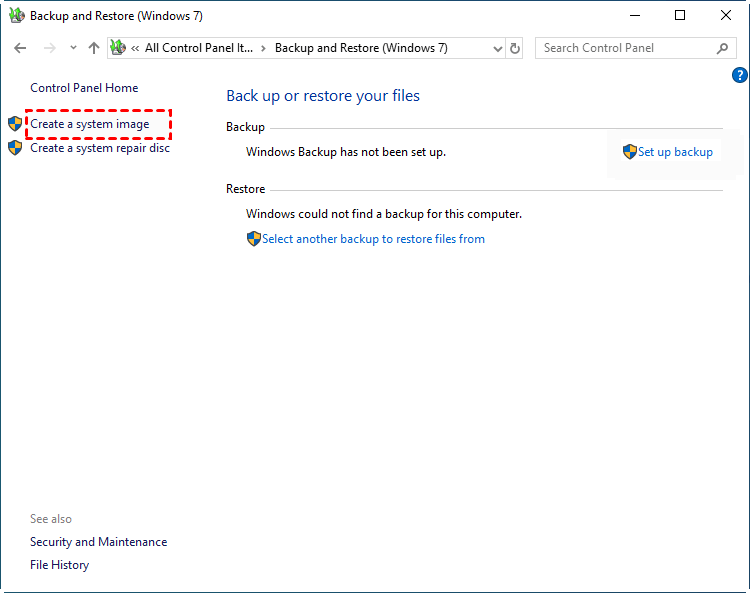
👉For system image backup, you can use the built-in utility Windows Backup and Restore to create a system image, which includes the operating system, system files, installed programs, and stored data.
The software supports backing up to local drives, external hard disks, and network drives, but users may encounter errors when trying to back up their system to a USB drive or when the system image backup fails, making the recovery process complicated and error-prone.
The tool creates a backup image that will overwrite any previous one, and this image cannot be restored on a different computer. This means you'll only have one backup, and if that image is damaged, your computer and data will be lost forever.
👉If the built-in backup utility cannot meet your needs, Qiling Disk Master Standard can fill the gaps. It supports Windows image backup, file backup, partition backup, and entire disk backup, making it useful in many recovery scenarios.
- Back up system-related partitions or an entire hard disk.
- Back up multiple volumes on different disks at the same time.
- Back up several hard disks simultaneously while excluding unallocated space.
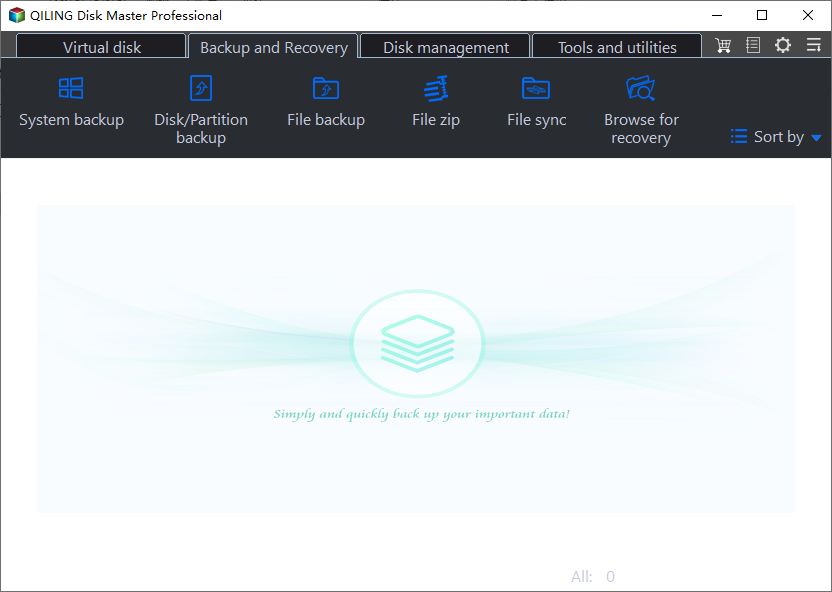
The software provides useful features, including customizable backup schedules, incremental backups to capture only changed data, disk or partition cloning, image inspection and browsing, and the ability to create a bootable CD/DVD.
You can download the freeware here and follow the guide below to start your journey.
How to create system image backup for Windows 11/10 step by step
To create a system image backup in Windows 11/10 with Qiling Disk Master, prepare a storage device first, then select System Backup, choose the destination, configure the schedule if needed, and start the backup. The created image can be used to restore your computer after system failure or other serious issues.
Before backing up Windows 10, prepare a target disk to store the image file, which can be a local disk, external drive, USB flash drive, network storage, or cloud storage.
Step 1. Launch the software, click "Backup" and then "System Backup" in sequence. This will automatically select the operating system and hidden boot-related partitions required to start Windows, minimizing the risk of the computer failing to start.
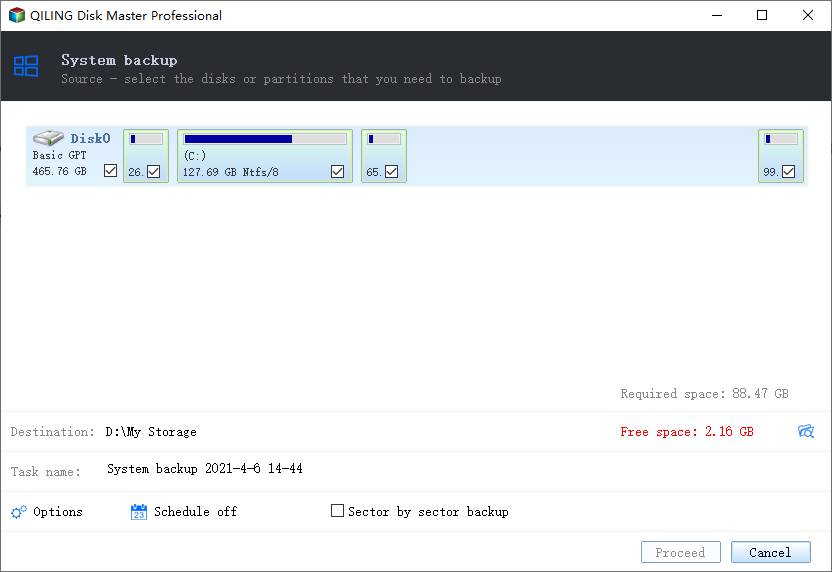
✎Note: You can choose to backup specific partitions, disk or files per your needs.
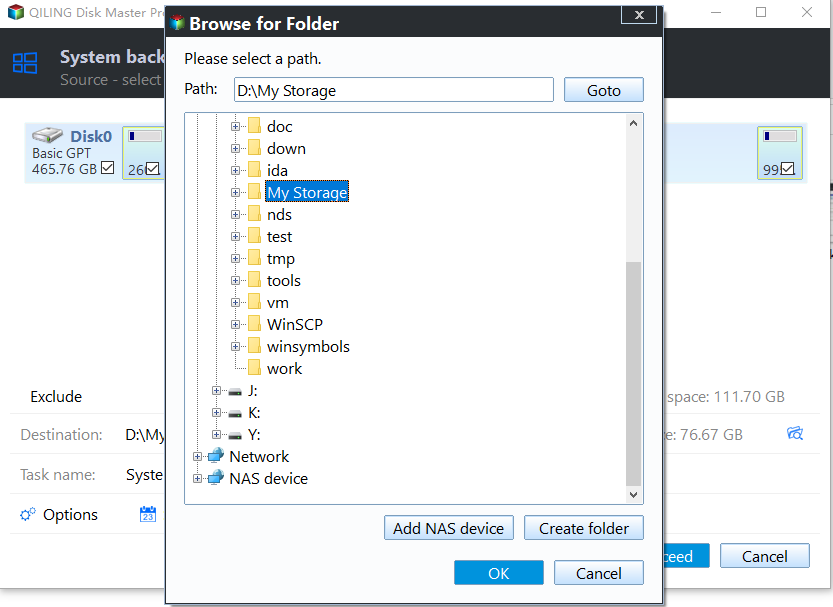
Step 2. Select the prepared storage location to store the system backup, as indicated by the arrow, to proceed with the backup process.
Step 3. To create a Windows image backup, you can click on "Backup Schedule" to set up a regular backup, or choose a backup method in "Backup Scheme", which defaults to daily incremental backups. Additionally, upgrading to the Professional edition allows you to enable automatic backup cleanup, which deletes old backup images intelligently.

✎Notes:
Options: You can comment on this backup, enable email notifications, create pre- and post-command scripts, and compress the backup image with either normal or high compression levels.
Schedule Backup: The system allows for daily, weekly, and monthly backups, as well as full, incremental, and differential backups. Additionally, advanced editions offer USB plug-in and event trigger scheduling options.
Backup Scheme: In the Professional edition, you can set a policy to automatically delete old backups while retaining a specified number of the most recent ones, which helps manage disk space on target devices.
Step 4. Confirm the backup task and click "Proceed" to initiate the Windows 10 system backup.
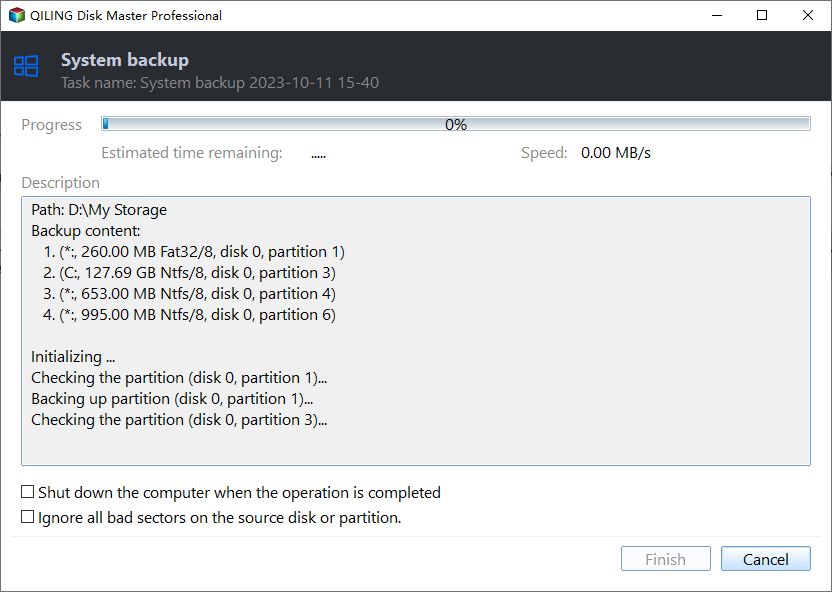
If you have a system image backup for your Windows 10 computer, you can use it to restore the original computer or transfer the system to a new hard drive. You can also use the Universal Restore option, available in the Pro edition, to restore the system image to a different computer with different hardware.
Create a bootable USB to recover your computer without booting into Windows, allowing for a safe and efficient system recovery.
Bonus tip: best free centralized backup software
If you have multiple PCs that need to be backed up, you can use Qiling Backup, a free centralized backup software.
- It allows you to create a system image, disk image, or partition image for client Windows PCs and Servers.
- You can save backup images on a local disk, external hard drive, network share, or NAS device.
- You can schedule a backup task to run at regular intervals, such as daily, weekly, or monthly, using various backup methods like full, incremental, or differential backups.
Try this powerful centralized backup software now and see its capabilities for yourself!
Written in the end
For a free Windows image backup, you can use the built-in backup software or Qiling Disk Master Standard. Both can help you back up your computer and restore your system to a previous state when problems occur.
Qiling Disk Master is a better choice than the built-in Backup and Restore feature in Windows 7, as it makes up for its shortcomings. This freeware offers a range of backup options, including OS, disk, partition, and file backup, as well as incremental and differential backup, scheduling, compression, and encryption. It's definitely worth trying, and can be downloaded for free.
Related Articles
- Create Image Backup for Windows Server 2012/2016/2019 | 3 Ways
In this post, you will get 3 effective methods to create image backup in Windows Server, which apply to Windows Server 2008(R2), 2012(R2), 2016, 2019, 2022, etc. Let's get started! - 4 Steps to Perform Disk Backup for Windows 10 [FREE]
You will learn two practical ways to create disk backup for Windows. If you want to simply backup important files, this article also helps. - Best Free Windows 7 Image Backup Recovery Software – Qiling Disk Master
This guide explains Best Free Windows 7 Image Backup Recovery Software – Qiling Disk Master with clear steps, key checks, and practical tips. - How to Do Complete PC Backup in Windows 10/8/7? [Free Ways]
Learn how to Do Complete PC Backup in Windows 10/8/7 with clear steps, key checks, and practical tips. - Why the RAMdisk can improve overall system performance?
RAM disk is a useful way to improve system performance for business computers and can also increase virtual machine speed. - How to Schedule Windows Backup with QILING disk master Software?
This post tells you how to set up a backup schedule to automatically back up your system and data on a Windows hard disk partition.
Products
Articles & Tutorials
- Data Recovery
- Data Backup
- File Recovery
- File Backup
- File synchronize
- System Backup and Restore
- Disk and Partition Clone
- Technical articles
- Disk Master Help
- Windows Deleted File and Disk Recovery Tutorials
- Windows File and Data Recovery Tutorials
- More Windows Tutorials for Install, Security, Files, and PC Tips
- Windows Boot, Repair, and Recovery Environment Tutorials
- Windows Backup Tutorials
- Windows Restore Tutorials
- Windows Clone and Migration Tutorials
- Windows Server Backup, Recovery, and Management Tutorials
- Windows Disk, Partition, and Storage Management Tutorials