How Do I Create System Image for Windows Server 2008(R2)?
How do I create a system image in Windows Server 2008?
I would like to create a full system image of my server 2008 for disaster recovery. For example, if my server is damaged or stolen, I would use this hard drive and Windows CD to restore computer or to a new server, and keep all the configuration, drivers, installed programs, etc on the first server. How to take image backup of Windows Server 2008? Thanks for any kindly advices.
You can benefit from Windows Server 2008(R2) System image
Creating a server 2008 image is essential for both business and personal users, as it allows for the protection and recovery of the Windows Server in case of problems. A system image typically contains everything on the hard drive necessary for Windows to run, making it a useful tool for disaster recovery. This can be particularly helpful in various scenarios, such as protecting against data loss, performing system backups, and ensuring business continuity in the event of a disaster.
Prevent system crash. Your operating system may go wrong for various reasons, and in severe cases it may even fail to boot, but a system image can help you restore Windows Server 2008 to a previous date easily.
Avoid disk failure. If your hard drive fails, a full system image can be used to restore everything to a new drive without losing any data, making the process of replacing the hard drive much easier.
Eliminate data loss owing to unknown reasons. Your data isn't always secure. Misoperation, system errors, and viruses/malware can lead to unexpected data loss. To avoid this, it's better to make a backup beforehand.
Windows Server 2008 backup software is indispensable for system image
System backup is not just about copying all your files or partitions and storing them on other storage devices. Simply copying and pasting all files to another storage will lead to boot files being unbootable, making it impossible to restore your system to its original state. A proper system backup involves capturing the entire system, including boot files, settings, and configurations, to ensure a seamless restoration process.
To avoid the issue of Windows Server Backup not working, you can use the built-in Windows Server Backup tool or a third-party backup software like Qiling Disk Master Server, which can achieve the same effect.
- Create system image in Windows Server 2008 with Windows Server Backup
- Create system image backup for Windows Server 2008 with Qiling Disk Master Server
Create system image in Windows Server 2008 with Windows Server Backup
Windows Server Backup is a free tool available in various Windows Server versions, including 2008, 2008 R2, 2012, 2016, 2019, and 2022, that enables you to create a full server backup, system state backup, bare metal backup, or backup specific volumes, files, and folders.
However, this tool is not installed by default, you need to manually install it using Server Manager.
To install Windows Server Backup, open Server Manager, go to Features > Add Features > Windows Server Backup Features, and click Install to initiate the installation process.

To create a system image backup in Windows Server 2008, you can use the Windows Server Backup feature, which must be installed first. As a member of the Backup Operators or Administrators group, or with delegated authority, you can create a system image backup by following the steps provided, and note that only volumes formatted with the NTFS file system are supported.
1. To open Windows Server Backup, click Start, type "Windows Server Backup" in the search box, and select it from the list of results.
2. To create a backup, click the "Backup Once" button at the right panel, or schedule a backup by clicking "Backup Schedule".
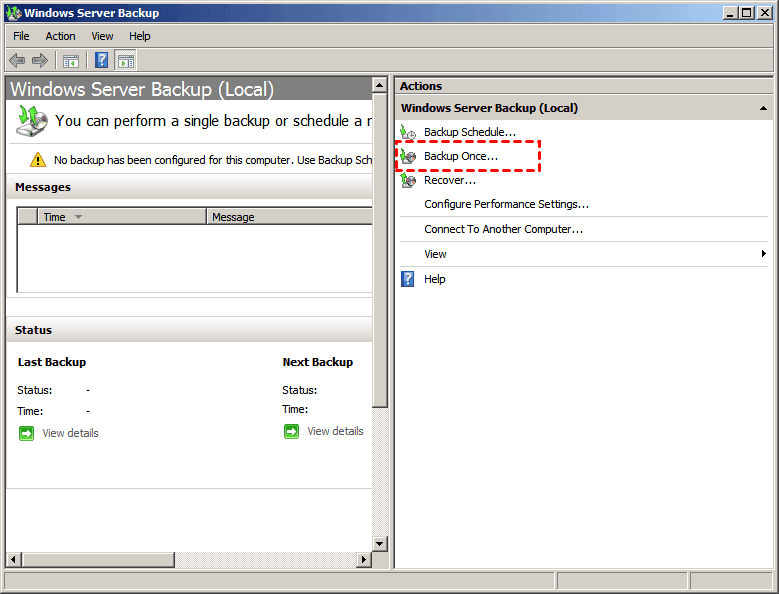
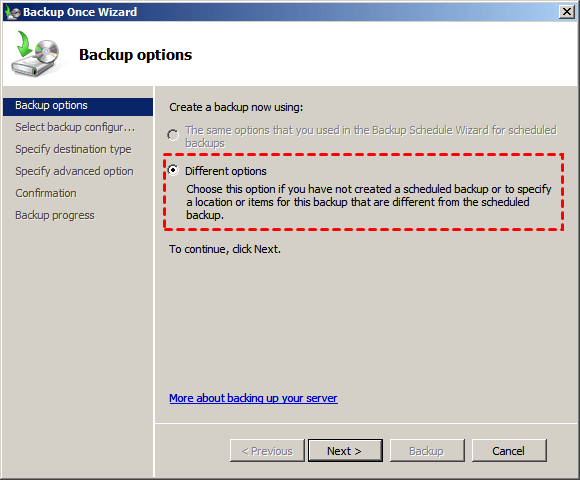
3. Tick "Different options" and click Next.
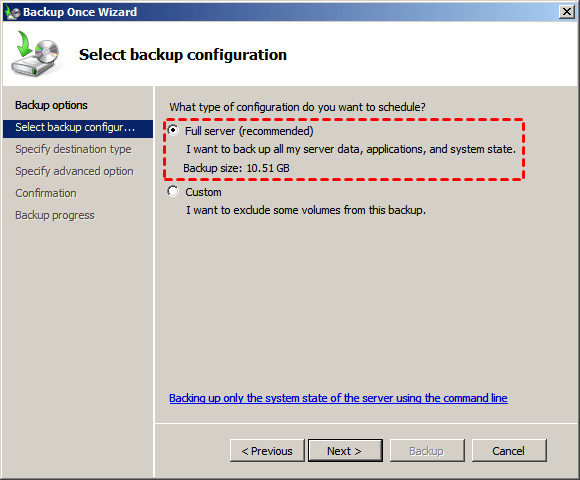
4. Check "Full Server" in the "Select backup configuration" page.
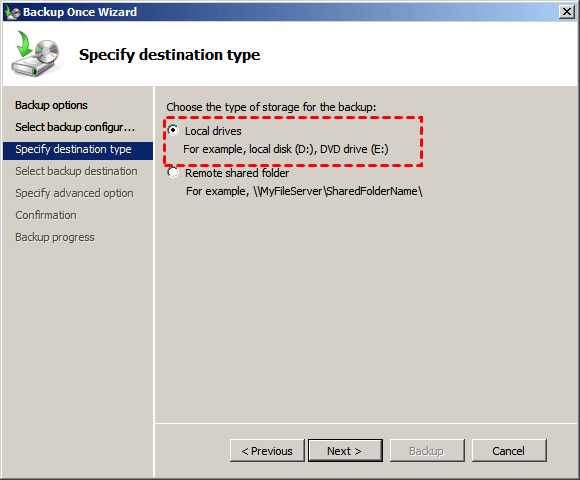
5. Click "Local drives" and Next. Then, in the new window, click the inverted triangle and select a drive from drop-down menu as backup destination. You can choose local disk or external drive as destination as long as it can be recognized.
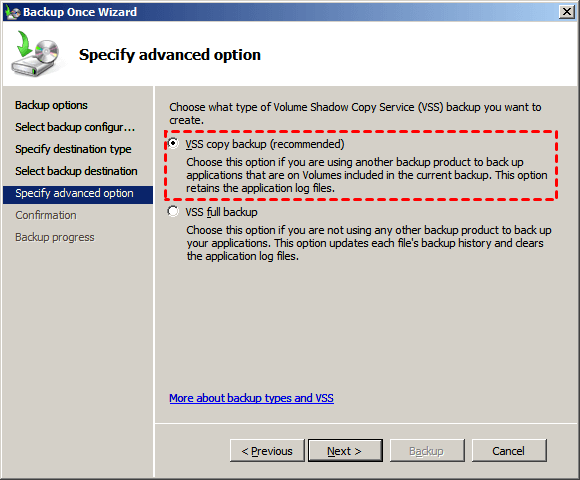
6. Select "VSS copy backup(recommended)" and click Next.
7. In Windows Server 2008, confirm the backup items and click "Backup" to create a system image.
To create a Windows Server 2008 image, you can use the Windows Server Backup command line to customize the settings. This allows for more tailored options for the backup process.
Creating a system image in Windows Server 2008 involves using software to back up the entire system, which can also be applied to Windows Server 2012(R2)/2016(R2)/2019/2022. However, this software may not always run stably, potentially leading to errors during the backup process, such as incorrect function, issues with files over 2TB, or system writer not found in the backup.
To backup Windows Server 2008 smoothly and ensure you always have the latest copy of the system, using third-party backup software is recommended.
Create system image backup for Windows Server 2008 with Qiling Disk Master Server
Qiling Disk Master Server is a reliable backup software that allows for easy system image creation in Windows servers, including 2008, 2012, 2016, 2019, and 2022, with just a few clicks, offering several benefits.
- Schedule automatic backup. To keep the newly installed apps, added or modified files, you can schedule a regular backup, such as daily, weekly, or monthly. The feature also allows you to schedule backups during off-peak hours, like midnight, to minimize disruption.
- Save disk space. To minimize backup size, you can use Normal or High compression level, backup only changes with Incremental or Differential Backup, backup only used sectors with Intelligent Sector Backup, and regularly delete old backups using a Backup Scheme.
- Get backup result more easily. With "Email Notification", you'll receive updates on the final result and any error messages during the backup process, so you don't have to wait until the task is 100% completed.
After getting familiar with this software, you may want to create a Windows Server 2008 image backup immediately for data protection. Before doing so, please download and install this software on your computer. For unlimited servers and PCs, consider trying the Qiling Disk Master TechPlus edition.
The free trial version of the software is available for 30 days, after which a paid version is recommended to ensure continuous system protection. A discounted price of $70 is offered for a single server computer.
1. Launch this software, then click "Backup" and "System Backup" subsequently.
The system partition and boot-related partition are selected automatically to prevent boot failure due to missing system reserved partition or lack of system files.

2. To save Windows Server 2008, click the folder-shaped button and select a destination path on your local computer. If you're backing up to an external hard drive, make sure it's connected beforehand.
The system and boot-related partitions are automatically selected to prevent booting issues due to forgotten or ignored hidden partitions.

3. To set up backup settings, click on "Options", "Schedule Backup", or "Backup Scheme", then proceed with taking an image backup of Windows Server 2008.
If your system is very large, you can compress it with a "Normal" or "High" compression level, which requires more backup time.
You can easily backup your system and changes made later if you enable schedule backup, and the backup frequency depends on how often you modify your files.
The software can automatically make a system image backup on a USB drive when it's plugged in, without needing to open the software.
Incremental or differential backups allow for efficient system updates without consuming excessive disk space, as they only save modified files each time.

Except for System Backup, you may also be interested in its other features:
- Create Bootable Media: This tool enables you to restore a Windows Server 2008 image backup, even if the server fails to boot. If you don't have a device, you can create a recovery environment on the server itself.
- System Clone: It can help you clone Windows Server 2008 from one hard drive to another, allowing for a direct swap and boot without needing to restore an image.
- Disk Clone: The software is capable of cloning a disk to a larger one without leaving any unallocated space, and also allows cloning a larger drive to a smaller one while preserving the secure boot feature.
✐ Backing up and restoring a system image to a new hard drive can be a straightforward process. With the right tools and a little planning, you can easily transfer your operating system, installed applications, and personal files to a new hard drive, making it a seamless transition.
You can use Qiling Disk Master to create system image and bootable media simultaneously, eliminating the need to do them one by one. This software allows you to choose where to save the system backup, such as a hidden recovery partition or an external device like an external hard drive or USB drive.
This software allows you to add a boot menu to your computer and set a fast key to access it, such as F11 or A. It also supports scheduling tasks to run daily, weekly, or monthly.
When your computer isn't working properly, you can access the OneKey System Recovery software by pressing F11 or A, or by using the boot menu. This allows you to restore your system to its previous state using a saved system image. For server users or companies with multiple PCs and servers, a more customized solution like Qiling OneKey Technician or Customization may be a better choice.

Your Turn
To create a system image backup in Windows Server 2008 (R2), follow the same steps as creating a system image in Windows Server 2012, 2016, 2019, 2022, etc. These steps are also applicable to these versions.
Using Windows Server Backup ensures that your system and data are safe from failure and data loss. In the event of a disaster, you can restore your server to its previous state using a created image. However, due to its instability, it's recommended to use a third-party backup software like Qiling Disk Master Server for a more reliable and efficient backup solution.
For IT technicians, you can use Qiling Disk Master Technician Plus, which can be installed on unlimited PCs and Servers, offering unlimited billable technical services and enabling portable version creation.
Related Articles
- Alternative Way to Create Restore Point in Windows Server 2008 (R2)
If you are looking for a quick way to capture a snapshot of your computer, please continue to read this article and learn 2 effective ways to create restore point in Windows Server 2008 R2. - How to Create System State Backup for Windows Server 2016
You will learn two easy ways to create a system image for Windows Server 2016, namely using Windows Server Backup and Qiling Disk Master Server. Get the stepwise guide below. - Create Windows Server 2008 R2 Backup Schedule Weekly
Although Windows Server Backup can either schedule a daily backup, or more frequent backup, it's not enough. Read this guide to get two ways to configure Windows Server 2008 backup schedule weekly task. - Clone Hard Drive in Windows 10 to New HDD or SSD Easily?
Cloning Windows 10 hard drive has a variety of usages. QILING Disk Master can help you clone hard drive in Windows 10 with a few simple steps. - QuickBooks Unable to Backup Company File - What to Do?
If you're experiencing the QuickBooks unable to backup company file error, you're in the right place. This post will guide you on how to resolve the issue and provide a better way to back up your QuickBooks company file. - How to Restore System Image Without Repair Disc [Ultimate Guide]
If you're concerned about restoring your system image without a repair disc, rest assured it's possible. A professional backup tool like Qiling Disk Master can help create a system image on an external device, which can then be used to restore it on your device.
Products
Articles & Tutorials
- Data Recovery
- Data Backup
- File Recovery
- File Backup
- File synchronize
- System Backup and Restore
- Disk and Partition Clone
- Technical articles
- Disk Master Help
- Windows Deleted File and Disk Recovery Tutorials
- Windows File and Data Recovery Tutorials
- More Windows Tutorials for Install, Security, Files, and PC Tips
- Windows Boot, Repair, and Recovery Environment Tutorials
- Windows Backup Tutorials
- Windows Restore Tutorials
- Windows Clone and Migration Tutorials
- Windows Server Backup, Recovery, and Management Tutorials
- Windows Disk, Partition, and Storage Management Tutorials