Quick Fix: No Restore Previous Versions Option in Windows 10
Why is there no "Restore previous versions" option?
Previous Versions is a practical feature in Windows 11/10/8/7 that allows users to restore files and folders to their older versions, making it useful for retrieving files that were accidentally deleted, modified, or damaged.
Users who are unable to access the "Restore previous versions" option when right-clicking a file or folder may experience this issue due to a missing or deleted registry key, which is required to display this option.

The issue of not being able to see the "Restore previous versions" option in the context menu is a frustrating problem for users, particularly those who need to quickly restore deleted or modified files. This issue can be caused by various factors, including a malfunctioning Windows feature or a problem with the user's account settings. Regardless of the cause, it brings significant inconvenience to users who need to recover their files urgently.
Restore previous versions tab is missing – how to fix
To deal with the issue of Restore previous versions not showing, follow these steps. First, ensure that the feature is enabled in your Windows settings, and that the file you're trying to restore has been backed up. Next, check that the backup is not corrupted and that the file has not been deleted or modified since the last backup. If you're still having trouble, try restarting your computer or checking for any system updates.
Step 1. Launch the Run box by pressing Windows logo key + R. Type regedit in the Run box. Then click OK.
Step 2. Go HKEY_CLASSES_ROOT ﹥ AllFilesystemObjects ﹥ shellex ﹥ ContextMenuHandlers.
Step 3. Right click ContextMenuHandlers. Click New and Key subsequently. Then type {596AB062-B4D2-4215-9F74-E9109B0A8153} and press Enter.
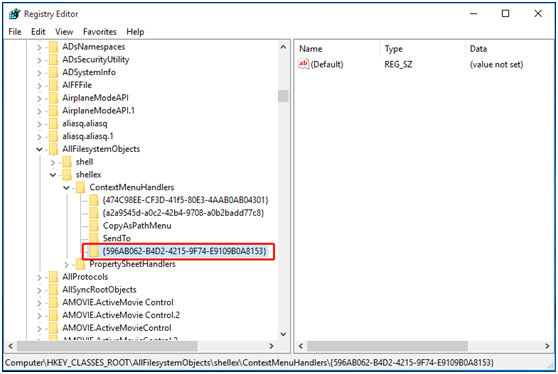
Step 4. Go HKEY_CLASSES_ROOT﹥ CLSID ﹥ {450D8FBA-AD25-11D0-98A8-0800361B1103} ﹥ shellex ﹥ ContextMenuHandlers.
Step 5. Create a {596AB062-B4D2-4215-9F74-E9109B0A8153} key by following the method mentioned in Step 3.

Step 6. Go HKEY_CLASSES_ROOT ﹥ Directory ﹥ shellex ﹥ ContextMenuHandlers.
Step 7. Create a {596AB062-B4D2-4215-9F74-E9109B0A8153} key by using the method mentioned in Step 3.
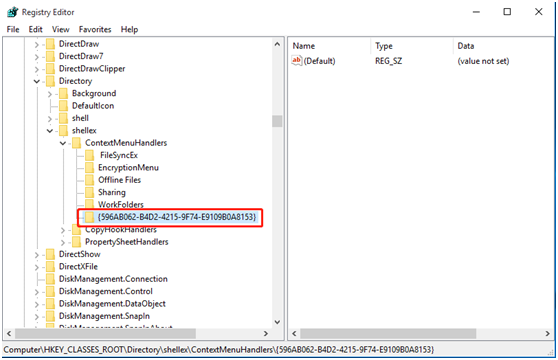
Step 8. Go HKEY_CLASSES_ROOT ﹥ Drive ﹥ shellex ﹥ ContextMenuHandlers.
Step 9. Create a {596AB062-B4D2-4215-9F74-E9109B0A8153} key by taking the method mentioned in Step 3.
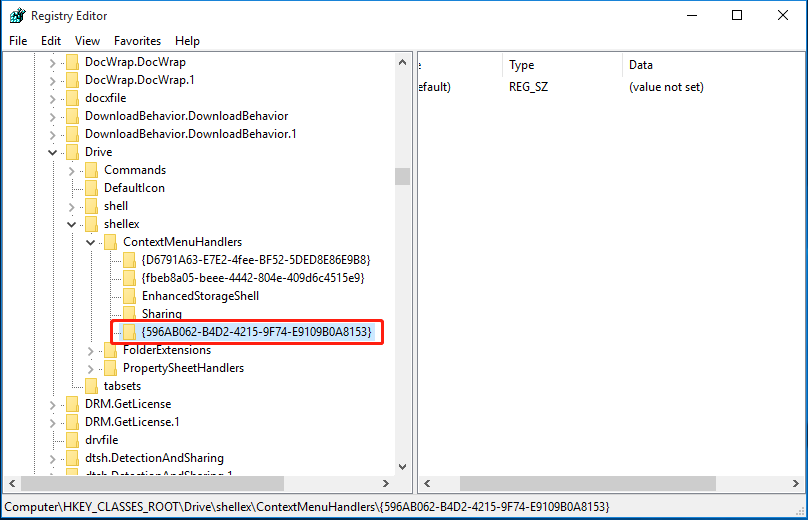
Now, when you right click a file, you can see the "Restore previous versions" option in the context menu.

Although the method of recovering lost files is effective, it has a complicated operating process, which may lead to serious problems like data loss if not performed correctly. Unfortunately, Windows 10 does not have a "Restore previous versions" option, but a reliable free alternative will be presented below.
Best freeware to restore files to the previous versions
Qiling Disk Master Standard is a good choice for restoring files to earlier versions, and the best part is that it's free.
- This software offers system restore, disk restore, and file restore capabilities among others.
- This software enables you to retrieve files from a formatted SD card and recover deleted files from a PS4, provided you had created a backup image beforehand.
- This freeware allows you to recover parts of the files in an image file.
- The software supports various versions of the Windows operating system, including Windows 11, Windows 10, Windows 8.1/8, Windows 7, Windows Vista, and XP.
All the steps are very easy to learn, even for a beginner. You can download this freeware to have a try and see how it works.
How to restore previous versions of files step by step
To restore your system, you must have a file backup in advance. This backup image can bring you back to the older version, so it's highly recommended to develop a habit of backing up important files. To start the restoration process, follow these steps.
Step 1. Install and open this freeware.
Step 2. Choose Restore > Select Task. Then, select your file backup task (My File Backup) and press Next.
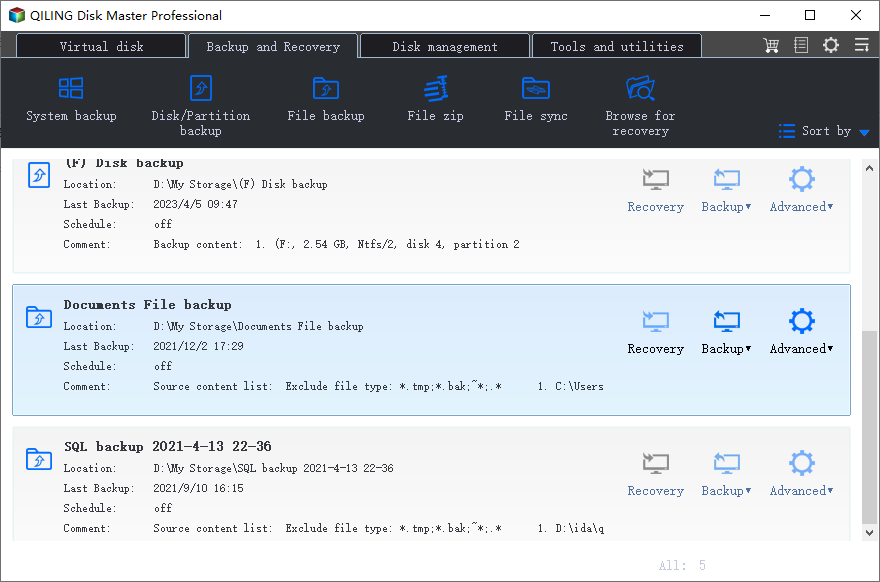
Step 3. Select the files you want to retrieve from the backup image. Then press Next.
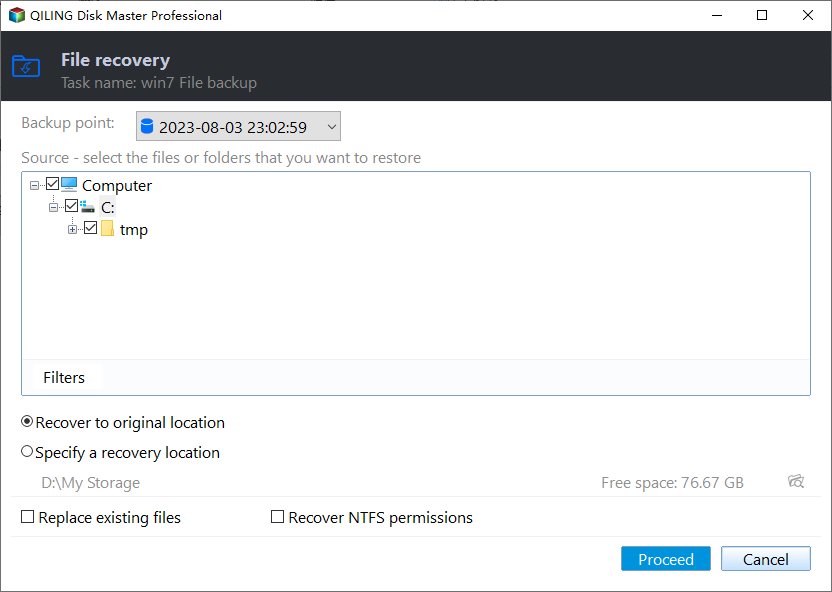
Step 4. Select a destination path to recover files, choosing between restoring to the original location or a new one, and then click Proceed.
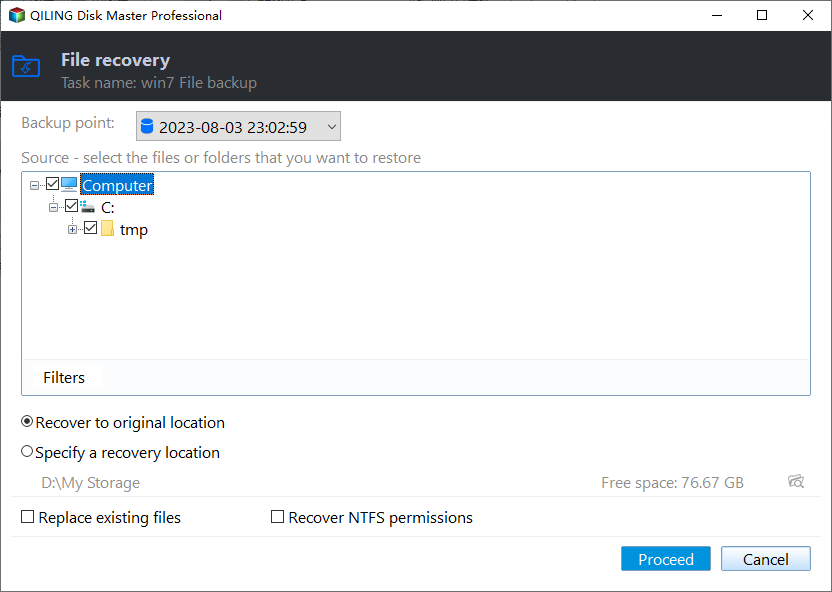
Notes:
① The first option is to restore files to their original location. You can also choose to restore them to a new location if you prefer to keep the original files intact.
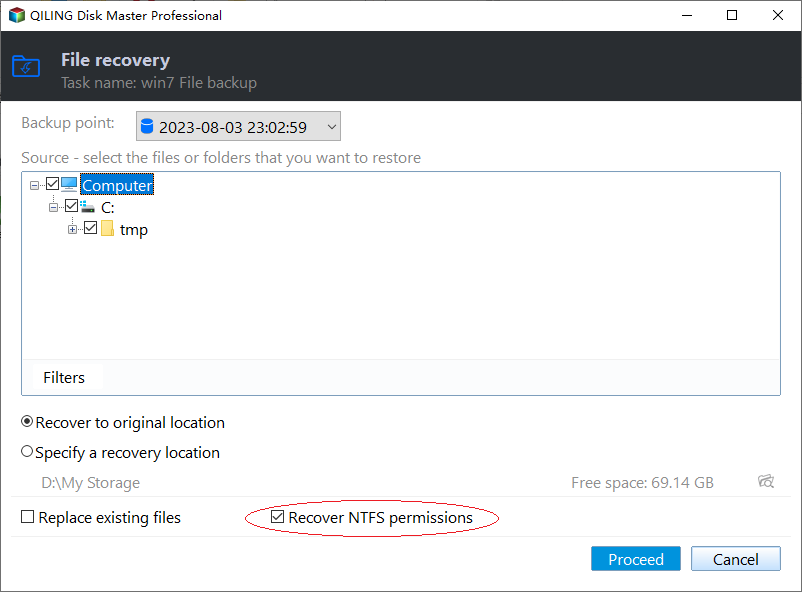
- To restore NTFS permissions, the original permission rights for the files will be maintained. This feature can only be used on NTFS formatted drives. Upgrading to the advanced version is required to access this feature.
- Replace existing files: it will overwrite existing files with the same filenames.
② If you need to restore a system to a machine with different hardware, you can try the Universal Restore feature in Qiling Disk Master Professional. First, install this professional edition if you don't have it. Then, use the Universal Restore feature to restore the system.
Verdict
If you're unable to find the "Restore previous versions" option, don't worry. This tutorial can help you recover it. Alternatively, you can use the freeware Qiling Disk Master Standard to restore previous versions or transfer data from one hard drive to another with its sync and clone features.
Related Articles
- Step-by-Step Guide for Previous Versions in Server 2012
Previous Versions in Server 2012 is a practical feature that can be used to recover files/folders to an earlier version. For more information, please read this article. - How to Make the Best Use of Windows 10 Previous Versions
Windows 10 Previous Versions allows you to restore files like word documents easily to earlier versions. Learn to configure and restore previous versions. - 2 Quick Ways to Restore Folders in Windows 10
Restore lost folders in Windows 10 with two practical methods, including built-in recovery options and file recovery software for deleted or missing folders. - How to Backup Valheim Saves in 2023
To avoid losing your Valheim world, characters, and progress due to a save data crash, back up your game data regularly. Learn how to locate the Valheim saves folder and use external hard drives or cloud storage to protect your game. - Backup Installed Programs in Windows 11, 10, 8, 7 (3 Ways)
If you are tired of reinstalling programs and apps from scratch when your computer in trouble, please backup installed programs and apps in Windows 11, 10, 8, 7 with given tutorials in this article. - How to Backup Programs before Reinstalling Windows 10/8/7?
This article will introduce you how to backup programs before reinstalling Windows 10/8/7 with best free backup software - Qiling Disk Master.
Products
Articles & Tutorials
- Data Recovery
- Data Backup
- File Recovery
- File Backup
- File synchronize
- System Backup and Restore
- Disk and Partition Clone
- Technical articles
- Disk Master Help
- Windows Deleted File and Disk Recovery Tutorials
- Windows File and Data Recovery Tutorials
- More Windows Tutorials for Install, Security, Files, and PC Tips
- Windows Boot, Repair, and Recovery Environment Tutorials
- Windows Backup Tutorials
- Windows Restore Tutorials
- Windows Clone and Migration Tutorials
- Windows Server Backup, Recovery, and Management Tutorials
- Windows Disk, Partition, and Storage Management Tutorials