How Do I Backup My Dell Laptop with Windows 10?
🌟 Video Guide: How to Backup Dell Laptop
Cannot backup current system after upgrading to Windows 10
In case of data loss from a virus attack, system crash, incompatible software, or accidental deletion, it's essential to backup your Dell laptop running Windows 10. A pre-installed backup application, Dell Backup and Recovery, is available on most Dell desktops and laptops, allowing you to backup and restore your computer for free.
If you upgrade to Windows 10, you'll get a message from Dell saying you need to upgrade to Premium edition to backup and restore your current Windows version.
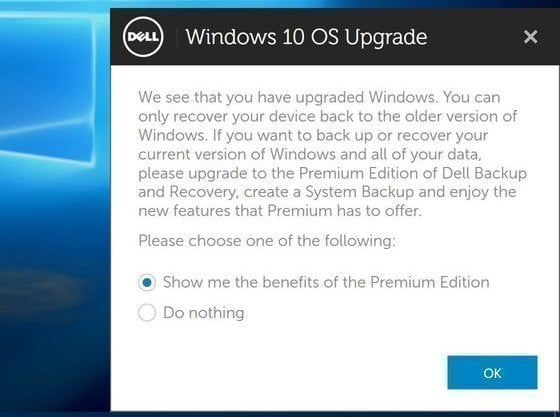
The message states that you can only restore your Dell laptop to a previous version of Windows, not Windows 10, unless you purchase the Dell Backup and Recovery Premium. This raises questions about backup software in Dell laptops with Windows 10 and how to take a backup of Windows 10 in a Dell laptop.
What is backup software for Dell laptop Windows 10?
If you don't want to pay for the Dell Backup and Recovery Premium, you can use one of the following backup software, which are all free.
- Backup and Restore (Windows 7): This software was first introduced in Windows 7 and allows users to backup system or individual files as desired.
- File History: This software is used to backup files from specific folders, such as Libraries, Desktop, Favorites, and Contacts, and in Windows 10, it also allows backing up specific folders.
- Qiling Disk Master Standard: This third-party backup software offers more features than built-in tools at no cost. It supports various backup types, including system, file, disk, and partition backups, and provides additional features like daily, weekly, and monthly backups, incremental backups, and customizable compression levels.
If you just need a simple backup system or file backup, you can use the built-in "Backup and Restore (Windows 7)" or "File History" options. However, for more advanced backup features, it's recommended to use Qiling Disk Master Standard, which is more stable and hassle-free.
How to backup Windows 10 OS in Dell laptop with Qiling Disk Master Standard
Before backing up your Dell laptop in Windows 10, you'll need to prepare it first.
- To ensure data safety, it's recommended to create a backup image of your Windows 10 system on an external drive, a network folder, or cloud storage, as the local drive is prone to damage from system or disk failure.
- Download Qiling Disk Master Standard and install it.
To backup a Dell laptop in Windows 10, follow these steps:
1. Open this free laptop backup software, then click Backup, System Backup, or Disk Backup depending on your preference.

2. Select a location to receive the backup, as this program will include the system partitions in the backup automatically.

3. To schedule a backup, click Schedule Backup and choose a frequency, such as daily, weekly, or monthly. You can also access additional backup settings through Options and Backup Scheme. Once you've made your selections, click Proceed to initiate the backup process.

✨ Advanced feature you may need
Upgrading to Qiling Disk Master Professional unlocks powerful features, including .
• Event-trigger backup: The backup system can be triggered at a specific event, such as system startup, user logon, or a scheduled time, to ensure that data is backed up consistently and reliably. This event-driven approach allows for automation and minimizes the risk of data loss due to human error or system crashes.
• Backup encryption: If your computer contains sensitive data, you can opt to encrypt the backup image to protect it from unauthorized access.
• Differential backup: If you have a large system drive, you can use this feature to continuously backup only the files that have changed, rather than backing up the entire drive every time. This can be a more efficient and less resource-intensive way to maintain a backup of your system.
• Backup scheme: The feature can automatically delete backup files when the backup versions reach the backup number you set, helping to manage backup disk space.
Backing up a Dell laptop in Windows 10 using Qiling Disk Master is a straightforward process that requires only a few clicks. The software allows you to continue using your laptop while the backup is in progress. In addition to backup and recovery, Qiling Disk Master also offers the ability to clone operating systems, hard drives, and partitions.
Related Articles
- How to Create A Dell Recovery USB in Windows 10 and Restore System from It?
Learn how to Create A Dell Recovery USB in Windows 10 and Restore System from It with clear steps, key checks, and practical tips. - 2 Solutions | How to Do Dell Factory Reset in Windows 10/8/7?
Perform Dell factory reset in Windows 10 before selling to protect your privacy, 2 ways provided in this article to reset Dell laptop to factory settings easily. - How to Recover System If No Dell Factory Image Restore Option?
If you have problems fixing the "no Dell Factory Restore option" issue, please continue to read below and learn the reasons & solutions. And the methods to factory reset a Dell laptop is also included. - 9 Fixes to 'Getting Windows Ready' Stuck in Windows 10/8/7
This guide explains 9 Fixes to 'Getting Windows Ready' Stuck in Windows 10/8/7 with clear steps, key checks, and practical tips. - How Do I Backup Thousands of Photos [Photo Backup Strategy for Beginners]
To determine the best way to store digital photos long-term, this article aims to explore the most effective method for backing up thousands of photos. Read on to learn the best way to safeguard your cherished memories. - How Do I Clone My Old SSD to My New SSD?
This guide explains How Do I Clone My Old SSD to My New SSD with clear steps, key checks, and practical tips.
Products
Articles & Tutorials
- Data Recovery
- Data Backup
- File Recovery
- File Backup
- File synchronize
- System Backup and Restore
- Disk and Partition Clone
- Technical articles
- Disk Master Help
- Windows Deleted File and Disk Recovery Tutorials
- Windows File and Data Recovery Tutorials
- More Windows Tutorials for Install, Security, Files, and PC Tips
- Windows Boot, Repair, and Recovery Environment Tutorials
- Windows Backup Tutorials
- Windows Restore Tutorials
- Windows Clone and Migration Tutorials
- Windows Server Backup, Recovery, and Management Tutorials
- Windows Disk, Partition, and Storage Management Tutorials