Restore from a System Restore Point in Windows 10, 11 (4 Ways)
- What does the system restore point do?
- How to create a system restore point in Windows 10/11 for quick recovery
- How to restore from a system restore point in Windows 10/11
- Precaution: backup important files
- Way 1: Restore system from a restore point in normal mode
- Way 2: Restore computer to previous date in safe mode
- Way 3: Restore Windows 10/11 to an earlier date via Advanced options
- Way 4: Restore computer to early date using installation media
- System restore not working in Windows 10/11 – how to fix
- Way 1: Check if system restore is disabled
- Way 2: Increase the max disk usage
- Way 3: Start all the necessary services
- Way 4: Verify if the hard drive has problem
- Wrapping things up
What does the system restore point do?
System restore points are snapshots of a Windows system's files, program files, registry settings, and hardware drivers, allowing users to revert their computer to a previous state when it's experiencing issues or slowing down.
The System Restore feature allows you to undo changes made to your computer by reverting to a previous point in time when everything was working properly. This can be useful if recently installed drivers or programs are causing problems or if you need to troubleshoot an issue. However, note that System Restore does not delete or back up your personal data, so you should create a backup of your important files if you want to protect them.
In Windows 10, the System Restore feature is disabled by default, but can be enabled to allow system restoration from a system restore point in case of software installation issues.
How to create a system restore point in Windows 10/11 for quick recovery
To create a system restore point, you can access the System Properties window through three different methods.
- From This PC: To access System protection, right-click on "This PC" on your computer desktop, select Properties, and then click on System protection.
- From Control Panel: To access System Protection, go to the Control Panel and select the System icon. Then, choose View by Large icons or Small icons, and select System Protection.
- From search result: To run System Restore, type "System Restore" in the search box and then select "Create a restore point".
Now, you may already see the System Properties window, follow the steps below.
👉 Create restore points automatically
Step 1. Under the Protection Settings, select the system drive and click Configure.
Step 2. To reserve enough space for the restore point, enable system protection and set the maximum disk space usage to 10%.
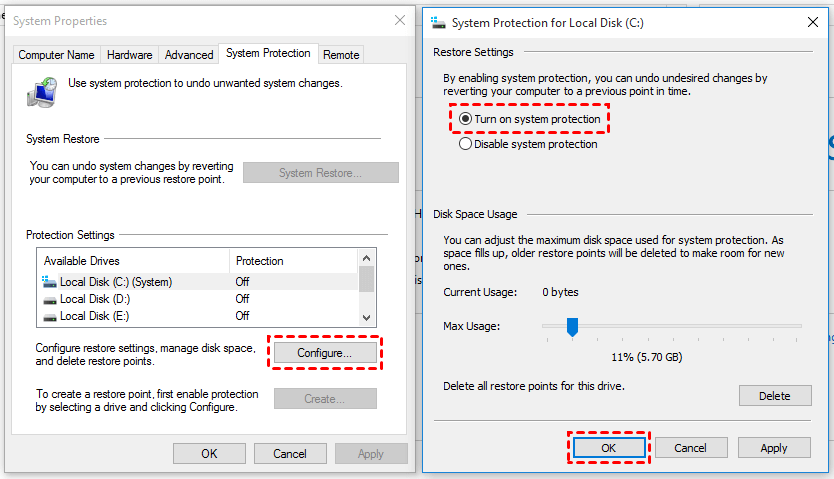
Step 3. Click Apply and OK to exit this window.
To enable system restore in Windows 10 and 11, follow these steps: System Restore is a feature in Windows that allows you to revert your system to a previous state in case something goes wrong. To enable System Restore, go to the Control Panel, click on System and Security, then click on System. In the System Properties window, click on the System Protection link on the left side.
👉 Create a restore point manually
If system restore is not working properly or you've made changes to the registry or other software that causes system file errors, you may need to create a restore point manually. To do this, follow these steps:
Step 1. Go to the System Properties window, scroll down to the Protection Settings and then click Create at the lower location.
Step 2. Type a description to help identify and distinguish it from others, a name for it, and click the Create button.
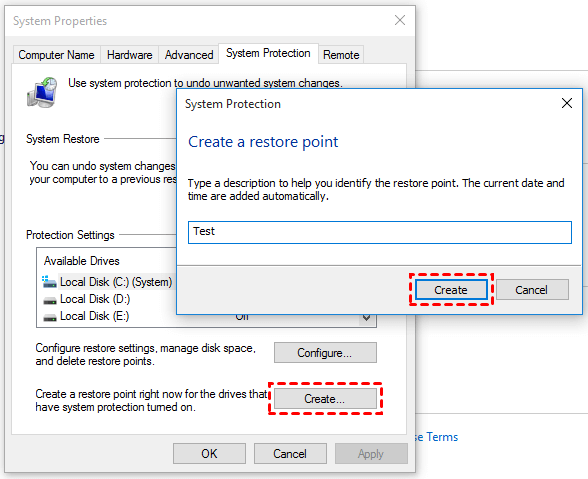
Step 3. Wait until you are told "The restore point was created successfully". Then, click Close.
How to restore from a system restore point in Windows 10/11
You've installed a new device driver, but it's causing instability on your computer. Now, you want to get rid of it, but the uninstallation process is proving to be a challenge - either it won't uninstall properly or it's damaged some system files during the process.
If you're experiencing system issues, you can try to restore system files and settings from a restore point in normal mode. However, if the problem is more severe, you may need to restore from a system restore point in safe mode or using advanced options or an installation disc. Choose the option that best fits your situation and proceed with the restoration.
- Precaution: backup important files
- Way 1: Restore system from a restore point in normal mode
- Way 2: Restore computer to previous date in safe mode
- Way 3: Restore Windows 10/11 to an earlier date via Advanced options
- Way 4: Restore computer to early date using installation media
Precaution: backup important files
Before using System Restore, it's essential to back up your personal data using a free backup software like Qiling Disk Master Standard, as some users have reported losing their data after recovery. This precaution will help prevent data loss during the restore process.
- It allows you to backup system, disk, partition, or individual files based on your needs.
- To schedule automatic backups, you can set up multiple versions with different frequency modes such as daily, weekly, or monthly.
- The scheduled backup will run as an incremental backup, which reduces backup time and image size, by default.
Follow the steps below to protect your data continuously.
Step 1. Download Qiling Disk Master Standard and install it on your computer. Then, launch it, click Backup and File Backup.

Step 2. To back up your important data, click on "Files" or "Folders" to select the data you want to save. Next, choose a destination to store the backup, such as an external hard drive, which you should connect first if it's not already plugged in.

Step 3. To automatically back up files, click "Schedule Backup" and then "Enable Schedule Backup". You can choose from 5 options: Daily, Weekly, Monthly, Event trigger, and USB plug in. Once enabled, click "Start Backup" to initiate the backup process before restoring files.
Way 1: Restore system from a restore point in normal mode
Step 1. To create a system restore point, go to the System Properties window, scroll down to the System Restore section, and click System Restore.
Step 2. Here you will see the system restore wizard with a brief introduction. Click Next.
Step 3. If possible, select the latest restore point, which will contain all items except for the software, drivers, or updates causing problems.
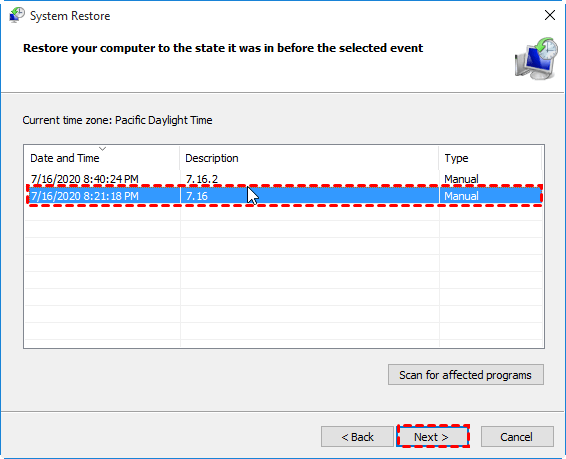
Step 4. To confirm the changes, click "Scan for affected programs". This will list all programs and drivers that will be deleted or restored, but restored programs or drivers may not function properly until a full reinstall is done.
Step 5. After reinstalling Windows, you will be taken back to the window where you are asked to select a restore point. Select the latest one and click Next.
Step 6. Confirm the selected restore point and click Finish to start the restore operation.
After restoring your computer to a previous restore point, it may take at least 15 minutes or more for the computer to fully load and return to the desktop. Once it's back at the desktop, you can check if the problem still persists.
Way 2: Restore computer to previous date in safe mode
Safe mode runs only the essential parts of Windows, disabling any problematic apps, drivers, or settings, making it a good time to try system restore.
Step 1. Press and hold the "Shift" key while clicking the "Restart" option.
Step 2. Here you will see the Choose an option window, select "Troubleshoot" > "Advanced options" > "Startup Settings" > "Restart".
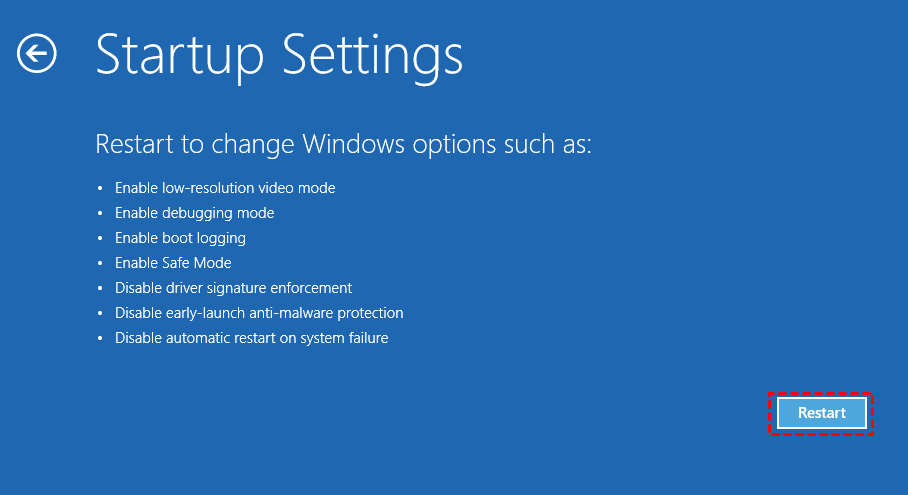
Step 3. Then, you will see all the startup settings, press "4" or "F4" to enable safe mode.
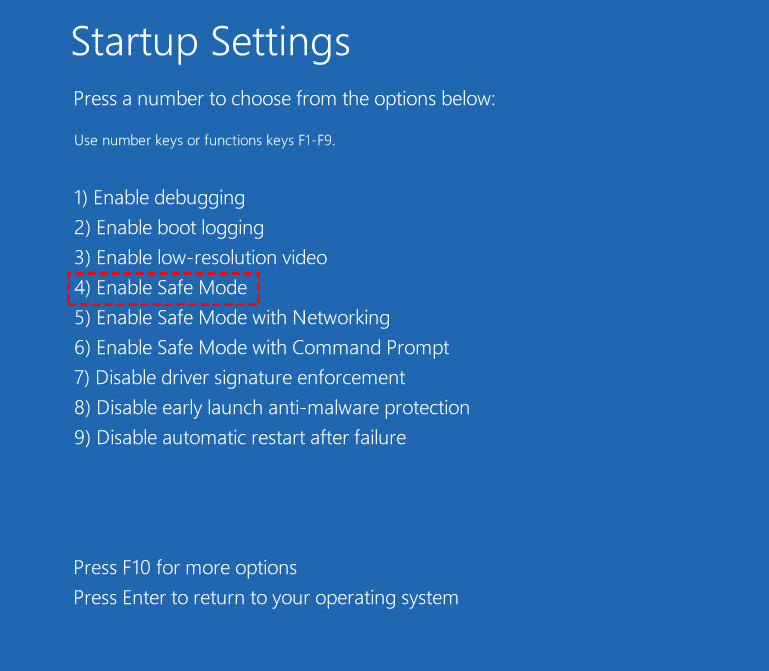
Step 4. Run system restore as it is in the normal mode.
Way 3: Restore Windows 10/11 to an earlier date via Advanced options
Step 1. Restart your computer three times and halt the process when you see the Windows logo.
Step 2. Then, the automatic repair process will be triggered in Windows 10/11. Wait until the process completes, click Advanced options.
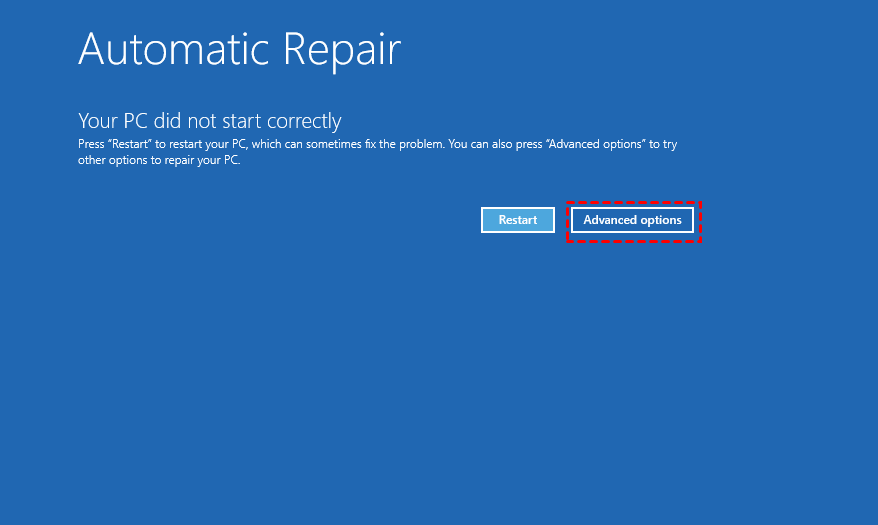
Step 3. After that, you will see the Choose an option window, click Troubleshoot > Advanced options > System Restore.
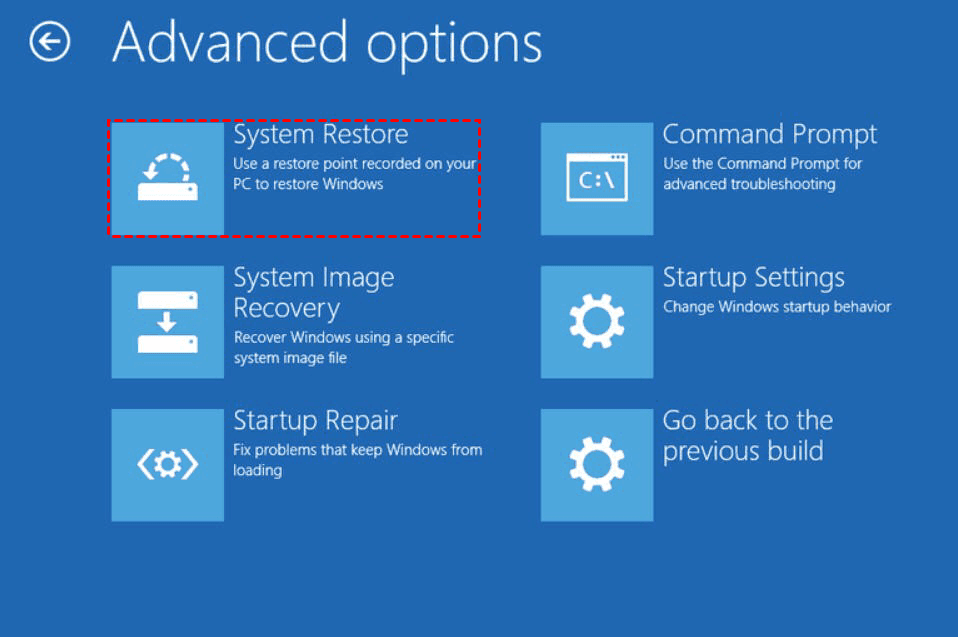
Step 4. Then, you will enter the System Restore wizard, select a restore point and scan for the affected programs before recovery.
Way 4: Restore computer to early date using installation media
If the above method doesn't work, you can create an installation media and use it to restore your computer.
Step 1. Download the media creation tool from the Microsoft software download website and use it to create installation media, then boot from it.
Step 2. In the initial Windows Setup window, click Next.
Step 3. Select Repair your computer.
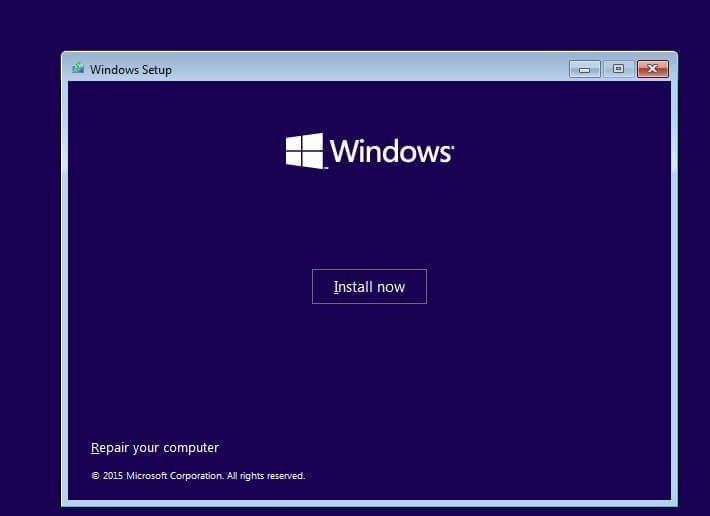
Step 4. Then, you will access the Choose an option screen, select Troubleshoot > Advanced options > System Restore.
Step 5. In the System Restore wizard, restore system with the instructions.
System restore not working in Windows 10/11 – how to fix
Even if you're sure system restore is enabled, there's still a chance that system restore points are missing. In this case, you can try creating a system restore point manually before making any software changes that may cause system file errors. If that doesn't work, you can try the following methods to fix the issue.
Way 1: Check if system restore is disabled
If you've manually enabled System Restore, it may be disabled after upgrading to Windows 10, so you'll need to check its status.
Step 1. Go to the System Properties window.
Step 2. To check if System Restore is enabled, scroll down to Protection Settings, check the protection of your system drive or other drives. If it's "On", the System Restore feature is enabled. If not, enable it again.
Way 2: Increase the max disk usage
Enabling System Restore may not always prevent the "cannot create system restore point" error, even if the disk usage is low, as it can still be affected by other system issues.
Step 1. In the System Properties window, click Configure.
Step 2. Then, you will access the configuration window. Scroll down to Disk Space Usage, drag the Max Usage bar to 10%.
Way 3: Start all the necessary services
If System Restore isn't working properly in Windows 10 or 11, check if all the necessary services related to System Restore are enabled.
Step 1. Right-click the taskbar and select Task Manager.
Step 2. In the Task Manager window, select Services and click Open Services at the bottom.
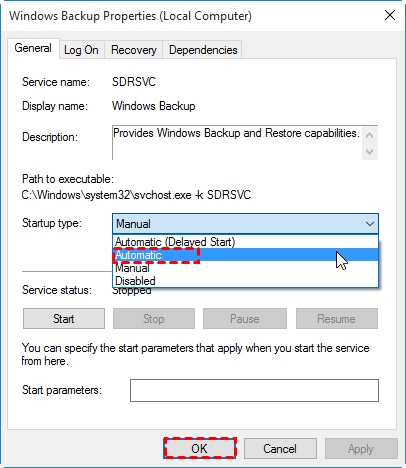
Step 3. Find the following three services. Then, double-click it and set the startup type to Automatic.
Windows Backup
System Restore Service
Volume Shadow Copy
Way 4: Verify if the hard drive has problem
Hard drive errors may cause system restore not to work in Windows 10/11, so try running chkdsk or system file checker (or both) to verify.
Step 1. Type cmd in the search box, select it and run as administrator.
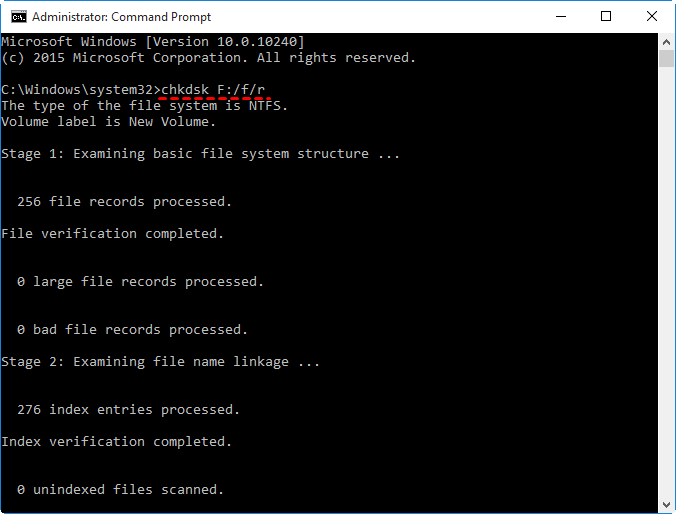
Step 2. In the command prompt window, type chkdsk C: /f/r and hit Enter.
Notes:
- /f parameter can fix any errors it finds.
- The software can identify and isolate the bad sectors on the drive, allowing it to recover readable information from the affected areas.
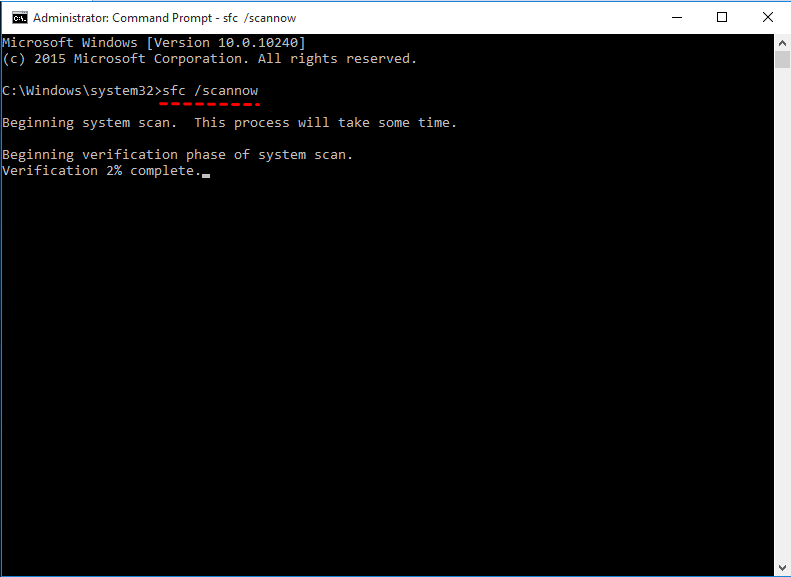
Step 3. Then, when disk check process completes, type sfc /scannow and hit Enter.
Wrapping things up
Restoring your PC from a restore point is a good way to resolve issues related to driver problems, software installation, or Windows Update. By doing so, you can revert your system to a previous state when everything was working fine. If system restore isn't working, you can try the solutions provided in this article to troubleshoot the issue.
System Restore may not work for personal files or the operating system, so it's essential to back up important files or the system. You can use free backup software like Qiling Disk Master Standard or its higher version, which can be selected based on your needs.
Related Articles
- System Restore Points Gone in Windows 10 | 5 Fixes
- Windows 10 System Restore Stuck on Initializing or Restoring Files︱Fixed
- How to Run System Restore via Command Prompt in Windows 10
- How to Do System Restore in Safe Mode Windows 10 Easily?
- Solved | Windows 10 File Copy/Transfer Very Slow (8 Methods)
Learn the key steps, checks, and practical tips for this related guide. - How to Backup Windows 11 Files & OS to Network Drive
Learn how to Backup Windows 11 Files & OS to Network Drive with clear steps, key checks, and practical tips.
Products
Articles & Tutorials
- Data Recovery
- Data Backup
- File Recovery
- File Backup
- File synchronize
- System Backup and Restore
- Disk and Partition Clone
- Technical articles
- Disk Master Help
- Windows Deleted File and Disk Recovery Tutorials
- Windows File and Data Recovery Tutorials
- More Windows Tutorials for Install, Security, Files, and PC Tips
- Windows Boot, Repair, and Recovery Environment Tutorials
- Windows Backup Tutorials
- Windows Restore Tutorials
- Windows Clone and Migration Tutorials
- Windows Server Backup, Recovery, and Management Tutorials
- Windows Disk, Partition, and Storage Management Tutorials