How to Create QNAP to Dropbox Sync | 2 Free Tools
Need QNAP to Dropbox sync
QNAP NAS is popular among both business and home users, who use it to share files with colleagues or family members, and also as a safe place to backup their Windows systems.
QNAP disk errors, volume full errors, and RAID system errors can sometimes occur. To safeguard your files on a QNAP NAS, consider syncing them with cloud drives like Dropbox. This not only enhances data security but also allows you to access your files remotely, making it a convenient solution for those who work or live outside of their home or office.
How do I sync QNAP with Dropbox?
To sync QNAP with Dropbox, you'll need to install the QNAP to Dropbox sync app. There are two easy-to-use apps available, which can be used to sync data between the two services.
- Method 1: Sync QNAP with Dropbox via QNAP Cloud Drive Sync
- Method 2: Sync QNAP to Dropbox using Qiling Disk Master
Method 1: Sync QNAP with Dropbox via QNAP Cloud Drive Sync
Cloud Drive Sync is a tool offered by QNAP that allows syncing files between a QNAP NAS and a cloud drive, supporting services like Google Drive, Dropbox, OneDrive, OneDrive for Business, and hubiC.
▶ Preparations:
1. To sync your Cloud Drive, search for "Cloud Drive Sync" in the QTS App Center, then click "Add to QTS" to download and install the Cloud Drive Sync App.
2. To use Open Cloud Drive Sync, click on "Cloud Account Management" and then select "Create Account" to create a Dropbox account directly within Cloud Drive Sync.
▶ Detailed steps of QNAP Cloud Drive Sync to Dropbox:
1. Click "Sync Job Management" > "Create Job". Then, click "Next".
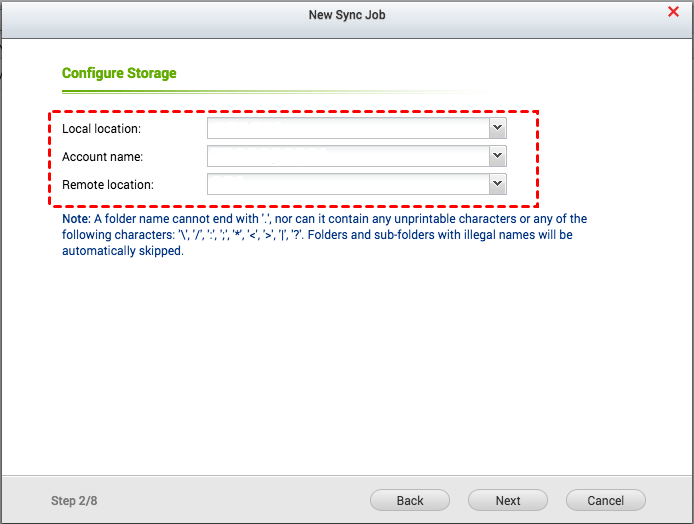
2. To proceed, select a folder on your QNAP NAS in the "Local location" field, choose your Dropbox account in the "Account name" field, and select a Dropbox folder in the "Remote location" field, in that order. Click "Next" to continue.
3. To set a schedule for the sync job, configure the file conflict policy, and set file filters, go through the wizard in the following order: first, set a schedule for the sync job; then, configure the file conflict policy; and finally, set file filters.
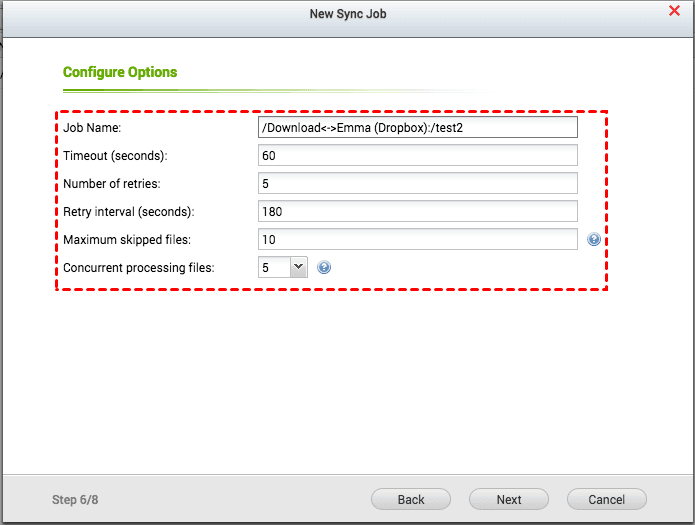
4. Set other options like "Timeout", "Number of retries", and "Retry interval" based on your needs and click "Next".
5. After confirming all settings, click "Next" and then "Finish" to exit the Wizard, and the files will be synchronized between QNAP and Dropbox according to the schedule you set.
✐ Tips: Cloud Drive Sync performs two-way sync, meaning that if you set up a sync between QNAP and Dropbox, it also works in reverse, syncing Dropbox to QNAP.
Method 2: Sync QNAP to Dropbox using Qiling Disk Master
The best free file sync tool, Qiling Disk Master Standard, can also help you sync files from QNAP to Dropbox. Its main features for syncing include.
|
📂 File Sync |
It allows you to sync files from one folder/computer to another, making it easy to transfer data between devices, such as from one Surface Pro to another. |
|
⏰ Automatic Sync |
This tool enables automatic synchronization of changed data from a source directory to a destination directory using the Schedule Sync feature, ensuring that the destination directory stays up-to-date with the latest changes from the source. |
|
☁ Supported NAS & Cloud |
The NAS and cloud drive support allows for seamless integration with various devices and services, including Synology, QNAP, WD My Cloud, Dropbox, OneDrive, Box, SugarSync, hubiC, and Cloudme. |
To run QNAP to Dropbox sync with Qiling Disk Master, download and install the Dropbox desktop app, sign in with your account, and follow the instructions provided by Qiling Disk Master to set up the sync.
Step 1. Download, install, and run Qiling Disk Master on your computer, which is supported on Windows 11/10/8.1/8/7/Vista/XP.
Step 2. Click Sync and select File Sync.

Note: If you want to use more advanced sync modes like File Sync, you may upgrade to Qiling Disk Master Professional or higher editions.
Step 3. Rename the sync task to a unique name, and then add the QNAP NAS path by selecting the Folder option and navigating to Share/NAS.

Step 4. To add a QNAP NAS device, click "Add Share or NAS Devices" and enter the IP address of the QNAP NAS. Once entered, click "OK" and then input the username and password if prompted.
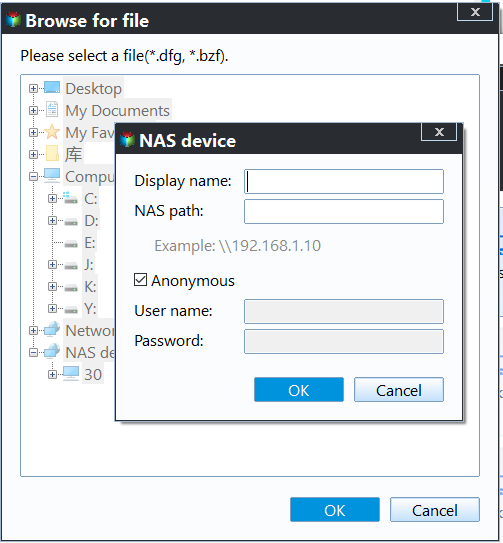
Step 5. After adding the QNAP NAS, all the folders under it will be listed. Select the desired folder and click OK.
Tip: To sync more than one QNAP folder to Dropbox, add the first folder and then click the "+" icon to add additional folders, allowing for multiple folder synchronization.
Step 6. To expand the drop-down menu of the second bar, click on the arrow icon on the right side of the bar. Then, choose "Select a cloud drive" from the menu.
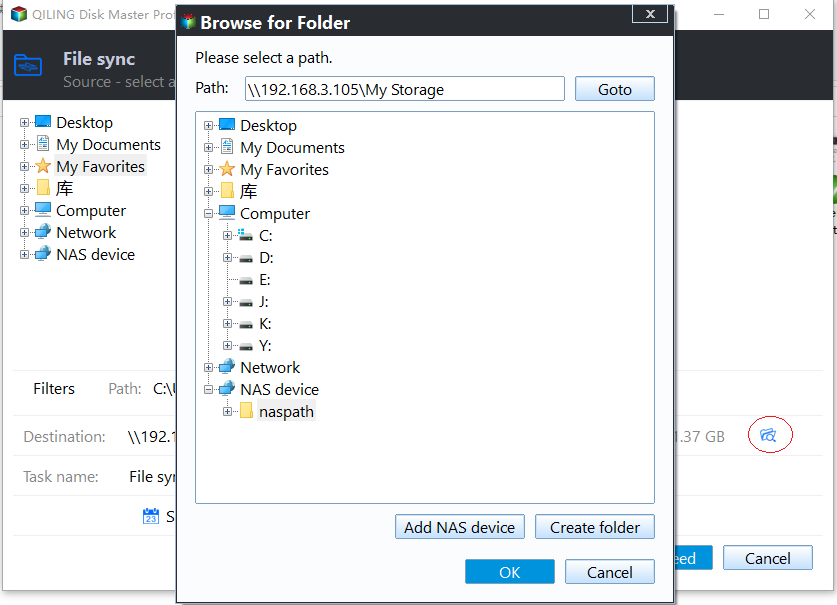
Step 7. Confirm the source and destination directory and click Proceed.
>> Options: You can add a comment to your sync task, enable email notifications, and choose whether to sync deletions or not.
>> Schedule Sync: You can set the sync task to run at regular intervals, with five available modes: Daily, Weekly, Monthly, Event triggers, and USB plug in.
Wrapping things up
If you want to sync QNAP with Dropbox, you can choose between QNAP's Cloud Drive Sync and Qiling Disk Master. While Cloud Drive Sync is exclusive to QNAP, Qiling Disk Master supports other NAS devices and also offers Windows backup and restore capabilities, allowing you to backup multiple drives in Windows 10.
Related Articles
- Easy Steps to Sync QNAP NAS and Google Drive Cloud
Learn how to perform QNAP NAS and Google Drive cloud sync in two ways. The second way can sync multiple folders to backup precious data on the NAS and save local disk space meantime. - Top 2 Ways to Sync QNAP NAS to OneDrive in Windows 10/8/7
This guide explains Top 2 Ways to Sync QNAP NAS to OneDrive in Windows 10/8/7 with clear steps, key checks, and practical tips. - How to Use Dropbox to Mirror Folders in Windows 10/8/7?
Learn how to Use Dropbox to Mirror Folders in Windows 10/8/7 with clear steps, key checks, and practical tips. - Best Free Way to Sync Files between Desktop and Laptop
In fact, there are many ways to sync files between desktop and laptop in Windows 10, click on this article to learn more and sync files with the best free way. - Safely Move Downloads from C Drive to D Drive
Here's a tutorial about how to move downloads from C drive to D drive to free up to release your D drive. - How to Move Folders to a Different Drive in Windows 11/10/8/7?
Learn how to Move Folders to a Different Drive in Windows 11/10/8/7 with clear steps, key checks, and practical tips.
Products
Articles & Tutorials
- Data Recovery
- Data Backup
- File Recovery
- File Backup
- File synchronize
- System Backup and Restore
- Disk and Partition Clone
- Technical articles
- Disk Master Help
- Windows Deleted File and Disk Recovery Tutorials
- Windows File and Data Recovery Tutorials
- More Windows Tutorials for Install, Security, Files, and PC Tips
- Windows Boot, Repair, and Recovery Environment Tutorials
- Windows Backup Tutorials
- Windows Restore Tutorials
- Windows Clone and Migration Tutorials
- Windows Server Backup, Recovery, and Management Tutorials
- Windows Disk, Partition, and Storage Management Tutorials