How to Use Dropbox to Mirror Folders in Windows 11, 10, 8, 7
Why to mirror/sync folders to Dropbox?
Dropbox is a cloud storage service that allows users to sync local files online and sync online files to their devices, offering 2 GB of free space and additional storage options through its Plus and Professional plans.
Users want to mirror folders to Dropbox because it allows them to access their files from anywhere, collaborate with others, and have a backup of their important files in case of data loss or system failure. This is especially useful for users who work remotely or have files that need to be shared with others.
- Protect data safety. Files saved on cloud storage won't be affected by computer errors, as they are stored remotely and can be accessed from any device with an internet connection.
- Anytime, anywhere access. With your Dropbox account, you can access Dropbox files on any device at any time.
- Easy file sharing. You can share files or folders with others by sending them a link, rather than attaching large files to an email. This way, the recipient will receive an email with a link to access the files or folders, making it easier to share and reduce email clutter.
To sync folders using Dropbox, you can either use the Dropbox desktop app or the Dropbox website. The desktop app allows you to select specific folders to sync, while the website enables you to sync folders through the "Sync" feature. This feature allows you to sync folders across devices, ensuring that all your files are up-to-date and accessible from anywhere.
Method 1: Dropbox sync any folders in Windows
To mirror local folders to Dropbox on Windows 11/10/8/7, follow these steps: you can use the built-in feature called "Dropbox Sync" to sync your local folders with your Dropbox account, or use third-party software like SyncToy or RoboCopy to automate the process. Alternatively, you can also use the Dropbox desktop app to set up folder mirroring, which allows you to select specific folders to sync with your Dropbox account.
1. Download Dropbox app, install, and sign in it.

2. When you see "Well done! Dropbox installed", click on the Next button to proceed.
Tip: By default, it will create a folder in C:\Users\Username\Dropbox to save cloud files, but you can change the folder location by clicking Advanced Settings.
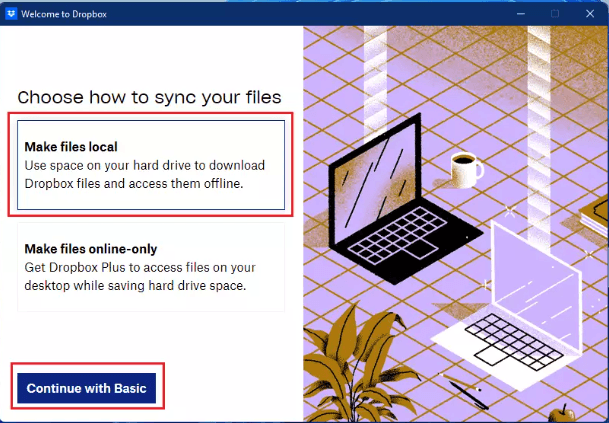
3. I will choose the first option "Make files local" and click "Continue with Basic" to proceed.
4. You'll be asked to backup your PC folders.
- The Desktop, Documents, and Downloads folders are automatically selected. You can uncheck them or add other folders to be backed up. Next, click "Set up".
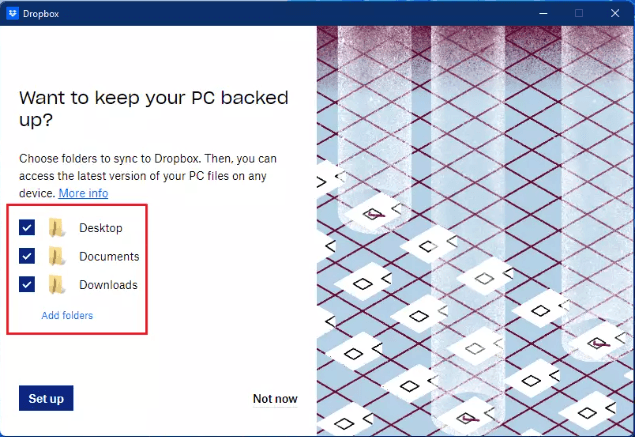
- Click "Not now" and then "Continue to Dropbox" to open the Dropbox folder. Copy and paste or drag and drop files into the folder to sync them. The client will automatically sync them to Dropbox.
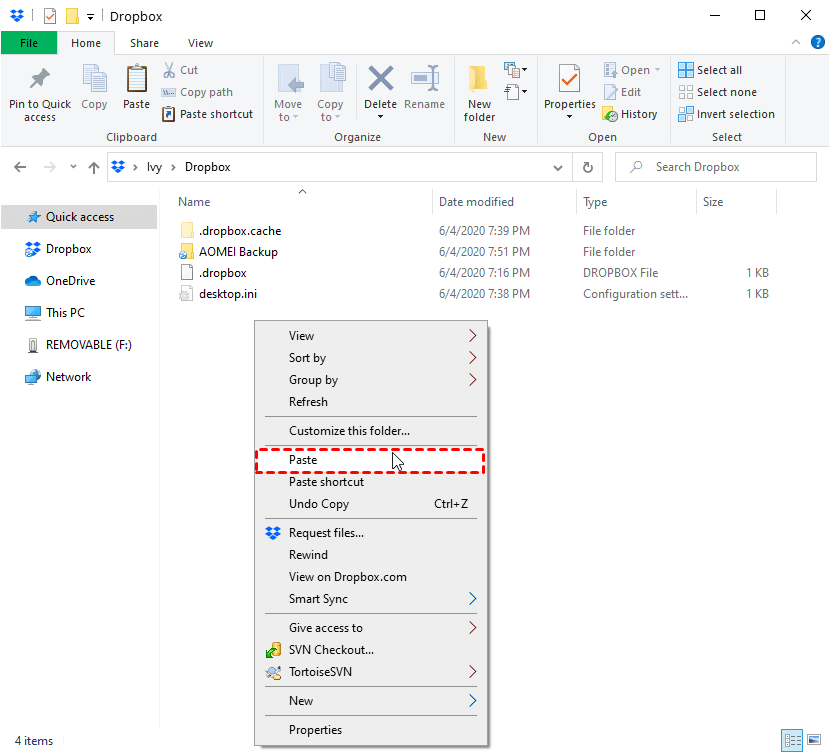
Tip: When you sign in to the Dropbox desktop app, files added to your Dropbox cloud drive will be automatically mirrored to your local Dropbox folder. To conserve space on your computer's hard drive, you can enable Selective Sync, which allows you to choose which files to sync.
Method 2: Mirror folders to Dropbox with a free tool
Qiling Disk Master Standard, the best free backup software for Windows, can also help you mirror folders to Dropbox, and it can do much more, including synchronizing files and folders between different locations, creating backups, and more. Its main features in regard to sync include the ability to mirror folders to Dropbox, synchronizing files and folders between different locations, and creating backups.
- Basic Sync: If you modify or add files in the source directory, the same changes will be reflected in the destination directory, and you can also choose to sync deletions.
- Various source and destination locations: You can sync files between two drives, internal or external, as well as from a NAS device to a cloud drive, like syncing QNAP to OneDrive.
Learn how to mirror folders to Dropbox via Qiling Disk Master below:
Step 1. Download, install, and run Qiling Disk Master, a free file sync software that allows you to easily manage and synchronize your files.
Step 2. Click Backup and recovery and select File Sync.

If you upgrade to higher editions like Qiling Disk Master Professional, you can enjoy the other three sync modes.
▶ Mirror Sync: The script will mirror the source directory to the destination directory, including any files that are present in the source, and will delete any files in the destination that don't exist in the source. This will keep the destination directory identical to the source directory.
▶ Real-Time Sync: Any changes made to the source directory will be automatically synced to the destination directory in real-time.
▶ Two-Way Sync: Changes made in the source directory will be reflected in the destination directory, and vice versa.
Step 3. Edit the sync task name to make it unique, then click on the 'Folder' option to choose the specific folder(s) you want to sync.

Step 4. Expand the drop-down menu of the second column and choose Select a cloud drive. This will allow you to choose which cloud drive to save the file to.

Step 5. Select Dropbox and click OK. If Dropbox is not in the list, navigate to the Dropbox folder by clicking the folder icon in the second column.
Step 6. Confirm the source and destination directories and click Proceed to start the sync task after configuring it if necessary.
- Options: You can add a comment to your sync task, enable email notifications, and choose whether to sync deletions as part of your sync process.
- Schedule Sync: The sync task can be set to run at regular intervals, with options for daily, weekly, monthly, event-based triggers, and USB plug-in triggers.

To sum up
You can mirror folders to Dropbox using the Dropbox desktop app and the free sync tool Qiling Disk Master. If you have large files to backup but limited space, consider using Qiling Cloud's Cloud Backup feature, which offers 1TB of free cloud storage for 15 days.
Qiling Disk Master is a powerful clone software that can clone an SSD to a larger one and copy Ext4 partitions. It's worth trying.
Related Articles
- How to Sync Local Folder to Dropbox? (3 Ways Included)
- Can I Backup Dropbox to External Hard Drive Safely?
- How to Backup Data on External Hard Drive to Dropbox?
- 6 Tested Fixes to Google Drive Not Syncing in Windows 10, 11
This page offers 6 solutions to the issue of Google Drive not syncing and provides a free alternative to Google Drive for desktop - Qiling Disk Master. - How to Move Apps from One Drive to Another on Windows 11
Moving applications from one drive to another in Windows 11 can be easily done. This post will guide you through the simplest way to relocate applications to another drive. - How to Move Apps to External Storage on Windows 11 Without Data Loss
Learn how to Move Apps to External Storage on Windows 11 Without Data Loss with clear steps, key checks, and practical tips.
Products
Articles & Tutorials
- Data Recovery
- Data Backup
- File Recovery
- File Backup
- File synchronize
- System Backup and Restore
- Disk and Partition Clone
- Technical articles
- Disk Master Help
- Windows Deleted File and Disk Recovery Tutorials
- Windows File and Data Recovery Tutorials
- More Windows Tutorials for Install, Security, Files, and PC Tips
- Windows Boot, Repair, and Recovery Environment Tutorials
- Windows Backup Tutorials
- Windows Restore Tutorials
- Windows Clone and Migration Tutorials
- Windows Server Backup, Recovery, and Management Tutorials
- Windows Disk, Partition, and Storage Management Tutorials