How to Move Apps from One Drive to Another on Windows 11
How to move applications from one drive to another in Windows 11? Key Takeaways:
- In Windows 11, you can move installed programs to another drive to improve performance or free up space on your primary drive. This process involves moving the program files and registry entries to the new drive, which can be done using built-in tools or third-party software.
- Qiling Disk Master offers an App Mover feature that simplifies the process of moving software forward, eliminating the need for manual effort.
- To move an app installed from the Microsoft Store to a different location on Windows, go to Settings > Apps > Installed Apps, find the app, click on the three dots on the right, and select Move.
In Windows 11, you can move installed apps from the Microsoft Store to a different drive, breaking the default installation on the Local Disk (C) drive. Typically, apps are installed in the %ProgramFiles%\WindowsApps and %LocalAppData%\Packages folders on the C drive. This article will guide you through the process of migrating the software and changing the installation location in detail.
How to move installed programs to another drive on Windows 11 without boot issues
To move applications from one drive to another on Windows 11 easily and safely, use Qiling Disk Master Professional's App Mover feature. This feature allows you to move apps in Windows 11, 10, 8, 7, and the moved apps will work properly on the new path. The process is simple and doesn't require any additional computer knowledge.
Download this powerful migration tool to move installed Apps to another drive, freeing up space and allowing you to relocate files and folders as well.
App Mover can move apps to external storage in addition to the internal hard drive, and using Qiling Disk Master can provide more benefits such as allocating space, rebuilding mbr, format/delete partitions, etc.
How to Manually Move Apps to Another Drive
If you're tech-savvy, you can manually transfer an application from the C: drive to the D: drive. There are two methods to achieve this, each with detailed steps, allowing you to move apps from one drive to another.
▶ Method 1. Move applications via Windows Settings
To change the location of apps in Windows 11, use the Apps & features feature in Settings, which supports changing Microsoft Store-installed applications.
Step 1. Press "Windows + I" to open Settings.
Step 2. To view a list of apps installed on your drive, click on "Apps" from the left-hand menu, then select "Apps & features".
Step 3. Click the three vertical dots to choose "Move"
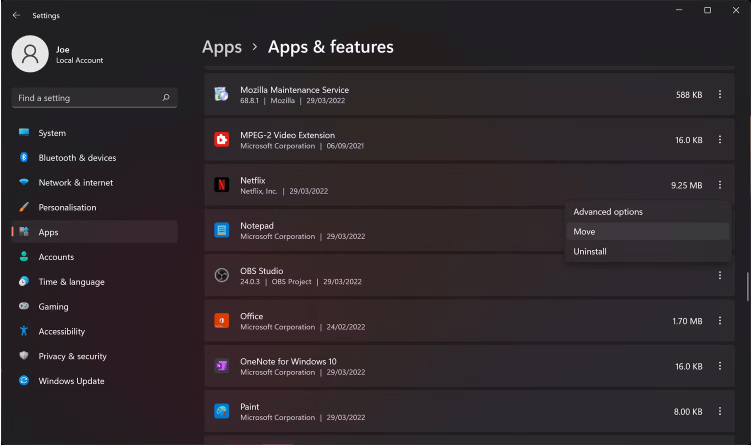
Step 4. Select the new destination drive and click "Move" again.
Warning: The "Apps & features" option to move installed applications is only available for apps installed from the Microsoft Store. For other applications, the option to move is greyed out, and an alternative, such as Qiling Disk Master, may be used.
▶ Method 2. Move apps manually by Registry
If you're an experienced computer user, you can use Registry Editor to move installed programs from the C drive to the D drive, but this approach requires typing command prompts, which can crash the system if done incorrectly, so it's essential to be very confident in your abilities.
1. Create a new folder called "Program Files (86)" on the other drive. Then, move the contents of the existing "Program Files" and "Program Files (x86)" folders to this new folder.
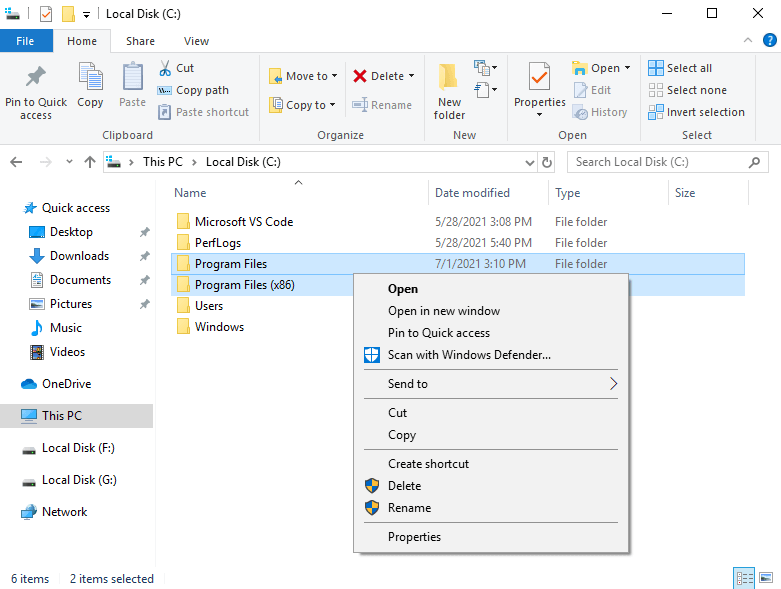
2. Run CMD as administrator and type the following command (X is the drive letter):
• Robocopy "C:\Program Files" "X:\Program Files" /mir
• Robocopy "C:\Program Files (x86)" "X:\Program Files (x86)" /mir
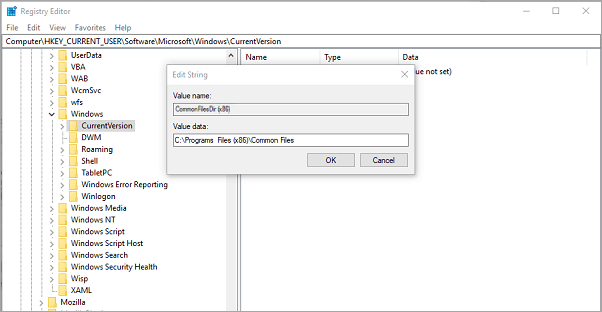
3. Next, press "Windows + R", enter "Regedit.exe" and open.
4. To find the folder with the path "C:\Users\username\FolderName" and change it to a different drive, for example, "D:\Users\username\FolderName", you would replace the "C:" with "D:" in the path. This would result in the new path being "D:\Users\username\FolderName".
"HKEY_LOCAL_MACHINE\SOFTWARE\Wow6432Node\Microsoft\Windows\CurrentVersion"
To move applications from one drive to another on Windows 11, it's recommended to use Qiling Disk Master instead of the built-in methods, as it saves time and energy while being a safer option.
Why do I move program files to another drive in Windows 11?
When you move apps from one drive to another, you're relocating the program files, settings, and other related data to a different storage location. This process can help improve computer performance by freeing up space on the original drive, reducing clutter, and potentially speeding up app launch times. However, it's essential to consider the potential risks and take necessary precautions to ensure a smooth transition.
"Hi, My C drive is almost full. I would like to move some apps to D Drive. I have moved some apps using Apps & Features in settings. But it can only move apps installed from the Microsoft Store. I have installed many software like Adobe Photoshop, Adobe Premiere Pro etc which took a lot of space in my C Drive. Kindly advise how to move apps to D drive. Regards." - Question from answers.microsoft.com
If the C drive is running low on space, consider moving some apps to another drive to free up space, as a minimum of 15-20% free space on the C drive is recommended to maintain optimal Windows 11 performance.
If your D drive has more free space, you can move the application from C drive to D drive, allowing it to run properly without uninstalling.
Moving installed apps in Windows 11 from one drive to another is a relatively straightforward process. For apps installed from the Microsoft Store, you can move them through the Apps & features section. For other software, you can use manual steps or a simpler third-party software to relocate applications.
If you're looking to move applications from one drive to another in Windows 11, you might want to try using Qiling Disk Master.
Conclusion
To move applications from one drive to another in Windows 11, you can choose from three different methods. You can use the built-in "Move" feature, which allows you to relocate an application to a new drive by right-clicking on the shortcut or executable file, selecting "Open file location," and then dragging the file to the desired drive. Alternatively, you can use the "System Settings" app to move applications to a new drive by going to "System," then "Apps & features," selecting the app, and clicking "Move" to choose a new drive.
Qiling Disk Master Professional offers advanced features such as allocating free space from one drive to another, deleting large files by type to save space, cloning disk to a larger one, and migrating OS to SSD, in addition to moving applications.
If you're a Windows Server user, it's recommended to switch to Qiling Disk Master Server, which is specifically designed for Windows Server users.
Related Articles
- Three Ways to Safely Move Programs to Another Drive on Windows 11
When the C drive is full and makes your PC run slow, moving programs to another drive on Windows 11 can be a good idea. Here, we'll share the process to do it via Settings, Steam Mover and a third-party software. - Safely Move Installed Programs to Another Drive in Windows 10
This article shows how to move installed programs to another drive in Windows 11/10/8/7 and ensure them run successfully. - How to Transfer Programs to External Hard Drive in Windows 10?
In this page, I am going to show you how to transfer programs to external hard drive without reinstalling on Windows 11/10/8/7, and offer a step-by-step guide. - Your Best Secure Copy Alternative for Windows Server
Lear more about Secure Copy and the best Secure Copy alternative - Qiling Disk Master Server, you can then transfter files to a remote server computer with them easily. - Ultimate Guide to Transfer Files from Server to Server
You will learn how to transfer files from server to server with FTP, SCP or file sync software - Qiling Disk Master. The previous two are manual while the last one is automatic. - Full Guide | Upgrade Windows Server 2012 R2 to 2019 Securely
To upgrade Windows Server 2012 r2 to 2019 on the same hardware and keep all the server roles and data intact, in-place upgrade is a good idea. Theoretically it shouldn't delete any of your data, but it's best to make a backup before upgrading just in case.
Products
Articles & Tutorials
- Data Recovery
- Data Backup
- File Recovery
- File Backup
- File synchronize
- System Backup and Restore
- Disk and Partition Clone
- Technical articles
- Disk Master Help
- Windows Deleted File and Disk Recovery Tutorials
- Windows File and Data Recovery Tutorials
- More Windows Tutorials for Install, Security, Files, and PC Tips
- Windows Boot, Repair, and Recovery Environment Tutorials
- Windows Backup Tutorials
- Windows Restore Tutorials
- Windows Clone and Migration Tutorials
- Windows Server Backup, Recovery, and Management Tutorials
- Windows Disk, Partition, and Storage Management Tutorials