3 Free Ways to Transfer Files from Server to Server
In our daily life, transferring files from one server to another is a common task for personal use or file sharing, often necessary when work is continued outside of the office or files need to be shared among team members.
The term "server" in the context of transferring files from one server to another simply refers to two computers, one containing the files or folders to be copied and the other receiving the files, regardless of the operating system, such as Windows 10 or Server 2012.

Transfer files from server to server using FTP
To transfer files between two Windows servers, you can use a desktop FTP application like Filezilla as a middle-man, which requires downloading and configuring the tool to upload or download files between the two remote servers.
On most Windows Dedicated Servers, an FTP server is not installed by default. However, you can still transfer files using FTP by adding a network location to your local computer using File Explorer in Windows 10, or using Remote Desktop in Windows Server to manually move files from or to the server.
Let's get started with Windows 10 as an example.
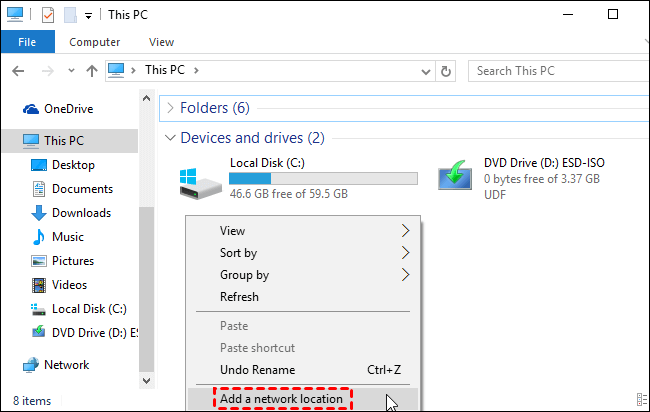
1. Go to File Explorer, select This PC, right-click on the blank space, and choose Add a network location.
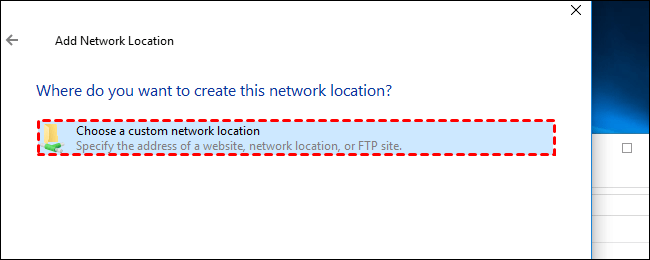
2. To proceed, click on the option to choose a custom network location.
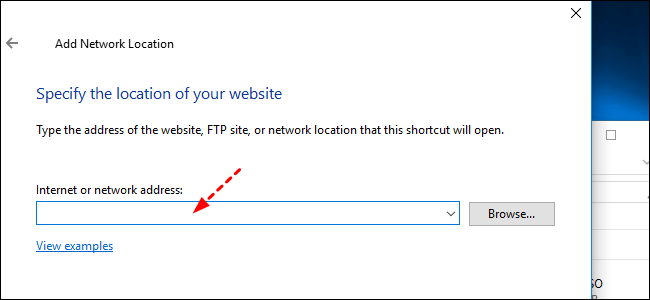
3. To access an FTP server, you need to enter the server's address in the format ftp://server.com. If the server requires a username and password, you'll be prompted to enter them. Otherwise, you can select the "Log on anonymously" option for limited access.
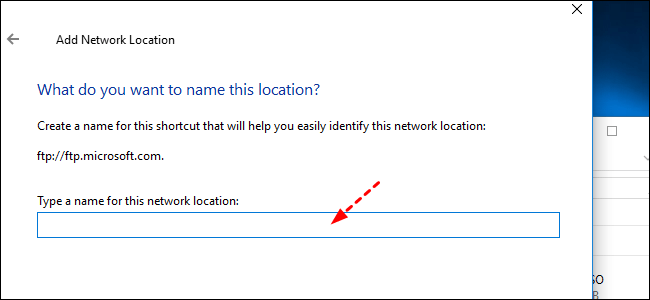
4. To make it easier to access your FTP site, give it a name that's easy to remember. This will be visible under the Network locations link in This PC, making it simpler to find and connect to your FTP site in the future.
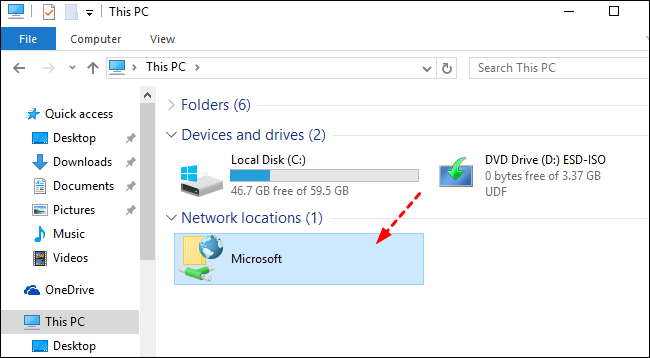
5. You can copy and paste files or folders from this server, or to it.
Transfer files between two servers with SCP
The second method to transfer files and entire folders between two remote servers is to use the SCP command line tool, a native feature of Windows 10, Linux, and Mac based on SSH protocol, allowing users to transfer files and folders from local to remote, remote to local, or remote to remote without the need to download and upload.
You can access the Terminal on a Mac directly, but on Windows 10/11, you can use the Command Prompt. For Windows 8.1 and earlier systems, you'll need to use Putty, a Windows SSH app, to access the terminal.
- Notes:✎...
- The SCP requires an SSH key or password for authentication on the remote systems, and all files and passwords are encrypted, making it a safe process.
- That's correct. You can use SCP without logging in.
- The SCP will overwrite files without warning if both of them have the same name and location on two systems, whether local or remote.
To transfer files with SCP, you need to learn the SCP command syntax first. This involves understanding how to use the `scp` command, which is used to securely copy files between a local machine and a remote server.
- The basic one: scp [OPTIONS] [SOURCE] [DESTINATION].
- If either of the paths is on the remote system, please add the server address (@) first.
1. Open command prompt in Windows 10 and run as administrator.
2. To run a Python script, select a syntax according to your situation and replace the parameters with your own, then hit Enter to execute it.
✍ The command to transfer a file or directory from the local system to a remote system is `scp` (Secure Copy), which is used to securely copy files between a local host and a remote host or between two remote hosts. The syntax for this command is: `scp local_file remote_user@remote_host:/remote_path/remote_file`.
scp [file_path] [user]@[remote_host]:[remote_dir]
scp -r [local_dir] [user]@[remote_host]:[remote_dir]
✍ To copy a file from a remote server to a local machine, you can use the following commands:
scp [user]@[remote_host]:[remote_file_path] [local_dir]
scp -r [user]@[remote_host]:[remote_dir] [local_dir]
✍ To transfer a file between two remote servers, you can use the `scp` command, which requires passwords for both systems. The syntax is: `scp -P <port> <source> <destination>`, where `<source>` is the path to the file on the source server, `<destination>` is the destination server path, and `<port>` is the port number if you are not using the default port 22.
scp [user]@[remote_host]:[remote_file_path] [user]@[remote_host]:[remote_dir]
The meanings of SCP paramters ✎...
• [user] refers to username of remote server.
• The term [remote_host] refers to the address of a remote server, which can be either an IP address or a domain name.
• [file_path] is path of local file.
• [remote_file_path] refers to path of files on the remote system.
• [local_dir] means path of directory on local system.
• [remote_dir] is the path of directory on remote server.
• The -r option in SCP stands for recursive, which is used when copying a directory. It allows SCP to copy the contents of the directory, including all subdirectories and files, rather than just copying the directory itself.
Copy files from server to server with software (Easiest)
FTP and SCP are useful protocols for transferring files between local and remote servers, or between two remote servers using SCP. However, both protocols require human intervention, which can lead to errors, especially with SCP.
If you don't want to manually copy files from one server to another or are using Windows Server, consider using the free file sync software Qiling Disk Master Standard or its Server edition. Both versions can transfer files to a server on the same network segment, but the free edition is limited to Windows 7, 8, 10, and 11.
 Qiling Disk Master
- Multiple sync modes: Basic Sync, Real-Time Sync, Mirror Sync, and Two-Way Sync.
- Schedule Sync: Daily, Weekly, Monthly, Event Trigger, and Plug in.
- Sync only newer files: This software will sync only newer files instead of all files every time, saving time and disk space by default.
- Various Windows systems: Windows Server versions, including 2012(R2), 2016(R2), 2019, 2022, and Windows operating system versions, such as 7, 8, 10, and 11, are impacted by this issue.
You can easily complete the file sync task with an intuitive user interface, especially useful for users who don't want to sync files manually every time or have large amounts of files that need to synchronize. To perform server to server file transfer, simply follow these simple steps.
1. Download the powerful server backup software Qiling Disk Master Server, then launch it after installation. Click on "Backup and recovery" and "File Sync" subsequently.

2. Click the "Folder" button to choose the files or folders on your local computer that you want to sync.

- Note ✎...
- To access files or folders on a remote server, you need to add the server as a network location first. This allows you to access the server's files and folders as if they were on your local computer.
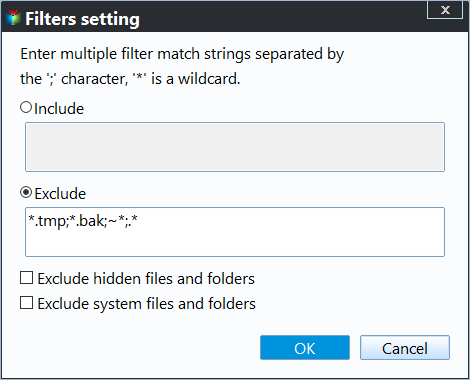
Then, click the filter icon next to the selected folders if you want to include or exclude file extensions when syncing.
To add a network location, first, add your server as a network location by selecting the option to add a share or NAS device. Then, click on the inverted triangle next to "Select a network location" and choose "Add Share or NAS Devices".

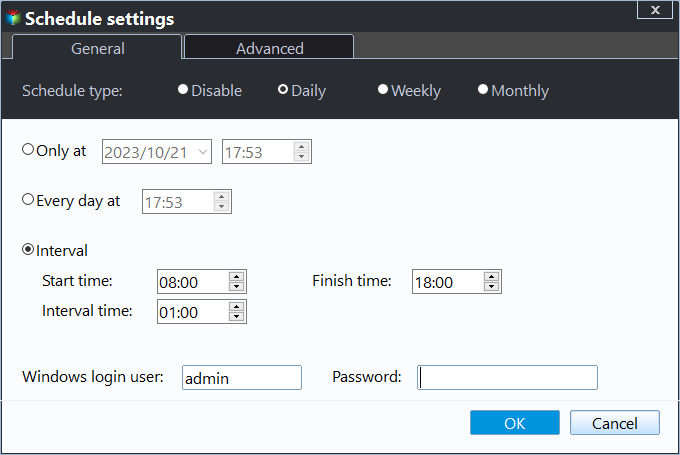
3. To automatically transfer files between servers, click "Schedule Sync", then "Enable Schedule Sync", and choose a frequency (Daily, Weekly, or Monthly). You can also sync files during system shutdown using "Event triggers". Click "Proceed" to confirm.
- Tips:✎...
- It's feasible to synchronize files to NAS or cloud storage and access them from a computer, allowing for remote access and sharing of files.
- Aside from directly transferring files from server to server, you can also sync files to external hard drives like HDD, SSD, flash drives, CDs, and DVDs, and then connect them to another server via a USB port, adapter, or enclosure.
You can still use the service to regularly backup your server, allowing you to recover data in the event of a disaster, except for the sync feature. Alternatively, users who want to create a cloud backup with a few GB of cloud storage can try Qiling Cloud drive, which offers 1TB of cloud storage from the time of sign-up until 15 days.
Conclusion
You can easily transfer files from server to server using the three methods mentioned earlier. If you want to automate this process, consider using file sync software like Qiling Disk Master Professional, which allows you to schedule syncs at various frequencies (daily, weekly, monthly) or trigger them at specific events or using a USB flash drive.
This software is a disk cloning tool that allows users to transfer data from one SSD to another by cloning the entire disk, and also supports cloning hard drives in various systems, including Windows Server 2016. It also offers a Tech Plus version for IT professionals to manage and protect multiple servers and PCs.
Qiling Disk MasterPowerful Windows sync software for personal or business use.
Related Articles
- How to Transfer Files Between Laptop and Desktop PC Regularly
Learn how to Transfer Files Between Laptop and Desktop PC Regularly with clear steps, key checks, and practical tips. - 5 Ways to Easily Transfer Files from Old PC to New PC
This article will show you 5 methods to transfer files from old PC to new PC in Windows 7/8/10. Scroll down to learn more. - How to Use Windows Server Migration Tools
Learn how to Use Windows Server Migration Tools with clear steps, key checks, and practical tips. - How to Sync Data between 2 Servers Automatically
Syncing data between 2 servers automatically with professional file sync software Qiling Disk Master Server is the easiest way. Try it yourself. - The Best Xcopy Alternative in Windows 10/7/XP
This guide explains The Best Xcopy Alternative in Windows 10/7/XP with clear steps, key checks, and practical tips. - Recover Files from Accidentally Formatted External Hard Drive
Learn how to Recover Files from Accidentally Formatted External Hard Drive with clear steps, key checks, and practical tips.
Products
Articles & Tutorials
- Data Recovery
- Data Backup
- File Recovery
- File Backup
- File synchronize
- System Backup and Restore
- Disk and Partition Clone
- Technical articles
- Disk Master Help
- Windows Deleted File and Disk Recovery Tutorials
- Windows File and Data Recovery Tutorials
- More Windows Tutorials for Install, Security, Files, and PC Tips
- Windows Boot, Repair, and Recovery Environment Tutorials
- Windows Backup Tutorials
- Windows Restore Tutorials
- Windows Clone and Migration Tutorials
- Windows Server Backup, Recovery, and Management Tutorials
- Windows Disk, Partition, and Storage Management Tutorials