How to Use Windows Server Migration Tools and Its Alternative
Quick Navigation:
- What is Windows Server Migration Tools
- How to Use Windows Server Migration Tools
- Easier Alternative to Windows Server Migration Tools
- How to Sync Files between Windows Servers Step by Step
What is Windows Server Migration Tools
Transferring workloads from one Server to another is a common process for many companies, particularly when it comes to significant files or folders. This can be achieved through various methods and tools, with Windows Server Migration Tools being a popular option. It utilizes a set of PowerShell cmdlets to facilitate the transfer process.
Windows Server Migration Tools, a built-in tool for Windows Server, supports migrations from Server 2003 and later versions. This utility helps transfer server roles, features, OS settings, shares, and other data from one Server to another.
This post will guide you through the detailed process of using Windows Server Migration Tools. If you find the process too cumbersome, you can also consider an easier alternative to transfer files from one server to another.
How to Use Windows Server Migration Tools
The operation to use Windows Server Migration Tools is not simple, so I divide it into 4 parts for your reference:
- Part 1. Install Windows Server Migration Tools on the destination and source Server
- Part 2. Create a deployment folder on the destination computer
- Part 3. Register Windows Server Migration Tools on the source computer
- Part 4. Use Windows Server Migration Tools step by step
Part 1. Install Windows Server Migration Tools on the destination and source Server
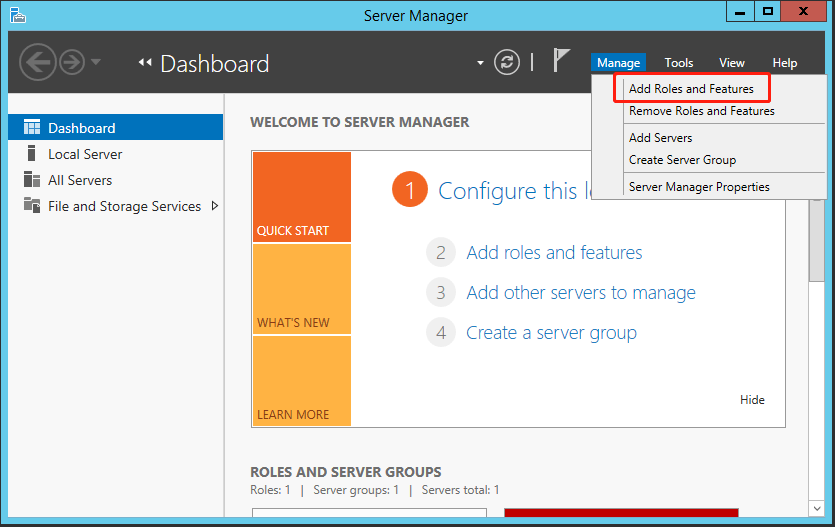
Step 1. To begin, click the Start button in the lower left corner of the computer and type "Server Manager" in the search box, then open it.
Step 2. Click on the "Add Roles and Features" option under the "Manage" tab. Press the "Next" button.
Step 3. Select the destination server. Then press Next.
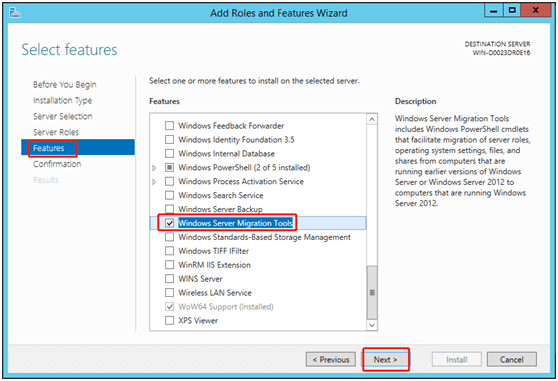
Step 4. To use the Windows Server Migration Tools, click on the "Features" tab and then click on "Windows Server Migration Tools". Press the "Next" button to proceed.
Step 5. Confirm the installation selections, then click Install to install the tool on the destination computer.
Step 6. Use the method mentioned above to install this utility on the source computer.
Tip:
Windows Server migration tools enable a seamless transfer of Windows Server 2016 to a new hardware machine, making the process effortless.
Part 2. Create a deployment folder on the destination computer
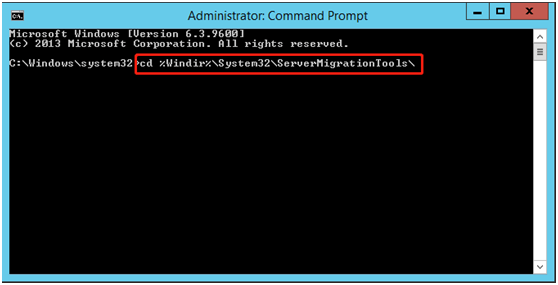
Step 1. Press Windows + X key. Then choose Command Prompt (Admin).
Step 2. To deploy the Microsoft SQL Server 2005 Management Tools, change to the directory where the smigdeploy.exe tool is stored and type the following command, then press Enter, to install the tools.
cd %Windir%\System32\ServerMigrationTools\
Step 3. Copy the path of the deployment folder on the source computer, and type the following command in the command prompt: `xcopy /s /i "C:\source\deployment\folder" "C:\destination\folder"` . Then press Enter.
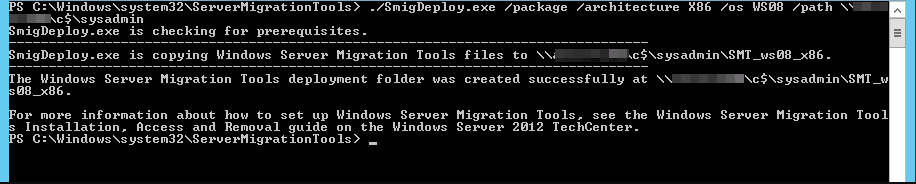
SmigDeploy.exe /package /architecture X86 /os WS08 /path
Part 3. Register Windows Server Migration Tools on the source computer
Step 1. Copy the deployment folder created by the destination computer to a local drive on the source computer, ensuring the deployment folder's operating system architecture matches the source computer's architecture.
Step 2. To open a Command Prompt window on the source computer, press the Windows logo key + X, and then select Command Prompt (Admin).
Step 3. At the command prompt, change the directory to which you copied the deployment folder in Step 1.
Step 4. You can type the following command to register Windows Server Migration Tools cmdlets, then press Enter: Add-WindowsFeature RSAT-MigrationTools -IncludeManagementTools
.\Smigdeploy.exe

After completing the preparations, it's time to learn how to use Server migration tools. These tools are designed to help you transfer your server to a new location, whether it's to a different data center, a cloud provider, or a different physical location. By using these tools, you can minimize downtime, reduce the risk of data loss, and ensure a smooth transition for your users.
Part 4. Use Windows Server Migration Tools step by step
✍ If you want to export the local users and groups from the source Server , you can follow these steps.
Step 1. To access the Windows Server Migration Tools, click Server Manager and then Tools on the source Server, followed by Windows Server Migration Tools.
Step 2. Run the following command:
Export-SmigServerSetting -User All -Group –Path C:SysAdminExportMigUsersGroups –Verbose
✍ If you want to import the local users and groups to the target Server , you can refer to these steps.
Step 1. To migrate servers, open Windows Server Migration Tools on the destination server by navigating to Server Manager, then clicking on Tools, and finally selecting Windows Server Migration Tools.
Step 2. Type the following command and then press Enter.
Import-SmigServerSetting –User Enabled –Group -Path C:SysAdminExportMigUsersGroups -Verbose
To use Windows Server Migration Tools 2012, follow the operating steps mentioned above, taking care to use the utility correctly to avoid serious problems that may occur if used incorrectly.
Using Windows Server Migration Tools in 2016/2012/2008 Server can be a complex process, especially for non-technical users. If you find this utility too difficult to operate, you may want to consider a simpler alternative.
Easier Alternative to Windows Server Migration Tools
Qiling Disk Master Server offers a reliable alternative to Windows Server Migration Tools, featuring a practical Sync function that enables effortless file synchronization between Windows Servers without requiring command line knowledge. This also extends to syncing files to network, NAS devices, and cloud drives.
Users can save time by utilizing this software to set up automatic syncing based on various triggers, such as daily, weekly, monthly schedules, or specific events. Additionally, features like commenting, email notifications, and syncing deletions are available for convenience.
Just download 30-Windows Server 2003/2008/2012/2016/2019/2022 (including R2)/SBS 2003/2008/2011 and Windows PC systems currently supported, with a day free trial, and a quick guide to sync files over a network.
How to Sync Files between Windows Servers Step by Step
Step 1. Install and launch this utility, then click "Basic Sync" under the Sync tab. Alternatively, to monitor changes made to synced files and sync them immediately when detected, you can use the "Real-Time Sync" feature.

Step 2. The Task Name can be modified based on your needs. To proceed, click the "Folder" button to select the folder you want to share.

Tip:
To set up a specific requirement like automatically backing up files with a certain file extension, click on "File Filter" at the right side of the selected folders.
Step 3. Click the inverted triangle and select a network location, then click Add Network Location and type network path, username, password to add destination path.

Step 4. After selecting the sync destination, you can confirm the operation and then click Proceed to sync files over the network.
✍ If you want to schedule sync files and changes regularly, there are many useful features you can use:
- Daily/weekly/monthly schedule sync: To automatically sync files to a network location, you can set up a schedule to sync files daily, weekly, or monthly.
- Event triggers: To minimize interference, you can sync files at a specific event like system shutdown, ensuring a smooth and uninterrupted synchronization process.
- Wake the computer to run scheduled tasks: To sync files during off-peak hours, you can schedule the backup task to run at midnight or other quiet times, and have your computer wake up 2 minutes beforehand, making it ideal for transferring large files.
- After the scheduled task is completed: To reconfigure the operation after a scheduled task, you can enable the feature and choose to shut down, restart, sleep or hibernate your computer, allowing you to perform other tasks.

When the operation is complete, you can check the target directory to see whether the folders have been synchronized over successfully. The target directory should contain all the files and folders from the source directory.
✎Notes:
- To ensure seamless syncing of a share folder from a source directory to a target directory, it's recommended to reset the share permissions of the target directory after the first sync. This is necessary because when the network path changes, the initial settings cannot be retained.
- The program should not change the name of the source folder after syncing, as this would prevent it from syncing the folder again in the future.
- The "Basic Sync" feature only synchronizes changes from the source directory to the destination, without reflecting changes made in the destination directory. If you need to sync files in both directions, consider using the "Two-Way Sync" feature instead.
Verdict
To use Windows Server Migration Tools, follow these steps, but if you find them too complicated, consider using Qiling Disk Master Server, a professional software that makes it easy to transfer files from one Server to another.
The software has a user-friendly graphical interface that makes it easy for users of all levels to understand and use. It also offers various helpful features, including daily, weekly, and monthly synchronization, event triggers, and USB plug-in capabilities. For IT professionals, the Qiling Disk Master TechPlus version is available.
Related Articles
- How to Migrate to a New Server with Different Hardware Easily
- Top 2 Ways to Migrate Windows Server 2012 R2 to New Hardware
- Best Windows 10 Migration Tool to Migrate Windows 10 OS (2 Ways)
- Best USMT Alternative to Migrate User Profiles Safely
- How to Remove/Delete Unallocated Partition Effectively in Windows 10/8/7?
To delete unallocated partition in Windows 11, 10, 8, 7, you can create a new partition or extend another partition. Either way, you can find the step-by-step guide on how to do it right here. - Fixed: Dell Alerts Hard Drive Not Found
Fix Dell alert hard drive not found error. Learn how to troubleshoot and resolve hard drive detection issues on Dell laptops and desktops in Windows 11/10/8/7.
Products
Articles & Tutorials
- Data Recovery
- Data Backup
- File Recovery
- File Backup
- File synchronize
- System Backup and Restore
- Disk and Partition Clone
- Technical articles
- Disk Master Help
- Windows Deleted File and Disk Recovery Tutorials
- Windows File and Data Recovery Tutorials
- More Windows Tutorials for Install, Security, Files, and PC Tips
- Windows Boot, Repair, and Recovery Environment Tutorials
- Windows Backup Tutorials
- Windows Restore Tutorials
- Windows Clone and Migration Tutorials
- Windows Server Backup, Recovery, and Management Tutorials
- Windows Disk, Partition, and Storage Management Tutorials