How to Move Apps to External Storage on Windows 11 | 2 Ways
Quick Guide to move Apps to external hard drive Windows 11:
- Qiling Disk Master allows users to easily transfer apps and programs to an external hard drive, making it a convenient option for all users.
- Windows allows users to move installed programs and games, but this feature is limited to apps downloaded from the Microsoft Store and can be accessed through the "Apps & Features" section of Settings.
After upgrading to Windows 11 from Windows 10, many users have encountered a low disk space warning due to the significant storage space taken up by the upgrade process. To resolve this issue, users are looking for ways to move apps to external storage, freeing up space on their C drive and alleviating the warning.
"How to move an app or game c to d drive Windows 11? so I tried a couple methods already but none of worked when i go to installed apps in settings none of them show move file instead they show modify which I can't click on and uninstall." - from Microsoft Community
If your internal drive is almost full, you're likely frustrated by the thought of uninstalling apps and losing data. Fortunately, you can move apps to external storage to free up space without reinstalling. To do this, you'll need a trusted data migration software to help you transfer your apps to an external drive, allowing you to keep your data intact.
How to Move Apps to External Storage on Windows 11 without reinstalling
There is a market-Qiling Disk Master Professional is a leading data migration software that allows users to move installed programs or folders from one drive to another without the need for reinstalling. As a free App mover, it offers several highlights.
▶ Provide friendly interface, you can use it with a few clicks.
▶ Guarantee 100% data security, the moved apps can work well on the new drive.
▶ Compatible with Windows 11, 10, 8, 7, Vista, and XP.
▶ Feature-rich, it also can clone all data from internal to external storage, including Windows OS. Or, there are more advanced features you can try, such as allocate free space, wipe hard drive, delete large files, etc.
To move apps to external storage on Windows 11, you can follow these steps: First, go to Settings > System > Storage, and click on the "Change where new content is saved" button. Then, select the external drive as the default save location for new content.
As the full-Qiling Disk Master is a featured tool that supports various tasks, including moving games to an external hard drive on Windows 11/10 and cloning a disk to transfer everything from a laptop to an external hard drive.
How to move apps from internal to external storage by Settings
To move apps to external storage, you can use the Windows Settings, but this method only works for apps installed from the Microsoft Store. If an app is not from the Microsoft Store, the "Move" option will be grayed out.
Step 1. Open "Settings" from the Start menu.
Step 2. Go to "Apps" and then "Apps & features."
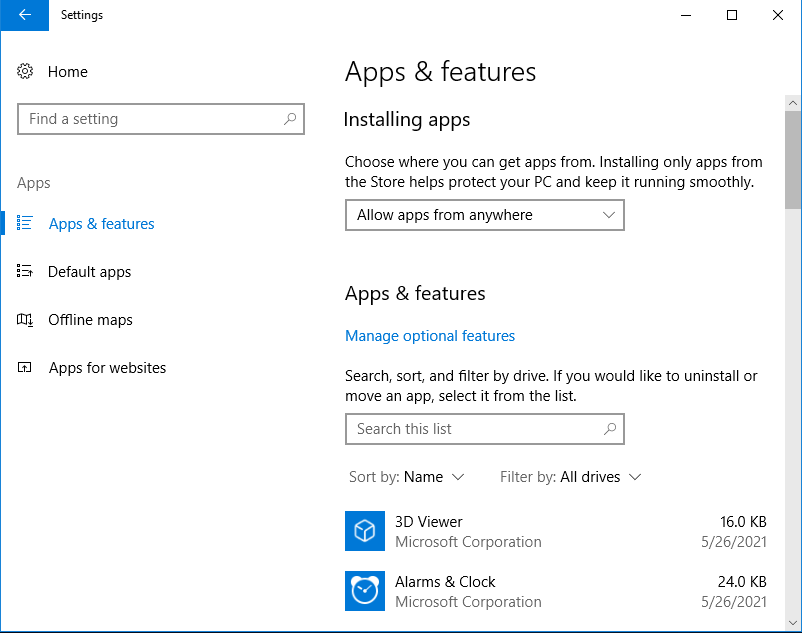
Step 3. Select the app you want to move and click on the "Move" option.
Step 4. Choose the external storage device as the new installation location.
Why move Apps to External Storage on Windows 11?
Here are some reasons why you might consider moving apps to external storage:
✦ If your computer's internal storage is running low on space, moving apps to an external storage device can help free up space on Windows 11.
✦ Apps stored on an external storage device can be easily carried and used on different computers, making it convenient for frequent computer switchers or those who want to use their apps on a friend's or colleague's computer.
✦ Backup and Redundancy: Storing apps on an external drive serves as a backup, safeguarding them and associated data in case of system failure or data corruption.
✦ Privacy and Security: Storing sensitive or private apps on an external drive can enhance security by preventing unauthorized access, especially if the drive is disconnected when not in use.
If you're looking for a way to move apps to external storage on Windows 11, you can try the steps mentioned above to move apps to external storage. This will also allow you to move installed programs to another drive.
Sum up
To move apps to external storage on Windows 11, 10, 8, and 7, you can follow the methods outlined in this article. However, for most users, a better option is to use Qiling Disk Master Professional, which offers a more streamlined approach. If you're using Windows Server, specifically 2022, 2019, 2016, 2012, 2008, or 2003, you may want to consider the Server Edition for moving apps to external storage.
FAQs about move apps to external storage
Here are the frequently asked questions about moving apps to external storage on Windows 11, answered shortly:
Q: Can I move all apps to external storage?
A: Some apps can be moved to external storage, but not all, especially those tightly integrated with Windows or requiring registry entries, while simple and portable apps are more likely to be moved successfully.
Q: Will moving apps affect their performance?
A: Moving resource-intensive apps to an external storage device, such as an SSD, can enhance performance, but using a slower external HDD may result in slightly slower performance compared to running them from an internal SSD.
Q: Can I revert the move and bring apps back to the internal drive?
A: To restore a moved app to the internal drive, follow the same steps you used to move it initially, and check the app's documentation or support resources for specific guidance on the process.
Q: What happens if I disconnect the external storage device?
A: If you remove the external storage device, the apps you moved to it will become unavailable on your Windows device until the device is reconnected. Windows will display these apps as unavailable.
Related Articles
- How to Transfer Programs to External Hard Drive in Windows 10
In this page, I am going to show you how to transfer programs to external hard drive without reinstalling on Windows 11/10/8/7, and offer a step-by-step guide. - Safely Move Installed Programs to Another Drive in Windows 10
This article shows how to move installed programs to another drive in Windows 11/10/8/7 and ensure them run successfully. - How to Sync Google Drive with PC in Windows [2 Ways]
Learn how to sync Google Drive with PC to keep files safe and up-to-date. Use two auto methods and a manual way to sync files and folders with Google Drive effortlessly. Check out this detailed guide. - Complete Guide: Synology Drive Sync Multiple Folders
Complete Guide: Synology Drive Sync Multiple Folders: this guide summarizes the key steps, practical tips, and safer options so you can finish the task clearly and avoid common mistakes. - How to Perform Windows 2008/2012 File Server Backup with Ease
You will learn how to perform Windows file server backup easily for all server computers, two ways in total. - 3 Methods to Backup Windows Server 2019 to NAS/Network Share
NAS is an ideal backup storage for Windows Server 2019, 2016, 2012, etc., but many people fail to select it as destination in Windows Server Backup. This post will show you how Windows Server backup to NAS successfully.
Products
Articles & Tutorials
- Data Recovery
- Data Backup
- File Recovery
- File Backup
- File synchronize
- System Backup and Restore
- Disk and Partition Clone
- Technical articles
- Disk Master Help
- Windows Deleted File and Disk Recovery Tutorials
- Windows File and Data Recovery Tutorials
- More Windows Tutorials for Install, Security, Files, and PC Tips
- Windows Boot, Repair, and Recovery Environment Tutorials
- Windows Backup Tutorials
- Windows Restore Tutorials
- Windows Clone and Migration Tutorials
- Windows Server Backup, Recovery, and Management Tutorials
- Windows Disk, Partition, and Storage Management Tutorials