How to Sync Google Drive with PC in Windows [2 Ways]
- How to Sync Google Drive with Your PC (Overview)
- Sync Google Drive with Windows PC Using Drive for Desktop
- How to sync or backup computer folders with Drive for desktop
- FAQ: Why is Google Drive not syncing with my computer?
- How to Sync Google Drive with PC using Free Alternative
- Manual Way of How to Sync Google Drive
- FAQs about how to sync Google Drive
- Verdict
"You're looking to save annotated PDFs from Xodo on your desktop and sync them with Google Drive, so they're updated across all your devices. Is that correct?"
– Reddit.com
How to Sync Google Drive with Your PC (Overview)
Google Drive allows you to sync multiple folders on your desktop or laptop with the cloud service, ensuring your files are safe even if your device breaks down. You can easily sync these files to another device by signing in to the same account.
Google has combined its older clients "Backup and Sync" and "Drive File Stream" into a new one called "Drive for desktop", which allows for convenient synchronization between computers and Google Drive. This app enables users to sync their computers to Google Drive or vice versa, making it a more convenient option compared to direct upload and download.
You can sync Google Drive with PC folders using Drive for desktop, allowing you to access your Google Drive files directly from your computer. This involves installing the Drive for desktop app, which will create a folder on your computer that mirrors your Google Drive account.
Sync Google Drive with Windows PC Using Drive for Desktop
To sync your Google Drive with your PC using a free alternative, you can use a third-party app like FreeFileSync, SyncToy, or GoodSync. These apps allow you to synchronize files between your Google Drive account and your PC, keeping your files up-to-date and in sync.
Manual Way of How to Sync Google Drive
Why Do You Need to Learn How to Sync Google Drive
Syncing folders with Google Drive offers several benefits:
- Backup: Syncing folders ensures that your files are securely backed up to the cloud, safeguarding them against data loss due to hardware failure, accidental deletion, or other unforeseen events.
- Access Anywhere: Syncing folders with Google Drive allows you to access your files from any device with an internet connection, providing flexibility and convenience.
- Collaboration: Google Drive facilitates seamless collaboration on files and folders by allowing team members to sync and edit documents in real-time, thereby boosting productivity.
- File Synchronization: Changes made to files in synced folders are automatically updated across all devices connected to Google Drive, ensuring everyone has access to the latest version of the files.
- Storage Management: Syncing folders with Google Drive helps manage storage space on your devices by offloading files to the cloud, freeing up local storage for other purposes.
Sync Google Drive with Windows PC Using Drive for Desktop
Google Drive for Desktop Sync is a convenient app that allows you to sync a computer to Google Drive and vice versa, making it a practical tool for easy file sharing and access. However, it also has some limitations.
⛔The software syncs all files with Google Drive, but auto-syncs changes made to selected folders, making it challenging to retrieve an earlier version.
⛔The program allows users to back up photos and videos to Google Photos, which means any changes made to the PC folder won't be synced. However, this backup feature doesn't extend to other types of files, like the operating system.
⛔Google Docs (Sheet, Docs, Slides) are only accessible online, requiring an internet connection to view.
This app only works between Google Drive and computers, limiting its use for those with multiple cloud drives or storage devices, making it necessary to find an alternative for wider data transferring capabilities.
Easy alternative: all-around file sync tool
Automatically sync files to a local folder, external drive, network, cloud storage services like Google Drive, OneDrive, Dropbox, etc. and more.
Google Drive for Desktop is a convenient tool for file synchronization, allowing users to sync their files with ease. To set it up, follow the steps outlined in the provided content.
How to sync or backup computer folders with Drive for desktop
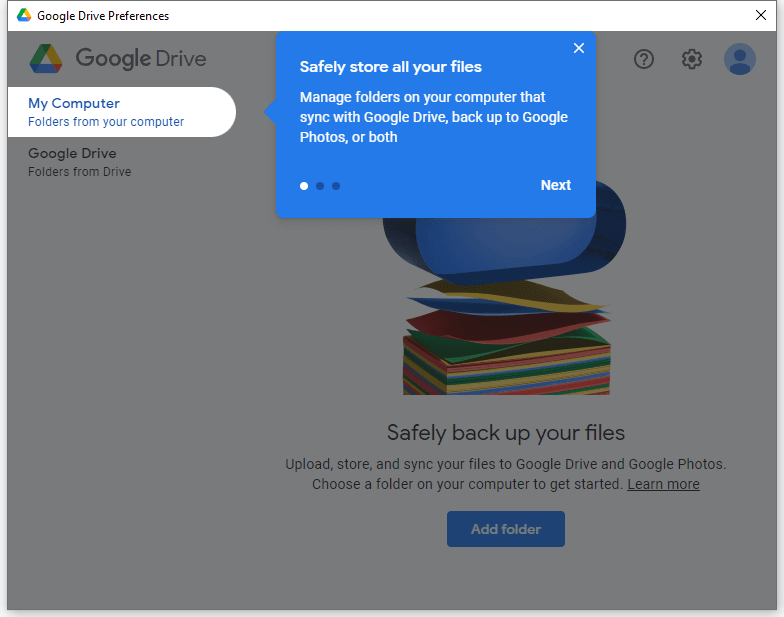
Download Drive for desktop here. It can back up all of your content to the cloud, and easily access your files in Google Drive and your photos in Google Photos.
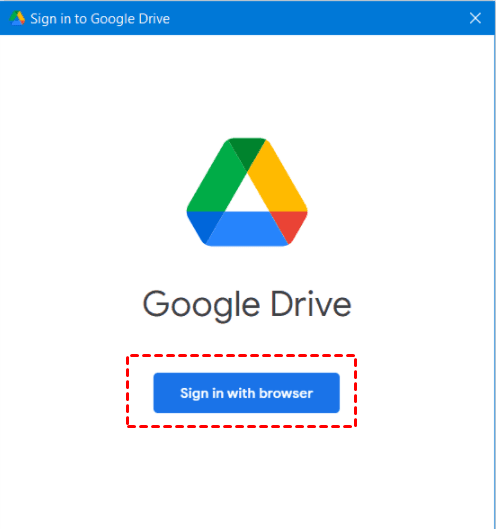
Step 1. To sign in to Google using the browser, launch the Google app and click on "Sign in with the browser". Then, enter your Google account credentials, including your email address and password, on the web for authentication.
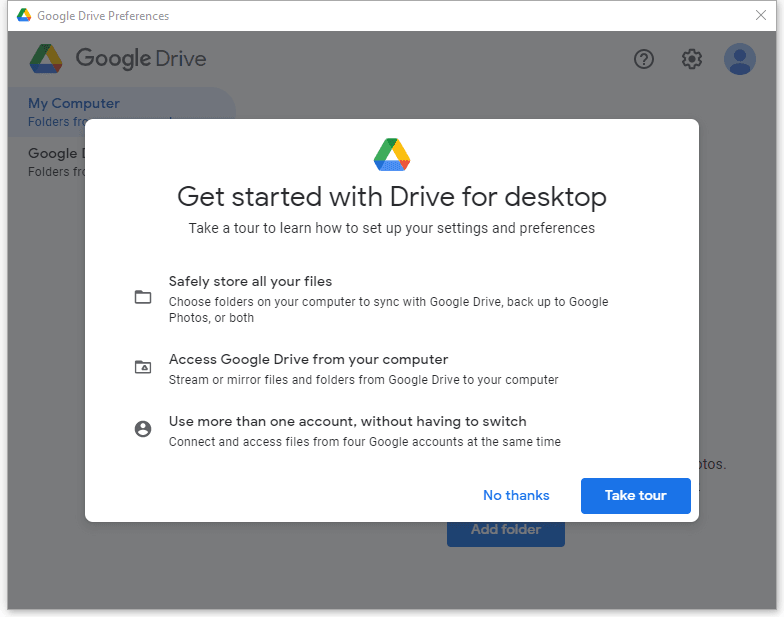
Step 2. To complete the installation, click on the Drive for Desktop icon on the right-bottom corner, hit the Settings button, and choose Preferences to start the setup.
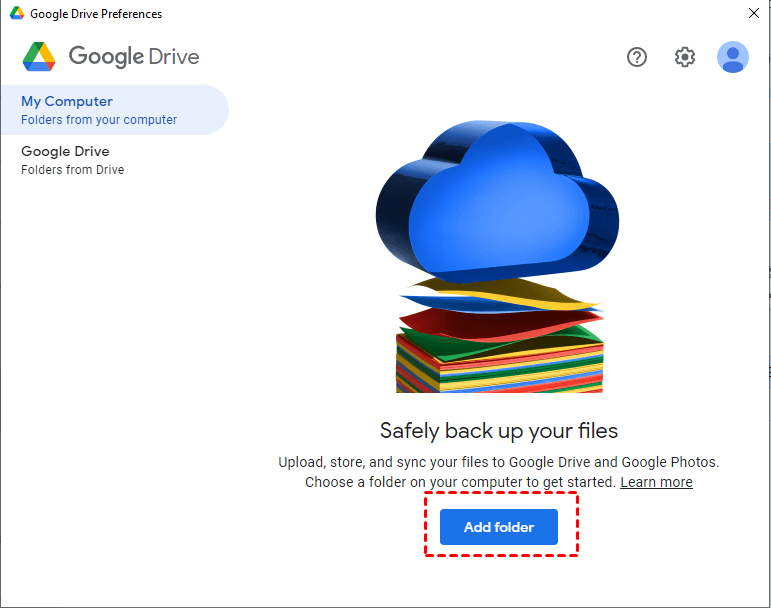
Step 3. You can choose a folder in the My Computer tab to sync with Google Drive.
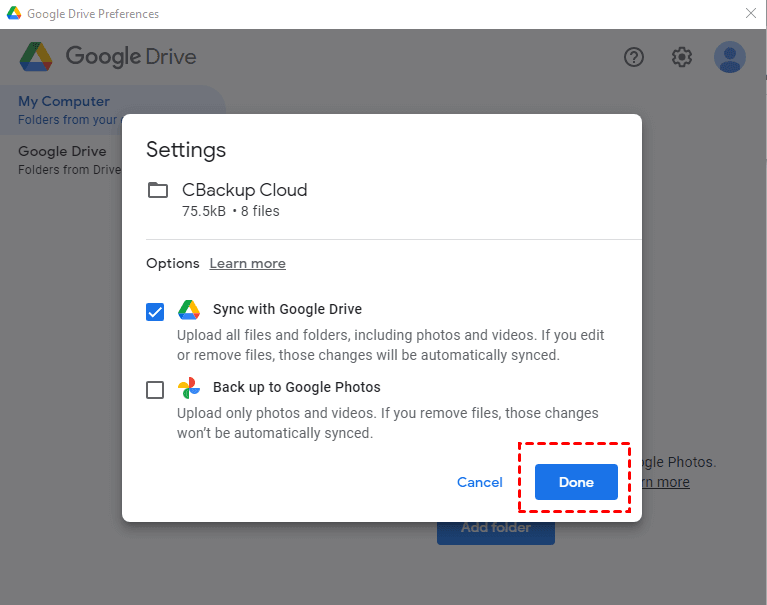
Step 4. You can choose to sync with Google Drive or back up to Google Photos, both of which provide continuous data protection to your files. However, there are some differences between the two options.
- The first option allows users to sync computer folders with Google Drive, ensuring that any changes made to the local folders are also reflected on the cloud storage.
- With the second option, you can make a backup of photos and videos to Google Photos, but changes made to them won't be synced, and this option is not available for other types of files.
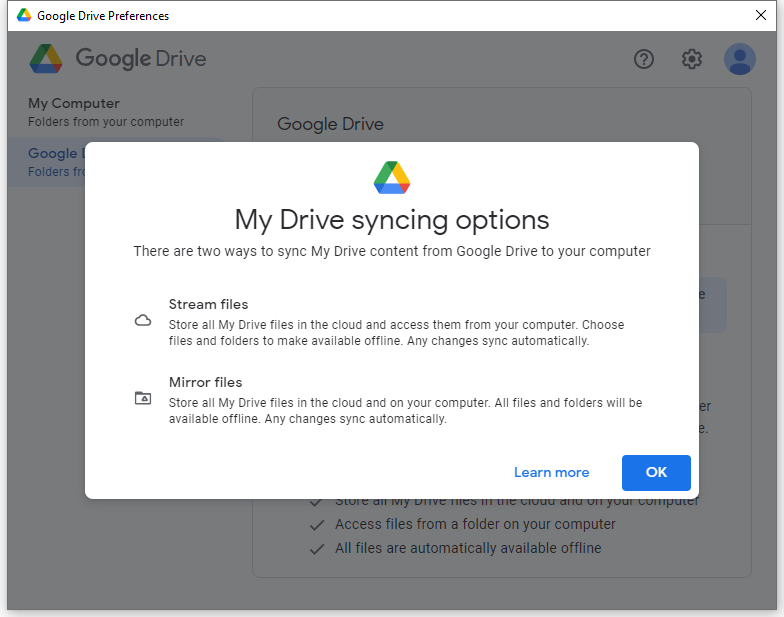
Step 5. To sync Google Drive to your PC, go to the Google Drive tab, where you can stream or mirror files from My Drive to your PC, both options auto-syncing changes.
- "Stream files" will store all files in the cloud, making them accessible from your PC, and also allow you to access certain files and folders offline.
- "Mirror files" will store all files in both the cloud and your computer, making them available offline, but taking up more disk space.
You can choose how to sync Google Photos with your PC, such as syncing photos and videos via the "Stream files" option, which is suitable for large files like photos and videos.
Step 6. To confirm all the settings and perform the synchronization, click Save. A restart may be required for the changes to take effect.
After setting up Drive for desktop on your computer, a Google Drive shortcut with a drive letter will be created in Windows Explorer, allowing you to easily access your files and folders in My Drive.
While Drive for Desktop is more convenient and comprehensive than its predecessor Backup and Sync, it still lacks flexibility in its backup and sync options. The feature set is also incomplete, with the ability to exclude certain files from selected folders being notably missing.
FAQ: Why is Google Drive not syncing with my computer?
If you encounter problems with the Drive for desktop tool, such as files not syncing between your PC and Google Drive, Drive for desktop stopping or quitting suddenly, and other unexpected errors, you may need to troubleshoot or seek assistance to resolve the issue.
If you're having issues with Google Drive for the desktop, you can try restarting or reinstalling the app, disconnecting and reconnecting your account, restarting your computer, or checking your internet connection to resolve the problem.
For details, you can view the troubleshooting page of Drive for the desktop and find a corresponding solution for each symptom. If the problem persists, you may want to try alternative methods.
How to Sync Google Drive with PC using Free Alternative
Qiling Disk Master Standard offers a free data protection and disaster recovery solution for Windows operating systems, allowing users to backup and restore data, as well as sync files between their PC and Google Drive.
▪ Create multiple backup and sync tasks to build a flexible data protection strategy, not just limited to Google Drive, but also including other storage locations such as OneDrive, Dropbox, internal/external drives, USB, NAS, and more.
▪ For sync, you can manually or automatically sync folders to the cloud drive with a schedule, or even sync changed files in real-time in advanced editions.
▪ To create a backup, you can set up a scheduled backup to save different copies of files, partitions, system, or disk on a regular basis, which will run an incremental backup by default, saving only changed files and conserving space.
Download the free Standard edition to have a try:
How to sync Google Drive with PC folders
Step 1. To use the software, click on the Backup tab page and select File Sync, which is available in all editions. This mode allows for quick and secure synchronization of files from the source directory to the target directory.

You can upgrade to the Professional edition to enjoy the following sync modes:
File SyncSync changed files from the source to the target directory in real-time, eliminating the need for a schedule.
File SyncAlways keep the target directory identical to the source directory, discarding any changes made to the target directory during synchronization.
File syncAny changes made to the source directory or target directory will be automatically synced to the other side.
Step 2. To sync folders, click on the "Folder" option and select the desired folders from your computer. This process can be repeated to add multiple folders.

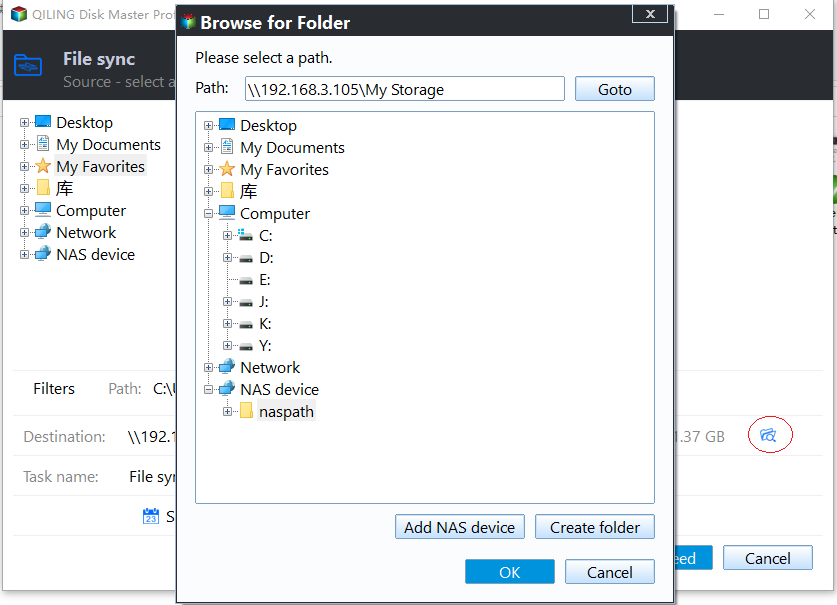
Step 3. To sync the computer to Google Drive, click the small triangle beside the destination select box and choose "Select a cloud drive" from the drop-down menu, then select "Google Drive" in the following window.
📑Note: If you can't find Google Drive, try sharing your My Drive folder to use it as a network path. You can do this by giving access to specific people, then selecting "Add Share or NAS Devices" and entering the path to sync or backup with Google Drive.
Step 4. To optimize your schedule, set up a daily, weekly, and monthly plan, and then click "Proceed" to proceed with the schedule organization.

You can sync Google Drive with PC folders automatically by selecting the Google Drive folder on the PC as the source directory, and selecting the PC folder you want to sync with Google Drive as the destination directory. This way, any changes made to the PC folder will be automatically synced with Google Drive. If you want to do it the other way around, just select the source directory as the PC folder and the destination directory as the Google Drive folder.
✍ Helpful tips:
- Upgrading to the Professional edition unlocks more advanced features, such as the ability to include or exclude specific file formats by clicking the funnel icon beside the source folder. Additionally, scheduled backup or sync can be set using Event triggers (startup/shutdown, login/logout) and USB plug-in.
- To back up your PC to Google Drive, go to the Backup tab, and select the type of backup you prefer, such as File Backup, Partition Backup, Disk Backup, or System Backup.
Manual Way of How to Sync Google Drive
To manually sync files to Google Drive, you can either upload files directly to the Google Drive website or use the Google Drive folder on your computer to drag and drop files for syncing.
To manually sync folders to Google Drive, you can use the Google Drive folder on your computer, which is synced to your Google Drive account. Alternatively, you can use third-party software, such as SyncToy or RoboCopy, to manually sync specific folders to Google Drive.
- To sync folders on Google Drive, log in to your account, click the "+" New button, choose "Folder upload" from the dropdown menu, and select the folders you want to sync. Click "Upload" to complete the process.
- To sync folders from your computer to Google Drive, you can either use the Google Drive software to select the folders you want to sync and click "Sync", or you can drag and drop the folders into the "My Drive" folder on your computer's Google Drive disk. Once the folders are in "My Drive", they will automatically sync to Google Drive.
Syncing folders to Google Drive can be a convenient option, but it may take some time, especially if you have a large number of folders to upload.
FAQs about how to sync Google Drive
1. How Can I Schedule Google Drive Sync?
To schedule Google Drive sync, click "Edit" next to Settings, select a time window for automatic backups, and click "Save" to apply the changes.
2. How Do I Check if Google Drive is Syncing?
You can see if Google Drive is syncing by looking for a "sync status" icon next to each file and folder in your Google Drive folders, visible when browsing files in File Explorer or Finder.
3. Is It Necessary to Turn on Sync in Google?
When you first open Chrome, it prompts you to sign in and enable Sync, which brings your existing Chrome experience to your new device if you've already been using Sync.
Verdict
To continuously sync Google Drive with your PC, use Drive for Desktop, which allows you to specify folders to sync, including syncing Google Drive to your computer.
However, this tool is only for Google Drive, and there's also some inconvenience using it. The Qiling Disk Master is a good choice with high compatibility and complete features for managing multiple cloud drives or devices and backing up your PC to Google Drive in addition to synchronization.
With it, you can sync network folders to Google Drive, sync NAS to Google Drive, sync cloud drive to external hard drive, and even backup Windows Server to the cloud, with a Server edition available.
Related Articles
- How to Set up Google Backup and Sync Tool Step by Step
Google Drive for desktop is the latest Google backup and sync tool, which replace Google Backup and Sync to sync Google Drive with PC easily. Read this article patiently to get similarity, key differences, and steps. - Backup/Sync Google Drive to External Hard Drive in Windows (Fast and Easy)
Read this article to learn the step-by-step tutorial about how to backup/sync Google Drive to external hard drive in Windows 11/10/8/7. Try 4 methods on how to move files from Google Drive to the external hard drive. Check it out now! - Sync Files to Google Drive Automatically | 4 Ways Included
4 Ways offered in this post to sync files to Google Drive automatically, just follow the step-by-step guide sync files to Google Drive easily. - 3 Free Ways to Backup PC to OneDrive in Windows 10/8/7
This guide explains 3 Free Ways to Backup PC to OneDrive in Windows 10/8/7 with clear steps, key checks, and practical tips. - Automatically Backup and Recover Word Documents in Windows 10
This article illustrates how to save, backup and recover (unsaved or deleted) word documents in Windows 10 automatically. Thus, you don't need to worry about data loss. - Best Free Cobian Backup Alternative
This guide explains Best Free Cobian Backup Alternative with clear steps, key checks, and practical tips.
Products
Articles & Tutorials
- Data Recovery
- Data Backup
- File Recovery
- File Backup
- File synchronize
- System Backup and Restore
- Disk and Partition Clone
- Technical articles
- Disk Master Help
- Windows Deleted File and Disk Recovery Tutorials
- Windows File and Data Recovery Tutorials
- More Windows Tutorials for Install, Security, Files, and PC Tips
- Windows Boot, Repair, and Recovery Environment Tutorials
- Windows Backup Tutorials
- Windows Restore Tutorials
- Windows Clone and Migration Tutorials
- Windows Server Backup, Recovery, and Management Tutorials
- Windows Disk, Partition, and Storage Management Tutorials