Backup or Sync Files to Cloud Drive | Which Is Better?
Cloud Backup vs. Cloud Sync vs. Cloud Storage
Cloud backup and cloud sync are essentially ways to backup files to cloud storage services like Dropbox, Google Drive, and OneDrive. These services allow you to store files online and provide a way to access or share them, similar to an external drive with the internet. The key difference is that you only pay for the space you use, making it a convenient and cost-effective option for storing and accessing your files.
After understanding this concept, you may wonder which is the better way to copy files from a PC to cloud drive? It depends on your first thoughts, add double insurance for your data or more concerned about unrestricted access and collaboration.
- Backing up files to cloud drive Backing up your PC involves creating an image file of all your files and saving it to a cloud drive. This process requires restoring the files from the image before you can use them, essentially creating a snapshot of your computer's state at a particular point in time.
- Synchronizing files to cloud drive Creating a cloud backup of a PC's files, maintaining the original structure, and keeping synced files up-to-date, allowing multiple users to access and use them on different computers.
Why Backup or Sync Files to Cloud Drive?
With the increasing reliance on computers for work, entertainment, and storing memories, losing data due to a damaged or lost PC can be a significant loss, going beyond monetary value. The lifespan of a machine is limited, and even with careful use, computers will eventually age, not to mention the unpredictable errors that can cause data loss. To mitigate this risk, backing up or synchronizing files to a cloud drive is a prudent measure.
Cloud drives like Google Drive, OneDrive, or Dropbox allow you to access files from anywhere, eliminating worries about system crashes or hardware failures. They offer various packages to suit different needs and budgets, making them more affordable than physical hard drives, thus driving the demand for file backup and sync from PC to cloud storage.
Best Freeware to Backup or Sync Files from PC to Cloud Drive
Cloud drives often come with software to automatically backup or sync files to cloud storage, but this is typically limited to files stored in their designated desktop folder. To backup or sync files outside of this folder, users must manually copy files to the desktop folder, a time-consuming and tedious process, especially for those with large amounts of files to copy.
Users can automatically back up or sync files to cloud drives like Google Drive, OneDrive, or Dropbox using third-party software, such as Qiling Disk Master, which offers flexibility in selecting specific files to back up.
- For backup: It enables you to backup files on a daily, weekly, and monthly schedule, with the option to use incremental backup to only save changed files. By default, it uses normal compression and automatic splitting to reduce the size of the backup image and the space it occupies.
- For sync: The feature allows for automatic syncing of files and folders from a PC to a cloud drive on a daily, weekly, or monthly basis, and by default, it does not sync deleted files when using the File Sync feature.
Before backing up or syncing files to cloud services like Google Drive, OneDrive, and Dropbox, download Qiling Disk Master Standard (Windows 10/8.1/8/7/XP/Vista supported) and install the cloud drive on your computer. If you're using a server OS (2003/2008/2012/2016/2019/2022), try Qiling Disk Master Server instead.
Backup files to cloud drive with Qiling Disk Master
Step 1. Launch Qiling Disk Master Standard, click Backup, then File Backup.
To create a System Backup, Disk Backup, or Partition Backup, select the corresponding backup solutions. Alternatively, you can also backup files to Qiling Cloud using Cloud Backup and enjoy 1TB of free cloud storage for 15 days after registering a Qiling account.

Step 2. To add what you want to backup to the cloud drive, click on either "Files" or "Folders".
If you want to exclude files with specific formats that you don't want to backup, upgrade to the Professional edition. To configure file exclusion, click the funnel icon on the select box and adjust the Filter settings.

Step 3. Click the inverted triangle and Select a cloud drive.
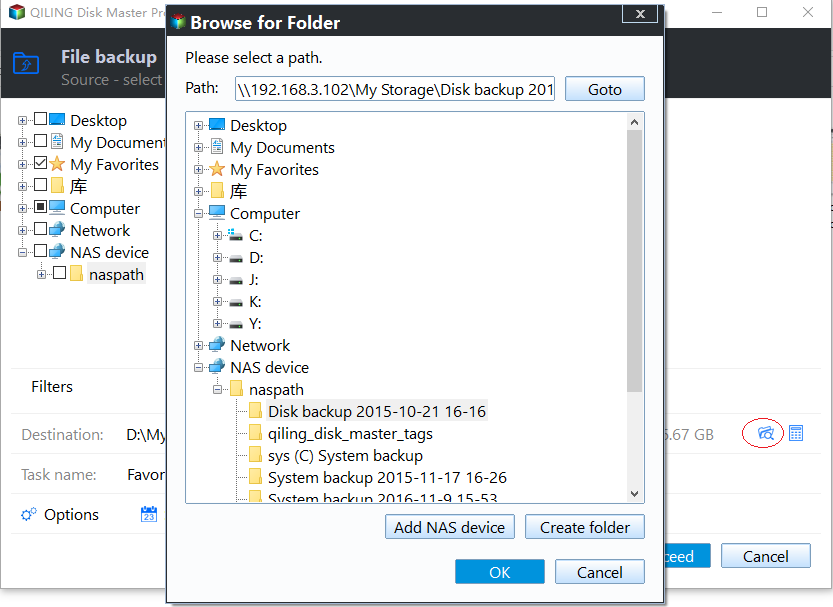
Select the cloud drive you want to use, such as OneDrive, from the list of available cloud storage installed on your computer, and click OK.
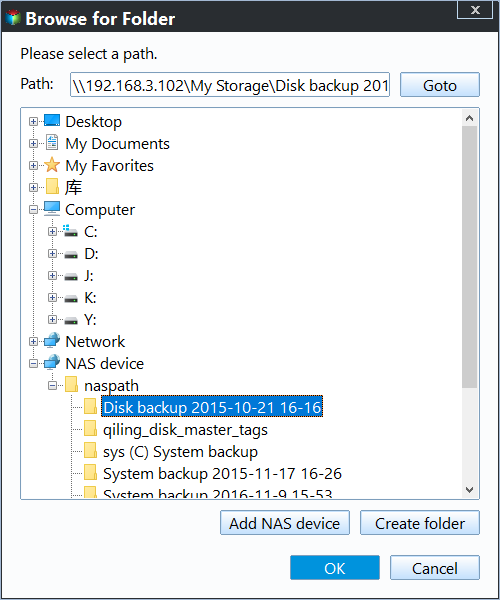
Step 4. To automate the backup task, click "Proceed" to execute it.
Backup Options include settings for backup mode, compression level, comments, email notifications, and more, allowing users to tailor their backups to suit their specific needs.
Setting up auto backup on Schedule Backup allows users to set backups on a daily, weekly, or monthly basis. In advanced editions, additional options include event triggers and USB plug-in, offering more flexibility and control over backup schedules.
The advanced editions of the software include a feature called Backup Scheme, which allows for automatic deletion of older backups based on a user-defined rule. This means that users can set a specific rule for when older backups should be deleted, ensuring that their backup storage remains organized and efficient.

Sync files to cloud drive with Qiling Disk Master
Step 1. In the Backup and recovery tab, select File Sync.

Step 2. Click the "Folder" button to select the data you want to sync, and you can add multiple folders by clicking the "+" button.

Step 3. You can choose the destination cloud drive by selecting "Select a cloud drive" from the drop-down menu and then choosing the desired cloud drive.
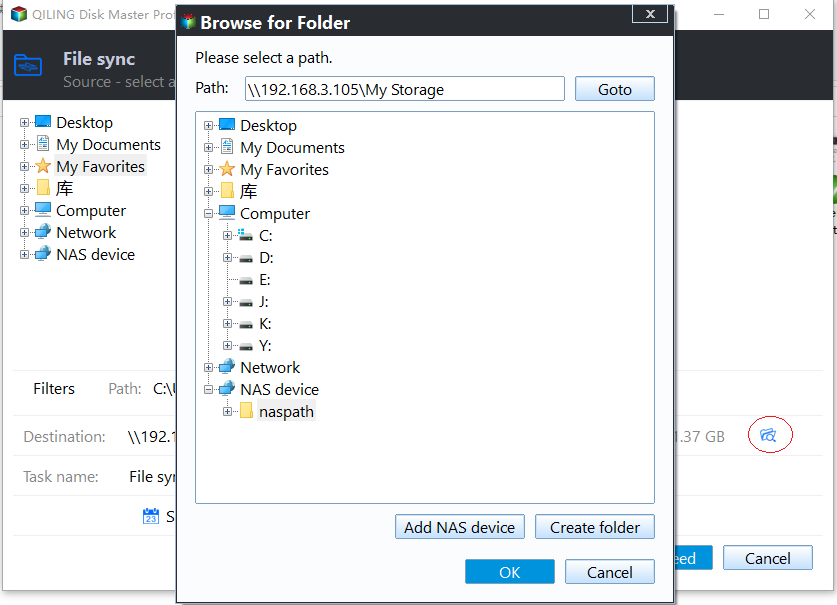
Step 4. To schedule a sync, select a daily, weekly, or monthly sync option using the Schedule Sync feature. After choosing your preferred sync frequency, click Proceed to initiate the syncing process and upload files to your cloud drive.
Tips:
- The source and target folders cannot be nested inside each other.
- Please don't change the name of source folder once the sync task has been set up.
- The professional version offers more advanced sync features, including File Sync, File Sync (which always keeps the destination directory identical to the source), and Two-Way Sync.
Summary
This article clarifies the distinctions between cloud backup, cloud sync, and cloud storage to help users understand these concepts and choose the best option for backing up or syncing files to a cloud drive. Cloud backup prioritizes data security, while cloud sync focuses on collaboration for multiple users, offering automatic daily, weekly, or monthly schedule settings.
Related Articles
- Best Free Way to Backup PC to Cloud in Windows 10/8/7
- Backup Hard Drives to Cloud - How to Make It Easily
- How to Sync OneDrive files to Computer Effortlessly
- Sync Files to Google Drive Automatically | 4 Ways Included
- Petya Ransomware Removal and Protection
To do Petya ransomware removal, switch off power supply, disconnect network, block port 445/139, backup key files, install Windows March patch MS17-010, install antivirus software and keep away from dangerouswebsites. - Recent Ransomware Attacks Should Be Treated as A "Wake-up Call"
Recent Ransomware Attacks that have hit 150 countries since Friday should be treated by governments around the world as a "wake-up call".
Products
Articles & Tutorials
- Data Recovery
- Data Backup
- File Recovery
- File Backup
- File synchronize
- System Backup and Restore
- Disk and Partition Clone
- Technical articles
- Disk Master Help
- Windows Deleted File and Disk Recovery Tutorials
- Windows File and Data Recovery Tutorials
- More Windows Tutorials for Install, Security, Files, and PC Tips
- Windows Boot, Repair, and Recovery Environment Tutorials
- Windows Backup Tutorials
- Windows Restore Tutorials
- Windows Clone and Migration Tutorials
- Windows Server Backup, Recovery, and Management Tutorials
- Windows Disk, Partition, and Storage Management Tutorials