How to Sync OneDrive to Computer in Windows 11/10 Flexibly
Why sync OneDrive to computer
OneDrive, Microsoft's file hosting and synchronization service, allows users to store and share files with others and devices online, making data accessible from anywhere with a logged-in account.
Usually people would like to sync PC to OneDrive for better data protection, but in some cases, you may also need to sync OneDrive files to computer, such as when you want to access your OneDrive files on your local machine or when you need to edit files offline.
- To view and edit OneDrive files on another computer or multiple devices easily, you can use the OneDrive app, which is available for both Windows and macOS. This allows you to access your OneDrive files from any device with an internet connection, making it simple to work on files across different locations.
- To get updated files from a shared OneDrive account, you can ask your team members to share the updated files with you directly. Alternatively, you can also request them to add you to the shared folder so you can access the latest files.
- You want to maintain a local copy of your OneDrive files, essentially creating a backup, to ensure that your files are safe in case of any unexpected issues with the cloud service.
To sync OneDrive files to your Windows PC, there are two efficient ways to do so. Firstly, you can use the built-in OneDrive app that comes pre-installed on Windows, which allows you to easily access and sync your files across devices.
- Way 1. Sync OneDrive to computer with desktop app
- Way 2. Sync OneDrive files to PC flexibly via free software
Sync OneDrive to computer with desktop app
To sync OneDrive to your computer, you can install and set up the OneDrive app, which is usually already installed on Windows 8.1 and 10 systems. If you have an older OS, you can download and install the app manually. Once installed, you can open the app to sync your OneDrive files.
To sync OneDrive to your computer in Windows 10, follow these steps. First, sign in to your Microsoft account and select the OneDrive folder on your computer. Then, click on the "Settings" icon, which looks like a gear, and select "Settings" from the dropdown menu.
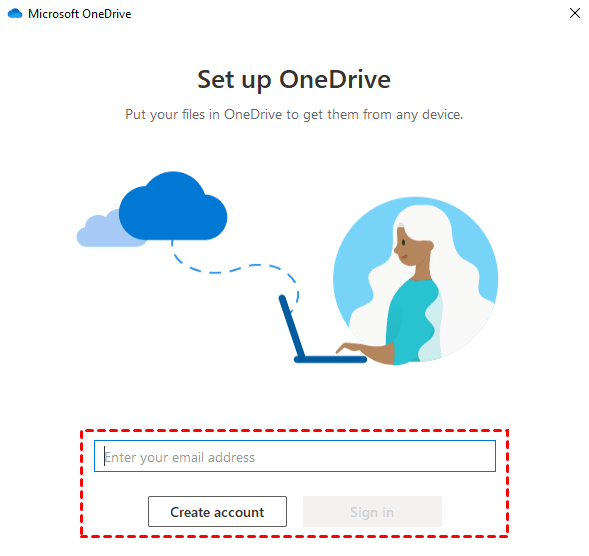
Step 1. If you already have a Microsoft account, you can directly launch and sign in to the desktop app, but if you don't have one, you can sign up for an account on the official website.
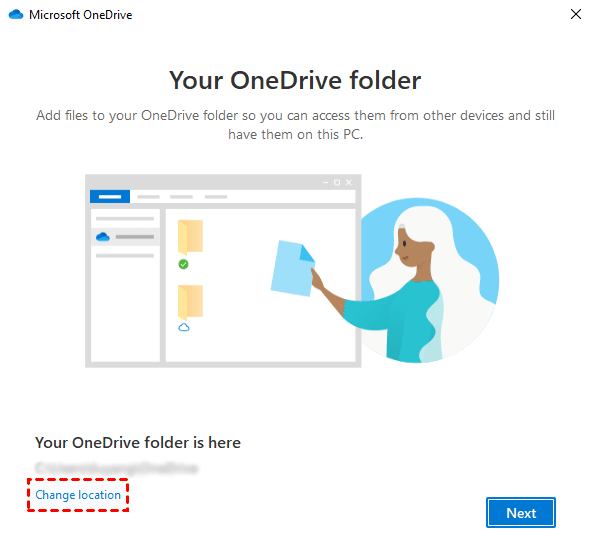
Step 2. On the "Your OneDrive folder" window, you can view the default location of OneDrive and change it if necessary.
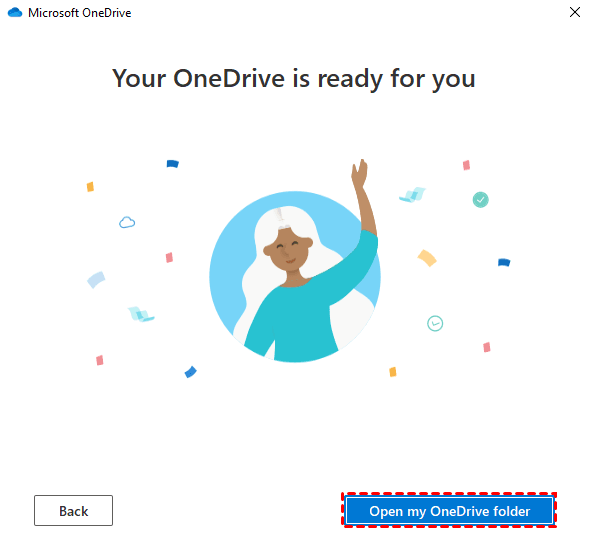
On the "Your OneDrive is ready for you" window, click "Open my OneDrive folder" to access it directly.
Step 3. To access the OneDrive settings, click on the OneDrive icon in the taskbar, then select "Help & Settings," followed by "Settings" and "Account," and finally "Choose folders."
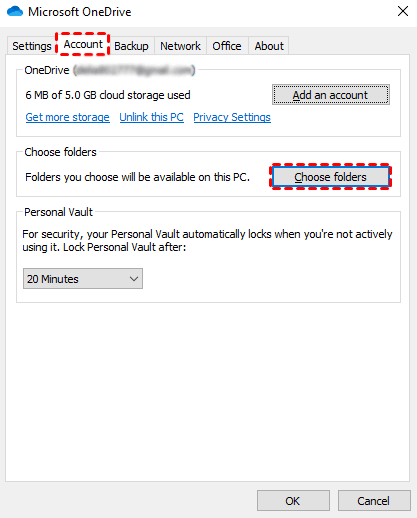
Step 4. Here you can check or uncheck the boxes in front of the folders to specify what you want to be available in your OneDrive folder. If you want to sync all these OneDrive folders to your computer, just select Make all files available.
To auto sync local folders to OneDrive, go to Help & Settings, then Settings, Backup, and Manage Backup, where you can make your choice.
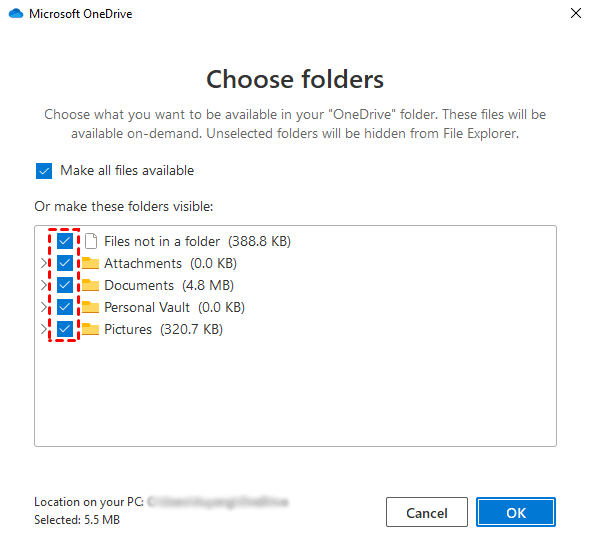
You've successfully synced OneDrive to your computer, a straightforward process. Note that this is just the beginning, and there's more to explore and learn about OneDrive's capabilities.
The OneDrive folder can't be counted as an extra copy of your OneDrive data, as it doesn't occupy computer space and can't be used offline unless you choose "Always keep on this device". If there's an accident resulting in cloud data loss, the OneDrive folder will also be affected, and vice versa. If you delete or modify files in the OneDrive folder, the changes will be synchronized to the cloud drive.
With the OneDrive desktop app, you can automatically sync only the Desktop, Documents and Pictures folders to OneDrive, while other folders must be manually dragged to the OneDrive folder.
The app only works between OneDrive and computers, limiting its use if you have multiple cloud drives or storage devices, making a third-party tool with flexible file sync plans more suitable for managing multiple storage devices.
Sync OneDrive files to PC flexibly via free software
Qiling Disk Master Standard is a backup and sync program for Windows computers that can sync files between OneDrive, external hard drives, USB drives, cloud drives, NAS, and other devices.
You can set up multiple sync tasks at the same time to organize your data and create different schedules to run them automatically. With the Professional edition, you can sync any changes in real-time or between two locations mutually.
Here's an example to sync OneDrive to computer in Windows 10:
Step 1. Launch the free file sync software, click the Backup tab page and select File Sync.

Step 2. Click Folder, locate the OneDrive folder on your computer and select the folder you want to sync. You can repeat this process to add multiple folders.
☛In the Pro edition, you can click the funnel icon on the right side of the select box to include or exclude files with specific formats to sync.

Step 3. Choose anywhere on your computer as target directory. Other destinations like removable devices or cloud drives are also available.
☛Network location: To share a folder on your computer, click on the Start button, then select File Explorer. In the File Explorer window, click on the "This PC" icon on the left side, then click on the "Computer" or "This PC" button on the top left corner.
☛Another cloud drive: To select a cloud drive, click on the triangle icon located beside the "Select" box and choose the desired cloud drive from the dropdown list. This will allow you to access and use the files stored in that cloud drive.
Step 4. You can either proceed with the task right away or set up a recurring schedule to run it at a specified interval, such as daily, weekly, or monthly.
☛In the Pro edition, you can also set the schedule as an event trigger or USB plug-in.

✎Tips:
- To sync local files to OneDrive, simply select the source and target directories accordingly, allowing for auto syncing of any files, not just limited to the Desktop, Documents, and Pictures folder.
- To create a backup of OneDrive data, you can select the "Backup" option and choose "File Backup" to create an image file that takes up less storage space, but can't be used directly.
✎Advanced Sync Modes:
In addition to scheduled automatic sync, you can choose 3 more modes in advanced editions. To explain them clearly, let's assume the source directory as A and the destination folder as B.
◆ File Sync synchronizes changed files from source A to destination B in real-time, eliminating the need for scheduled tasks, and running automatically when changes are detected in source A.
◆ File Sync: Always keeps files in B identical to A, erasing any changes made to B at next sync, requiring a scheduled automatic run.
◆ File sync allows for automatic synchronization of changes made to files on one side to the other side, requiring a scheduled run to ensure consistency between A and B.
Verdict
Syncing OneDrive to your computer allows for easy and quick access to updated cloud files, while syncing a local folder to OneDrive is crucial to prevent data loss from system or hard drive failures.
OneDrive has limitations in syncing files between itself and computers or other cloud drives and removable devices, making Qiling Disk Master Standard a more effective and flexible solution for arranging file sync.
This software offers sync, backup, and clone features, allowing you to backup your PC to various destinations, transfer your OS to another hard drive, and even backup important files to your Qiling Cloud account, if you have one.
Related Articles
- How to Sync OneDrive in Windows 10 Automatically?
OneDrive auto sync is convenient. However, you may get stuck with OneDrive not syncing problem. You can find another easier way to sync Windows 10 to OneDrive. - How to Automatically Sync Windows Server with OneDrive?
Learn how to Automatically Sync Windows Server with OneDrive with clear steps, key checks, and practical tips. - Automatically Sync OneDrive to External Hard Drive in Windows 10/8/7
Discover effective techniques to backup and sync OneDrive to an external hard drive across various Windows 11, 10, 8, and 7. This post provides comprehensive instructions and insights into the process. Whether you're new to backup procedures or seeking advanced methods, this guide has you covered. - How to Sync Any Local Folders to OneDrive Efficiently?
OneDrive is free online storage that comes with your Microsoft account. Learn how to sync local folders to OneDrive easily from this page. - Synology Replication between Two NAS (2 Ways Included)
For data security and transmission, you may need to do Synology replication between two NAS. Two ways are shown in the article to help you complete this task. - The Directory Name Is Invalid in Windows 7/8/10 – Fixed
In this article, you are going to learn what "the directory name is invalid" error is and how to fix it accordingly. Details are below.
Products
Articles & Tutorials
- Data Recovery
- Data Backup
- File Recovery
- File Backup
- File synchronize
- System Backup and Restore
- Disk and Partition Clone
- Technical articles
- Disk Master Help
- Windows Deleted File and Disk Recovery Tutorials
- Windows File and Data Recovery Tutorials
- More Windows Tutorials for Install, Security, Files, and PC Tips
- Windows Boot, Repair, and Recovery Environment Tutorials
- Windows Backup Tutorials
- Windows Restore Tutorials
- Windows Clone and Migration Tutorials
- Windows Server Backup, Recovery, and Management Tutorials
- Windows Disk, Partition, and Storage Management Tutorials