Backup Hard Drives to Cloud - How to Make It Easily
Why backup hard drives to cloud?
Backup is a basic data recovery solution for individuals and companies, involving storing personal or work files, or even entire operating systems, on various media such as USB drives, hard drives, and personal cloud drives.
Users may want to backup their hard drives to the cloud due to various reasons. One possible explanation is that cloud backup provides a secure and reliable way to protect their data from hardware failures, natural disasters, or other unforeseen events that could result in data loss.
- Access on different devices. After backing up your files to the cloud, you can access them from anywhere, on any device, including your laptop, tablet, or phone, using your cloud account.
- Survive from hard disk crash. Cloud backup provides a safer alternative to external hard drive backup, as cloud services are less prone to physical damage and data loss.
- Set up 3-2-1 backup ruleIt's a well-known backup strategy that involves keeping three copies of data, with two stored locally and one saved remotely.
To save data from a hard drive to the cloud, you can use cloud backup services like Google Drive, Dropbox, or OneDrive. You can connect your hard drive to a computer, select the files you want to backup, and upload them to your cloud account.
How to backup a hard drive to cloud in Windows 11/10/8/7
To backup an external hard drive, start by selecting a cloud service that meets your needs, such as Microsoft OneDrive. Next, download and install the desktop app for the service on your computer. For example, to use OneDrive, download and install the OneDrive desktop app. Then, you can use one of two efficient methods to backup your external hard drive to OneDrive, which will be described in the following steps.
- Way 1: Backup an external hard drive to cloud with OneDrive
- Way 2: Sync an external hard drive to cloud via a handy freeware
✐ Note:
If you prefer using Google Drive or Dropbox over OneDrive, you can find tutorials on how to do so by visiting the following resources.
Backup external hard drive to Google Drive >>
Backup external hard drive to Dropbox >>
Way 1: Backup an external hard drive to cloud with OneDrive
1. Connect the external hard drive to your computer.
2. To access OneDrive, tap the Search button on the taskbar and type "onedrive" in the search box, then click the top result and sign in with your Microsoft account.
3. After confirming the location of the OneDrive folder, click the Next button.
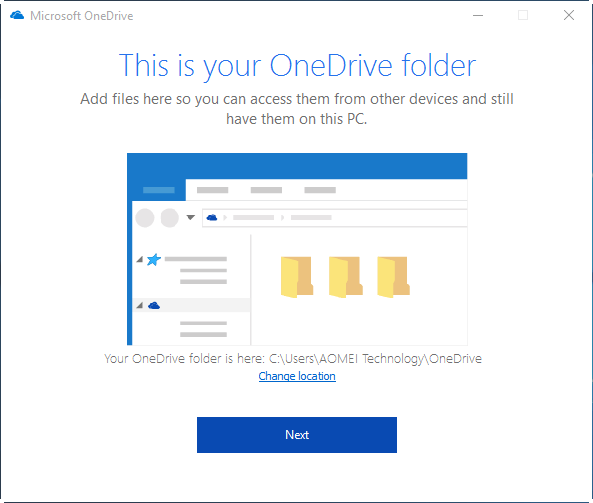
Note: If the OneDrive folder already exists, it's safer to use the "Change location" option to set up OneDrive in another folder path to prevent file sync problems.
4. Click the Open my OneDrive folder button.
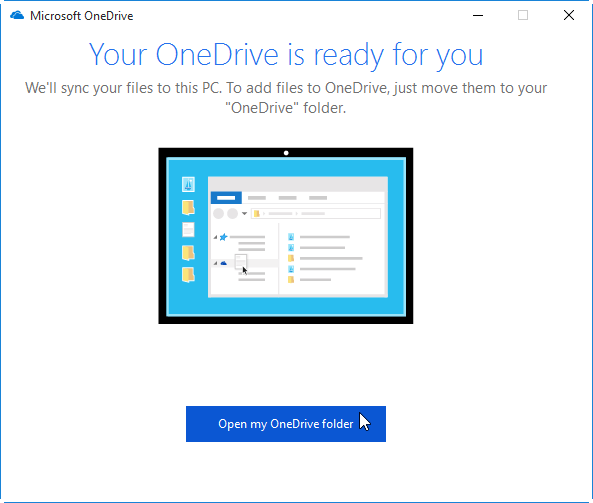
5. To sync files from an external drive to OneDrive, drag and drop or copy and paste the files/folders from the external drive into the OneDrive folder, and the client will automatically sync them in the background.
6. Safely disconnect your external hard drive.
Way 2: Sync an external hard drive to cloud via a handy freeware
You can use software like Duplicati or Allway Sync to backup your external hard drive to cloud. These programs allow you to select the entire drive as the source, and the cloud storage as the destination, making the process much faster and more efficient. You can also schedule the backup process to run automatically at a specified time, making it a hands-off process.
Qiling Disk Master Standard, a top-rated free backup software, can help. It offers File Backup and Sync features, allowing easy backup of external hard drives to cloud drives. The main difference between File Backup and Sync is that Sync doesn't generate an image file, making it possible to access synced files without the need for a restore process.
All Windows PC operating systems, including Windows 11, 10, 8.1, 8, 7, Vista, and XP, are supported, and you can download and install Qiling Disk Master on your PC immediately.
How to sync files on an external drive to cloud via Qiling Disk Master
1. Connect your external hard drive to your computer, then open Qiling Disk Master and navigate to the "Backup and recovery" page, where you can select the "File Sync" option.

Tip: To enjoy more advanced sync modes like File Sync, you may upgrade to Qiling Disk Master Professional.
2. To rename the task and select the folder(s) for synchronization, click on the "Folder" option to choose the desired folder(s) from the external drive.

Tip: You can choose the entire drive as the source location, but you'll be prompted to use the "Partition Backup" feature for faster results.
3. Click the inverted triangle at the right edge of the second bar and select "Select a cloud drive".

4. Once you've confirmed the source and destination path, click "Proceed" to initiate the sync process. Once the process is complete, safely disconnect your external hard drive, and the OneDrive desktop app will automatically synchronize the files to your account.
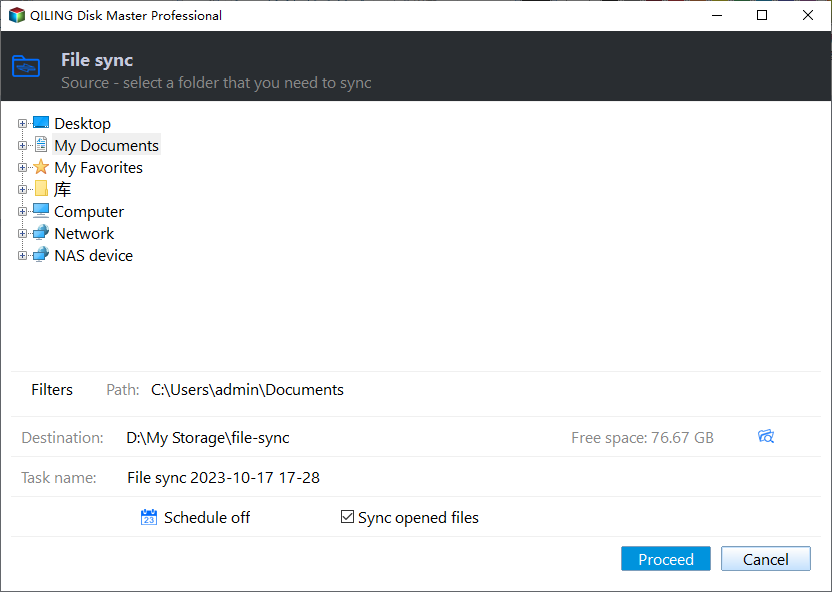
>> Options: You can add a comment to your sync task to describe the specific sync contents and enable email notification to receive updates.
>> Schedule: The sync task can be set to run periodically in five modes: Daily, Weekly, Monthly, Event triggers, and USB plug in.
To sum up
To backup hard drives to cloud, you can use cloud backup services' software or powerful third-party software like Qiling Disk Master, which also offers a clone feature to clone SSD to another SSD.
Related Articles
- How to Sync Any Local Folders to OneDrive Efficiently?
- How to Sync External Hard Drive Files and Folders to Cloud Storage?
- Best Free Way to Backup PC to Cloud in Windows 10/8/7
- Computer Imaging: Image A Computer with Step-by-Step Guide
Learn the key steps, checks, and practical tips for this related guide. - How to Do a System Restore on Acer Laptop (Windows 7/8/10)?
Learn how to Do a System Restore on Acer Laptop (Windows 7/8/10) with clear steps, key checks, and practical tips. - Get System State Backup of Windows 2012 R2 Domain Controller
You will learn how to create a system state backup and system backup of Windows Server 2012 R2 domain controller. The detailed steps are in each method.
Products
Articles & Tutorials
- Data Recovery
- Data Backup
- File Recovery
- File Backup
- File synchronize
- System Backup and Restore
- Disk and Partition Clone
- Technical articles
- Disk Master Help
- Windows Deleted File and Disk Recovery Tutorials
- Windows File and Data Recovery Tutorials
- More Windows Tutorials for Install, Security, Files, and PC Tips
- Windows Boot, Repair, and Recovery Environment Tutorials
- Windows Backup Tutorials
- Windows Restore Tutorials
- Windows Clone and Migration Tutorials
- Windows Server Backup, Recovery, and Management Tutorials
- Windows Disk, Partition, and Storage Management Tutorials