Create System State Backup for Windows 2012 R2 Domain Controller
Overview of system state backup domain controller
Active Directory is backed up as part of the system state, a collection of interdependent system components, so you need to back up and restore system state components together. On a domain controller, the system state backup includes the following files:
- Boot files, including system files and all files protected by Windows File Protection (WFP), are a collection of essential files that are loaded into memory when a computer starts up. These files, which are typically stored in the root directory of the system drive, are critical to the operation of the Windows operating system and are responsible for booting the system, loading device drivers, and initializing system services.
- Active Directory
- Windows registry
- Sysvol
- Class registration database of Component Services
A Windows 2012 R2 domain controller is a critical component of a Windows domain, responsible for authenticating users and managing access to network resources. It handles security authentication requests, such as logging in and checking permissions, within the domain. The loss of a domain controller can cause a denial of service, disrupting normal network operations. Therefore, it's essential to create a system state backup of the Windows 2012 R2 domain controller when it's functioning properly.
Besides, there is another complete backup - system backup, which backs up all the data on the system drive, including the operating system, system settings, boot files, installed programs, personal data, etc. To protect system safety, it will be a better choice. And I'll introduce you both ways in the following.
Create system state backup for Windows 2012 R2 domain controller
Windows Server 2012 R2 comes with a built-in backup software called Windows Server Backup, which allows you to back up a full server, selected volumes, system state, specific files or folders, and even perform a bare metal backup. This makes it a convenient option for backing up a domain controller, and the process can be initiated with the following steps.
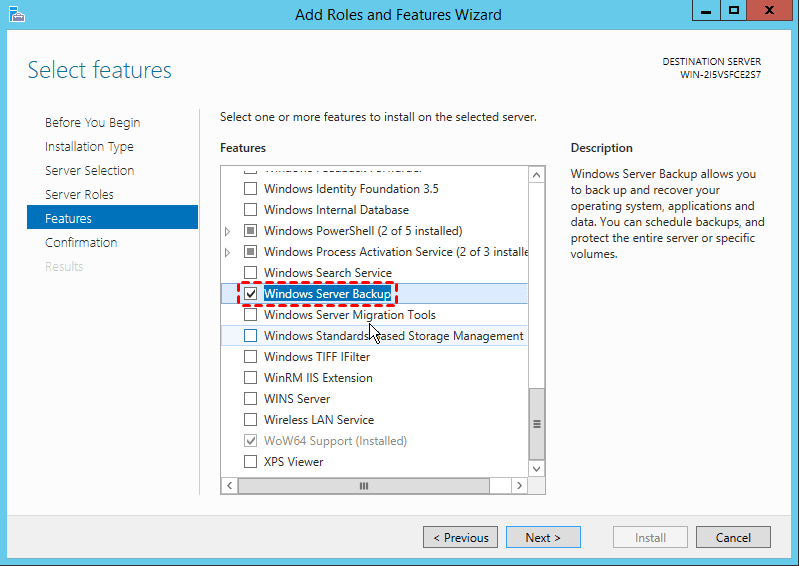
Step 1. Open Server Manager and install Windows Server Backup from administrative tools.
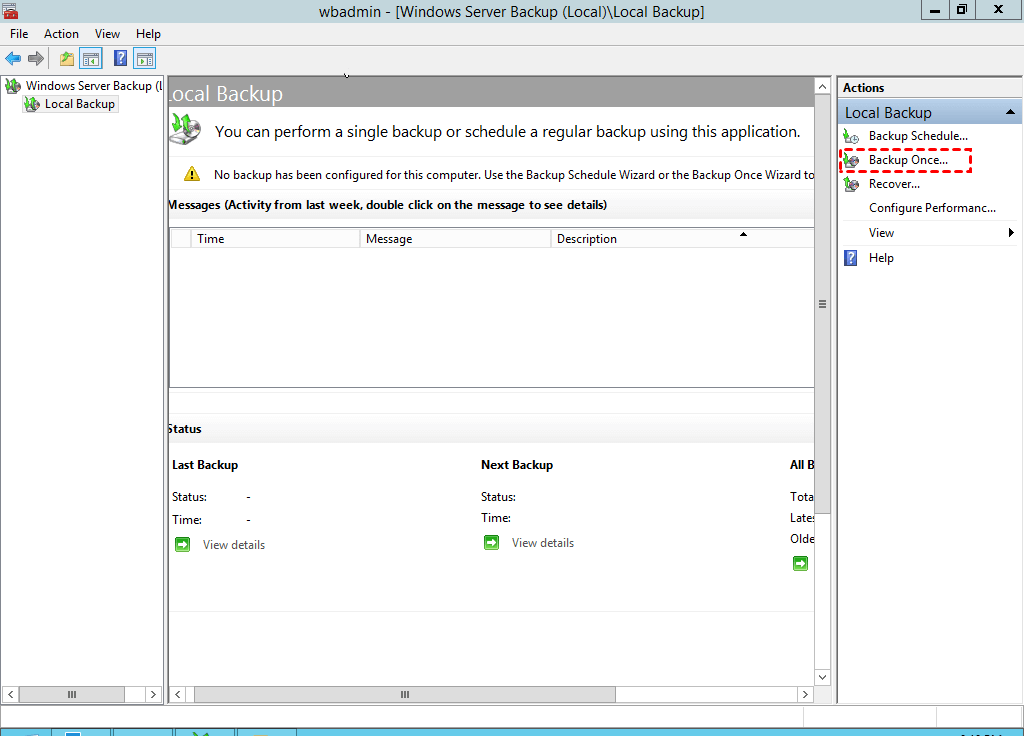
Step 2. After installing, open Windows Server Backup and click Backup Once. To schedule backup Windows Server 2012, click Backup Schedule.
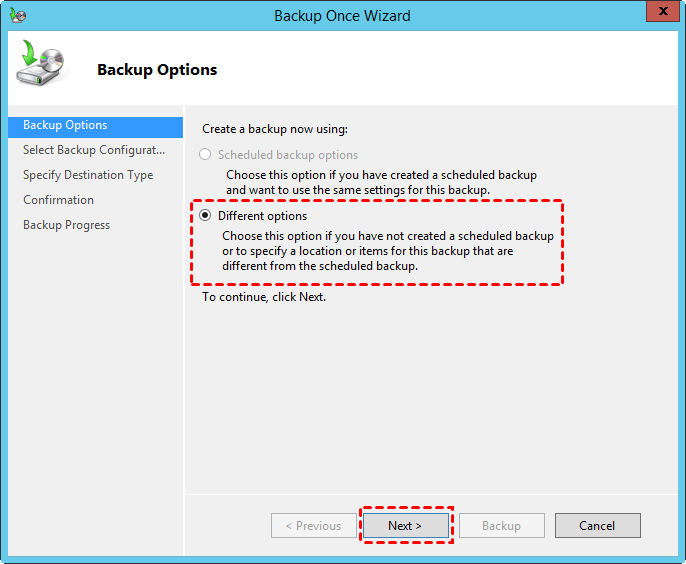
Step 3. Choose Different options and click Next.
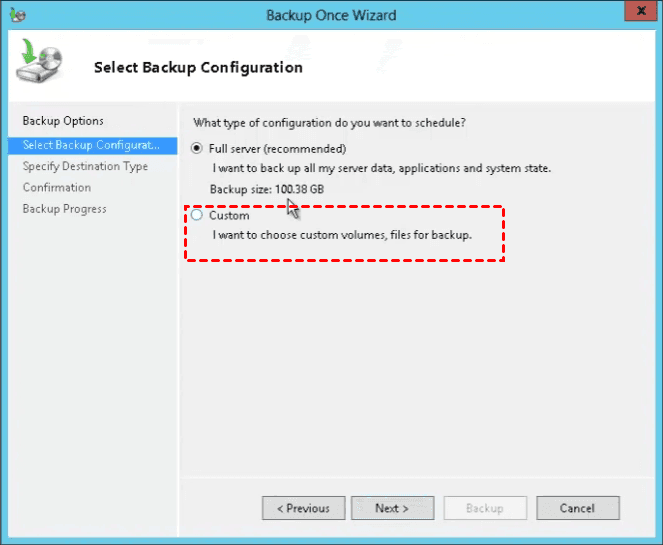
Step 4. In Windows Server 2012 R2, to create a system state backup, choose Custom and only select the system state, or choose a full server backup that includes the system state.
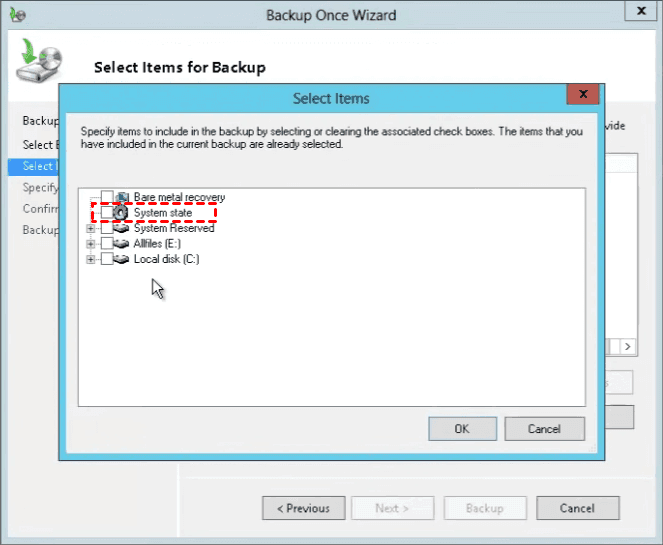
Step 5. Click Add Items and select System State. Then, press OK.
- ★Tip:
- If you want to restore an old server to a new server or in case of a system crash, it's recommended to also enable Bare metal recovery.
Step 6. Verify the included data in this backup and click Next to continue.
Step 7. Select one of destination type, either Local drives or Remote shared folder. Then click Next.
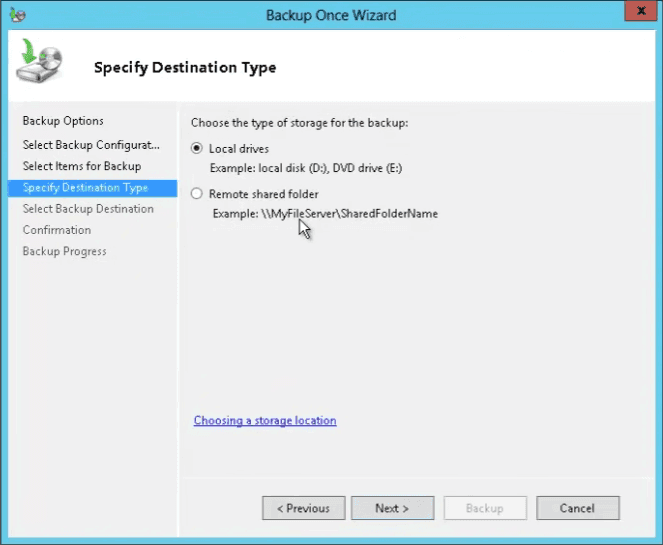
Step 8. Select the destination drive and click Next. Afterward, click Backup on the Confirmation console and close it finally.
To address the issue of automatic backups of Windows Server 2012 R2 on a domain controller without occupying much space, it's worth noting that Windows Server Backup only allows system state backups to be scheduled daily or more frequently, not weekly or monthly. This limitation may be a concern for users who want to maintain a history of system state backups without consuming excessive storage space.
Well then, is there any easier way to backup server 2012 R2 weekly or monthly? The answer is yes, you could try third-party server backup software to do so. And I'll introduce you one such software in the next part.
Create system backup for Windows 2012 R2 domain controller weekly
Qiling Disk Master Server is a professional backup and restore software that can schedule system backups for Windows Server 2012 R2 domain controllers and other server operating systems, including Windows Server 2003, 2008, 2012, 2016, 2019, 2022 (with R2), SBS 2003, 2008, 2011, and Windows PCs, offering advantages such as.
- Complete backup solutions: It supports backing up system, disk, partition and files.
- Flexible backup settings: The backup system can be set to run daily, weekly, or monthly, or triggered by specific events, and also allows for automatic file copying when a USB drive is connected, eliminating the need for constant external drive connection.
- Practical backup methods: The tool supports full, incremental, and differential backup, with the latter two options only backing up changed files since the last full backup.
- Effective cleanup methods: It enables the deletion of old backup images, particularly useful for system and disk backups, which can consume a lot of space.
Here are the detailed steps to use the software: Download the Qiling Disk Master Server software, and then use its technician or techplus edition to create a system image on unlimited PCs or servers.
Step 1. Launch Qiling Disk Master, then select Backup and System Backup.

Step 3. Edit the task name to make it distinct from others. Select a destination path, such as E:\, as all required system partitions are selected by default.

Step 4. To schedule a backup, click on Schedule Backup, enable it, and select the desired frequency, such as Weekly, Monthly, Event trigger, or USB plug in.
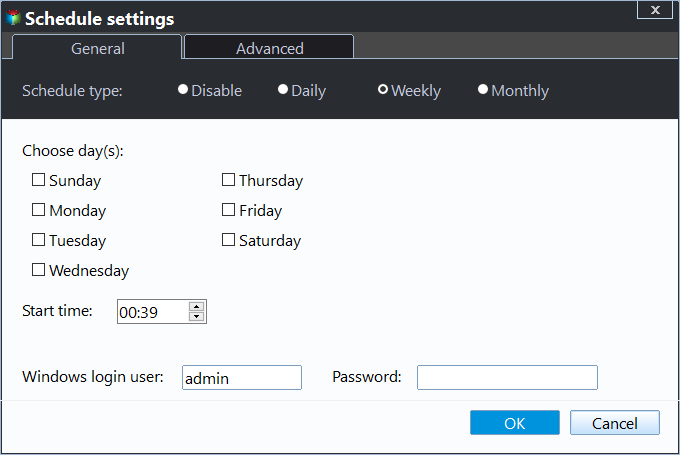
Step 5. Confirm the backup task and click Proceed to create a system image in Windows Server 2012 R2 on a domain controller.
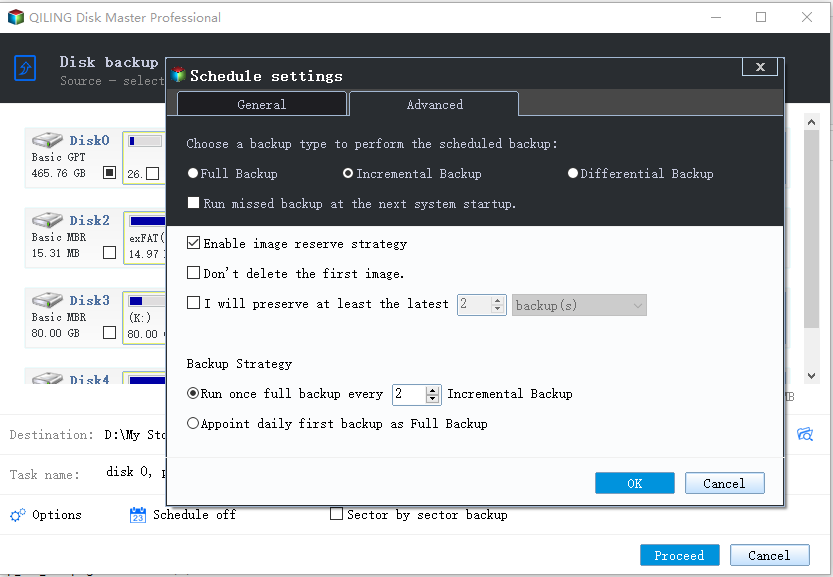
The schedule backup helps prevent data loss due to disasters by keeping all changes, but it can lead to a backup disk full issue due to limited space and increasing backups over time.
To alleviate disk space issues and data loss, you can use compression, splitting, and intelligent sector backup in the Options, and also delete old backup images directly using a cleanup method in the Backup Scheme. This way, you can manage your backups effectively without worrying about running out of disk space or losing your data.
Summary
In Windows Server 2012 R2, system state backups can be created using Windows Server Backup, but this only works if the issue is related to system files or settings. If the problem is more severe and the server is not bootable, a clean install of Windows Server 2012 R2 from scratch is the only viable option.
Creating a system backup is suggested to achieve the same effect, offering flexible backup settings and different backup and cleanup methods. The backup process in Qiling Disk Master Server runs in the background, allowing you to work uninterrupted.
To protect your system and precious data, use Qiling Disk Master Server.
Related Articles
- How to Image Windows Server 2012 (R2) to New Hard Drive
Learn how to Image Windows Server 2012 (R2) to New Hard Drive with clear steps, key checks, and practical tips. - Use WBAdmin Start Systemstatebackup Command for System Protection
You can easily protect your system with Wbadmin start systemstatebackup command as well as other 2 alternatives. Learn more below. - [Solved] Windows Server Backup 2012 (R2) Not Showing
If you are experiencing the Windows Server Backup 2012 not showing error, please continue to read this article and learn how to fix them easily and quickly. - How to Merge Images to Release Disk Space on Qiling backup Personal Edition
Manage backup image retention, merge image files, and release disk space while keeping useful recovery points available. - Can I Still Use Windows 7 After 2020 and Get Security Updates?
This guide explains Can I Still Use Windows 7 After 2020 and Get Security Updates with clear steps, key checks, and practical tips. - How to Clone Windows 7 to Multiple Computers Simultaneously?
You will learn how to easily clone Windows 7 to multiple computers with all-in-one backup software. Also, it is able to clone Windows 7 to new computer.
Products
Articles & Tutorials
- Data Recovery
- Data Backup
- File Recovery
- File Backup
- File synchronize
- System Backup and Restore
- Disk and Partition Clone
- Technical articles
- Disk Master Help
- Windows Deleted File and Disk Recovery Tutorials
- Windows File and Data Recovery Tutorials
- More Windows Tutorials for Install, Security, Files, and PC Tips
- Windows Boot, Repair, and Recovery Environment Tutorials
- Windows Backup Tutorials
- Windows Restore Tutorials
- Windows Clone and Migration Tutorials
- Windows Server Backup, Recovery, and Management Tutorials
- Windows Disk, Partition, and Storage Management Tutorials