[Solved] Windows Server Backup 2012 Not Showing
Windows Server Backup in 2012 not showing in tools
The Windows Server Backup feature might not be visible in the Server Manager or Administrative Tools due to a configuration issue or a permissions problem. Try checking the Windows Features or Programs and Features to see if the Windows Server Backup feature is listed and enabled. If not, add it and see if it becomes visible. Additionally, ensure that the Windows Server Backup service is running and set to start automatically. If the issue persists, consider reinstalling the feature or consulting Microsoft documentation for troubleshooting steps.
Windows Server Backup 2012 is not showing, and the wbadmin.msc is also missing, a problem that affects many users across various Windows Server versions, including 2008, 2012 R2, 2016, 2019, and 2022. This issue can be frustrating, and users may wonder why it's happening and how to resolve it. If you're experiencing this problem, reading further will provide you with the necessary information to understand the cause and find a solution.
Why Windows Server Backup 2012 missing?
Windows Server Backup 2012 may be missing due to two common reasons. You can check these reasons by looking into the following.
1. Windows Server Backup is not installed by default, so you'll need to install it manually from Server Manager.
2. Windows Server Backup service is missing. If Windows Server Backup isn't showing up, it's probably because the Windows Server Backup service wasn't installed during the initial setup.
How to fix Windows Server Backup 2012 not showing
To fix Windows Server backup 2012 not showing error, you can either check the backup configuration and ensure that the backup files are being stored in a valid location, or you can check the event logs to see if there are any errors or warnings related to the backup process. If you're still experiencing issues, you can try running the backup configuration wizard to re-configure the backup settings.
- If you haven't installed Windows Server Backup, please install it manually through Server Manager.
- If Windows Server Backup is installed but not showing, uninstall it and then install the Windows Server Backup service - Network Load Balancing (NLB) first.
To perform Windows Server Backup and Network Load Balancing (NLB) installation, you can use Server Manager or PowerShell.
Way 1: Install Windows Server Backup manually through Server Manager
Step 1. To add roles and features to your server, open Server Manager, click on it in the taskbar, and then navigate to "Manage" in the right menu, followed by "Add roles and features".
Step 2. In the Add Roles and Features Wizard, select the installation type, server, and roles, then in the Features tab, check Windows Server Backup and click Next.
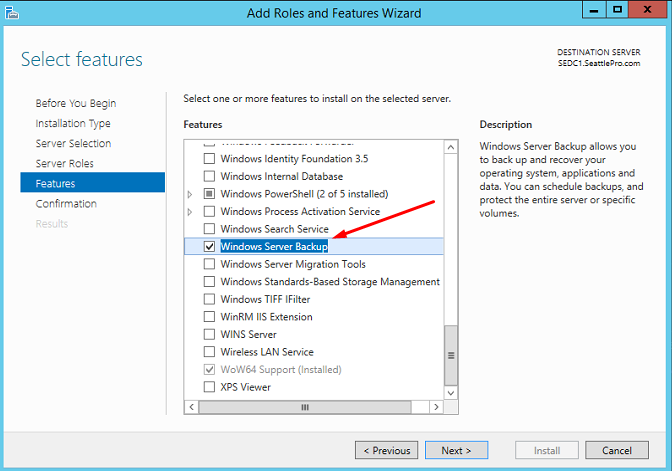
Step 3. Click on "Yes" and "Install" to start installing Windows Server Backup.
Windows Server Backup can be installed in the background, allowing you to continue with other tasks while it installs. You can check if the installation is complete by looking at the Notifications Center icon.
Way 2. Install Windows Server Backup service via Server Manager
To install the Windows Server Backup service and Network Load Balancing (NLB) on a Windows server, you need to remove Windows Server Backup first, then install both features in the Server Manager.
Step 1. In the Server Manager, select Manage and Remove Roles and Features.
Step 2. To remove Windows Server Backup, go to the Remove Roles and Features Wizard, click Next until you see the Features tab, uncheck Windows Server Backup, and click Remove.
Step 3. Wait for the installation process to complete.
Step 4. After removing Windows Server Backup, open the Add Roles and Features Wizard, and then check both Windows Server Backup and Network Load Balancing in the Features tab.
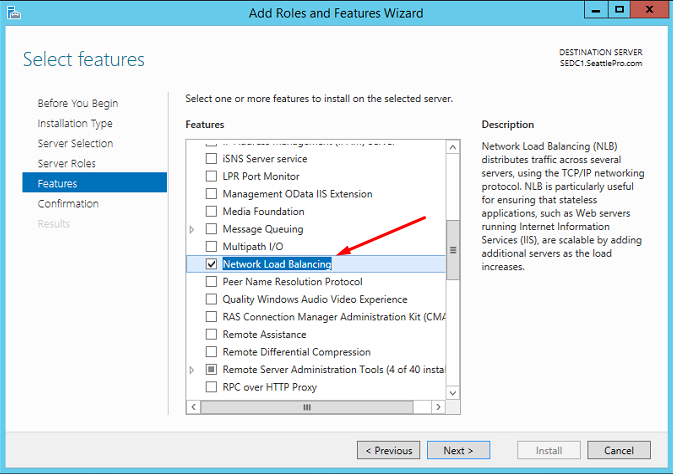
Step 5. Click Next and Install to start the installation process.
Way 3: Install Windows Server Backup and Service using Powershell
Step 1. Search powershell in the Start menu and select Run as administrator.
Step 2. In the Windows Powershell window, type the following commands and hit Enter to run.
- Uninstall-WindowsFeature Windows-Server-Backup -Remove
- Install-WindowsFeature NLB
- Install-WindowsFeature Windows-Server-Backup
Step 3. Exit the powershell and run Windows Server Backup.
Windows Server Backup limitations
After fixing the Windows Server Backup 2012 missing issue, you can create various types of backups, including system state, bare metal, full, selected storage volumes, and specific files and folders. However, there are limitations to consider.
- Windows Server Backup only backs up volumes formatted with NTFS.
- Windows Server Backup only files or folders in volumes.
- Windows Server Backup does not shrink volumes to less than 1/8 of their original size.
- In the recovery environment, you can only perform full backup or bare metal backup recovery, which necessitates an installation disc or Windows Server 2012 recovery disk.
- The operating steps is quite complicated.
If you're in a situation where you need to back up your Windows Server 2012, it's recommended to use Qiling Disk Master Server, which makes the backup and restore process much easier.
Easier Way to create a system image backup in Windows Server 2012
Qiling Disk Master Server is a great backup and restore software that supports Windows Server (including R2 versions) from 2012 to 2022, as well as Windows 11, 10, 8, 7, XP, and Vista.
★ Backup types: Qiling Disk Master offers users various backup options, including system backup, disk backup, partition backup, file backup, and cloud backup, allowing them to easily backup individual files, server systems, entire servers, or selected volumes in a few simple steps.
★ Backup schedule: Windows Server Backup allows you to set multiple schedules for backups, including daily, weekly, and monthly backups, as well as event triggers and automatic backups when a USB drive is plugged in.
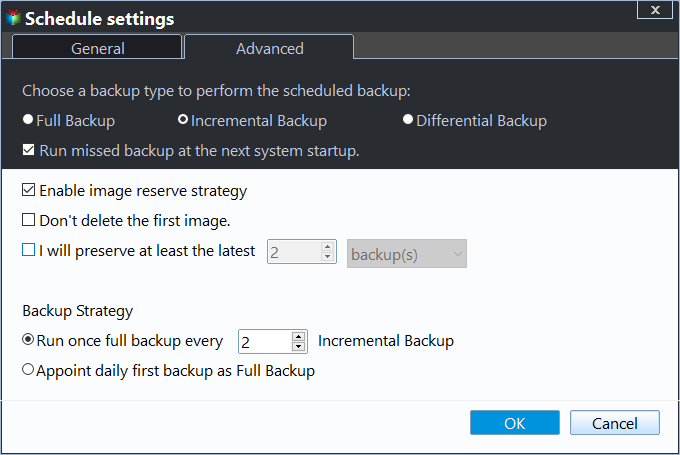
★ Backup scheme: This tool offers three backup methods: full, incremental, and differential backups, allowing you to choose how to save your files. It also provides three cleanup methods: By quantity, By time, and By daily/weekly/monthly, enabling you to automatically delete old backups and free up space. This way, you can either backup only the changed files or create an exact copy.
This software allows creating a recovery disk in Windows Server 2012, enabling system image or disk image restoration to a new hard drive, and even system restoration to a new server with dissimilar hardware. You can download it to try.
Step 1. Open this backup software, click "Backup" in the left pane and then select "System Backup" in the right panel.

Tip: To backup the entire server, select "Disk Backup" instead.
Step 2. In this screen, all necessary partitions for system restore are automatically selected. You just need to specify a destination location to store your backup image, which can be an external hard drive, network location, cloud drive, or other locations.

Step 3. Confirm the backup operation and click "Proceed" to create a system image backup in Windows Server 2012.

★If you want to make the backup task automatic and smart, you can set some helpful backup settings.
Options: To make a task stand out, you can add a comment to distinguish it from others. Additionally, you can add a password to prevent unwanted access. Furthermore, enabling email notification for a backup task ensures you receive updates and can keep track of its progress.
Schedule Backup: You can schedule system backups at various frequencies, including daily, weekly, or even hourly intervals. Additionally, you can still run scheduled tasks during off-peak hours, even if the computer is in sleep or hibernate mode.
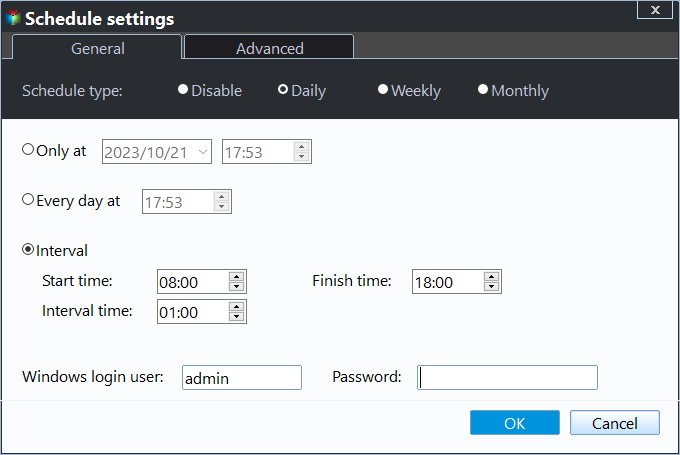
Backup Scheme: The backup method is incremental by default, but can be changed to differential for time and space saving. The cleanup method can also be set, such as keeping the latest 1 sets of backups, which would delete the first set when the 2nd set is created.
★ More advanced way to backup Windows Server
For Windows Server 2022/2019/2016/2012, etc, a specialized onekey recovery software like Qiling OneKey Recovery is a key system backup & recovery solution. It allows you to create a custom recovery partition and system image backup, and you can launch the system restore process by pressing "F11" or "A" during startup (Legacy boot) or choosing "Qiling Disk Master" in the boot menu (UEFI boot).

Conclusion
Windows Server Backup 2012 not showing occurs in 2 situations: either it's not installed or the Network Load Balancing (NLB) feature is missing. To resolve this, install Windows Server Backup and the NLB feature, and you'll be able to backup your Windows Server 2012 image and perform a restore if needed.
If you don't want to restore a full backup or perform a bare metal recovery from a recovery environment, consider using Qiling Disk Master Server, which offers a range of tools to create bootable media if your system is unbootable. For IT technicians, Qiling Disk Master Technician Plus may be a better option.
Related Articles
- Create Backups with Windows Server Backup Command Line
You will learn how to use Windows Server Backup command line with Wbadmin or third-party tool. Besides, you can use the GUI version of backup software if you want a simpler way. - Windows Server Backup Differential Backup Instead of Incremental Backup
Understand how Windows Server Backup differential backup works (although Microsoft calls it incremental backup) and get the methods to take differential or incremental backup in Server 2008, 2012, 2016, etc. - The Solution to Windows Server Backup Disk Full
Resolve Windows Server Backup disk full problems by managing old backups, storage space, and retention settings. - Windows Server Backup Retention Policy-Can It be Specified
You will learn the Windows Server backup retention policy precisely and how to delete old backups using Wbadmin and professional server backup software. - How to Create Disk Image Windows 10 for Free on Laptops & PCs
This article provides a step-by-step guide on how to create a disk image on Windows 10, using both the Qiling Disk Master software and the built-in Backup and Restore tool on Windows 11/10. - 2 Ways | How to Create System Image Windows 10 on External Hard Drive
Learn how to create a Windows 10 system image on an external hard drive with Backup and Restore or Qiling Disk Master.
Products
Articles & Tutorials
- Data Recovery
- Data Backup
- File Recovery
- File Backup
- File synchronize
- System Backup and Restore
- Disk and Partition Clone
- Technical articles
- Disk Master Help
- Windows Deleted File and Disk Recovery Tutorials
- Windows File and Data Recovery Tutorials
- More Windows Tutorials for Install, Security, Files, and PC Tips
- Windows Boot, Repair, and Recovery Environment Tutorials
- Windows Backup Tutorials
- Windows Restore Tutorials
- Windows Clone and Migration Tutorials
- Windows Server Backup, Recovery, and Management Tutorials
- Windows Disk, Partition, and Storage Management Tutorials