Can I Still Use Windows 7 After 2020? Of Course Yes
Content of this article:
- The Risk of Continue using of Windows 7
- Disable Windows 7 End of Support Notification
- Turn Off the Upgrade to the Latest Windows Version
- Get Windows 7 Extended Security Updates
- Get Windows 7 Extended Security Updates
- Backup Your Windows 7 Automatically to Block Any Risk
- Summary
The Risk of Continue using of Windows 7
Microsoft stopped providing free technical assistance and software updates for Windows 7 on January 14, 2020, and it's recommended to upgrade to Windows 10 for safety protection, although you can still use Windows 7.
With Windows 7 no longer supported, hackers can exploit unpatched flaws to install malware, such as ransomware or spyware, on your computer, potentially destroying your data or demanding ransom, with Microsoft unable to intervene.
All installed drivers and applications will continue to work as before, but some will eventually stop receiving updates, potentially putting your computer at risk if it's connected to the internet or uses a browser.
As Windows 7 no longer receives updates for antivirus and anti-malware software, your computer becomes more vulnerable to threats when connected to a network and using a web browser. To stay safe, you'll need to stick to using only programs that were already installed on your Windows 7 system, and even then, be cautious and scan any new files before using them.
Disable Windows 7 End of Support Notification
If you're running Windows 7 and installed the update KB4530734, you'll likely see a daily full-screen notification saying your PC is out of support. This is because the update includes EOSnotify.exe, which reminds you that Windows 7 has reached its end of life.
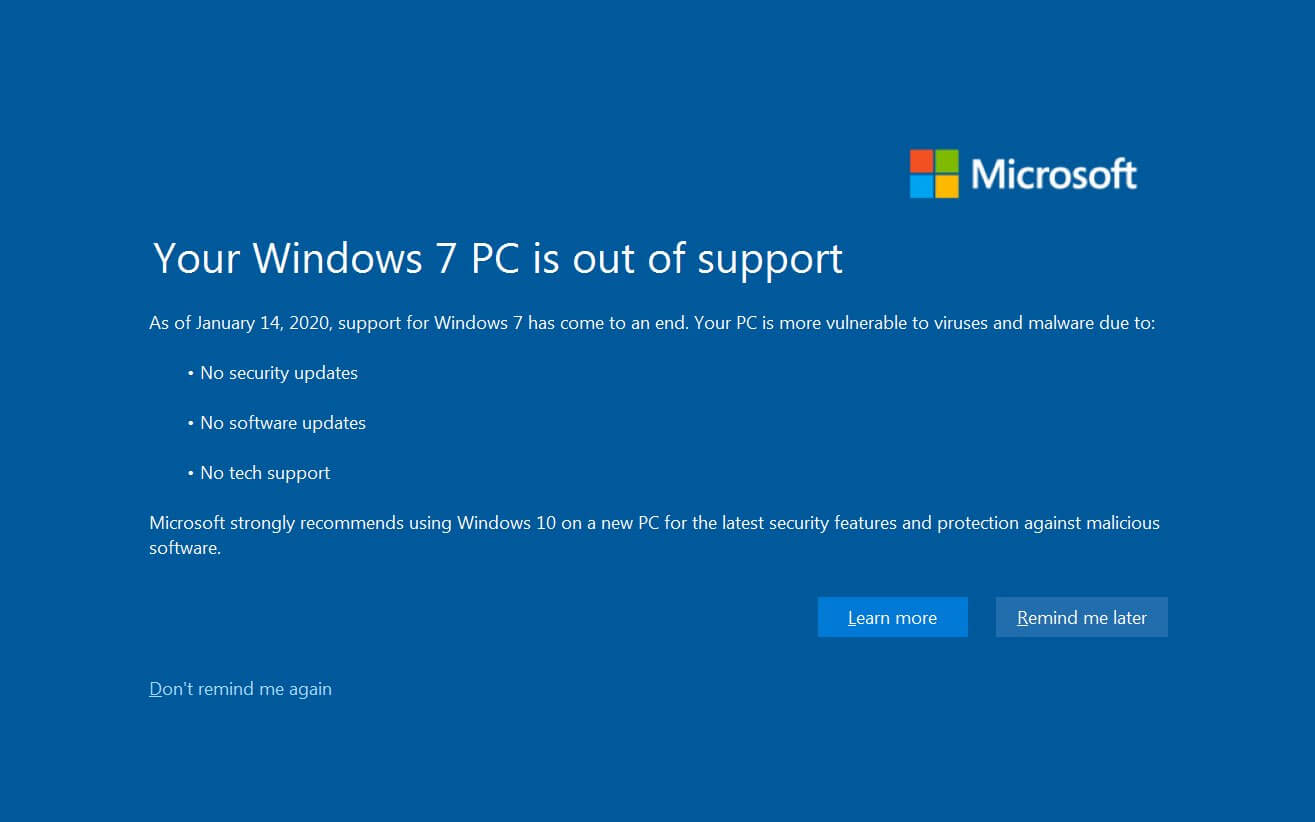
To avoid seeing the warning and continue using Windows 7, you can either click the "Don't remind me again" option, uninstall the Windows KB4530734 update, or disable the notice by editing the registry key.
1. Press Win+R Keys;
2. Type Regedit in the Run dialog and hit Enter;
3. Find the following path to set:
[HKEY_CURRENT_USER \ Software \ Microsoft \ Windows \ CurrentVersion \ EOSNotify]
4. Create a new 32-bit DWORD value named DiscontinueEOS and set its value to 1. Even if you're running 64-bit Windows, you can only create a 32-bit DWORD value. This will modify or create the necessary registry value.
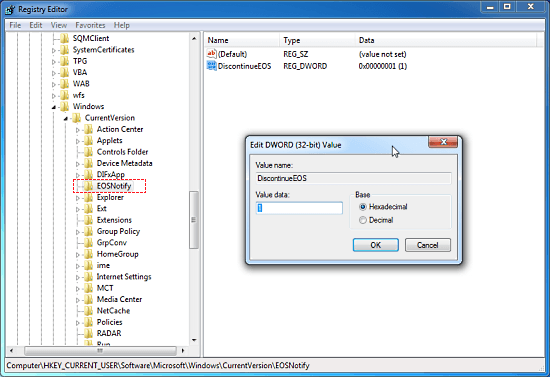
Windows 7 PCs are no longer receiving support warnings, and they will continue to function normally. However, if automatic updates are enabled, they will likely be updated to a newer version, potentially altering their functionality.
Turn Off the Upgrade to the Latest Windows Version
How to easily disable the auto-To prevent Windows from automatically updating to the latest version, you can disable the "Turn off the upgrade to the latest version of Windows through Windows Update" setting in the Group Policy. This will block any version upgrade on your PC. (Note: This setting might not be available in all Windows versions)
To disable and block Windows 10 upgrade, follow these steps: you can prevent Windows 10 upgrade by setting the "Do not display the notification" option to "Not Configured" and then set the "Enable or Disable Windows 10 Upgrade" option to "Disabled" in Group Policy Editor. Alternatively, you can disable Windows 10 upgrade by running the command "slmgr /xpr" in Command Prompt as an administrator, and then set the "Prevent the usage of Windows Update and Microsoft Update for the active software update service" option to "Enabled" in Local Group Policy Editor.
1. To edit group policy, type "group policy" in the search box and select the top result, which should be "Edit Group Policy".
2. To configure Windows Updates settings, go to Computer Configuration > Policies > Administrative Templates > Windows Updates.
3. To turn off the upgrade to the latest version of Windows through Windows Update, find the setting, double-click it and enable it.
With Windows 7's support ending, users can continue to use the operating system without any issues, but it's recommended to upgrade to a newer version to ensure they receive critical security updates, which are crucial for protecting their PC from potential threats.
Get Windows 7 Extended Security Updates
After January 14, 2020, it is not safe to run Windows 7 without Windows Extended Security Updates, which provide security updates for a limited time. If you don't have this, it's not safe to use. If you do have it, it's still not safe, but it's a bit safer.
Windows 7 users had the option to use it for another 3 years, but only if they paid for the Extended Security Update (ESU), which provided critical and important security updates until January 10, 2023.
Note: The Windows 7 Extended Security Update (ESU) is available for Windows 7 Professional and Enterprise Editions.
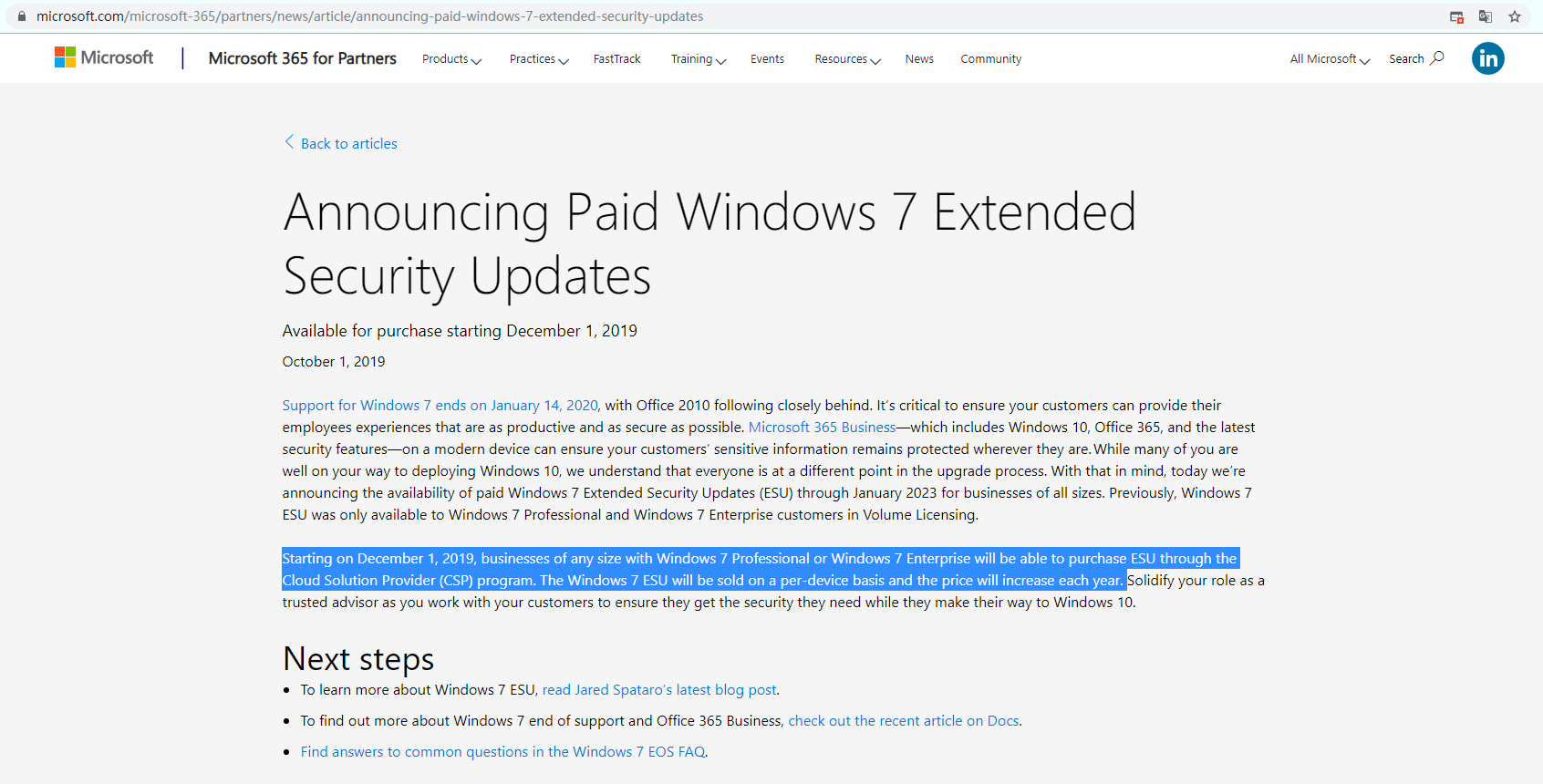
Microsoft offers a free Extended Security Update for Windows 7 through Windows Virtual Desktop, but only for security updates, and only until January 2023.
Microsoft is charging a significant amount for Windows 7 Extended Security Updates, which are only available for business users. The cost is increasing annually and is based on a per-device fee.
- For Windows 7 Enterprise, the cost will be $25 per device in the first year, $50 in the second year, and $100 in the third year.
- For Windows 7 Pro organizations, the cost will be $50 per device in the first year, increasing to $100 in the second year, and $200 in the third year.
Backup Your Windows 7 Automatically to Block Any Risk
Since the extended security update for Windows 7 only lasts for another 3 years, it's crucial to remain vigilant and not become complacent. While the update provides some security, it's not a 100% guarantee, so it's essential to take additional measures to protect your data. The best approach is to regularly back up your Windows 7 system and set up automatic backups to capture any changes, ensuring your data is safe even if the extended support period ends.
Qiling Disk Master Standard is a free backup software that can backup Windows 7 operating system and program files, important documents, and entire hard drives to various locations, including external hard drives, local drives, USB flash drives, CDs, DVDs, NAS, network shares, and cloud storage.
To ensure your data is extra secure, consider implementing a 3-2-1 backup strategy, which involves creating 3 copies of your files, saving 2 of them in different locations, and storing 1 offsite. This adds an extra layer of protection to your data.
This software allows you to create multiple backups by setting a daily, weekly, or monthly schedule, and it will only backup changes (with incremental backup) since the last backup, saving disk space.
To try Qiling Disk Master Standard, simply download the free backup software.
1. Run the Qiling Disk Master Standard after installing. Choose Backup and Disk Backup in order.

2. To transfer files from Windows 7 to an external drive or other devices, click the "Disks" button and select the destination.

3. To keep data and changes continuously, click Schedule Backup, enable it, select Daily, Weekly, or Monthly, set other backup settings if necessary, and click Proceed to backup Windows 7, which will run at the set time.

✦ Tips:
☂ Options: This tool offers various features, including commenting on backups, enabling encryption for backups (available only in the paid version), sending email notifications, compressing backups, splitting backup images, and choosing a backup mode, among others.
☂ Schedule Backup: The Event trigger is available on the Professional version or higher, and USB plug in is also available on the Professional version or higher.
☂ The software enables a default backup method of incremental backup once schedule backup is enabled, and also allows the use of differential backup. Additionally, an automatic backup cleanup feature can be enabled.
Cloning a hard drive is a great way to keep your data safe and is useful for hard drive replacement, making it a reliable method for data backup.
Summary
While you can still use Windows 7 after 2020, using it on a network or with a web browser poses risks. Additionally, extended security updates will only be available for 3 more years, after which your system will become increasingly restricted. You'll be limited to using programs and data already on your computer, and adding new files will require scanning them first for security purposes.
The final choice is still to upgrade from Windows 7 to Windows 10 or 11, both of which have the same system requirements, although Windows 11's are slightly higher. Upgrading will allow you to use your computer safely, install new programs, share files with others, and add new files with ease.
Related Articles
- Quick Way to Clone Windows 7 to New Hard Drive (Freeware)
This guide explains Quick Way to Clone Windows 7 to New Hard Drive (Freeware) with clear steps, key checks, and practical tips. - Windows 7 Recovery Partition Is Missing or Lost? Fixed!
Restore a missing Windows 7 recovery partition or use recovery alternatives to get the system back. - How to Easily Move Boot Partition in Windows 7/8/10?
You will get the 3 ways to move boot partition in Windows 7, and the best way to avoid boot partition and system partition on different drives. - Is Vimm's Lair A Safe Site to Download Games?
This guide explains Is Vimm's Lair A Safe Site to Download Games with clear steps, key checks, and practical tips. - What Do I Need to Backup Before Upgrading to Windows 10?
This guide explains What Do I Need to Backup Before Upgrading to Windows 10 with clear steps, key checks, and practical tips.
Products
Articles & Tutorials
- Data Recovery
- Data Backup
- File Recovery
- File Backup
- File synchronize
- System Backup and Restore
- Disk and Partition Clone
- Technical articles
- Disk Master Help
- Windows Deleted File and Disk Recovery Tutorials
- Windows File and Data Recovery Tutorials
- More Windows Tutorials for Install, Security, Files, and PC Tips
- Windows Boot, Repair, and Recovery Environment Tutorials
- Windows Backup Tutorials
- Windows Restore Tutorials
- Windows Clone and Migration Tutorials
- Windows Server Backup, Recovery, and Management Tutorials
- Windows Disk, Partition, and Storage Management Tutorials