How to Do a System Restore on Acer Laptop (Windows 7/8/10)?
Why you want to do a system restore for your Acer laptop?
As a laptop user, you may encounter various issues, but a system restore can often resolve problems caused by unknown reasons. This process allows you to restore your laptop to its factory state or a previous backup, effectively solving system issues. Alternatively, if your system has become slow over time, a system restore can be a great way to refresh your computer and start anew.
If you're having trouble with your Acer laptop, you can try a system restore to get it back to a previous working state. Here, we'll provide two methods to help you do a system restore on your Acer laptop in Windows 7/8/10. You can read and choose the method that best suits your needs. Let's get started.
How to do a system restore on Acer laptop?
Method 1. Use Acer eRecovery Management
The Acer eRecovery Management utility, located on a hidden partition on your hard drive, allows you to restore your Acer laptop to its factory state or a previous backup without needing CDs or DVDs. This utility comes with the data necessary to restore the laptop to its original settings, as well as backup files created through the eRecovery software. To do a system restore on your Acer laptop, you can follow the steps to utilize this utility and have your laptop back to its original state.
Before performing a system restore, it's essential to backup your data to avoid losing important files, such as work documents. This precautionary step ensures that your valuable information is safe and can be recovered in case something goes wrong during the restore process.
For Windows 7 Acer laptop:
Step 1. Power off your Acer laptop.
Step 2. Restart your Acer laptop and press Alt key and F10 key when you see the Acer logo.
Step 3. Click on "Restore" and then select from the options "Completely Restore System to Factory Defaults", "Restore Operating System and Retain User Data", or "Reinstall Drivers or Applications".
Step 4. Follow the on-screen instructions to start the restore.
For Windows 8/10 Acer laptop:
Step 1. Power off your Acer laptop.
Step 2. Start your Acer laptop > Press Alt key and F10 key together when the Acer logo appears on the screen.
Step 3. The laptop will boot to Choose an option screen and you should select Troubleshoot option.
Step 4. Click on Reset this PC > Choose Remove everything or keep my files.
Step 5. Click on the Restart button and wait for the process.
Note: If the restore process is interrupted, it may cause serious problems. To prevent this, keep the charger plugged in throughout the process.
Method 2. Use Qiling Disk Master
Qiling Disk Master Standard is a comprehensive backup tool that is free to use and compatible with Windows 7, 8, and 10. It offers a range of backup and restore options that cater to all your needs in protecting your laptop data.
To restore your Acer laptop to its previous state, you'll need a system image created using Qiling Disk Master. This tool allows you to make daily, weekly, or monthly backups of your system, giving you easy access to previous Windows states at any time.
The tool will backup all system files, boot files, and program files, ensuring your laptop works normally after a restore. To make a system image and do a system restore on your Acer laptop, let's get started.
Step 1. Download, install and launch Qiling Disk Master Standard > Click Backup and choose System Backup.

Step 2. To set up automatic backups, the system lists partitions related to booting, then prompts the user to choose a destination path. After selecting the path, the user clicks "Schedule" to set up the automatic backup, and finally clicks "Proceed" to confirm.
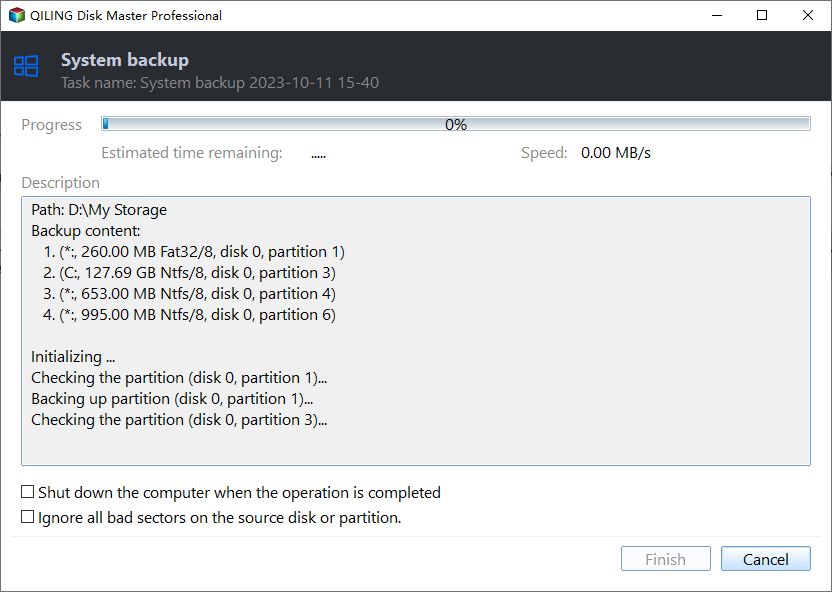
Note: In Schedule, you can also see features named Event triggers, USB plug in. They are available in Qiling Disk Master Professional. If you're interested, you can download the free trial version to explore it.
Step 3. After backup, go to Home and choose Restore.
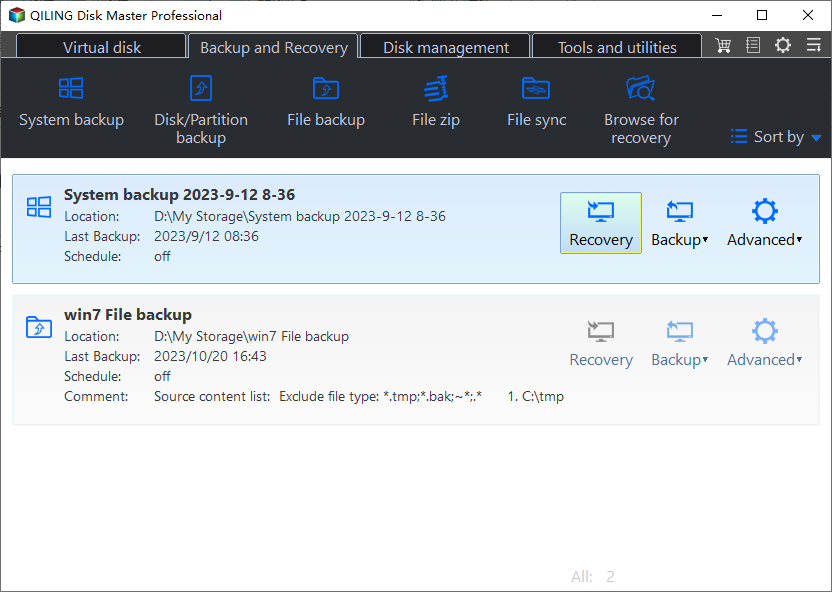
Step 4. Choose Restore this system backup or Restore a partition in this system backup, then click Next to continue.

Step 5. Confirm the operation and click Proceed.

Note: If your system can't boot, use Qiling Disk Master on another computer to create a WinPE bootable media. This allows you to make a system restore from the bootable disk to fix your broken computer.
Conclusion
To perform a system restore on an Acer laptop in Windows 7/8/10, you can create a restore point, go to Control Panel, click on System and Security, then under System, click on System Protection, and finally click on System Restore. This will allow you to restore your system to a previous state. Alternatively, you can use Qiling Disk Master for a more straightforward backup and restoration process, which can also help you recover important data quickly.
Related Articles
- How to Perform Windows Folder Backup [Step-by-step Guide]
This page covers Windows folder backup, elaborates on two ways to finish a Windows folder backup, and introduces a professional backup tool. - How to Set up Email Notification with Qiling backup Personal Edition
Set up email notifications in Qiling backup software so backup results, warnings, and task status can be sent to your inbox. - How to Create a Schedule Backup with Qiling Backup Personal Edition
This article includes basic steps how to create a schedule and also tries to give you some suggestions how to create a proper and suitable schedule to ensure your backup job finished in an efficient way. - How to Use Image reserve strategy in Qiling backup Personal Edition
Manage backup image retention, merge image files, and release disk space while keeping useful recovery points available. - This PC Can't Run Windows 11 | How to Fix or Bypass it
Many users receive "This PC can't run Windows 11" when they try to install it, or check if their computer is compatible. - 5 Methods to Fix Windows 11 Taskbar Not Working After Update
If you encounter Windows 11 taskbar not working after update, this article can help you easily solve this problem. Remember to back up your computer in advance to prevent unexpected data loss when changing device settings.
Products
Articles & Tutorials
- Data Recovery
- Data Backup
- File Recovery
- File Backup
- File synchronize
- System Backup and Restore
- Disk and Partition Clone
- Technical articles
- Disk Master Help
- Windows Deleted File and Disk Recovery Tutorials
- Windows File and Data Recovery Tutorials
- More Windows Tutorials for Install, Security, Files, and PC Tips
- Windows Boot, Repair, and Recovery Environment Tutorials
- Windows Backup Tutorials
- Windows Restore Tutorials
- Windows Clone and Migration Tutorials
- Windows Server Backup, Recovery, and Management Tutorials
- Windows Disk, Partition, and Storage Management Tutorials