6 Tested Fixes to Google Drive Not Syncing in Windows 10, 11
Quick Navigation:
- The issue: Google Drive not syncing
- Why is my Google Drive not syncing?
- How to fix Google Drive not syncing in Windows 11/10/8/7 easily
- Sync files to Google Drive with a free alternative
- Summary
The issue: Google Drive not syncing
Google Drive is a cloud storage service by Google that offers apps for Windows, macOS, and Android, as well as a website interface, allowing users to sync local folders to Google Drive and vice versa.
However, things do not always go smooth. Some users find Google Drive does not sync their files, leading to frustration and wasted time. For instance, a user on Sevenforums.com shared their experience of struggling with Google Drive's syncing issues, highlighting the importance of a reliable cloud storage service.
"You're experiencing syncing issues with the shared Google Drive folder on your Windows 7 desktop. Files added from other devices (phone, desktop at work) appear in the folder, but files dragged from your home computer don't sync to Google Drive's web app or phone. What can you do?"
Why is my Google Drive not syncing?
If Google Drive for desktop is not syncing, several reasons may be to blame. The issue could be due to a faulty internet connection, a problem with the Google Drive sync client, or an issue with the operating system.
- An unknown error occurred. Go to Solution 1 >>
- Internet connection is poor. Go to Solution 2 >>
- Some files can't be synced. Go to Solution 3 >>
- To resolve the issue of a missing Google Drive folder, go to Solution 4, which is likely a troubleshooting guide or a step-by-step solution to the problem. This could involve checking the Google Drive settings, verifying the folder's existence on the Google Drive website, or restarting the Google Drive app or computer. By following Solution 4, you may be able to recover the missing folder and regain access to your files.
- Google storage is not enough. Go to Solution 5 >>
- If your firewall or antivirus software is blocking the sync, you may need to add an exception or allow the application to access the internet. This will allow the sync to complete successfully. You can usually find the settings to add an exception or allow access in the firewall or antivirus software's configuration menu.
If you're not in any of the above situations, you can find more solutions by visiting the link provided.
How to fix Google Drive not syncing in Windows 11/10/8/7 easily
To resolve the issue of Google Drive not syncing files, start by checking your internet connection and ensuring that you're signed in with the correct Google account. Next, verify that the file you're trying to sync is not too large or too complex, as this can cause syncing issues.
Solution 1: Restart or reinstall Google Drive for desktop
If you encounter an unknown error with Drive for desktop, you can try to resolve it by restarting or reinstalling the application. This may help resolve any issues and get your drive up and running smoothly again.
▶ To restart Drive for desktop
1. To open Google Drive for desktop, click on the icon in the bottom right toolbar.
2. Click the Settings icon (a gear) and select Quit.

3. Reopen Drive for desktop.
▶ To reinstall Drive for desktop
1. Go to the Drive for desktop download page and download the most recent version of this tool.
2. Install Drive for desktop, then click Yes to replace the current version.
3. Create a new folder in Google Drive, select it, and sync your files, which may take some time to complete.
Solution 2: Check Internet connection
Check if your computer is connected to the network properly, and try disabling and re-enabling the network connection or reconnecting the Ethernet cable. Then, retry syncing your files.
Solution 3: Manually sync files
For files that weren't synced successfully, you can sync them manually.
1. Click the Google Drive for desktop icon in the bottom right toolbar.
2. Click View # unsyncable files > Retry all.
Solution 4: Relocate the Google Drive folder
▶ If you've moved the Google Drive folder to a new location or renamed it, you can relocate it by following these steps:
1. Click the Drive for desktop icon in the bottom right toolbar.
2. On the error message "Your Google Drive folder is missing", click Locate.
3. To reconnect Google Drive, select the folder in its new location or the renamed version, and click the "Open" button. This will allow Google Drive to reconnect and synchronize your files.
▶ To choose a new location for your Google Drive folder, go to your Google Drive settings, click on "Settings" (gear icon), and select "Change" next to "Location." Then, choose a new location for your folder from the list of available folders.
1. Click the Google Drive icon in the bottom right toolbar, which looks like a blue folder with a white cloud icon next to it.
2. You need to click on "Error - Google Drive folder is missing" and then select "Disconnect account".
3. To fix the issue, sign in to your Google account again, go to Google Drive, and choose a new location for the Google Drive folder. This will likely resolve the issue of the folder being stuck in the wrong location.
Solution 5: Buy a larger storage plan
Google Drive offers 15 GB storage for free, but if you run out of space, you can upgrade your storage plan to sync more files.
Solution 6: Change Firewall or antivirus settings
If your firewall or antivirus software is blocking Google Drive for desktop, it may prevent it from syncing files normally. You can try disabling your antivirus temporarily or adjusting your firewall settings to resolve the issue. Alternatively, you can also consider adding Google Drive for desktop to your antivirus or firewall's list of allowed programs to ensure it can function properly. This should help resolve any syncing issues you're experiencing.
1. Go to Start > Settings.
2. To allow an app through Windows Firewall, search for "Firewall" in the search bar and click on Allow an app through Windows Firewall.
3. To enable Google Drive sync, click on the "Change settings" button. Then, locate the "googledrivesync" option and toggle the switch to enable it in both the Private and Public columns. Finally, click the "OK" button to save the changes.
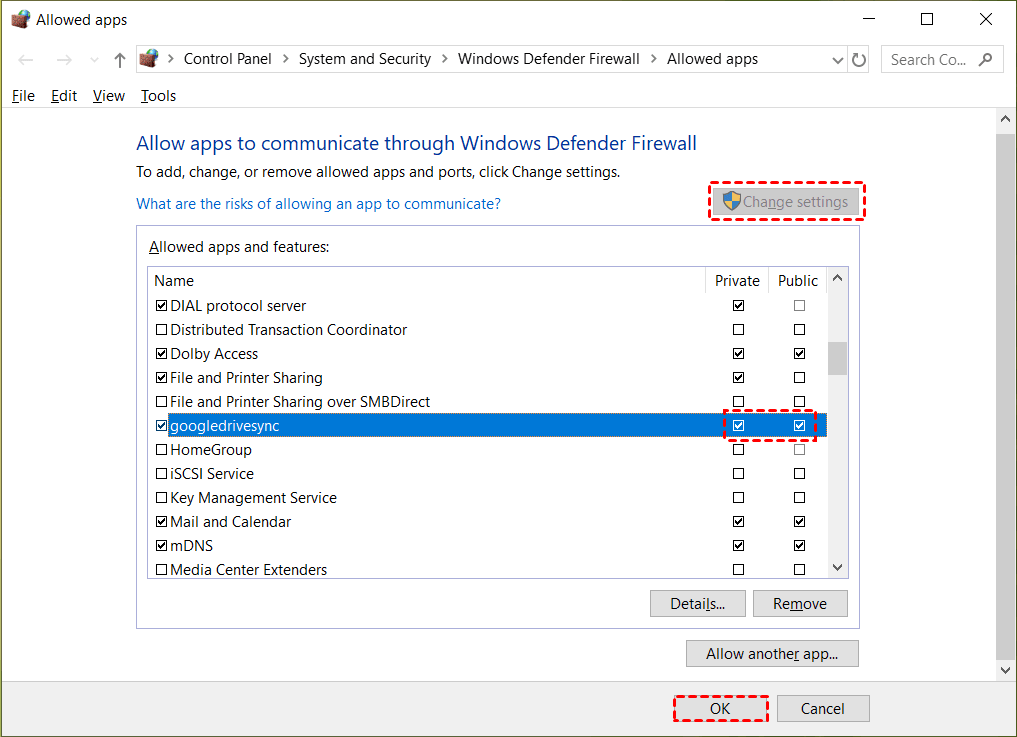
Tips: If you can't find "googledrivesync" in the list, you can click Allow another app… to manually add it.
Sync files to Google Drive with a free alternative
If you're looking for a free alternative to Google Drive for desktop, Qiling Disk Master Standard is a good option. It allows you to quickly and easily manage your files and data without having to spend too much time and energy seeking solutions and trying them one by one.
- The tool allows you to sync files on your computer to various cloud drives, including Google Drive, OneDrive, Dropbox, and Cloudme, among others.
- It also enables you to sync files between two computers, such as syncing a laptop and a desktop.
- You can also back up files to cloud drives like Google Drive or OneDrive, or use the cloud Backup feature, which comes with a cloud drive called Qiling Cloud and offers 1TB of free cloud storage for 15 days.
To sync local files to Google Drive, download the free Qiling Disk Master and follow the instructions. Qiling Disk Master supports all Windows PC operating systems, but if you're running Windows Server, you should use Qiling Disk Master Server instead.
Step 1. Install and launch Qiling Disk Master, then click Backup and select File Sync.

Tips: To use advanced sync modes like Mirror Sync, Real-Time Sync, and Two-Way Sync, you need to upgrade to higher editions of Qiling Disk Master.
Step 2. To select the folder(s) you want to sync, click on the Folder option.

Step 3. To select a cloud drive, expand the drop-down menu of the second bar and choose "Select a cloud drive".
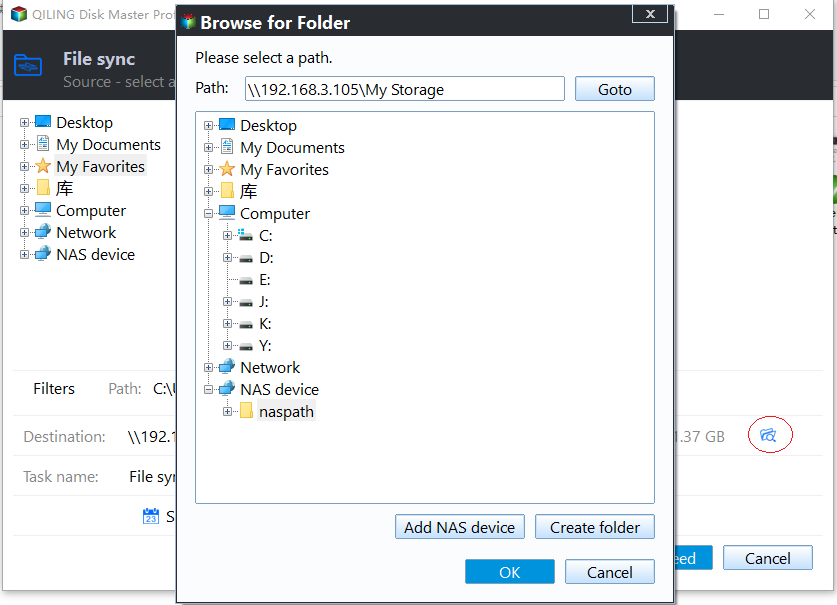
Step 4. Select Google Drive and click OK. If you cannot find Google Drive in the list, then manually navigate to the Google Drive folder by clicking the second bar.
Step 5. Confirm the operation and click Proceed.
>> Options: You can add a comment to your sync task, enable email notifications, and choose whether to sync deletions or not.
>> Schedule Sync: You can schedule the sync task to run at regular intervals, such as daily, weekly, or monthly, to ensure timely updates and maintenance.
Summary
If Google Drive is not syncing on your Windows device, there are 6 solutions offered in this article to help resolve the issue. Alternatively, if you're looking for a more powerful file sync tool, you may consider using Qiling Disk Master, which allows you to sync files to various cloud drives, including Google Drive and OneDrive.
This software is a professional file sync tool that also serves as hard drive transfer software, allowing users to easily transfer Windows 10 from a hard disk drive (HDD) to a solid-state drive (SSD).
Related Articles
- How to Sync Local Folder to Google Drive in Windows 7/8/10?
- Easy Steps to Sync QNAP NAS and Google Drive Cloud
- How to Move Files to Google Drive with Ease
You will learn 8 practical ways and how to move files to Google Drive easily, even in different situations. - Quickly Move My Documents to Another Drive in Windows 10
This tutorial demonstrates how to move My Documents to another drive in Windows 10 with two easy ways, both Windows inbuilt feature and Qiling Disk Master. - Effective Way to Recreate User Profile on Server 2012(R2)
This guide explains Effective Way to Recreate User Profile on Server 2012(R2) with clear steps, key checks, and practical tips. - Ultimate Guide to Transfer Files from Server to Server
You will learn how to transfer files from server to server with FTP, SCP or file sync software - Qiling Disk Master. The previous two are manual while the last one is automatic.
Products
Articles & Tutorials
- Data Recovery
- Data Backup
- File Recovery
- File Backup
- File synchronize
- System Backup and Restore
- Disk and Partition Clone
- Technical articles
- Disk Master Help
- Windows Deleted File and Disk Recovery Tutorials
- Windows File and Data Recovery Tutorials
- More Windows Tutorials for Install, Security, Files, and PC Tips
- Windows Boot, Repair, and Recovery Environment Tutorials
- Windows Backup Tutorials
- Windows Restore Tutorials
- Windows Clone and Migration Tutorials
- Windows Server Backup, Recovery, and Management Tutorials
- Windows Disk, Partition, and Storage Management Tutorials