3 Methods to Automatically Sync Local Folder to Google Drive
Content of this article:
- How do I sync my local folder with Google Drive?
- Why sync local files to Google Drive?
- Method 1: Sync local folder with Google Drive using Google Drive for desktop
- Method 2: Sync local folder to Google Drive via Google Drive folder
- Method 3: Auto sync local folder to Google Drive with Qiling Disk Master
- Google Drive not syncing on Windows 11/10/8/7 – how to Fix
- The way forward
How do I sync my local folder with Google Drive?
You can sync multiple folders to Google Drive using the Google Drive desktop app on Windows 10, which allows you to back up and access your files from multiple computers, even when you're on the go. Simply install the app, select the folders you want to sync, and Google Drive will automatically back up your files to the cloud, making them accessible from any device with an internet connection. This way, you can avoid the tedious process of manually copying and pasting files and enjoy seamless access to your backed-up files from anywhere.
You can sync multiple folders to Google Drive using Drive for Desktop, a tool released by Google that allows seamless syncing of local folders to Google Drive and vice versa. It combines Backup and Sync and Drive File Stream, and alternative options like Qiling Disk Master Stanndard are also available.
Why sync local files to Google Drive?
The market offers various storage devices, including external hard drives, USB flash drives, SD cards, and network-attached storage (NAS) devices. However, cloud drives like Google Drive and Dropbox are a great way to safeguard data, such as videos, PDFs, presentations, and photos, from computer failures like system crashes, virus infections, and fires. Additionally, cloud storage is less susceptible to theft or physical damage.
With the Google Drive app, you can access your data from various platforms as long as you have an internet connection. It also allows you to open Microsoft Word or Excel files in Google Drive and even convert Google Sheets to Microsoft format. Additionally, Google Drive offers a generous 15GB of free storage space for every user.
Method 1: Sync local folder with Google Drive using Google Drive for Desktop
Google Drive for desktop Drive for desktop is an application for Windows that allows you to access content directly from your desktop, making it easy to access files and folders from a familiar location. It also automatically syncs local files to the cloud in the background, minimizing wait time for syncing files.
Under Google Drive, you can sync folders from My Drive to your local computer, allowing you to access them offline. However, synced folders do not include Google Docs files like Sheets, Docs, and Slides, which are only accessible online unless you create a shortcut on your local computer.
To synchronize a local folder with Google Drive, follow these detailed steps below.
Step 1. To get started, download and install Google Drive for desktop, then sign in with your Google Drive account, and initiate the first sync.
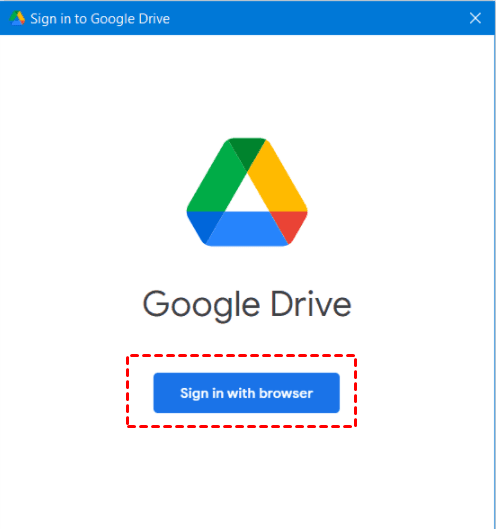
Step 2. Open Drive for desktop, click Sign in with browser to connect your Google Account that you use for Google Drive.
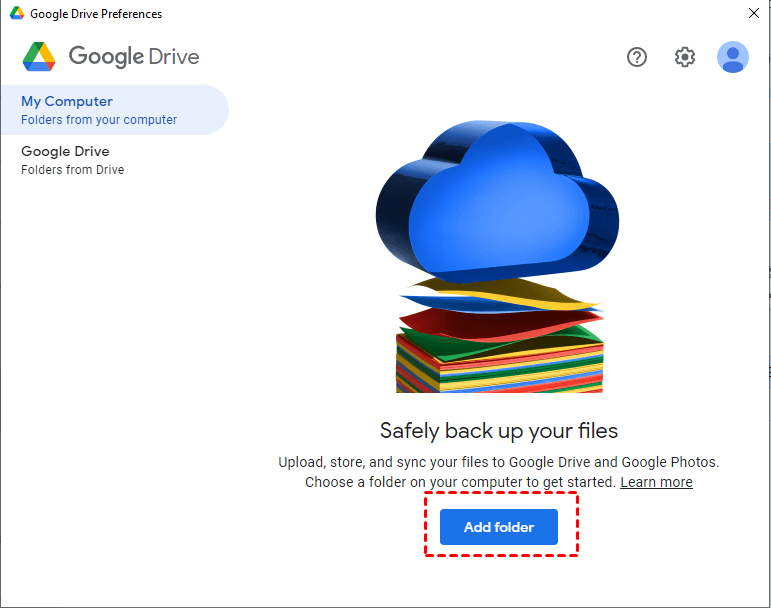
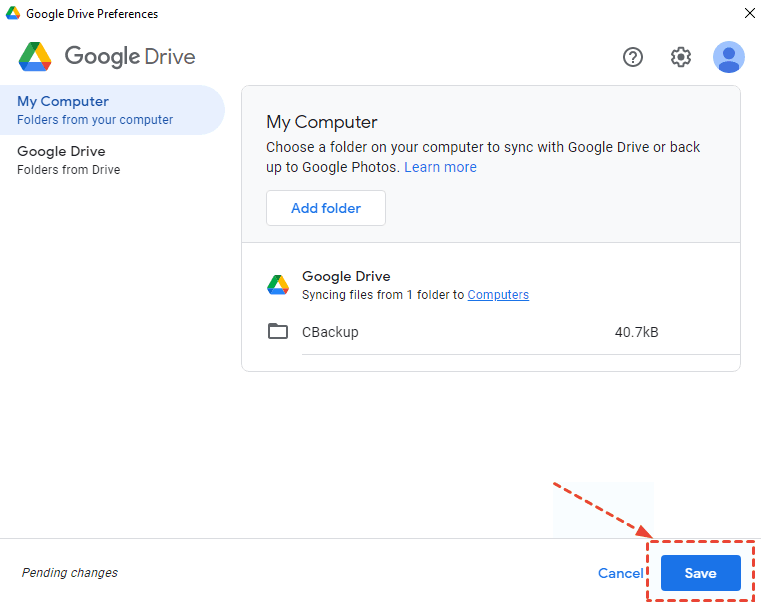
Step 3. Under the My Computer tab, click Add folder to select any folders you want to back up.
Step 4. You will be asked to choose whether to sync your entire Google Drive with your computer, or sync specific folders on Google Drive with this computer, then click Done.
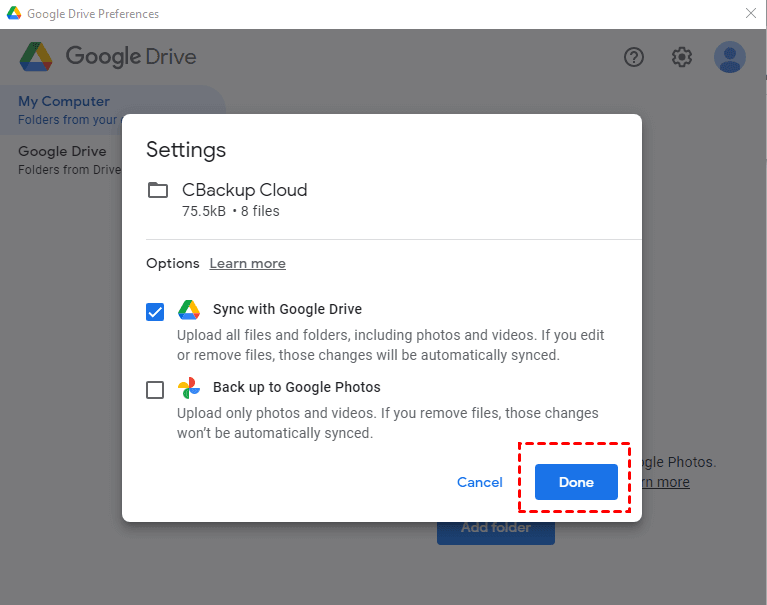
♥ Note: If you just want to use it as a backup tool, you can check Back up to Google Photos.
Step 5. Then in the next screen, click Save to make sure the current folder is automatically synced to Google Drive.
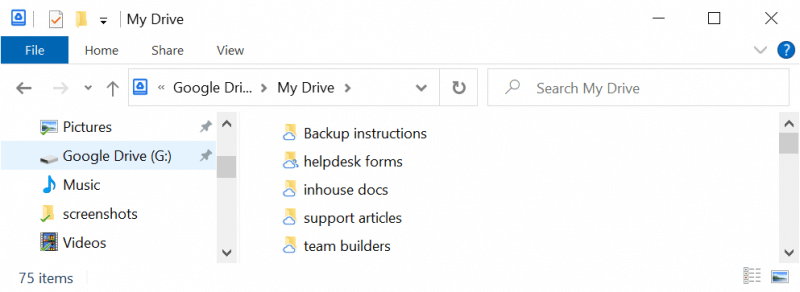
After setting up Drive for desktop on your computer, a Google Drive disk is created to store Drive contents. This disk appears in Windows Explorer, allowing you to add files or folders, which will then be automatically synced to the cloud.
After the first sync, extra options appear, including "Removing items" and "Use Devices & SD cards". The "Removing items" option allows you to set how to delete files, with choices such as "Remove items everywhere", "Don't remove items everywhere", and "Ask me before removing items everywhere". The "Use Devices & SD cards" option enables backing up files, folders, photos, and videos to Google Drive.
Method 2: Sync local folder to Google Drive via Google Drive folder
If you sync your Google Drive to your computer, you can still use the Google Drive folder to sync local folders to Google Drive. After syncing, all folders will be saved to your My Drive, and you can check if your folders are synced successfully.
Step 1. Double-click Google Drive for desktop on your desktop, and then you will access Google Drive Folder.
Step 2. Right-click the folder you want to backup, copy and paste it to the specified Google Drive folder, and all folders will be synced automatically.
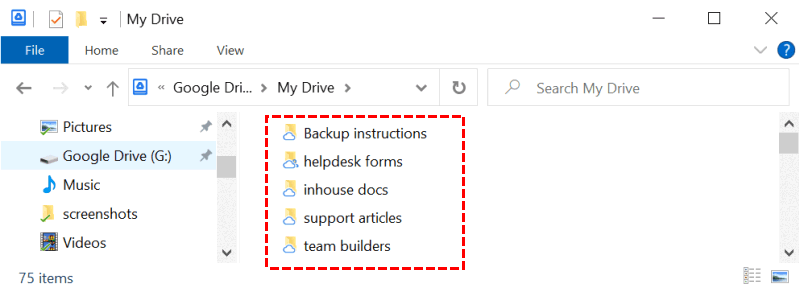
Step 3. Check if all the folders are synced to My Drive.
Method 3: Auto sync local folder to Google Drive with Qiling Disk Master
The Google Drive desktop app or Google Drive folder can be helpful for syncing folders, but it has limitations, such as not syncing folders and changes made outside the Google Drive folder. To overcome these limitations, a third-party reliable file sync software like Qiling Disk Master Standard can be used instead.
- Sync any files or folders you want, whether they're stored outside or inside the Google Drive folder, using this feature.
- You can keep this task by your frequency, such as daily, weekly, or monthly.
- The app will automatically sync any newly added files and changes to Google Drive, and also allows the user to choose whether to sync deletions from the local folder.
- Besides auto syncing a local folder to Google Drive, the feature also applies to syncing a local folder to OneDrive or Dropbox.
- Local drives and external disks, such as USB flash drives, are also supported as sync destinations.
To make the script work for a file sync task, you can modify the existing code to include the following steps:
Step 1. To use Qiling Disk Master Standard, you need to download and install it on your computer, and also ensure that Google Drive desktop app is installed if your computer doesn't have it. After that, launch the app, go to the "Backup and recovery" and then "File Sync" options.

For advanced users, you can use the other three sync solutions available in the professional version.
- If you want to sync files in real-time, try Real-Time Sync task.
- If you don't want anyone to modify files or folders in the destination, or directly add new ones to it, try Mirror Sync.
- If you want to sync changes on both sides, try Two-Way Sync.
Step 2. Click Folder to select folders on the local computer.

♥ Note: To sync files with specific extensions, use the Filter settings, which appear as a funnel icon on the right side of selected folders, available in the Professional version at least.
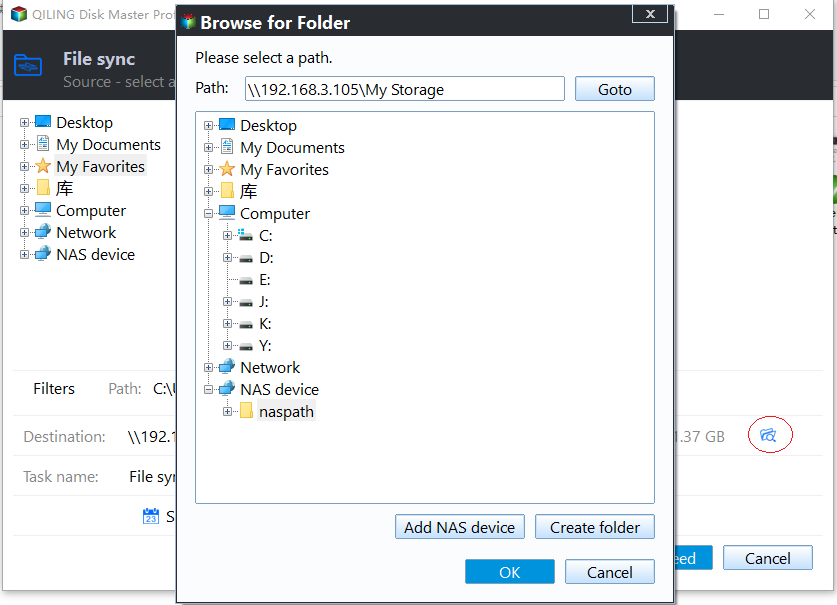
Step 3. Click the drop-down menu and choose Select a cloud drive.

To sync a local folder to the cloud, first select the cloud drive from the Select Cloud windows, and then select the local folder you want to sync. Click OK to exit the window and start the syncing process. This will upload the local folder to the cloud drive, allowing you to access it from any device connected to the internet. Note that you can also select multiple local folders to sync at once.
More options you can use in the following:
- Options: This feature allows users to configure various settings for their comments, including notification preferences, command execution, and deletion syncing, all within a single interface.
- Schedule Sync: You can set a sync frequency (daily, weekly, monthly) for this task, and it can wake up your computer before the task starts to minimize human intervention.
Step 4. Then, confirm everything is correct and click Proceed to sync local folder to Google Drive.
♥ Notes:
- This software will not sync files anymore if you modify the source folder name.
- This software cannot sync files larger than 2GB or 4GB to FAT or FAT32 drives, so if you encounter this issue, you can use the File Backup feature to backup large files.
- For users with limited cloud storage, you can try backing up folders to Qiling Cloud, which offers 1TB of free storage for 15 days after signing up.
Google Drive not syncing on Windows 11/10/8/7 – how to fix
When you use Google Drive Backup and Sync on Windows 10/8/7, you may receive the following error message.
- An unknown error has occurred.
- Connection failure.
- The file on your computer is missing.
- Syncing is stuck.
- Unable to complete sync.
- Backup and Sync quits unexpectedly.
- This file is a link to an online Google document. It cannot be changed.
1) Check if your phone has any updates available and install them. 2) Restart your phone. 3) Check if the problem occurs on all apps or just one.
1. ReProceed and Sync. To resolve the issue, click the Backup and Sync icon at the taskbar, go to Settings, and then click Quit Backup and Sync. Finally, reopen Google Drive Backup and Sync.
2. Disconnect and reconnect account. To resolve the issue, click on the Backup and Sync icon, select "Error – Google Drive folder is missing," and then choose "Disconnect account." Once disconnected, you'll need to sign in again.
3. Reinstall Backup and Sync. You can download Backup and Sync from the website again and click "Yes" when you are asked to replace the existing version during installation.
4. Restart your computer.
The way forward
Using Google Drive for desktop or Google Drive folder can sync a local folder to Google Drive, but for an easier way or more advanced features, you can also use Google Drive folder in combination with a third-party file sync software like Qiling Disk Master Standard.
Duplicati can sync files to Google Drive, either within or outside the Google Drive folder, and allows users to customize the sync frequency as desired. For advanced users, the software offers real-time syncing, mirror syncing, and two-way syncing capabilities in its professional version.
Except for the sync feature, this software can also be used to backup files to cloud drives, external hard drives, network drives, and more. It also supports system and disk protection. In short, it's a powerful tool to protect your computer and data. Just download and try it out!
Related Articles
- Backup PC to Google Drive in Windows 10/8/7 for Free
- Backup External Hard Drive to Google Drive Efficiently (3 Ways)
- How to Exclude Files/Folders with Xcopy (Guide and Alternative)
This article will tell you how to let xcopy exclude folder or files from Windows backup and another easier way to exclude specific files and folders. - How to Backup Files to External Hard Drive in Windows 10
This article tells you how to backup files to an external hard drive in Windows 10 easily and shows you the detailed steps to do so. - How to Backup Using Seagate Backup Plus Drives [OS & Files]
This article tells you how to backup using Seagate Backup Plus drive with built-in Seagate Toolkit, and alternative software with less limitations. - Workaround: Initialize Disk MBR or GPT without Losing Data
This article tells how to initialize disk MBR or GPT without losing data when it becomes 'Not Initialized' accidentally. Also, it introduces how to protect data easily in the future.
Products
Articles & Tutorials
- Data Recovery
- Data Backup
- File Recovery
- File Backup
- File synchronize
- System Backup and Restore
- Disk and Partition Clone
- Technical articles
- Disk Master Help
- Windows Deleted File and Disk Recovery Tutorials
- Windows File and Data Recovery Tutorials
- More Windows Tutorials for Install, Security, Files, and PC Tips
- Windows Boot, Repair, and Recovery Environment Tutorials
- Windows Backup Tutorials
- Windows Restore Tutorials
- Windows Clone and Migration Tutorials
- Windows Server Backup, Recovery, and Management Tutorials
- Windows Disk, Partition, and Storage Management Tutorials