How to Exclude Files/Folders with Xcopy (Guide and Alternative)
User Case: How can I exclude folders/files using Xcopy?
You can't directly exclude folders or files using the /EXCLUDE option in the xcopy command. However, you can use the /EXCLUDE option with a file that contains the list of files and folders to exclude, one per line. Create a text file, for example, "exclude.txt", and list the paths to the files and folders you want to exclude, one per line, like this: "C:\My Music", "C:\My Pictures". Then, use the xcopy command like this: `xcopy c:\t1 c:\t2 /EXCLUDE:exclude.txt`. This should exclude the specified files and folders from the copy operation.
The Windows command Xcopy allows you to copy files and directories, including subdirectories, to another location. Microsoft provides various examples of using Xcopy in different situations. However, some users have encountered issues where files specified to be excluded by the Xcopy command are still copied, or the command fails to read certain files.
To exclude files in a folder when using xcopy, you can use the `/EXCLUDE` option followed by the path to a file containing the file names to exclude, one per line. For example: `xcopy C:\source C:\destination /EXCLUDE:exclude.txt`.
How to Let Xcopy Exclude Folders and Files Correctly
Microsoft's /exclude option specifies a list of files containing strings, where each string is on a separate line. If any string matches any part of the absolute path of a file to be copied, that file will be excluded from the copy operation. For instance, specifying a string like \obj\ will exclude all files under the obj directory, while .obj will exclude all files with the .obj extension.
To exclude files, you need to write the full path of the files you want to exclude in a text file, then run the command with the path to that text file. For example, if you have a file named "exclude.txt" containing the full path of the files you want to exclude, you can run the command with the path to that file like this: `xcopy C:\source C:\destination /EXCLUDE:C:\path\to\exclude.txt`.
1. Create a text file named "MyExclusion" in a location of your choice.
2. To exclude specific files or folders from being copied, open the text and write the names of the files or folders you'd like to exclude on a separate line, without bullets, to make xcopy ignore them.
- \My Music\
- \My Pictures\
- \My Videos\
3. Run the command now: xcopy c:\t1 c:\t2 /EXCLUDE: C:\mybatch\MyExclusion.txt and press Enter.
Many users find it easy to copy files and exclude specific files and folders using Xcopy. However, aside from the issue of excluding specific folders, other problems with Xcopy have been reported, such as invalid paths, access denied errors, and inability to create directories. As a result, many users are searching for an Xcopy alternative online.
To exclude files during Windows backup copying, use the `wbadmin` command with the `/excludefile` option. For example, to exclude the `C:\Users\YourUsername\AppData\Local\Temp` directory and the `C:\Program Files\YourProgram` folder from backup.
Exclude Folders and Files from Windows Backup with Easier Way
To exclude certain files or folders in a directory while copying, Qiling Disk Master Professional can help. This software is compatible with all versions of Windows 11/10/8/7/XP/Vista and provides the functionality to exclude specific items during the copying process.
- File Backup and File Sync: You can sync or backup files to various destinations like external hard drives, USB drives, SD cards, CDs/DVDs, NAS drives, network shares, cloud drives, and more.
- Filter Settings: You can choose to include or exclude files or folders based on specific file extensions or wildcards, and also decide whether to exclude hidden and system files and folders simultaneously.
- Advanced Sync: In addition to basic file sync, you can run Real-Time Sync to autorun it in real time once there are changes in the source directory, or use sync modes like Two-Way Sync and Mirror Sync.
What's more, it has a lucid graphical user interface and allows for scheduled backup or sync to save your labor. Download and install the free trial to get started.
Steps to exclude folders from Windows backup via Qiling Disk Master:
Step 1. To sync files, connect your external destination storage to your PC in advance. Then, launch the software and click on "Tools and utilities" followed by "File Sync" (or choose another sync option as needed).

Step 2. Edit the task name if needed. Click Folder to add the folder you'd like to sync.

Step 3. After the source folder is added, click the funnel icon to open Filter settings.
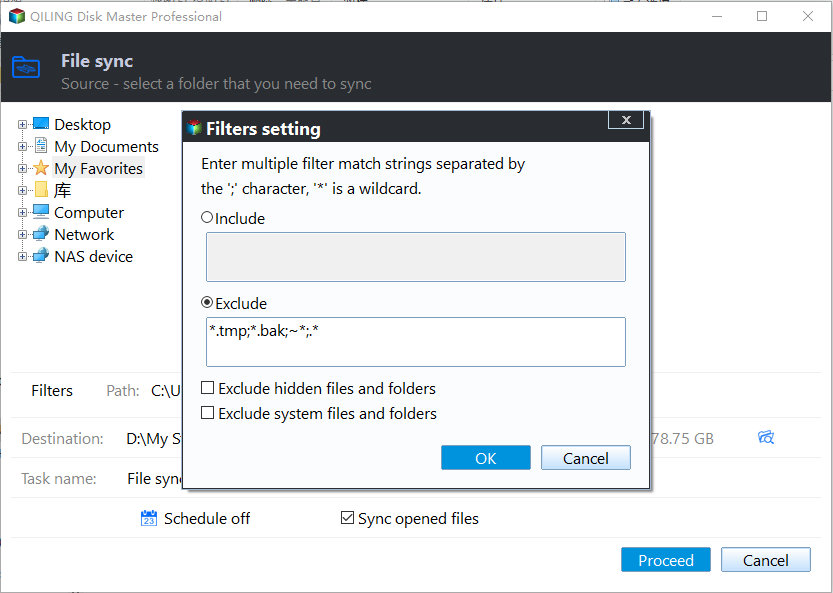
Now, you come to the step to add file extensions you'd like to exclude. Wildcards are supported, and you can separate multiple masks with semi-colons, such as .doc;.xls;.ppt;.temp;.tmp;.bak;~. *;temp;.
- File Inclusion Mask: specify the file types that you need to backup.
- File Exclusion Mask: specify the file types that you need to exclude.
- Folder Exclusion Mask: specifies the folders that you need to exclude.
- To customize the file selection process, you can choose from three additional options: "Include subfolders", "Exclude hidden files and folders", and "Exclude system files and folders". Select the ones that fit your needs.
Click OK after the configuration.
Step 4. Select the destination you'd like to copy files to.

Step 5. Confirm the operation and then click Proceed.
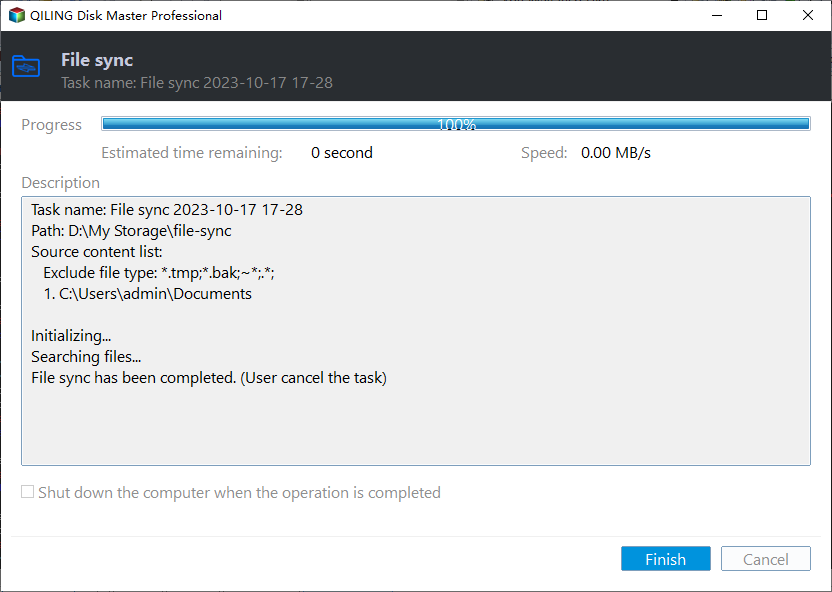
- Notes:✎...
- Options: write a comment for current task and enable email notification here.
- Schedule: The schedule modes can be set to daily, weekly, monthly, or triggered by specific events, and can also be activated by plugging in a USB device.
Qiling Disk Master Professional is a backup and sync tool that also functions as a disk cloning software, allowing users to clone operating systems to SSDs, hard drives to SSDs, and more, with advanced operations also possible via Command Prompt for computer-savvy users.
Conclusion
You can use xcopy to exclude folders or files in a folder while copying from one directory to another. Alternatively, you can use a more comprehensive tool for file backup or syncing that allows for exclusion. A robust backup solution like Qiling Disk Master has earned a good reputation among millions of users and is featured on famous websites like CNET, providing an extra layer of protection for your computer.
Related Articles
- How to Copy Files Using Command Prompt in Windows 7
- Automatically Backup Files with a Certain File Extension
- How to Backup Files from Command Prompt Windows 10
- Low Disk Space warning in Windows 8/8.1– Free up Space Now
Learn the key steps, checks, and practical tips for this related guide. - Complete Guide: Synology Drive Sync Multiple Folders
Synology Drive does not allow you to sync multiple folders. However, you can use the Shared Folder feature to sync multiple folders to a single folder, achieving the same result. This feature can be accessed through the Synology Drive web interface. - Top 2 Ways to Sync Local Folders to Synology NAS on Windows
It is a good idea to backup/share files to Synology NAS. Learn how to sync your PC folders to Synology NAS easily from this page.
Products
Articles & Tutorials
- Data Recovery
- Data Backup
- File Recovery
- File Backup
- File synchronize
- System Backup and Restore
- Disk and Partition Clone
- Technical articles
- Disk Master Help
- Windows Deleted File and Disk Recovery Tutorials
- Windows File and Data Recovery Tutorials
- More Windows Tutorials for Install, Security, Files, and PC Tips
- Windows Boot, Repair, and Recovery Environment Tutorials
- Windows Backup Tutorials
- Windows Restore Tutorials
- Windows Clone and Migration Tutorials
- Windows Server Backup, Recovery, and Management Tutorials
- Windows Disk, Partition, and Storage Management Tutorials