Low Disk Space warning in Windows 8/8.1– Free up Space Now
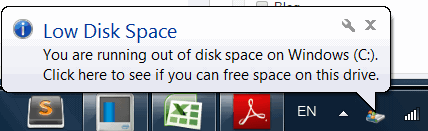
Low Disk Space message appears
To resolve the "Low Disk Space" error on Windows 8, identify the space-hogging files on your C drive by clicking on the link provided. You'll likely find that old or unnecessary files, such as temporary files, system logs, and outdated programs, are taking up a significant amount of space. To free up space, delete these unnecessary files, and consider cleaning up the Windows Update cache, temporary files, and system logs. You can also consider uninstalling unused programs and deleting any unnecessary documents or files. Additionally, consider upgrading your storage capacity by adding an external hard drive or upgrading your current storage to a larger capacity. Regularly cleaning up your C drive will help prevent future Low Disk Space errors.
Why C drive full in Windows 8/8.1?
When the Low Disk Space alert appears on the C drive in Windows 8, it's likely due to a lack of free space on the partition, causing the PC to slow down and apps to respond slowly. This can be caused by neglecting large download files on the C drive, paging files, hidden files, temporary files, backup files, or previous Windows installation files.
If your C drive in Windows 8 becomes full without reason, a possible cause could be viruses, as they can generate files to fill your system drive.
Full guide to fix Low Disk Space in Windows 8/8.1
To solve the problem, you can try one or more solutions shown in the following content to address the issue, depending on the specific situation.
- Method 1. Scan your computer for virus
- Method 2. Run Disk Cleanup to free up disk space
- Method 3. Uninstall unwanted applications.
- Method 4. Transfer applications from C drive to another drive
- Method 5. Extend C drive without data loss
- Method 6. Wipe your system hard drive and reinstall OS
Method 1. Scan your computer for virus
If you suspect your PC is infected with a virus, you can run anti-virus software, such as Windows Defender, to scan your computer.
Method 2. Run Disk Cleanup to free up disk space
To delete unwanted system files that cannot be deleted in File Explorer, you can run Disk Cleanup to reclaim disk space on Windows 8. This process involves going to the Control Panel, clicking on System and Security, selecting Administrative Tools, and then clicking on Disk Cleanup.
Step 1. Open File Explorer in Windows 8, right-click C drive and choose Prosperities.
Step 2. In the pop-up window, click Disk Cleanup under General.
Step 3. Here are the files you can delete. Select the unwanted files and click OK.
PS.: You can either click the "Clean up system files" option to remove files created by Windows.
Method 3. Uninstall unwanted applications.
There might be some seldom-You can free up disk space by uninstalling large applications that take up space on your hard drive.
Step 1. Press Windows + R, input control, and click OK.
Step 2. In Control Panel window, click Uninstall a Program under Programs.
Step 3. To remove unwanted programs, locate the installed program you no longer need, right-click it, and select the "Uninstall" option from the context menu. This will initiate the uninstallation process.
Method 4. Transfer applications from C drive to another drive
If you're running low on disk space on your Windows 8 C drive, you can move applications to another drive without uninstalling them, using a tool like Qiling Disk Master Professional. This allows you to reclaim disk space without reinstalling programs.
You can download the demo version of Qiling Disk Master Professional to try it out.
Step 1. Install and launch the tool. Click "App Mover" in the right menu.
Step 2. Select the C drive and click on "Next".
Step 3. Choose the apps you want to move from C drive, choose the destination drive, and click on "Move".
Step 4. Click "OK" on the pop-out window to forcefully running applications on the C drive and start moving applications.
Method 5. Extend C drive without data loss
If your system drive is allocated unreasonably at first, you can increase its space to fix Low Disk Space error by using a partition manager software like Qiling Disk Master Professional to allocate space directly from another partition to the system drive. This is a recommended solution as there is usually no contiguous unallocated space behind the system drive and adding non-contiguous unallocated space to it via Disk Management is not possible.
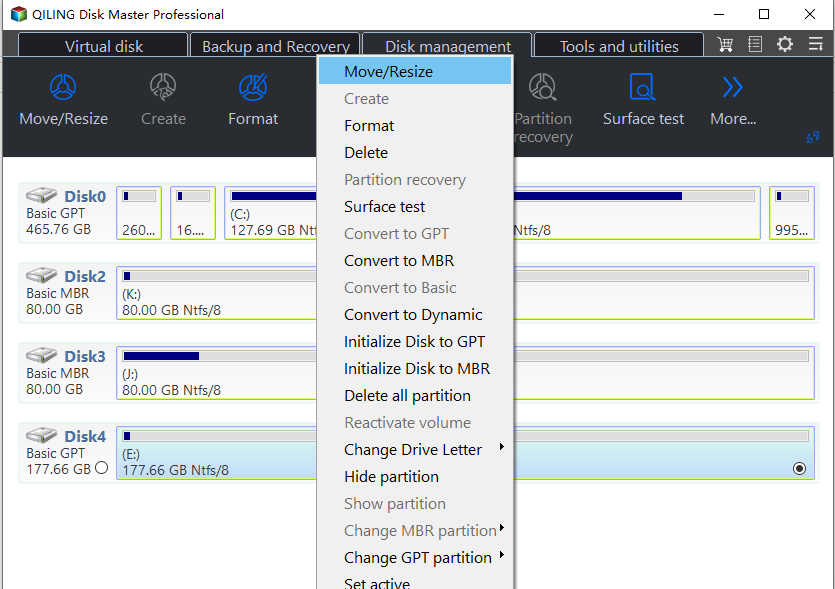
Step 1. Install the software, right-click on the partition with enough free space, and select 'Move/Resize'.
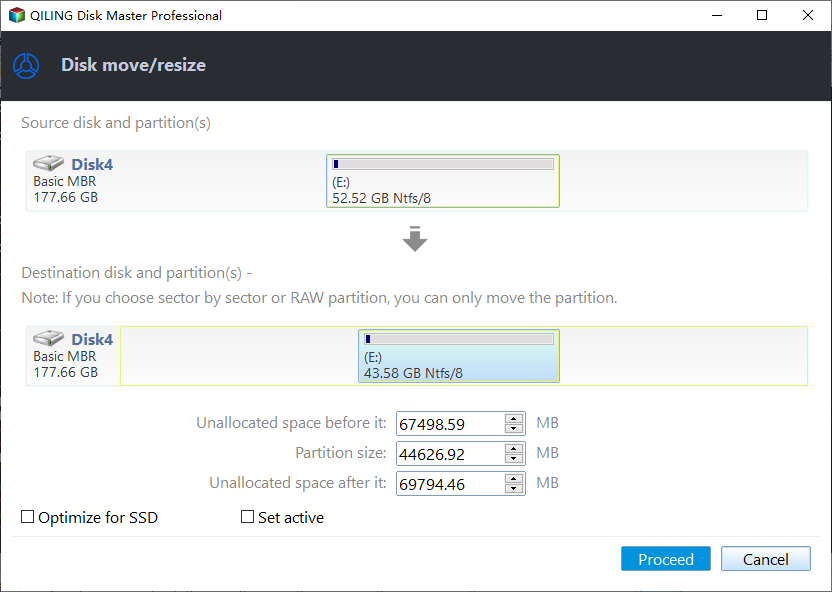
Step 2. Allocate 10 GB of free space and choose C:\ as the destination path.
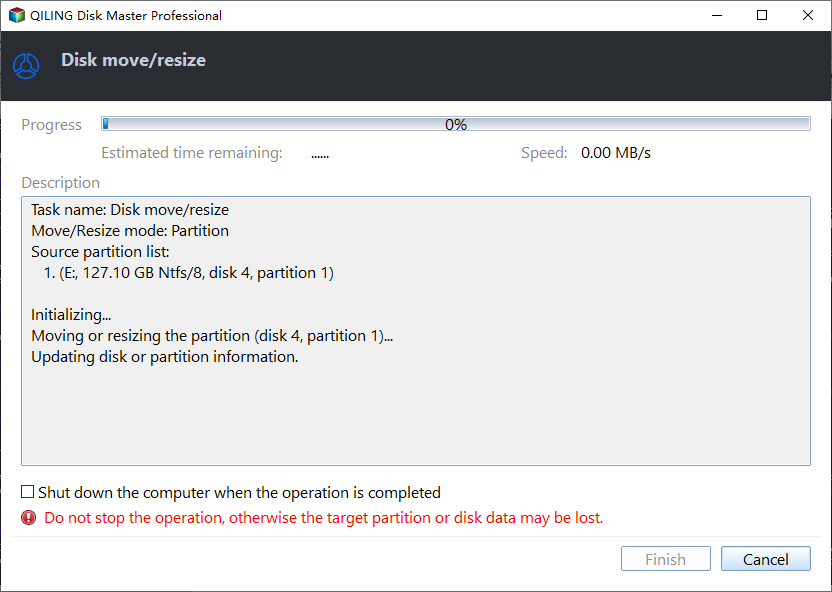
Step 3. Finally, click Proceed to commit the operation.
Note: Qiling Disk Master Professional is a software tool designed for Windows operating systems, including Windows 11, 10, 8.1, 8, 7, XP, and Vista. It is used to allocate free space, while a separate version called Qiling Disk Master Server is specifically designed for use in Windows Server environments.
Method 6. Wipe your system and reinstall OS
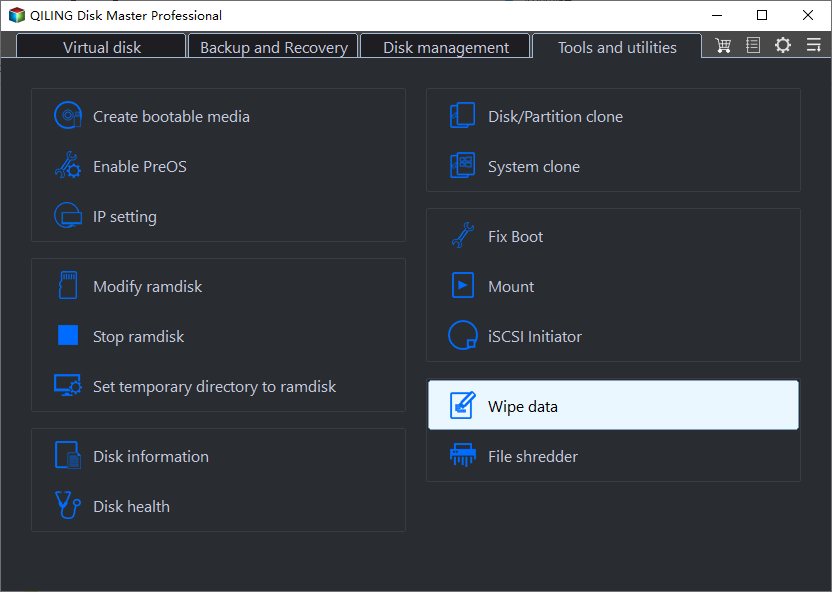
If your PC is running extremely slow and its hard drive is almost full, consider wiping the system hard drive and reinstalling the operating system, but make sure to back up all important files first.
Related Articles
- Workaround to Lenovo Product Recovery Stuck in Recovery Mode
This guide explains Workaround to Lenovo Product Recovery Stuck in Recovery Mode with clear steps, key checks, and practical tips. - Best Way to Do Real-Time Backup to External Hard Drive
The best real-time backup software provided in this post to perform real-time backup to external hard drive in Windows 11/10/8/7 to get continuous data protection. - How to Recover Deleted Files from Recycle Bin after Empty
This guide will tell you how to recover deleted files from recycle bin after empty in Windows 7/8/10. Four solutions are provided with detailed steps. - How to Recover Unsaved Excel Files in Windows 10 (4 Ways)
If you are experiencing scenarios where you need to find and recover unsaved excel files, click on this article, and here are 4 useful ways for you. - Seagate NAS Backup Software for Windows 10/8/7
This guide explains Seagate NAS Backup Software for Windows 10/8/7 with clear steps, key checks, and practical tips. - How to Sync External Hard Drive Files and Folders to Cloud Storage?
Best sync tool Qiling Disk Master can help you easily sync external hard drive files and folders to cloud drive like OneDrive, Google Drive, Dropbox. Get the steps below and try yourself.
Products
Articles & Tutorials
- Data Recovery
- Data Backup
- File Recovery
- File Backup
- File synchronize
- System Backup and Restore
- Disk and Partition Clone
- Technical articles
- Disk Master Help
- Windows Deleted File and Disk Recovery Tutorials
- Windows File and Data Recovery Tutorials
- More Windows Tutorials for Install, Security, Files, and PC Tips
- Windows Boot, Repair, and Recovery Environment Tutorials
- Windows Backup Tutorials
- Windows Restore Tutorials
- Windows Clone and Migration Tutorials
- Windows Server Backup, Recovery, and Management Tutorials
- Windows Disk, Partition, and Storage Management Tutorials