How to Recover Unsaved Excel Files in Windows 10 (4 Ways)
- The need of recovering unsaved Excel files
- How to recover unsaved Excel Documents in Windows 10
- Way 1: Recover unsaved new excel files
- Way 2: Recover old unsaved Excel files
- Way 3: Restore Excel Files to a previous version
- Way 4: Recover deleted unsaved Excel files
- How to prevent lost Excel files effectively
- Regular backup of your Excel files to keep it always safe
- Conclusion
The need of recovering unsaved Excel files
Microsoft Excel, a spreadsheet program in the Microsoft Office suite, is a crucial tool for office work, used for calculations, graphing, and statistical analysis. Despite its usefulness, it can be frustrating when errors occur during use.
Users often accidentally close and delete Excel files without saving them, or unexpected events like system crashes, power failures, or Microsoft Office errors can shut down Excel before they have a chance to save their files.
In situations where you need to recover unsaved files, you may encounter three primary scenarios:
- You are working on a new file that has never been saved before.
- If you make changes to a previously saved file but do not save the final copy, you risk losing your work if your computer crashes or the program closes unexpectedly. This can be frustrating, especially if you've invested a lot of time and effort into your project. To avoid this issue, it's essential to save your work regularly, ideally at the end of each session or when you've completed a significant section of your work.
- You need to save the original files with changes, but you accidentally saved the modified files instead, resulting in the loss of the original files.
You can recover unsaved Excel files even if you haven't made a backup in advance. If you've backed up your Excel file in a different location, you can restore it in time. If not, you can still recover the file using Excel's built-in features or third-party software. Don't get discouraged if you haven't made a backup, there are still options to recover your unsaved Excel file.
How to recover unsaved Excel Documents in Windows 10
Microsoft Excel automatically saves a copy of your files every 10 minutes, and also keeps a record of the last saved version, allowing you to easily recover them if needed.
Way 1: Recover unsaved new excel files
To recover new, unsaved Excel files, use the "Recover Unsaved Workbooks" feature in Excel, which allows you to retrieve files that were not saved before closing Excel. This feature can be accessed by following specific steps.
Step 1. Click File and Open subsequently. Then choose Recent Workbooks.
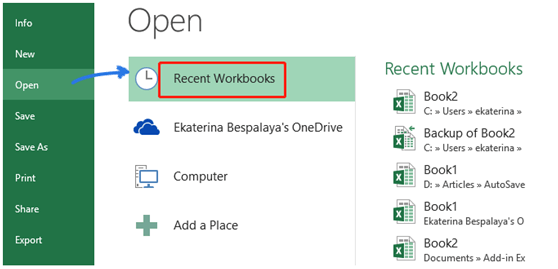
Step 2. Scroll down to the bottom and click Recover Unsaved Workbooks.

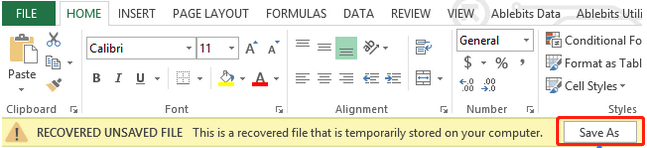
Step 3. To restore a previously unsaved Excel file, open the Open window, double-click the file you want to restore, and then click the Save As button to save it to the desired location.
Way 2: Recover old unsaved Excel files
For the second scenario, you can recover unsaved Excel files using the Document Recovery Pane. This pane appears automatically when Excel detects unsaved files, allowing you to recover them. To access the Document Recovery Pane, click on the "File" tab, then click on "Manage Recovered Files" or press the "Ctrl + F11" keys.
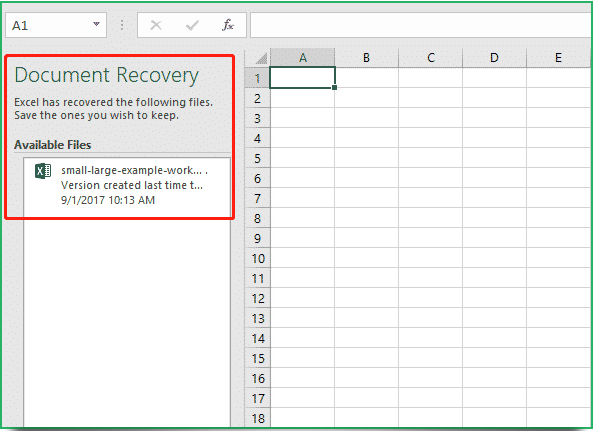
Step 1. Start Excel again. The Recovered heading will appear. Then choose Show Recovered Files.

Step 2. Excel will open a new spreadsheet and display a Document Recovery panel. Select the unsaved file from the list to recover it.
Way 3: Restore Excel Files to a previous version
In the third scenario, use Manage Workbooks to save previous versions of changed files, ensuring all your modified files are preserved. This feature allows you to track and revert to previous versions of your workbooks, providing a safeguard against unintended changes or errors. By utilizing Manage Workbooks, you can maintain a record of all changes made to your files, enabling you to recover from mistakes or revert to a previous state if needed.
Step 1. Go to File >info and select Manage Workbooks, then you will find your previous version of the files.
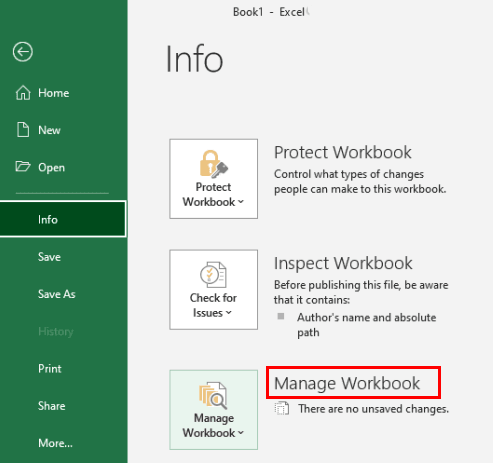
Step 2. Click the correct version of the file and then select the "Restore" option to open it. If unsure, select the "Compare" option to review the differences before restoring.
Tip: To avoid accidentally overwriting a previous version of a file, it's recommended to save the updated file under a new name, rather than overwriting the original. This way, you can preserve the previous version and have a backup of the changes made to the original file.
Way 4: Recover deleted unsaved Excel files
If the previous two methods do not help you recover unsaved Excel files, you can use professional data recovery software like Deep Data Recovery to help you out, which is applicable to both scenarios mentioned above.
Deep Data Recovery offers an intuitive graphical user interface, making it easy even for non-tech users to operate. It can be downloaded on Windows 7, 8, 10, 11, or Windows Server computers to recover deleted or missing Excel files.
Step 1. After loading the disk, select the partition that includes the Excel files you want to restore. Then click Start Scan.

Step 2. During Quick Scan and Deep Scan, you can search for needed Excel files by typing their filenames in the search bar or waiting to see all deleted and other lost files.

Step 3. To restore deleted Excel files, go to the Deleted Files/Raw files folder, select the Excel files you want to recover, click Recover, and save them in a new location.

How to prevent lost Excel files effectively
Enabling AutoSave and AutoRecover in Excel can be a lifesaver when recovering unsaved files in Windows 10. As long as they are enabled, you can rest assured that your Excel files will be automatically saved and recovered in case of a crash. If you accidentally disable them, don't worry - you can manually enable them to save your files. To do this, go through the steps mentioned above to re-enable AutoSave and AutoRecover, and you'll be back on track in no time.
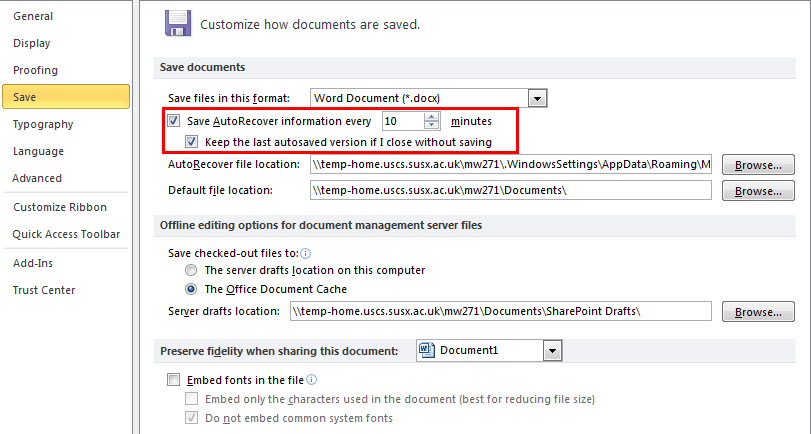
Step 1. Open Excel, select File and Options, then Save in the left pane.
Step 2. Make sure the "Save AutoRecover information" and "Keep the last AutoRecovered version if I close without saving" boxes are checked. You can also adjust the AutoRecover save interval to a preferred number of minutes (default is 10).
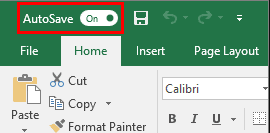
Step 3. At the same time, you can see the AutoSave button at the upper left corner, toggle it on to automatically save every change you make in your Excel file.
Regular backup of your Excel files to keep it always safe
While recovering unsaved Excel files can be a time-consuming process, there is no guarantee of success. To minimize the risk, it's essential to enable the AutoSave and AutoRecover features. However, a more reliable approach is to regularly back up your Excel files, creating a duplicate copy that can be easily retrieved in case of an unexpected issue. This proactive measure ensures that your files are safe and can be quickly restored if needed.
I recommend using free yet professional backup software to help you, and I strongly suggest Qiling Disk Master Standard due to its advantages.
- It supports backing up a variety of files, including Word documents, Excel files, music, pictures, and audio.
- This backup tool can save multiple files at once, making the process more efficient and reducing the need for repeated backups.
- This software allows for seamless backup and storage of data on various external/internal hard drives, cloud drives, NAS devices, and network drives, making it a reliable and efficient solution for data management.
- This software has various flexible backup settings, including daily, weekly, or monthly auto backups, as well as incremental backup to only save changed parts of files, compression, splitting, and more.
- Compatible with all Windows operating systems, including Windows 7, 8, 10, 11, XP, and Vista.
This freeware is highly praised by many users for its user-friendly interface and simple operation steps, making it easy to backup Excel files and other important data. Its friendly design and straightforward process have earned it a spot as a top choice for those seeking a hassle-free backup solution. And the best part? It's completely free!
Step 1. Launch Qiling Disk Master Standard, click Backup and File Backup in order.

Step 2. select files or folders you want to backup and the destination path, then click Proceed.

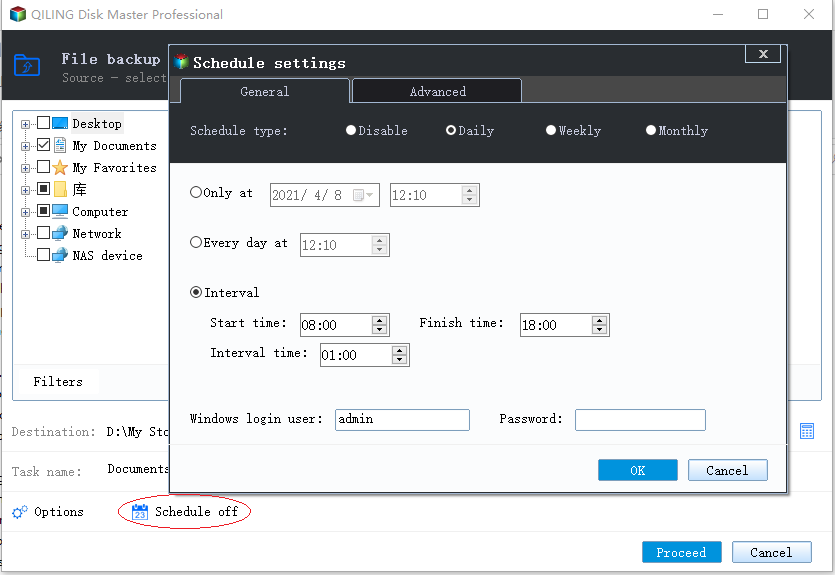
To automatically backup files, click on Schedule Backup and then OK, which will enable the default backup settings, including daily incremental backups.
Tips:
◓ If you find the default daily backup frequency too short, you can adjust it to weekly or even monthly, depending on your specific needs and preferences. This will help you strike a balance between data protection and storage space usage.
◓ In addition to incremental backup, the advanced edition of Qiling Disk Master Professional also supports differential backup, which is another option for backing up data.
◓ To avoid backup disk full issues, you can set up automatic backup cleanup methods to automatically delete old backup images.
Conclusion
To recover an unsaved Excel file, first, check if AutoBackup and AutoRecover are enabled. If they are, Excel will automatically save a backup of your work every 10 minutes. If not, you can manually enable them. If you've lost your file, try opening Excel and looking for the "Recover Unsaved Workbooks" option.
The free backup software - Qiling Disk Master is a tool that helps you back up various types of files and protect them together, and it also offers additional features such as system backup, disk backup, scheduled backup, differential backup, and creating bootable media.
Related Articles
- Auto Backup Excel File in Different Location with Top 2 Ways
In this essay, you will find two ways to backup excel file in different location easily in Windows 7, 8, 10. Let's see the step-by-step guide to auto backup excel files. - Computer Crashed: How to Recover Files - Qiling Disk Master
Recovering files can be the only way to get your data back or greatly reduce loss after computer crashed. Please try all the possible ways. In addition, you still need to protect computer from crash by creating a disk backup immediately. - How to Recover Deleted Files from HP Laptop in Simple Ways?
Learn how to Recover Deleted Files from HP Laptop in Simple Ways with clear steps, key checks, and practical tips. - Easy Way to Copy from NAS to NAS in Windows
Copying NAS to NAS will be easy if you make use of third party software. Qiling Disk Master can help you backup NAS to another NAS simply. - Best Free Way to Sync Files between Desktop and Laptop
In fact, there are many ways to sync files between desktop and laptop in Windows 10, click on this article to learn more and sync files with the best free way. - How to Sync Files and Folders in Windows 7 Computer
Files sync can help people make a copy of needed files so that the files can be used in different places. Here you can learn how to synchronize files in Windows 7 computer in two different ways.
Products
Articles & Tutorials
- Data Recovery
- Data Backup
- File Recovery
- File Backup
- File synchronize
- System Backup and Restore
- Disk and Partition Clone
- Technical articles
- Disk Master Help
- Windows Deleted File and Disk Recovery Tutorials
- Windows File and Data Recovery Tutorials
- More Windows Tutorials for Install, Security, Files, and PC Tips
- Windows Boot, Repair, and Recovery Environment Tutorials
- Windows Backup Tutorials
- Windows Restore Tutorials
- Windows Clone and Migration Tutorials
- Windows Server Backup, Recovery, and Management Tutorials
- Windows Disk, Partition, and Storage Management Tutorials