Workaround to Lenovo Product Recovery Stuck in Recovery Mode
Lenovo Product Recovery is a hidden partition for Windows 7 that allows you to access and reset your Lenovo computer to factory settings in recovery mode.
If Lenovo Product Recovery is stuck due to unknown reasons, it can be frustrating. Fortunately, there are steps you can take to resolve the issue.
Backup files to ensure data security
You want to fix the Lenovo Product Recovery issue because your computer is experiencing problems and the recovery partition is stuck in recovery mode. This is preventing you from repairing your computer. You're looking for a solution to resolve this issue. Is that correct?
To create a file backup, follow these steps: Go to the Start menu, type "Control Panel" and open it. Click on "System and Security" and then click on "File History".
To backup your files, I recommend using free backup and restore software like Qiling Disk Master Standard. This tool is convenient and easy to operate, making it a great option for backing up your files. To get started, simply follow the detailed steps below.
If your computer is bootable, you can create a files backup directly. If not, you can create a bootable media on a running computer with the same hardware to your computer and boot from it, where you can access the software to create a files backup.
Step 1. Download file backup software, install and launch it.
Step 2. Click Backup and File Backup in order.

Step 3. Click "Files" or "Folders" to select the files you want to backup.

Step 4. Choose a destination location for your backup, which can be an external hard drive, cloud drive, USB flash drive, or other options.

Step 5. Click Proceed to run the pending operation.
This freeware allows you to do more than expected with a bootable computer, enabling features such as automatic backup of files with a specific extension, daily, weekly, and monthly backups, and even compression of backed-up files.
Regular backups can quickly consume disk space, leading to low disk space warnings. To avoid this, you can enable disk management and delete files when the backup disk is full, freeing up space and preventing further warnings.
Some features in the freeware version of Qiling Disk Master are only available in the paid versions, Qiling Disk Master Professional and Qiling Disk Master Server, which can be upgraded to depending on specific needs.
2 Workaround for “Lenovo Product Recovery stuck”
Here you will learn 2 workaround for the Lenovo Product recovery stuck issue, namely using its Lenovo OneKey Recovery or Lenovo Rescue and Recovery software, and system restore point. For detailed steps, please continue to see below.
Way 1: Using Lenovo OneKey Recovery or Lenovo Rescue and Recovery software
Lenovo offers a recovery software depending on the series of Lenovo computer and its operating system, such as OneKey Recovery for Idea series Windows 7, and ThinkVantage Rescue and Recovery for Think series Lenovo computer.
Part 1: Lenovo OneKey Recovery – workaround for “Lenovo stuck in recovery mode”
To restore your computer to a good state, press and hold the Novo button, usually located at the upper left corner of the Power button, for a few seconds until the Novo interface appears. From there, you can choose to restore your computer to its default settings, reset the BIOS, or perform other system recovery options. Follow the on-screen instructions to complete the process.
Step 1. Press the Novo button for a few seconds and select System Recovery in the Novo Button Menu.

Step 2. Select "Restore from initial backup".
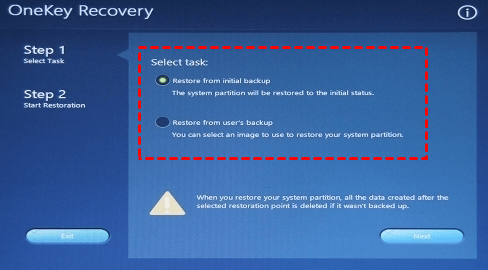
Step 3. Start the process and wait until it's finished. Once done, follow the on-screen instructions to configure the settings.
Lenovo OneKey Recovery may fail if the system drive size is changed or the computer is reinstalled, or if the Lenovo service partition is destroyed, or if the current system cannot support backup.
In this situation, you can try Qiling Disk Master Professional. It does not cause you any trouble.
Part 2: Lenovo Rescue and Recovery – workaround for “Lenovo laptop stuck in recovery mode”
Step 1. Press the ThinkVantage button or F12 key during the boot process to access the ThinkVantage settings.
Step 2. In the Boot Menu screen, select the ATAPI CD option and press Enter.
Step 3. Type Yes and insert the Product Recovery discs one by one according to the prompt.
Step 4. Wait until the software loads and click Continue.
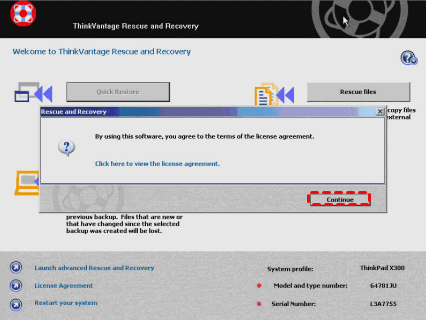
Step 5. Click Full Restore and then click Continue at the warning message.
Step 6. To restore a Windows 10 computer to its factory settings, click on the "Settings" icon, then select "Update & Security", followed by "Recovery". Click on "Get started" under the "Reset this PC" section, and then select "Remove everything" and "Reset" to confirm. This will initiate the Windows Recovery Environment.
Step 7. To summarize, please follow the on-screen instructions and complete the remaining steps.
This software is only compatible with Windows 7 on Lenovo Think series computers. If you're using a different operating system or device, you won't be able to use it.
Way 2: Using system restore point
System Restore can restore your computer to an earlier date if it encounters small errors, but it won't help if your system crashes or hard drive is corrupted.
To access safe mode, you can either boot your computer normally and follow a series of steps to enter safe mode, or if your computer is unbootable, you can use a system restore from a installation disc.
Step 1. To restore your computer to a previous point in time, you can use the System Restore feature. To do this, go to the Start menu and type System Restore in the search box.
Step 2. To verify if the system restore point is working properly, check if it is available at the time you are trying to restore. If it is available, click "Next". If not, select "Choose a different restore point" to proceed.
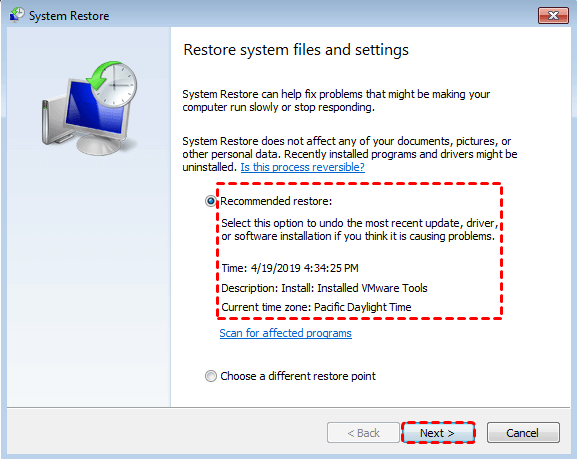
Step 3. Confirm that the settings are correct and click the "Finish" button to initiate the restore process.
Wrapping things up
If the Lenovo Product Recovery process gets stuck, a possible workaround is to restore your computer to a previous good state, which may be a lucky solution. If that doesn't work, you can try a clean install of Windows 7 using an installation disc, and then use a tool like Qiling Disk Master to create a system backup for your computer.
Both Qiling Disk Master's System Backup and the built-in Windows system restore point can help you recover your system to a previous state. Qiling Disk Master creates a complete system image file that can be restored at any time, while a system restore point only saves system settings and registry information.
Related Articles
- Lenovo Onekey Recovery Driver Initialization Failed after Windows Update
Lenovo OneKey Recovery driver initialization failed please reinstall application and still fails after reinstalling, this mainly occurred after users upgrading Windows from 7 to 8 or 10. To reuse OKR, reinstall Win7 or just use Qiling Disk Master. - Why Lenovo F11 Not Working in Windows 7/8/10 and How to Solve It
You will learn how to fix Lenovo F11 not working in Windows 7/8/10/11 and reduce the impact of this issue. - Lenovo Desktop Factory Reset with 3 Ways
Factory reset Lenovo desktop to its default status can help you solve any problem with your computer. Here are 3 free methods for you, just pick one of them. - Windows 10 Home Sync Center | Alternative & Guide
Follow this guide for Windows 10 Home Sync Center | Alternative & Guide, with practical steps for moving, sharing, or syncing files and photos safely. - Fixed: OneDrive Not Syncing in Windows 7, 8, 10 | 10 Ways
You will learn the reasons and 10 solutions to OneDrive to syncing problems in Windows 7, 8, 10 and 11. Learn more about this issue below! - Best Portable Sync Software to Sync Files on Any Computers
This page highlights the benefits of using portable sync software, which can be run from a removable device, and recommends the best sync software for Windows that offers these advantages.
Products
Articles & Tutorials
- Data Recovery
- Data Backup
- File Recovery
- File Backup
- File synchronize
- System Backup and Restore
- Disk and Partition Clone
- Technical articles
- Disk Master Help
- Windows Deleted File and Disk Recovery Tutorials
- Windows File and Data Recovery Tutorials
- More Windows Tutorials for Install, Security, Files, and PC Tips
- Windows Boot, Repair, and Recovery Environment Tutorials
- Windows Backup Tutorials
- Windows Restore Tutorials
- Windows Clone and Migration Tutorials
- Windows Server Backup, Recovery, and Management Tutorials
- Windows Disk, Partition, and Storage Management Tutorials