Fix Lenovo F11 Not Working and Minimize its Impact
User case: Lenovo F11 key not working
You migrated your 500GB disk to a 128GB SSD using a partition manager, which resulted in issues with the Master Boot Record (MBR), boot, and Boot Configuration Data (BCD). You tried to fix these issues using an installation disc, but encountered another problem: the F11 key, which is used to recover the system, is no longer available after the SSD migration. You need to resolve this issue to recover your system.
The Lenovo F11 key works when the MBR and BCD files are where they should be. However, the installation of a new OS will overwrite the MBR or corrupt the boot settings stored inside the BCD. Thus, the Lenovo recovery partition F11 is not working. Also, there are other 3 common reasons for this issue.
- Different models may have different specific keys: Pressing F11 to try to start up one key recovery function in a Lenovo computer may not work as expected, as the specific key required for recovery may vary.
- The recovery partition is deleted or lost: If you've accidentally lost or deleted the recovery partition, which is the core of Lenovo's One Key Recovery, unfortunately, it won't work even if you press F11 multiple times.
- Other kinds of one key recovery software are installed on Lenovo. The new BIOS update will not support Lenovo's One Key Recovery function.
How to Fix Lenovo Factory Reset F11 Not Working
Lenovo F11 key not working is a common issue when using one key recovery software. Many users experience the same problem. You can easily solve Lenovo F11 factory reset not working in Windows with the following solutions.
Solution 1: To start the One Key Recovery software, locate the correct key to press at startup, which can be found on the official website or by searching online. Common keys to press include F2, F11, or holding down the button next to the startup button for a prolonged period. This will display the interface for One Key Recovery.
Solution 2: If the recovery partition is accidentally deleted or lost, or if the built-in recovery features conflict with other third-party recovery software, sending the computer to be repaired is an option.
Solution 3:You can recover a lost recovery partition using a partition recovery software like Qiling Disk Master. This software has a fast search and full search method to scan for the lost partition, and then recover it.

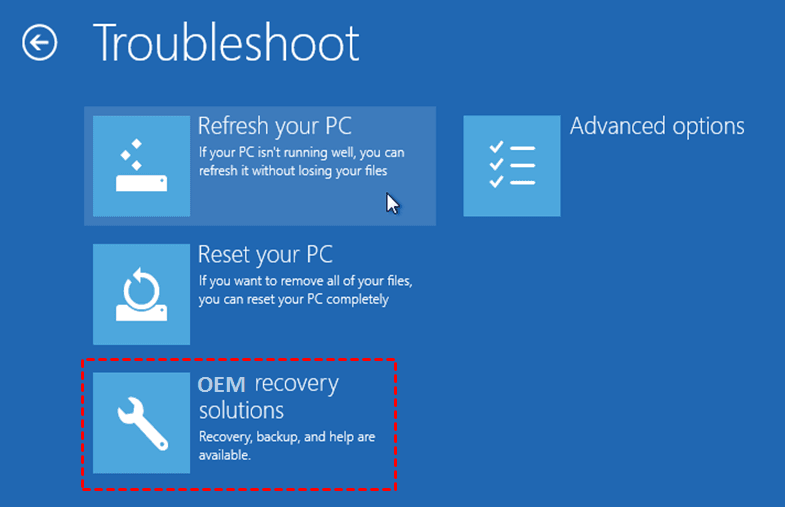
Solution 4: To perform a factory reset on Windows 8, 8.1, 10, or 11, hold the Shift key while clicking Restart, then select Troubleshoot, followed by OEM recovery solutions, and complete the on-screen instructions.
Prevention tips for Lenovo F11 NOT working
To minimize the impact of Lenovo F11 not working issues, it's recommended to create a recovery disk or system image before installing OS or migrating it. This way, you can easily restore your computer to a previous date if any problems arise, making the process much smoother and less frustrating.
Create a recovery disk for troubleshooting
If you have a system image backup or system restore point, you can create a recovery disk to boot your computer for troubleshooting.
Step 1. Connect a USB drive (at least 16GB) to your computer, then go to the recovery drive by typing "recovery drive" into the search box and select "Create a recovery drive".
Step 2. In the Recovery Drive window, click Next and select the available USB flash drive to store all the boot files.
Step 3. Then select the USB flash drive you prepared, and click"Next" to continue.
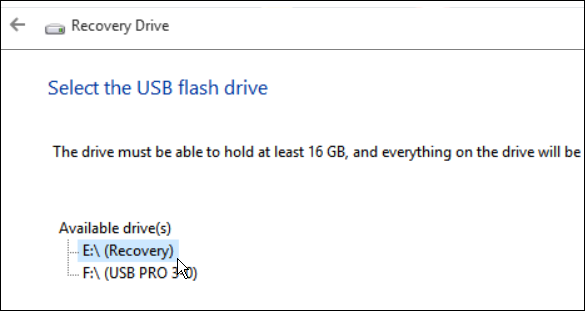
Step 4. You will be told everything on the drive will be deleted, confirm there is no important data, and click "Create" to create a recovery disk in Windows 10.
- Note:✎...
- The option "Back up system files to the recovery drive" creates a recovery drive that lets you reinstall Windows.
Create a recovery partition to avoid computer failure
Lenovo's recovery partition or F11 key may not work in certain situations, such as a clean install. In such cases, creating a system image with a third-party one key recovery software like Qiling Disk Master can be a good alternative, offering advantages such as.
✿ If you choose to backup your system to the Qiling Disk Master partition, the created system image and recovery partition will be saved in a hidden partition, minimizing the risk of accidental deletion and data loss.
✿ It can be installed in any brand computer without conflicts.
✿ This software allows you to add a fast key (e.g. A or F11) to access it quickly, and also enables you to directly add a boot menu to your computer, making it easy to navigate and access the software.factory reset Lenovo desktop or laptop without recovery disk.
✿ The software has many useful features to improve your backup experience, including the ability to compress backup images with normal or high compression levels in Backup Options. This allows for efficient storage and transfer of backup data. Additionally, you can customize your backup settings to suit your needs.continuously protect system with its Daily, Weekly, Monthly scheduler.
Now, keep reading below to learn the detailed steps.
Step 1. Download this one key recovery software, install and launch it. Then, click OneKey System Backup in the first screen.

Step 2. Select "Backup storage path(default)" and click Next.

- ★Tips:
- If you're concerned about the system image and recovery partition being damaged due to computer failure, you can also choose to backup your system to a new hard drive or other storage devices.
- Compressing images reduces backup size and saves disk space, but requires more backup time.
- If you set a password during the backup process, you'll be prompted to enter it before accessing the backup, which helps prevent unauthorized access and potential data leaks.
- The scheduler allows you to back up your system on a regular basis, such as daily, weekly, or monthly, ensuring you always have the latest system status rather than reverting to a factory state.
Step 3. Select a partition to store your system image and recovery partition. Then, click Proceed.

Conclusion
Lenovo F11 not working is an issue that can occur when the Master Boot Record (MBR) is disrupted or the boot settings in the Boot Configuration Data (BCD) are altered. This error can also be caused by other reasons. Fortunately, it can be resolved with the solutions provided, or by taking preventive measures to protect your computer.
If you don't have a recovery disk or system image, please create one. This will help prevent computer failure. Additionally, consider creating a scheduled backup to protect your data. For protecting multiple PCs or customizing the UI, you can try Qiling Disk Master Technician or Customization.
Related Articles
- Fixed: F11 System Recovery Not Working in Windows 7/8/10
You will learn how to easily fix F11 HP system recovery not working error with 3 solutions in this article. And, a safer way to protect system. - How to Make a Factory Recovery Partition in Windows 10/8/7
Making a Windows 11/10/8/7 recovery partition is an important procedure to restore the computer to its factory settings once your main Windows partition suffers from disasters. - How to Transfer Adobe Photoshop from Windows 10 to Windows 11 without Reinstallation
Transferring Adobe Photoshop from Windows 10 to Windows 11 without reinstallation may seem tricky. But this guide will provide a solution to transfer Adobe Photoshop from Windows 10 to Windows easier and quicker. - How to Transfer Apex Legends to Another PC or Hard Drive
If you are looking for a complete way of transferring Apex Legends to another PC or hard drive, stay here. On this page, we'll show you how to effectively transfer Apex Legends to another new computer or hard drive with ease. - Most Reliable Backup Software for Multiple Computers [2022 New List]
To simplify the process of backing up multiple devices, we've curated a list of the best backup software for 2022 that can cater to your needs. This software allows you to manage and secure backups for every device, making it easier to keep your data safe and organized. - 4 BestBackup Software for Synology NAS[Pros and Cons]
This passage introduces the five best backup software for Synology NAS, including its functions, pros, and cons. Then, you can choose one backup software according to your budget and needs.
Products
Articles & Tutorials
- Data Recovery
- Data Backup
- File Recovery
- File Backup
- File synchronize
- System Backup and Restore
- Disk and Partition Clone
- Technical articles
- Disk Master Help
- Windows Deleted File and Disk Recovery Tutorials
- Windows File and Data Recovery Tutorials
- More Windows Tutorials for Install, Security, Files, and PC Tips
- Windows Boot, Repair, and Recovery Environment Tutorials
- Windows Backup Tutorials
- Windows Restore Tutorials
- Windows Clone and Migration Tutorials
- Windows Server Backup, Recovery, and Management Tutorials
- Windows Disk, Partition, and Storage Management Tutorials